
In Spring Framework, a Data Transfer Object (DTO) is a simple Java object used to transfer data between different layers of an application. DTO helps reduce the number of method calls and allows data to move efficiently between the Controller, Service, and View layers.
- DTO contains only data members with getter and setter methods
- Helps transfer multiple values using a single object
- Improves code readability, maintainability, and security
- Commonly used with forms and model objects in Spring MVC
How DTO Work In Spring MVC
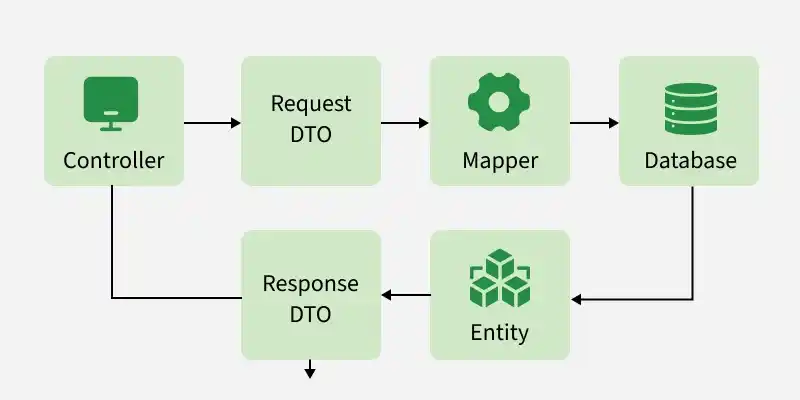
- DTO collects data from the client (form or request) into a single Java object.
- Spring automatically maps request parameters to DTO fields based on matching names.
- The controller receives the filled DTO object instead of multiple parameters.
- DTO is used to transfer data between View, Controller, and Service layers.
- It makes data handling clean, organized, and easy to manage.
Steps to Implements a Data Transfer Object in Spring MVC
Follow these steps to implements Data Transfer Object in Spring Application.
Step 1: Create Maven Project
Open your STS IDE then create a new maven project, File > New > Maven Project, and choose the following archetype as shown in the below image as follows:

Step 2: Add Maven Dependencies
Add the following maven dependencies and plugin to your pom.xml file.
<project xmlns="https://maven.apache.org/POM/4.0.0"
    xmlns:xsi="https://www.w3.org/2001/XMLSchema-instance"
    xsi:schemaLocation="https://maven.apache.org/POM/4.0.0 https://maven.apache.org/xsd/maven-4.0.0.xsd">
    <modelVersion>4.0.0</modelVersion>
    <groupId>com.geeksforgeeks</groupId>
    <artifactId>simple-calculator</artifactId>
    <packaging>war</packaging>
    <version>0.0.1-SNAPSHOT</version>
    <name>simple-calculator Maven Webapp</name>
    <url>http://maven.apache.org</url>
    <dependencies>
        <dependency>
            <groupId>junit</groupId>
            <artifactId>junit</artifactId>
            <version>3.8.1</version>
            <scope>test</scope>
        </dependency>
        <!-- https://mvnrepository.com/artifact/org.springframework/spring-webmvc -->
        <dependency>
            <groupId>org.springframework</groupId>
            <artifactId>spring-webmvc</artifactId>
            <version>5.3.18</version>
        </dependency>
        <!-- https://mvnrepository.com/artifact/javax.servlet/javax.servlet-api -->
        <dependency>
            <groupId>javax.servlet</groupId>
            <artifactId>javax.servlet-api</artifactId>
            <version>4.0.1</version>
            <scope>provided</scope>
        </dependency>
    </dependencies>
    <build>
        <finalName>simple-calculator</finalName>
        <plugins>
            <plugin>
                <groupId>org.apache.maven.plugins</groupId>
                <artifactId>maven-war-plugin</artifactId>
                <version>2.6</version>
                <configuration>
                    <failOnMissingWebXml>false</failOnMissingWebXml>
                </configuration>
            </plugin>
        </plugins>
    </build>
</project>
Step 3: Configure DispatcherServlet
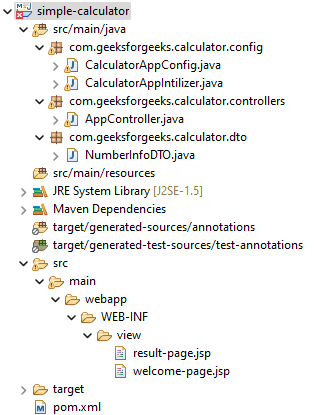
In this step, we configure the DispatcherServlet, which acts as the front controller in Spring MVC and handles all incoming client requests. Before moving into the coding part let's have a look at the file structure in the below image.
Step 4: Create Spring Initializer Class
create an src/main/java folder and inside this folder create a class named CalculatorAppIntilizer and put it inside the com.geeksforgeeks.calculator.config package and extends the AbstractAnnotationConfigDispatcherServletInitializer class. Refer to the below image.

Now we create CalculatorAppInitializer class inside the com.geeksforgeeks.calculator.config package and extend AbstractAnnotationConfigDispatcherServletInitializer.
package com.geeksforgeeks.calculator.config;

import org.springframework.web.servlet.support.AbstractAnnotationConfigDispatcherServletInitializer;

public class CalculatorAppIntilizer extends AbstractAnnotationConfigDispatcherServletInitializer {

    @Override
    protected Class<?>[] getRootConfigClasses() {
        // TODO Auto-generated method stub
        return null;
    }

    // Registering the Spring config file
    @Override
    protected Class<?>[] getServletConfigClasses() {
        Class aClass[] = { CalculatorAppConfig.class };
        return aClass;
    }

    // Add mapping url
    @Override
    protected String[] getServletMappings() {
        String arr[] = { "/geeksforgeeks.org/*" };
        return arr;
    }

}
Step 5: Create Spring Configuration Class
In this step, create the CalculatorAppConfig class to configure component scanning and register Spring MVC beans.
package com.geeksforgeeks.calculator.config;
import org.springframework.context.annotation.ComponentScan;
import org.springframework.context.annotation.Configuration;
@Configuration
@ComponentScan(basePackages = "com.geeksforgeeks.calculator.controllers")
public class CalculatorAppConfig {
}
Step 6: Configure ViewResolver
In this step, configure InternalResourceViewResolver to map logical view names returned by the controller to JSP pages.
package com.geeksforgeeks.calculator.config;

import org.springframework.context.annotation.Bean;
import org.springframework.context.annotation.ComponentScan;
import org.springframework.context.annotation.Configuration;
import org.springframework.web.servlet.ViewResolver;
import org.springframework.web.servlet.config.annotation.EnableWebMvc;
import org.springframework.web.servlet.view.InternalResourceViewResolver;

@EnableWebMvc
@Configuration
@ComponentScan(basePackages = "com.geeksforgeeks.calculator.controllers")
public class CalculatorAppConfig {

    // setup ViewResolver
    @Bean
    public InternalResourceViewResolver viewResolver() {
        InternalResourceViewResolver viewResolver = new InternalResourceViewResolver();
        viewResolver.setPrefix("/WEB-INF/view/");
        viewResolver.setSuffix(".jsp");
        return viewResolver;
    }

}
Step 7: Create Controller Class
Go to the src/main/java folder and inside this folder create a class named AppController and put it inside the com.geeksforgeeks.calculator.controllers package. Below is the code for the AppController.java file.
package com.geeksforgeeks.calculator.controllers;

import org.springframework.stereotype.Controller;
import org.springframework.web.bind.annotation.RequestMapping;
import org.springframework.web.bind.annotation.ResponseBody;

@Controller
public class AppController {

    @RequestMapping("/home")
    public String showHomePage() {
        return "welcome-page";
    }

}
Step 8: Create JSP Form Page View
Now we have to create a view named "welcome-page" inside the WEB-INF/view folder with the .jsp extension. So go to the src > main > webapp > WEB-INF and create a folder view and inside that folder create a jsp file named welcome-page. So below is the code for the welcome-page.jsp file.
<html>
<head>
</head>
<body>
    <h1 align="center">Data Transfer Object (DTO) in Spring MVC with Example</h1>

    <hr/>

    <form action="process-homepage" method="get">

        <div align="center">

<p>
                <label for="num1">Enter First Number : </label> <input type="text"
                    id="num1" name="number1" />
            </p>


<p>
                <label for="num2">Enter Second Number : </label> <input type="text"
                    id="num2" name="number2" />
            </p>


            <input type="submit" value="Capture" />

        </div>

    </form>
</body>
</html>
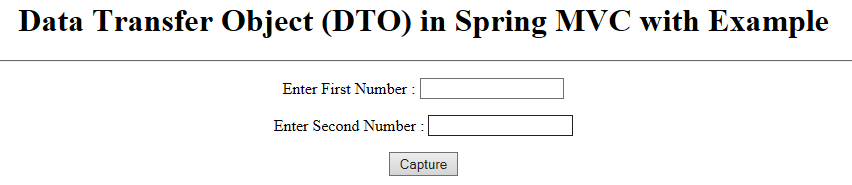
The view is looking like this :
Step 9: Create DTO Class
At first, we have to create a DTO class. So go to the src/main/java folder and inside this folder create a class named NumberInfoDTO and put it inside the com.geeksforgeeks.calculator.dto package. Below is the code for the NumberInfoDTO.java file.
package com.geeksforgeeks.calculator.dto;

public class NumberInfoDTO {

    // Declare the number of variable
    // you want to capture the value
    private String number1;
    private String number2;

    // Generate the getter,
    // setter and toString method
    public String getNumber1() {
        return number1;
    }

    public void setNumber1(String number1) {
        this.number1 = number1;
    }

    public String getNumber2() {
        return number2;
    }

    public void setNumber2(String number2) {
        this.number2 = number2;
    }

    @Override
    public String toString() {
        return "NumberInfoDTO [number1=" + number1 + ", number2=" + number2 + "]";
    }

}
Step 10: Process DTO Data in Controller
So we have to create a controller with the "process-homepage" endpoint. So now come to the AppController.java file again and write down the following code inside this file.
@RequestMapping("/process-homepage")
public String showResultPage(NumberInfoDTO numberInfoDTO, Model model) {
// writing the value to the properties
// by fetching from the URL
model.addAttribute("numberInfo", numberInfoDTO);
return "result-page";
}
Below is the updated code for the AppController.java file.
Updated AppController.java file
package com.geeksforgeeks.calculator.controllers;

import org.springframework.stereotype.Controller;
import org.springframework.ui.Model;
import org.springframework.web.bind.annotation.RequestMapping;
import org.springframework.web.bind.annotation.RequestParam;

import com.geeksforgeeks.calculator.dto.NumberInfoDTO;

@Controller
public class AppController {

    @RequestMapping("/home")
    public String showHomePage() {
        return "welcome-page";
    }

    @RequestMapping("/process-homepage")
    public String showResultPage(NumberInfoDTO numberInfoDTO, Model model) {

        // writing the value to the properties
        // by fetching from the URL
        model.addAttribute("numberInfo", numberInfoDTO);

        return "result-page";
    }

}
Step 11: Create Result JSP Page
Now we have to create another view named "result-page" to display the captured values. So below is the code for the result-page.jsp file.
<html>
<head>
</head>
<body>
    <h1 align="center">Data Transfer Object (DTO) in Spring MVC with Example</h1>
    <hr/>

<p>First Number is: ${numberInfo.number1}</p>


<p>Second Number is: ${numberInfo.number2}</p>

</body>
</html>
So now we have done with the coding part. Let's run and test our application.
Step 12: Run and Test the Application
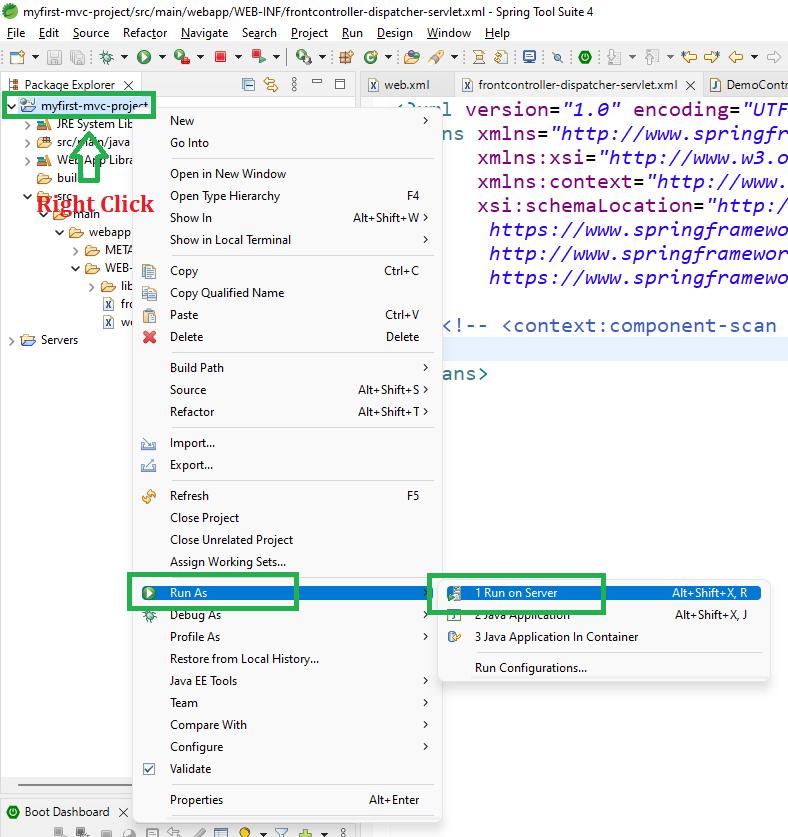
To run our Spring MVC Application right-click on your project > Run As > Run on Server. And run your application as shown in the below image as depicted below as follows:
After that use the following URL to run your controller
http://localhost:8080/simple-calculator/geeksforgeeks.org/homeOutput:

Enter values llike - 41 and 75 in the form and click Capture. After submission, Spring sends the request to the controller and generates this URL with query parameters:
http://localhost:8080/simple-calculator/geeksforgeeks.org/process-homepage?number1=41&number2=75
And you can see on the next page the values are displayed.

Explanation: When the user enters values (41 and 75) and clicks the Capture button, the form submits the data to the /process-homepage URL. Spring MVC automatically binds these request parameters to the NumberInfoDTO object. The controller then processes the DTO and displays the values on the result page.