
RegShot is a Windows-based registry and directory comparison tool that captures the current state of the Windows Registry and file system, then compares it with a later snapshot to identify any changes. It provides a detailed report of modifications such as new entries, deletions, or value changes.
This tool is widely used by malware analysts, penetration testers, and system administrators to track the impact of software installations, updates, or malicious activities. By highlighting every change made to the system’s registry or files, RegShot helps professionals detect unauthorized modifications, analyze malware behavior, and ensure system integrity.
Key Features of RegShot
Below are some key features of RegShot:
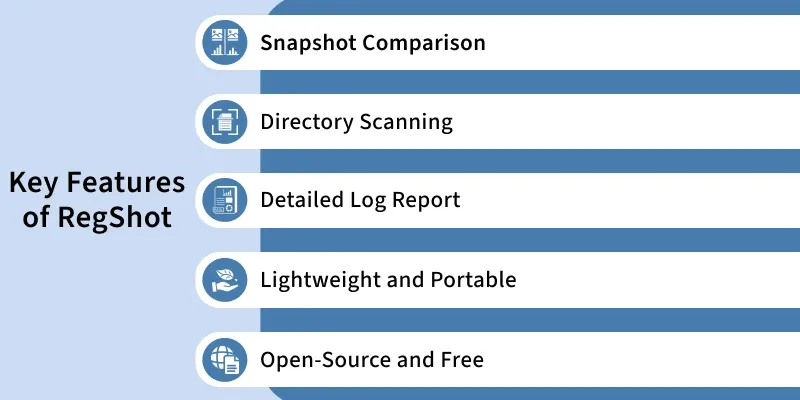
1. Snapshot Comparison
RegShot allows users to take two registry snapshots, one before and one after a specific event (e.g., software installation or malware execution). The tool then compares the two and lists all keys and values that were added, deleted, or modified.
2. Directory Scanning
In addition to registry analysis, RegShot can also scan and compare selected directories on the file system to track file changes, making it useful for detecting dropped or modified files.
3. Detailed Log Report
After comparison, RegShot generates a plain-text or HTML report summarizing all detected changes. This log can be saved, analyzed, or used in documentation and forensic reports.
4. Lightweight and Portable
RegShot is extremely small in size and does not require installation, making it ideal for use in virtual labs or sandbox environments. Analysts can run it from a USB drive without leaving traces on the host system.
5. Open-Source and Free
Being open-source, RegShot is transparent, customizable, and freely available. Analysts can review or modify its source code to suit specific research or investigation needs.
Installation and Setup
Follow these steps to install and use RegShot on Windows:
Step 1. Download RegShot
- Go to the Official Download Page:
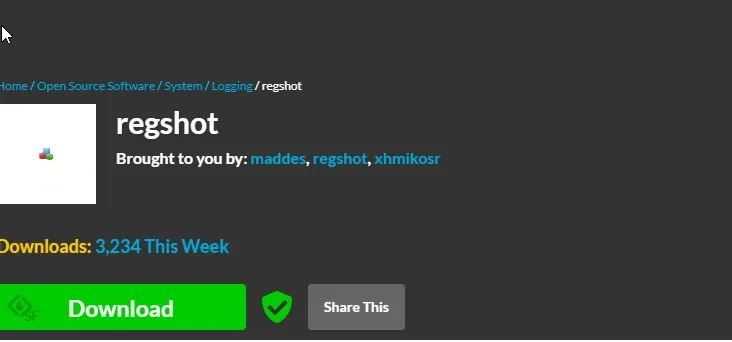
- Download the ZIP archive containing RegShot.
Step 2. Extract the Files
- Right-click the ZIP file > Extract All > choose a convenient folder.
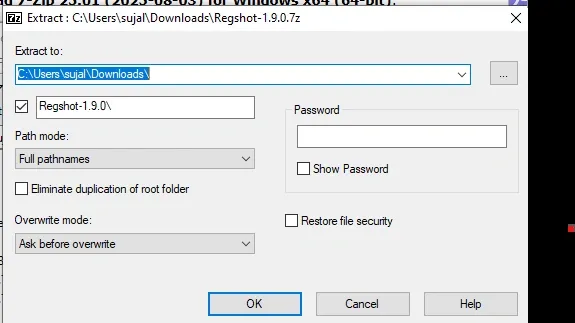
- You’ll find both 32-bit and 64-bit executables (e.g.,
Regshot-x64.exe).
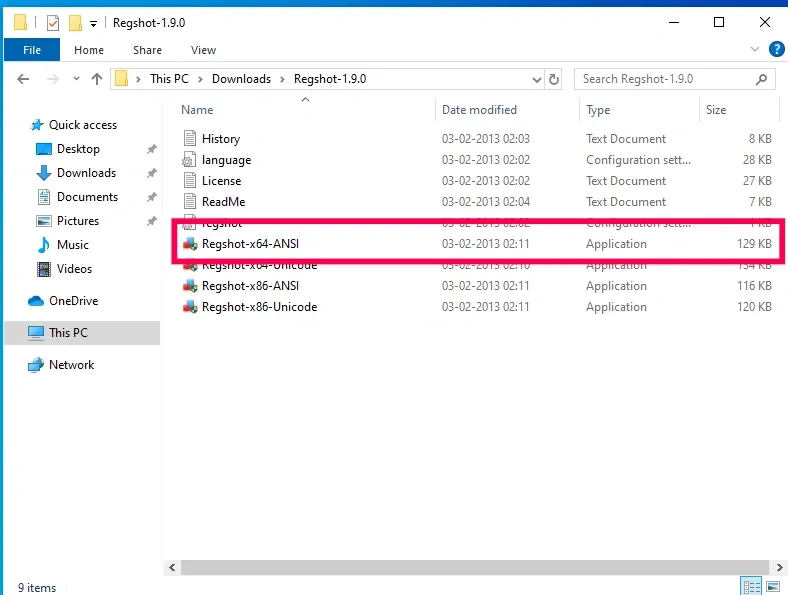
Step 3. Run RegShot as Administrator
- Right-click the executable > Run as administrator to ensure full registry access.
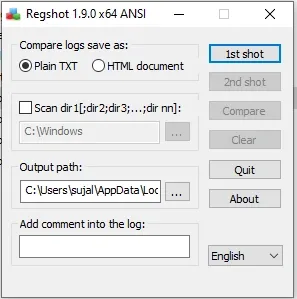
Step 4. Take the First Snapshot
- Click 1st Shot > Shot to capture the current registry and optionally select directories.
Step 5. Perform the Action to Monitor
- For example, install software, execute a file, or run a suspected malware sample.
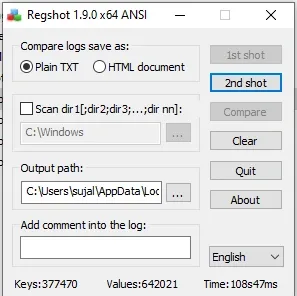
Step 6. Take the Second Snapshot
- Click 2nd Shot > Shot, then choose Compare to analyze differences.
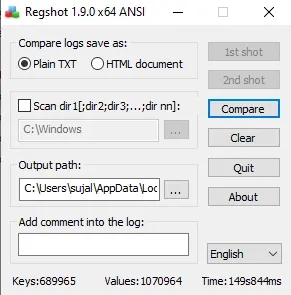
Step 7. Review the Report
- RegShot will display added, modified, or deleted registry entries and files.
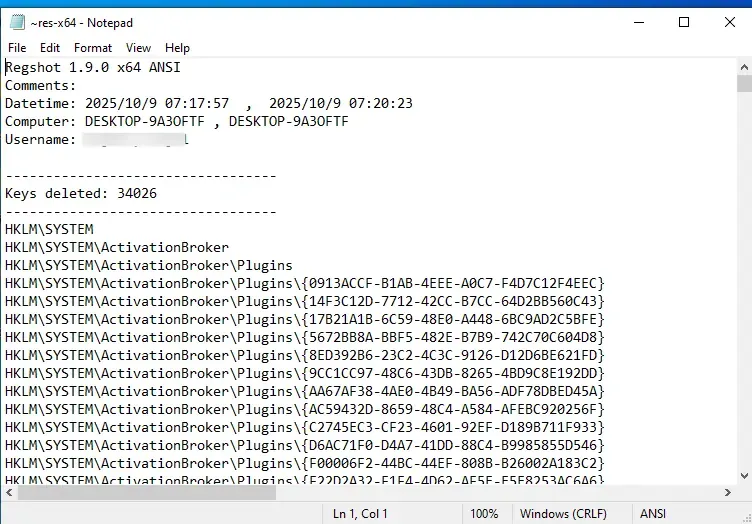
- You can save this report for further forensic analysis.
Use of RegShot in Cybersecurity
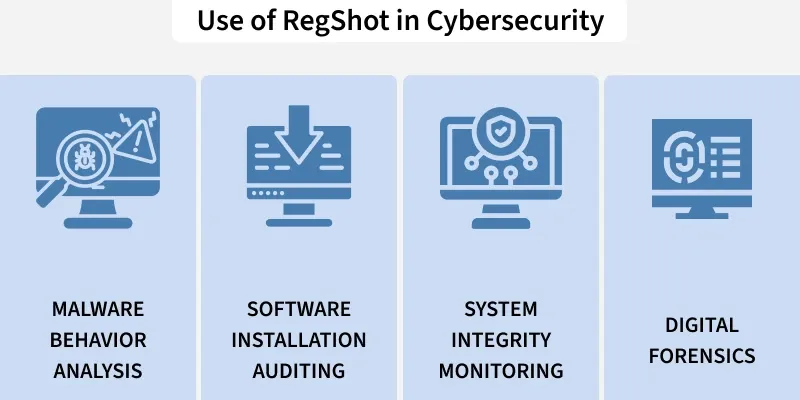
RegShot is extensively used in cybersecurity and malware analysis labs for tasks such as:
1. Malware Behavior Analysis
Analysts use RegShot before and after running a malware sample in a sandbox to observe which registry keys and files it modifies. This helps identify persistence mechanisms or configuration changes.
2. Software Installation Auditing
RegShot helps verify what changes an installer makes — new registry entries, services, or startup programs. This is crucial for ensuring no unwanted components are installed.
3. System Integrity Monitoring
It can be used to check whether unauthorized programs or scripts have altered registry configurations — a key step in detecting post-exploitation or privilege escalation attempts.
4. Digital Forensics
In digital forensics investigations, RegShot assists in documenting and reporting system modifications caused by an incident, providing a timeline of changes made by the suspect program.
RegShot vs. Process Monitor
1. Type of Monitoring
- RegShot works on a snapshot-based approach. It takes two snapshots of the Windows Registry and file system — one before and one after an event (like a software installation or malware execution).
- Process Monitor, on the other hand, performs real-time monitoring. It continuously logs system activities such as file operations, registry access, and process creation as they occur.
2. Output Method
- RegShot generates a before-and-after comparison report, showing exactly what changed between the two snapshots. This includes new, modified, or deleted registry keys and files.
- Process Monitor produces continuous live logs that display all system and registry activities in real time. Users can pause, filter, and analyze these logs as needed.
3. Complexity and User Interface
- RegShot is simple and lightweight, with minimal configuration. It’s easy to use even for beginners, as it focuses only on registry and directory changes.
- Process Monitor is more complex and designed for advanced users. It offers detailed filtering options, event categorization, and in-depth information about every system call.
4. Best Use Case
- RegShot is best suited for detecting registry and file system changes after performing a specific action — for example, installing a new program, running malware, or modifying system settings.
- Process Monitor is ideal for observing detailed, real-time behavior of processes, applications, or malware. It’s particularly useful in dynamic malware analysis or troubleshooting performance issues.