
Embedded metadata and resources in executable files include non-code data such as version info, publisher details and embedded assets like icons or dialogs. In cybersecurity, examining these elements helps evaluate software legitimacy and uncover signs of tampering or malicious alteration.
- Helps verify whether an executable is authentic or modified
- Exposes metadata such as version, publisher and copyright information
- Supports detection of malware disguised as trusted software
- Aids forensic investigation and file integrity checks
Embedded Metadata
Executable files contain hidden information called metadata that goes beyond the file name. It records basic details about the software such as origin, version and identity. This information is useful for verifying authenticity and detecting possible tampering, especially when file details do not match expected values.
- Verifying software authenticity
- Detecting tampered or modified files
- Supporting cybersecurity monitoring
- Assisting digital forensics investigations
Common Metadata Fields:
- Company Name: Identifies the developer or organization that created the software
- Product Name: Specifies the official name of the application or program
- File Description: Describes the purpose or functionality of the file
- Version Number: Indicates the release or build version of the software
- Legal/Copyright Information: Defines ownership and usage rights
Embedded Resources
Executable files contain embedded resources such as icons, images, menus and dialog boxes that support the program’s user interface. These elements are stored within the file itself and can provide clues about the software’s origin and legitimacy. Inconsistencies in these resources may indicate tampering or disguised malware.
Some common types of embedded resources:
- Icons: Represent the file in Windows Explorer or on shortcuts.
- Dialog boxes and menus: UI elements used by the software.
- Images and cursors: Graphics used inside the program.
- Strings: Hidden text, messages or instructions embedded in the program.
Inspecting embedded resources can reveal inconsistencies or anomalies. For instance, a program claiming to be from a known company but carrying unrelated or unusual icons might be disguised malware. It is mainly used in user interface design, software verification, malware analysis and digital forensics.
Inspecting Embedded Icons, Version Info and Certificates
Executable files often contain embedded components that can help verify their authenticity and integrity. By examining icons, version information and digital certificates, you can assess whether a file is legitimate or potentially tampered with. This inspection can be performed manually or using tools such as Resource Hacker or EXEinfo PE.
Elements to Inspect:
- Icons: The visual representation of the program. Mismatched, inconsistent or overly generic icons may indicate impersonation or tampering.
- Version Information: Includes details such as product name, version number and company information, which can help verify the software’s legitimacy.
- Digital Certificates / Signatures: Provide cryptographic proof of the file’s origin and indicate whether the file has been modified after signing.
Detecting Anomalies in Metadata
Sometimes, the information stored inside a file doesn’t match what the file claims to be. These differences or anomalies, can be warning signs that the file has been tampered with or could be malicious. This can be prevented by watching out for things like fake or unknown company names, wrong or missing version numbers, vague or misleading product descriptions, missing legal or copyright info, odd or extra resources(Strange icons, images or dialogs that don’t fit the program).
Why this is important:
- Cybersecurity: Helps detect potential malware before you run the file.
- Software verification: Makes sure the file actually comes from the claimed developer.
- Digital forensics: Investigators can trace tampered or malicious files using these anomalies.
Tools for Inspecting Executables
To check a file’s metadata, icons and digital signatures, you can either write programs/scripts or use specialized tools designed for file inspection. Some popular tools for hands-on inspection include:
1. Resource Hacker
Resource Hacker is a tool used to open executable files and view embedded resources such as icons, dialogs and version information.
- It helps analysts identify unusual or suspicious resources inside an application that may indicate tampering or hidden components.
- The tool also supports command-line usage, allowing users to extract or modify resources through commands.
- Portable version available: it can be used without installation by simply unzipping the file and running ResourceHacker.exe.
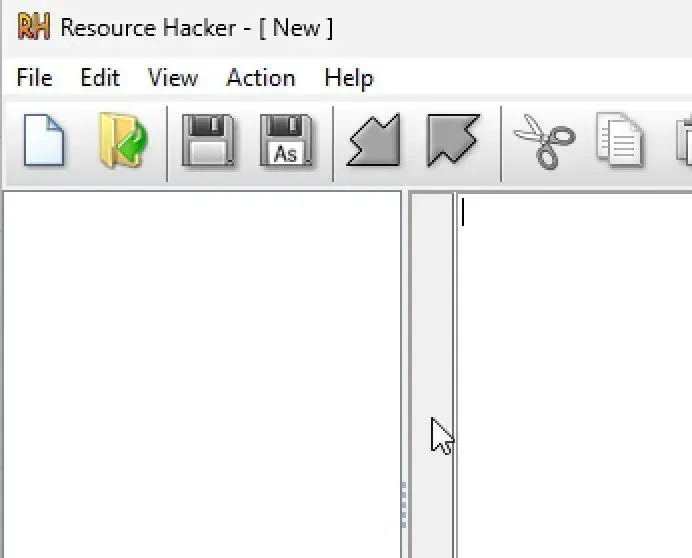
Steps to use Resource hacker
Step 1: Open Resource Hacker:
- Launch the
ResourceHacker.exefile (no installation needed if using the portable version).
Step 2: Load the Executable File:
- Go to File -> Open and select the
.exefile you want to inspect.
Step 3: Explore the Resource Tree:
- On the left, you’ll see different sections like ICON, DIALOG, VERSION INFO, etc.
- Click through these to view embedded icons, dialogs and version information.
Step 4: Check Version Info Carefully:
- Look under the VERSION INFO tab for company name, product name, version number and copyright.
- Compare these details with official software information to spot any mismatches.
Step 5: Look for Unusual Resources:
- Check for strange icons, extra dialogs or unfamiliar text entries these can be signs of tampering.
2. EXEinfo PE
Exeinfo PE is a lightweight tool used to analyze executable files and reveal important details such as file structure, compiler information, metadata and digital signatures. It also helps detect whether a file is packed or obfuscated, which may indicate hidden or malicious content. Combined with tools like Resource Hacker, it assists in assessing file authenticity and spotting anomalies.
- Identifies file type, compiler and basic metadata
- Detects packing, compression or obfuscation techniques
- Checks presence and validity of digital signatures
- Helps spot suspicious or inconsistent file structure
Installation:
- Download Exeinfo PE from a trusted source (it is typically distributed as a portable .zip file).
- Extract the contents to a folder.
- Run ExeinfoPE.exe (no installation is required).
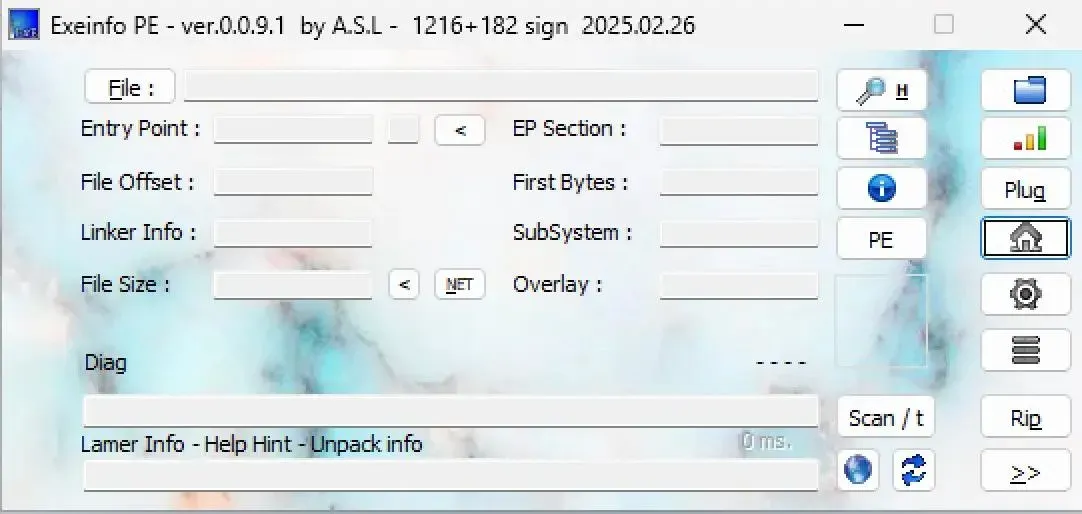
Steps to use Exeinfo PE
Step 1: Load the Executable File:
- Drag and drop the target
.exefile into the tool or use File -> Open.
Step 2: View File Details:
- The main window displays information such as file type, compiler, packing methods, digital signatures and metadata.
Step 3: Check the Certificate Section:
- Inspect the digital signature area to determine whether the file is signed and whether the signature is valid or suspicious.
Step 4: Analyze Metadata:
- Review details for signs such as fake company names, missing version information or unusual entries.
Step 5: Detect Packing or Obfuscation:
- EXEinfo PE can detect if the file is packed or encrypted, which is often used by malware to hide malicious code.