
Jenkins plugins are like special add-ons that extend Jenkins’ capabilities. With over 2,000 plugins available, they make workflows more efficient and easier to manage. They allow developers and testers to customize Jenkins based on specific project requirements.
- Purpose: To simplify automation processes, enhance test reporting, and improve integration with tools like Maven, Cucumber, and TestNG.
- Source: Plugins are either developed by the Jenkins community or the Jenkins team.
Use Cases:
- Automates Tasks: Reduces manual efforts in software development.
- Simplifies Testing: Improves software quality by automating testing and analysis.
- Reduces Human Error: Minimizes mistakes by automating tasks.
- Increases Agility: Enables faster releases and quicker bug fixes.
Installing Jenkin Plugins
Here are the steps to install Jenkin plugins:
Step 1: Open Jenkins Web Interface
- Open a web browser and enter the Jenkins URL. This will usually be
http://localhost:<your configured port>(e.g.,http://localhost:8080). - This will take you to the Jenkins login page. If Jenkins is already installed, you should be directed to the Jenkins Dashboard.
Step 2: Go to "Manage Jenkins" and "Manage Plugins"
Access Jenkins web interface Dashboard >> Go to Manage Jenkin.
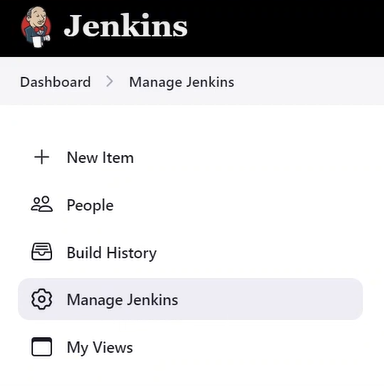
Click on the Manage Plugins, and then search for the plugin you want to install from the Jenkins Update Centre.
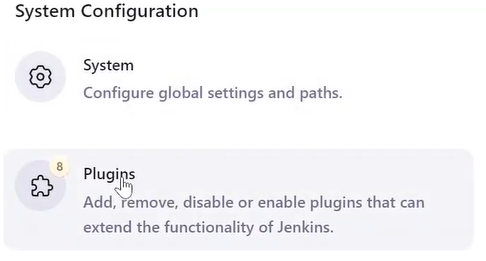
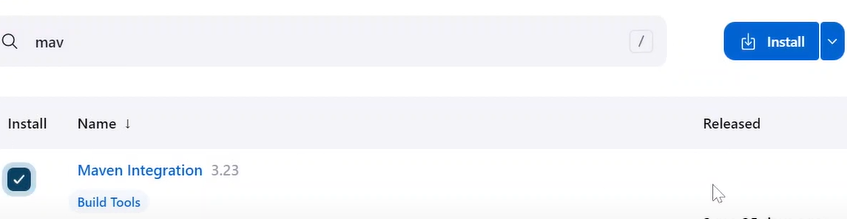
Step 3: Search for the Plugin and Install
After your Jenkins Plugin selection >> Click the Install button to confirm the installation. (Note: You can select multiple plugins at a time.)
Step 4: Restart Jenkins
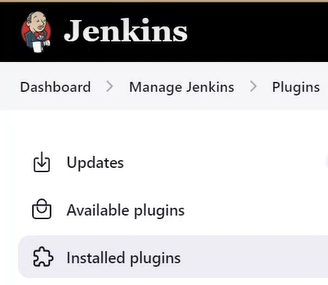
After you install the Jenkins plugins, you need to restart Jenkins for the changes to take effect. Click on the logout button in the top right corner of the page to restart the Jenkins. That's it! now you can login to Jenkins servers and verify your installed Plugins from Manage Plugins >> Installed Plugins.
Update and Manage Plugins
Here are the steps to update and manage the Jenkin Plugins:
- Step 1: Open your Jenkins installed web browser and navigate to the Jenkins URL (http://localhost:<your configured port>).
- Step 2: Access Jenkins web interface Dashboard >> Go to Manage Jenkins > Click on the Manage Plugins >> Click on Updates >> search or select the Plugin that you want to update then click the Update Now button. Jenkins will check for updates for installed plugin, and then install any updates that are available.

Uninstall Jenkins Plugins
Here are the steps to uninstall the Jenkin Plugins:
- Step 1: Open your Jenkins installed web browser and navigate to the Jenkins URL (http://localhost:<your configured port>).
- Step 2: Access Jenkins web interface Dashboard >> Go to Manage Jenkins > Click on the Manage Plugins >> >> Click on Installed Plugins
- Step 3: Search or select the Plugin that you want to uninstall >> click the Uninstall button (X)
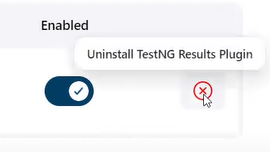
- Step 4: Click on "Yes" to confirm the uninstallation.
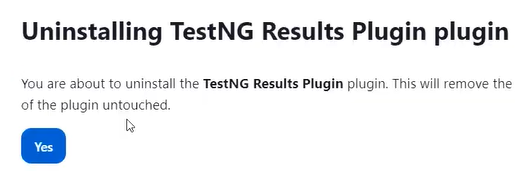
Reference Table for the Most Used Plugins
There are over 2000+ Jenkins Plugins available. Here are the top 10 most popular Jenkins Plugins:
S: No | Jenkins Plugin | Use or Purpose |
|---|---|---|
1 | Git Plugin | Used to transfer GitHub repository data and helps to schedule your project builds and automatically triggers after commit changes. |
2 | Kubernetes Plugin | Used to run the dynamic agents in a Kubernetes cluster and to manage Kubernetes Pods for each agent on the Docker image. |
3 | Docker Plugin | Helps to manage Docker containers and services -creating, building, pushing, running, and managing images. |
4 | Jira Plugin | Helps to integrates Jenkins with Atlassian Jira Software to automatically transfer the development and build-related data. |
5 | SonarQuobe Plugin | Helps to analyse code quality by identifying vulnerabilities, bugs and duplication of codes while running Jenkins jobs. |
6 | Maven Integration Plugin | Supports Spring boot applications and Apache Maven projects. |
7 | Amazon EC2 Plugin | Used for various EC2 operations and management to support directly from Jenkins servers. |
8 | Pipeline Plugin | Used for managing Jenkins CI/CD Pipelines. |
9 | Metrics Plugin | Used to measure the performance metrics of software applications. |
10 | Blue Ocean Plugin | Helps in analysing the phases of software development and better exception handling. This plugin comes with built-in features branching and pulling requests which helps in team collaboration and faster release update for the software. |