
Docker Compose has been a technology of tremendous importance in recent DevOps and software development practices because it provides a powerful toolset for the management of multi-container Docker applications. The basic commands for Docker Compose, such as up, down, stop, and start, are at the core of Docker Compose. Its main functionality orchestrates Dockerized environments by enabling developers to define, configure, and manage complex application stacks efficiently.
Docker Compose allows developers to define all the infrastructure requirements for their application within a single file: a YAML configuration, by default, is specified in a file named docker-compose.yml. This states the various services, networks, and volumes used in an application and their dependencies, so the setup remains consistent from local development environments to the deployment in production setups.
Understanding Docker Compose
Docker Compose uses a declarative YAML file, docker-compose.yml, to define services, networks, volumes, and configurations required for a multi-container application. Each service represents a Docker container specified in this file and is, therefore well integrated into more complex architectures.
Core Commands Defined
docker-compose up
- Purpose: Builds, (re)creates, starts, and attaches to containers for a service.
- Use Case: This starts and sets up the specified Docker services to make a cohesive application stack.
Example
docker-compose up- Explanation: With this command, it creates all the containers defined in the docker-compose.yml file and starts them up. It pulls necessary images, creates defined volumes, and starts the services as described.
docker-compose down
- Purpose: Stops and removes the containers, networks, volumes, and images that were created by docker-compose-up.
- Use Case: Shut down the whole stack of Docker applications gracefully and clean up the resources back to the initial state.
Example
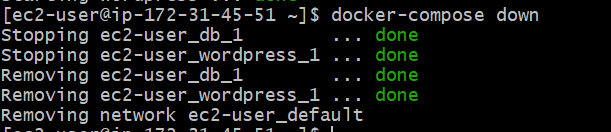
docker-compose down- Explanation: This command stops all running containers created with docker-compose up and removes containers, networks, volumes, and images that were made with the up command.
docker-compose stop:
- Purpose: Stop running containers without removing them.
- Use Case : Suspend services for a short duration while preserving the state and configurations for resumption.
Example
docker-compose stop- Explanation: With this flag, it can suspend the execution of containers defined in the docker-compose.yml file without removing them. The containers can later be started again with a docker-compose start.
docker-compose start:
- Purpose: Resumes containers previously stopped by docker-compose stop.
- Use Case: Resumes services that have been previously stopped, to allow for smooth continuation of the operation at hand.
Example
docker-compose start- Explanation: This command continues the containers stopped with the command docker-compose stop. It does not start up new containers but instead restores the ones that already exist.
Benefits of Docker Compose Commands
- Simplicity: Enjoy the elegance and power of intuitive commands that greatly simplify the workflow and managing containers.
- Consistency: Ensures that configuration and setup are always consistent with development, testing, and production.
- Productivity: Increases productivity by allowing you to automate repetitive tasks and minimize manual involvement.
- Scalability: Simple scalability in a horizontal direction helps you out with the growing requirements of applications.
- Isolation: Enables isolated environments for testing and development with minimal risk of conflicts between services.
Detailed Guide For Docker-Compose up,down,start
Step 1: Install Docker
- Now install docker in our local machine by using following command
sudo yum -y install docker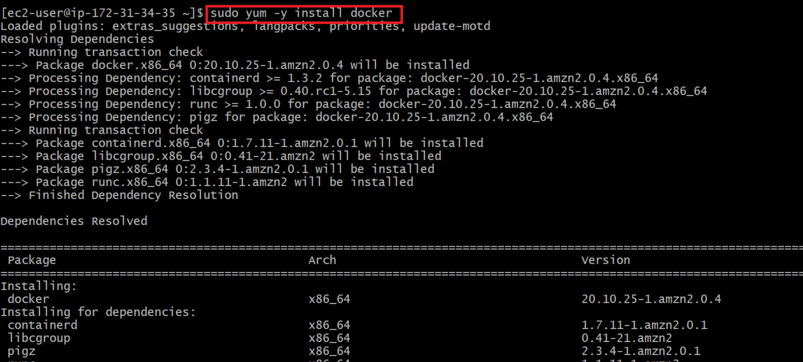
Step 2: Install compose up
- Install docker compose file by using following commands
sudo curl -L https://github.com/docker/compose/releases/download/1.22.0/docker-compose-$(uname -s)-$(uname -m) -o /usr/local/bin/docker-compose 
Step 3: Creating a docker-compose.yml file
- Define the services, networks, volumes, and other configurations for your Docker application in a YAML file named docker-compose.yml.
 version: '3.3'
    services:
      db:
        image: mysql:8.0.27
        command: '--default-authentication-plugin=mysql_native_password
        volumes:
          - db_data:/var/lib/mysql
        restart: always
        environment:
          - MYSQL_ROOT_PASSWORD=somewordpress
          - MYSQL_DATABASE=wordpress
          - MYSQL_USER=wordpress
          - MYSQL_PASSWORD=wordpress
        expose:
          - 3306
          - 33060
      wordpress:
        image: wordpress:latest
        ports:
          - 80:80
        restart: always
        environment:
          - WORDPRESS_DB_HOST=db
          - WORDPRESS_DB_USER=wordpress
          - WORDPRESS_DB_PASSWORD=wordpress
          - WORDPRESS_DB_NAME=wordpress
    volumes:
      db_data:
#example  docker-compose.yml file
Step 4: Running docker-compose up:
- Now Navigate to the directory containing docker-compose.yml.
- Execute docker-compose up to start all the defined services.

Step 5: Stopping Containers:
- Use docker-compose stop to stop running containers while retaining their configurations and data.

Step 6: Resuming Containers:
- Use docker-compose start to restart containers that were previously stopped.

Step 7: Shutting Down the Application:
- Use docker-compose down to completely shut down the application stack, removing containers, networks, volumes, and images.
Conclusion
These Docker Compose commands like up, down, stop, and start provide a way to abstract and simplify the complexity of dealing with multi-container Docker applications. It smoothens the definition, implementation, and later-on support of complex application environments in efficient, consistent, and highly scalable manners.
Docker Compose captures application architecture for developers in a single place by using the docker-compose. yml file to capture services, dependencies, and configurations. With the up command, all services are initialized such that one can start containers and networks based on configuration—all these automatically. This simplifies setup for local development, ensuring identical deployment from development up to production.
The commands down are used for graceful service stop and resource cleanup in the management of the lifecycle operations of running services, while stop and start offer flexible choices for pausing or resuming running containers without losing data or configuration. These are vital commands to optimize resources, paving the way for quick iterations in the software development cycle.
In this article, we have gone through how each command works, practical examples, and best practices for their proper use. With Docker Compose commands in the belt, teams can build resilient and scalable applications that improve agility and availability in Dockerized environments.