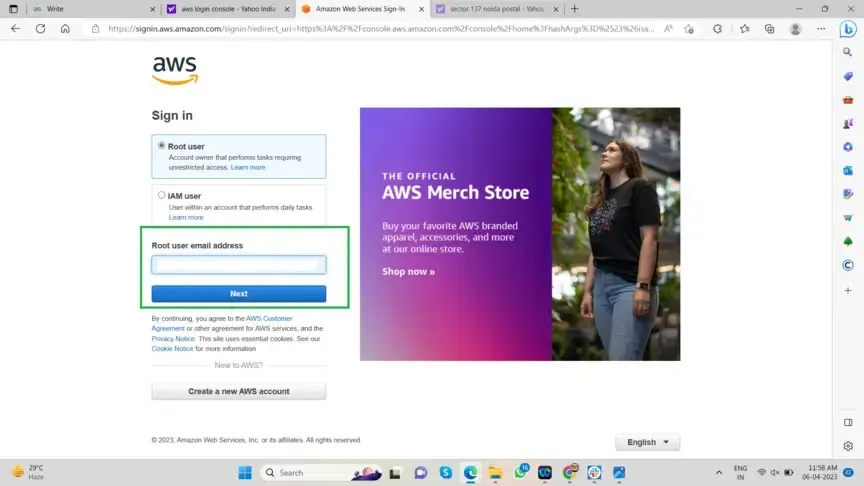
Creating an AWS account is the first step to accessing AWS's powerful cloud tools. Once your account is set up, you can use AWS's vast range of services to manage and scale applications.
- AWS Free Tier lets users explore services for free within usage limits, but sign-up requires a valid payment method for verification.
- Some services are free for 12 months while others remain always free, and exceeding limits results in charges.
- Available globally, though some services or features may vary by Region.
Prerequisites
Before getting started, make sure you have the following.
- Email Address: A valid email address to create and verify your AWS account.
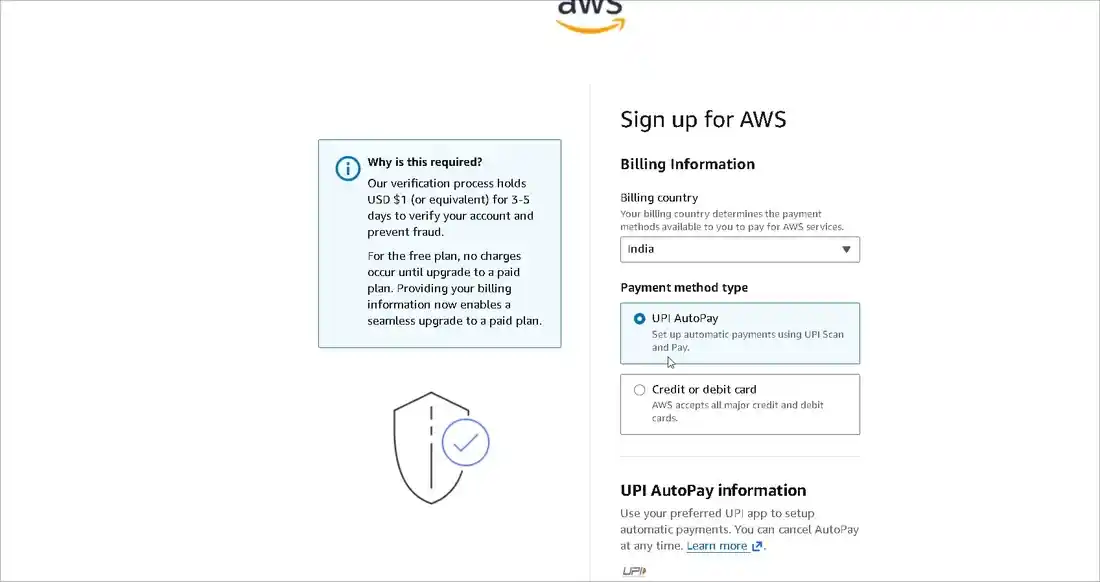
- Payment Method: A valid credit card, debit card, or UPI ID is required for identity verification. You will not be charged unless you exceed Free Tier limits.
Note: UPI is supported as a payment method for AWS accounts created in India. This makes it convenient for Indian users to verify and set up their accounts without a credit or debit card.
Eligibility for the AWS Free Tier
The AWS Free Tier offers limited access to various AWS services for new AWS customers to explore and try out the platform at no cost for a specified period. Eligibility criteria for the free tier include:
- New AWS Customers: Anyone who signs up for an AWS account for the first time.
- Limited Time: The Free Tier is available for 6 months after sign-up and varies by service. Some services have ongoing free tiers beyond the first year.
- Usage Limits: Each service within the Free Tier has usage limits. As long as your usage stays within these limits, you won't incur any charges.
- Service-Specific Limits: Different services have different usage limits. For example, Amazon EC2 provides a certain number of hours of compute time, while Amazon S3 offers a limited amount of storage.
- Geographic Availability: The Free Tier is available worldwide, but certain services or features might not be available in all regions.
- Payment Method: A valid payment method (credit card, debit card, or UPI for Indian accounts) must be on file at sign-up, but charges only apply if Free Tier limits are exceeded.
- Account Verification: You need to verify your identity to access the Free Tier.
- Educational Institutions: Students and educators can also access the AWS Educate program, which provides additional benefits and credits for learning purposes.
Steps to Create an AWS Free Tier Account
Follow the below steps to create an AWS Free Tier Account:
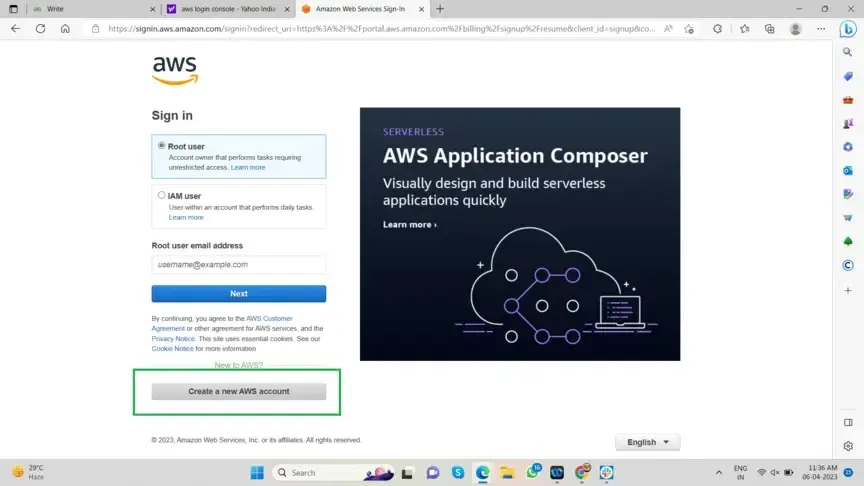
Step 1: Visit the AWS Free Tier Sign-Up Page
To get started, go to the official AWS website. Click on "Create Free Account" button to begin the sign-up process.
Step 2: Create an AWS Account
- Enter Your Email and Account Name: You’ll need to provide your email address and choose a unique AWS account name.
- Verify Your Email: AWS will send a verification code to your email address. Enter this code on the sign-up page to confirm your email.
- Click "Verify Email Address": After entering the code, click on "Verify Email Address" to move to the next step.
Step 3: Set the Root User Password
- Create a Password: Choose a strong password for your root user account. This is the account with full access to all AWS resources.
- Confirm the Password: Re-enter the password to confirm.
- Click "Continue (Step 1 of 5)": Once you’ve set the password, click on "Continue" to proceed.
Step 4: Select Account Type
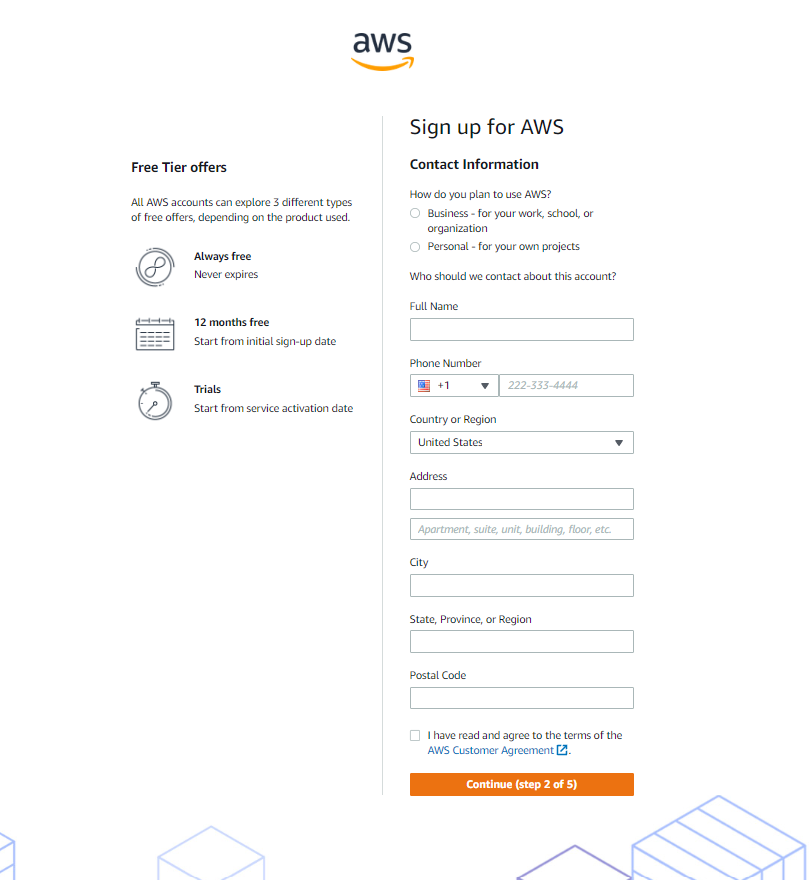
- Choose "Personal": Since you are creating the account for your own use, select "Personal - for your own projects."
- Enter Your Personal Information: Fill in details like your full name, contact number, country, and address.
- Click "Continue (Step 2 of 5)": After entering your information, click on "Continue."
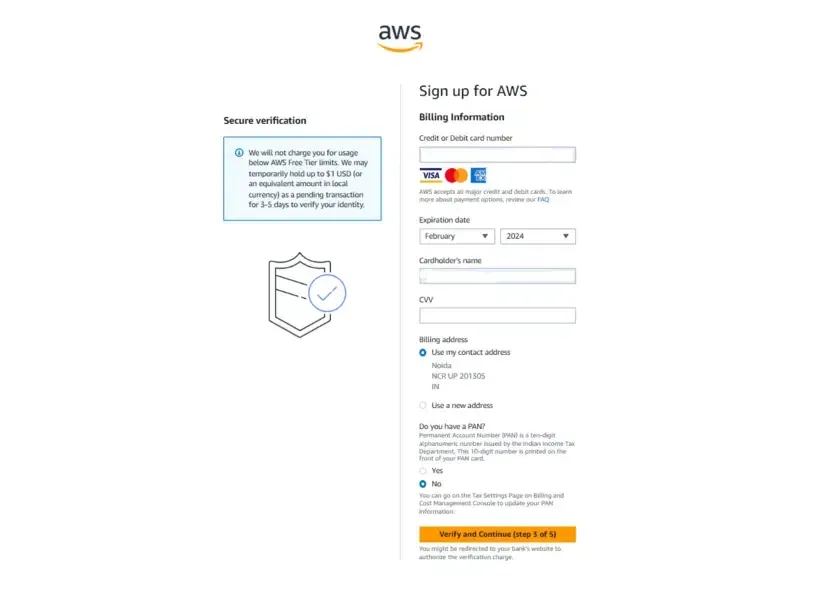
Step 5: Billing Information
- Enter billing details.
- Click "Verify and Continue".
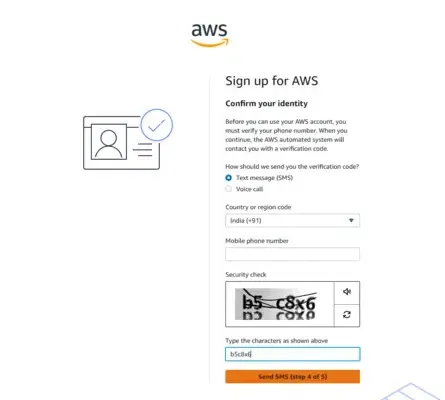
Step 6: Verify Your Identity
- Choose Your Verification Method: AWS will ask you to confirm your identity using your mobile number or email.
- Enter the Verification Code: AWS will send a verification code to your chosen method (mobile or email). Enter the code on the verification page.
- Click "Continue": Once your identity is verified, click "Continue" to proceed.
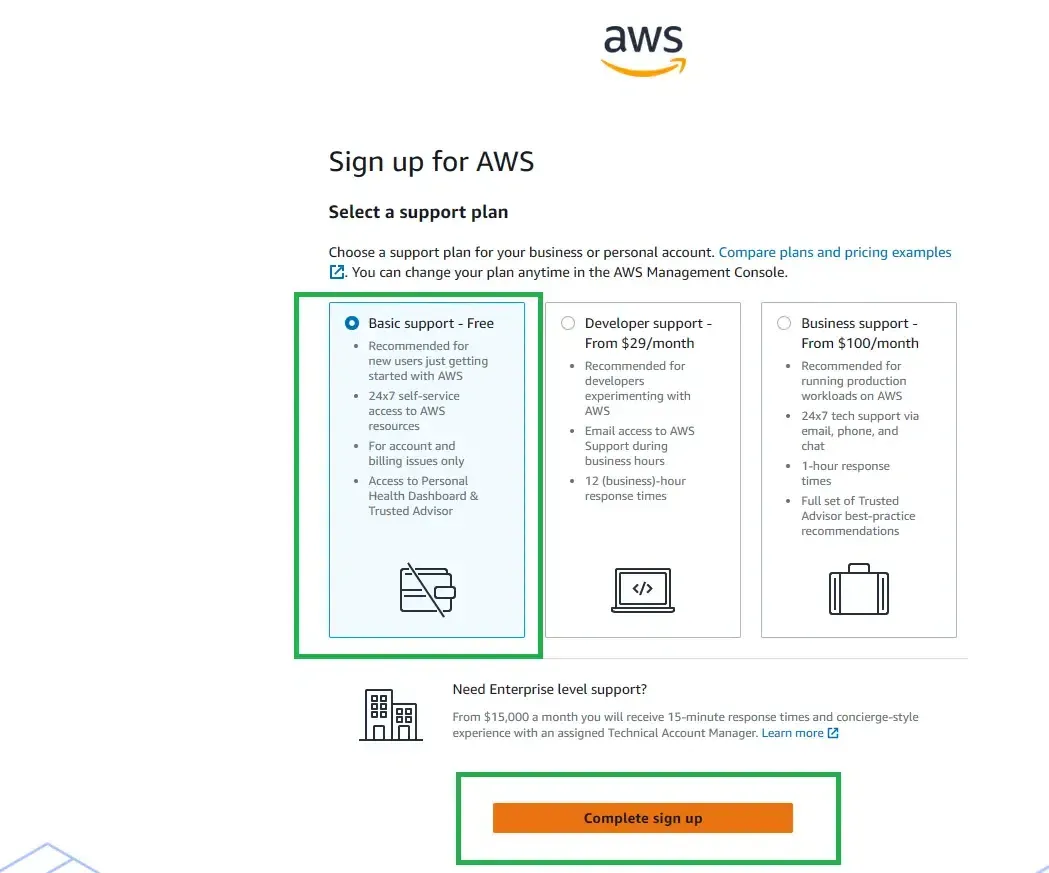
Step 7: Select a Support Plan
- Choose "Basic Support - Free": Select the free support plan offered by AWS. This plan provides access to basic support resources, and it’s perfect for beginners.
- Click "Continue": After selecting the support plan, click "Continue."
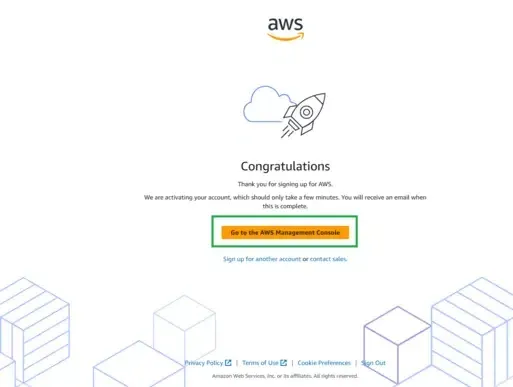
Step 8: Confirm Your Account
- Complete the Setup: Once you’ve gone through all the steps, your AWS account is successfully created.
- Ready to Use: You can now log in to your AWS account and start using the Free Tier services.
Enter your email address and previously-configured password.