
Well, we assume that at this stage you were aware of AI and LLM and how it works but do you know that you can download and run the LLMs locally on your desktop? This lets you work offline and keep full control over your data. In this guide, you’ll learn how to run open-source LLMs (such as models from DeepSeek and others) locally, step by step.
Note: Throughout the article we are using DeepSeek-R1 Model locally for interaction.
Advantages of Running LLMs Locally
Running LLM locally offers several advantages, especially for users concerned with performance, privacy, and control. Here’s a breakdown of the key benefits:
| Advantage | Description |
|---|---|
| Data Privacy & Security | Full control over your data, ensuring sensitive information remains on your machine without third-party access. |
| Offline Functionality | Operate without an internet connection, reducing dependency on cloud services and ensuring availability in remote areas. |
| Customization & Flexibility | Ability to fine-tune the model, customize settings and integrate with local applications or workflows. |
| Performance & Speed | Faster response times due to reduced latency and full utilization of local CPU/GPU resources. |
| Cost Efficiency | Avoid cloud subscription fees and API usage costs; scale workloads without additional expenses. |
| Experimentation & Development | Freedom to experiment, iterate quickly and maintain version control without external restrictions. |
| Enhanced Security for Sensitive Applications | Ideal for industries with strict regulatory requirements (e.g., healthcare, finance) by running in secure, controlled environments. |
Prerequisites to Install LLM Locally
1. Operating System Required:
- macOS (Intel or Apple Silicon)
- Linux (x86_64 or ARM64) | Ubuntu 24.04
- Windows (via Windows Subsystem for Linux [WSL 2])
2. Hardware Required:
- Minimum 8GB but 16GB+ RAM (recommended for optimal performance).
- 10GB+ free storage space.
- A compatible GPU (optional but recommended for faster inference).
3. Softwares Required:
- Terminal access (Command Prompt/PowerShell for Windows via WSL).
- Basic Tools: Python 3.10+, pip and git.
Types of DeepSeek Installation
Users can install any LLM locally using three methods for free. Here you will explore the easiest method, like LM Studio, where you just need to download and install the LLM model. Along with this, you can explore the GPT4All and Ollama methods too.
| Installation Method | Ease of Installation | Hardware | Customization |
|---|---|---|---|
LM Studio | ⭐⭐⭐⭐⭐ | GPU/CPU | Low |
GPT4All | ⭐⭐⭐⭐⭐ | GPU/CPU | Medium |
| Ollama | ⭐⭐⭐⭐ | GPU/CPU | Low |
How to Run LLM Locally Via LM Studio (Easiest Method)
LM Studio is available as one of the easiest methods to install LLM models locally. This software gives you a variety of features as well as the ability to choose your choice of LLM models from their library.
Step 1: Download LM Studio
- To install DeepSeek R1 locally first go to the LM Studio from its official website. To download go to: LM Studio.
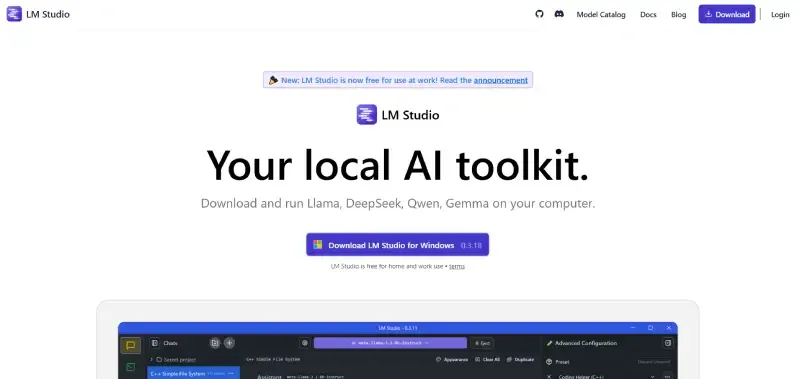
Note: LM Studio is available for all OS Mac, Windows and Linux. the available.
Step 2: Install LM Studio
- Once the installer is downloaded open the installer and install it on your machine where you are installing:
- Windows: To install on Windows just open the .exe file and go through the regular installation process.
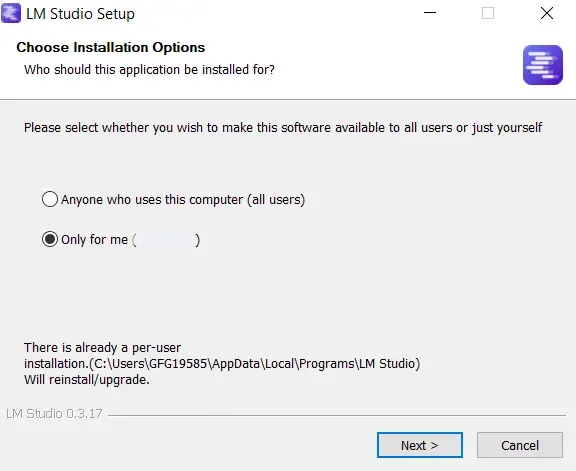
Note: If you are using ARM64 Snapdragon, then LM Studio also provide the download option.
- Mac: To install on Mac is the same as on Windows just open and install the .dmg file.
Note: LM Studio only available for M series if your Mac machine running on Intel then, you can not use LM Studio.
- Linux: To install LM Studio on a Linux system open x64.AppImage and follow the steps.
Note: For the Linux test we have use the Ubuntu 22.04 version and work fine on this version.
Step 3: Open the LM Studio
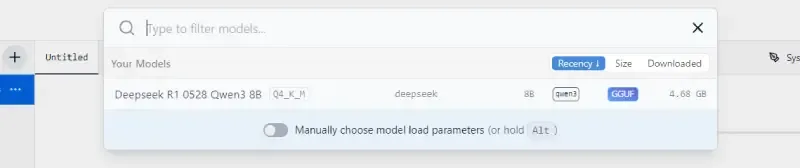
- After the installation open the LM Studio and go to the Search bar to search LLM models. In our case we we'll download DeekSeek.
Step 4: Download the LLM Model
- There are multiple DeepSeek model available from 1.5 billion parameters to 671 billion parameters. Now keep in mind bigger DeepSeek model needs bigger hardware. So choose the model as per your system hardware and click on the Download button.
Step 5: Start Prompting
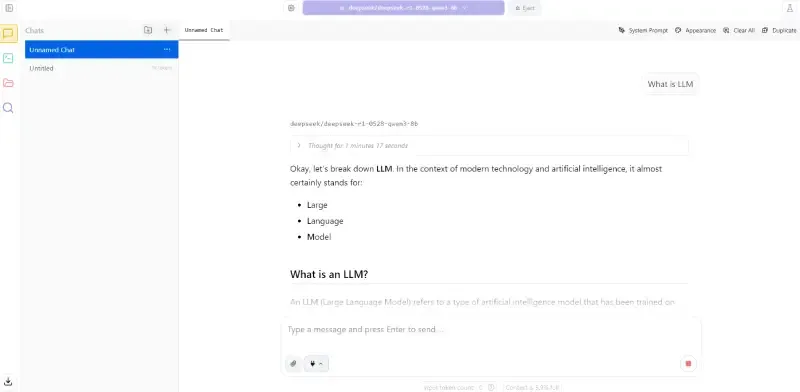
- Once the model is downloaded make sure you have selected the right DeepSeek model. Now, start giving the prompt to use the DeepSeek R1 model locally on Mac, Windows and Linux.
Step 6: Local Inference Server
- In LM studio we can customize the model and launch the API server with one click.
How to Install GPT4All Locally
GPT4All is an open-source platform that allows you to run large language models locally with a simple interface. It supports various models, including DeepSeek, LLaMA and others and is available for Mac, Windows and Linux. This section provides a step-by-step guide to installing and running GPT4All to use models like DeepSeek-R1 locally.
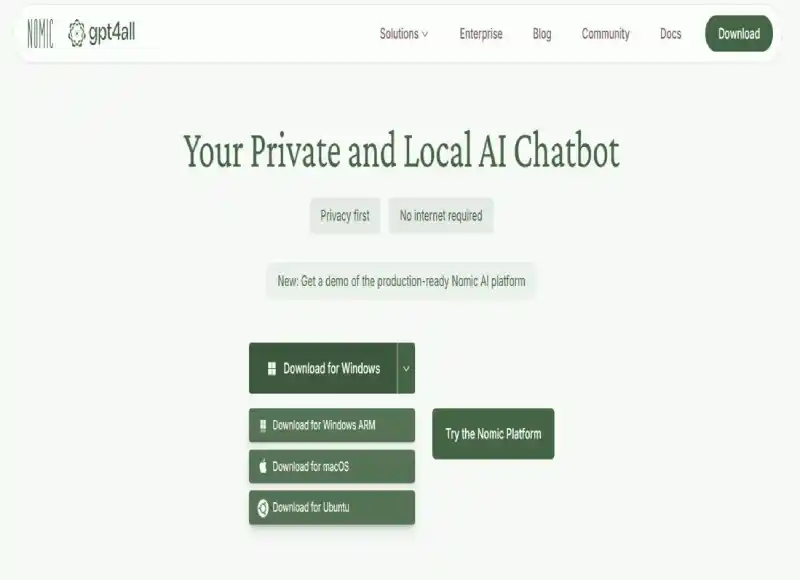
Step 1: Download GPT4All
Visit the official GPT4All website to download the installer:
- Go to: GPT4All Official Website
- Select the appropriate version for your operating system (Mac, Windows or Linux).
Note: GPT4All is available for:
- Mac: Supports Apple Silicon (M-series) and Intel-based Macs.
- Windows: Supports x64 and ARM64 (Snapdragon) systems.
- Linux: Tested on Ubuntu 22.04 and 24.04, but works on most x86_64 or ARM64 distributions.
Step 2: Install GPT4All
Once the installer is downloaded, follow the installation steps for your operating system:
1. Windows:
- Open the .exe file and follow the on-screen instructions to complete the installation.
- Note: If using an ARM64 Snapdragon device, ensure you download the ARM64-compatible version.
2. Mac:
- Open the .dmg file, drag the GPT4All icon to your Applications folder and follow the prompts.
- Note: GPT4All supports both M-series (Apple Silicon) and Intel-based Macs.
3. Linux:
- Download the .AppImage or .deb file (depending on your distribution).
- For .AppImage, make it executable: chmod +x gpt4all-installer-linux.AppImage, then run it: ./gpt4all-installer-linux.AppImage.
- For .deb (Ubuntu/Debian), install with: sudo dpkg -i gpt4all-installer-linux.deb.
Note: Tested on Ubuntu 22.04 and 24.04; ensure you have at least 10GB of free storage.
Step 3: Open GPT4All
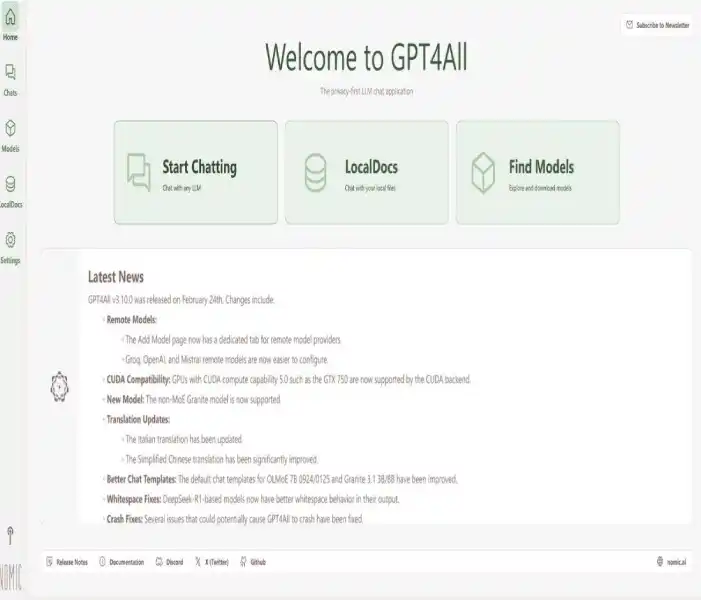
After installation, launch GPT4All:
- Windows: Open via the Start menu or desktop shortcut.
- Mac: Open from the Applications folder.
- Linux: Run via the installed application or by executing the .AppImage.
Upon opening, you’ll see the GPT4All interface which includes a model selection panel and a chat window.
Step 4: Download the LLM Model
GPT4All does not ship with models pre-installed; you need to download them separately:
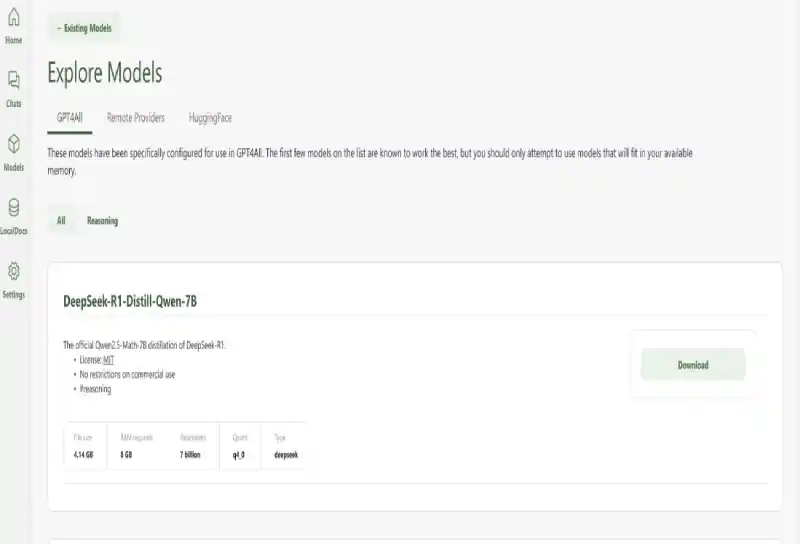
- In the GPT4All interface, go to the Models tab or search bar.
- Search for available models, such as DeepSeek-R1 or other compatible models (e.g., LLaMA, Mistral).
- Select the desired model based on your hardware like Smaller models (e.g., 1.5B parameters) work on systems with 8GB RAM and Larger models (e.g., 67B parameters) require 16GB+ RAM and a compatible GPU.
- Click the Download button and wait for the model to download (this may take time depending on your internet speed and model size).
Note: Ensure you have enough storage (10GB+ for most models). Models are typically in GGUF format and downloaded from trusted sources like Hugging Face.
Step 5: Start Prompting
Once the model is downloaded:
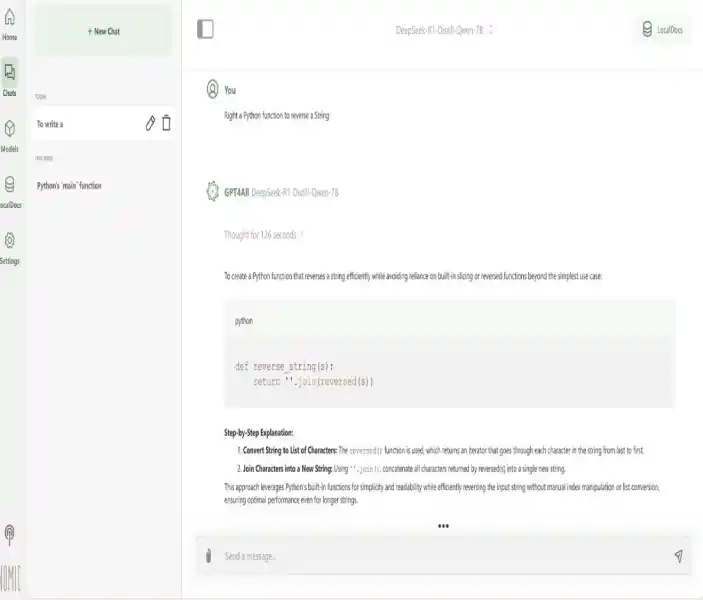
- Go to the Chat tab in GPT4All.
- Select the downloaded model (e.g., DeepSeek-R1) from the dropdown menu.
- Enter your prompt in the chat interface and press Enter to interact with the model locally.
Example Prompt:
Write a Python function to reverse a string.
Step 6: Local Inference Server (Optional)
GPT4All supports running a local API server for integration with other applications:
- In the GPT4All interface, go to the Settings or Server tab.
- Enable the Local Server option and configure the port (default is usually 4891).
- Start the server and use the provided API endpoint (e.g., http://localhost:4891) to interact with the model programmatically.
Note: This feature is useful for developers integrating GPT4All into custom workflows or applications.
GPT4All Troubleshooting Tips
1. Model Download Fails:
- Check your internet connection and retry.
- Ensure sufficient storage space (10GB+ recommended).
- Try downloading from an alternative mirror or source listed on the GPT4All website.
2. Performance Issues:
- Use a smaller model if your system has limited RAM or no GPU.
- Close other applications to free up resources.
- Enable GPU acceleration in the settings if you have a compatible GPU.
3. Model Not Listed:
- Manually download a GGUF model file from Hugging Face or the DeepSeek repository.
- Import it into GPT4All via the Models tab by selecting Add Model and pointing to the GGUF file.
4. Linux-Specific Errors:
- Ensure dependencies are installed: sudo apt install libvulkan1 mesa-vulkan-drivers.
- Update your system: sudo apt update && sudo apt upgrade.
How to Install DeepSeek-R1 Locally Using Ollama
Step 1: Install Ollama
- Ollama simplifies running LLMs locally. Follow these steps to install it:
For macOS
- Visit Ollama.ai and download the macOS app.
- Drag the Ollama icon to your Applications folder.
- Open the app to start the Ollama background service.
For Linux/Ubuntu 24.04/WSL (Windows)
- Run the below installation script in your terminal:
curl -fsSL https://ollama.com/install.sh | sh
- Then, Start the Ollama service
ollama serve
Verify Ollama Installation
- Check if Ollama is installed:
ollama --version
- If successful, you’ll see the version number (e.g., ollama version 0.1.25).
Step 2: Download and Install DeepSeek-R1
DeepSeek-R1 might not be directly available in Ollama’s default library. Use one of these methods:
Method 1: Pull from Ollama (If Available)
- First, Check if the model exists:
ollama list
- If available in Ollama’s library:
ollama pull deepseek-r1
Please be patient during this process: Downloading a large language model which can be several gigabytes in size, requires a stable internet connection. The download time will vary depending on your internet speed, faster connections will result in quicker downloads while slower connections may take several minutes or more.
If deepseek-r1 isn’t listed, proceed to Method 2.
Method 2: Manual Setup Using a Modelfile
1. Download the Model
- Obtain the DeepSeek-R1 model file in GGUF format (e.g., deepseek-r1.Q4_K_M.gguf) from sources like Hugging Face or the official DeepSeek repository.
- Save it to a dedicated folder (e.g., ~/models).
2. Create a Modelfile
- In the same folder, create a file named Modelfile with:
FROM ./deepseek-r1.Q4_K_M.gguf
- Replace the filename with your actual GGUF file.
3. Build the Model
ollama create deepseek-r1 -f Modelfile
Step 3: Run DeepSeek-R1
- Start the Chat with the model
ollama run deepseek-r1
Example prompt:
>>> Write a Python function to calculate Fibonacci numbers.
Step 4: Verify Installation (Optional)
- Confirm the model is active:
ollama list
Now you will see deepseek-r1 listed. Test inference speed and response quality with sample prompts.
Step 5: Run DeepSeek in a Web UI
While Ollama offers command-line interaction with models like DeepSeek, a web-based interface can provide a more easy and user-friendly experience same as you are launching DeepSeek on a Web Browser. Ollama Web UI offers such an interface, simplifying the process of interacting with and managing your Ollama models.
Note: This graphical interface can be especially helpful for users less comfortable with command-line tools or for tasks where visual interaction is beneficial.
1. Create a Virtual Environment
First, create a virtual environment that isolates your Python dependencies from the system-wide Python installation.
sudo apt install python3-venv
python3 -m venv ~/open-webui-venv
source ~/open-webui-venv/bin/activate
2. Install Open WebUI
Now Install Open WebUI using pip
pip install open-webui
3. Start the Server
After installing Open WebUI, now start the server using the below command
open-webui serve
Open your web browser and navigate to http://localhost:8080 – you should see the Ollama Web UI interface.
DeepSeek Ollama Troubleshooting Tips
1. Model Not Found:
- Ensure the model name is correct or use the manual GGUF setup.
- Check Ollama’s Model Registry for alternative DeepSeek models (e.g., deepseek-coder).
2. Performance Issues:
- Allocate more RAM/VRAM.
- Simplify prompts for faster responses.
3. WSL Errors:
- Update WSL: wsl --update.
- Restart the Ollama service.