
Microsoft Word provides features that make documents more inclusive and user-friendly. With accessibility tools and multilingual support, it helps ensure content reaches a wider audience, including people with disabilities and those who speak different languages.
What are Alt Text and Translate Text
Alt Text
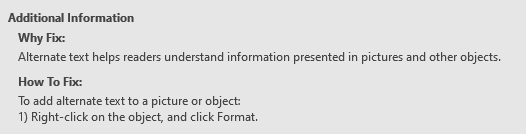
Alt text is a brief description of an image, chart, or other visual object in a document, read aloud by screen readers to describe content for users who cannot see it. It enhances document accessibility and compliance with standards like WCAG (Web Content Accessibility Guidelines).
Key Features:
- Describes images, shapes, charts, or tables for accessibility.
- Supports screen readers like JAWS or Windows Narrator.
- Improves document usability for all users.
Example: Add alt text like “Bar chart showing sales data for 2024” to a chart in a report.
Translate Text
Translate Text is a Word feature that converts selected text or entire documents into another language, leveraging Microsoft’s translation engine. It supports collaboration and communication in multilingual settings.
Key Features:
- Translates text into dozens of languages (e.g., Spanish, French, Mandarin).
- Offers options to translate selected text or the entire document.
- Integrates with Microsoft 365 for real-time translation.
- Example: Translate a letter from English to Spanish for a client.
Steps to Add Alt Text
Step 1: Add Alt Text to Images or Objects
Insert an Object:
- Insert an image, shape, chart, or table via Insert > Pictures, Shapes, Chart, or Table.
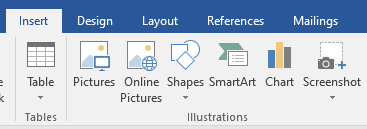
Add Alt Text:
- Right-click the object and select Edit Alt Text (or Format Picture > Alt Text in some versions).
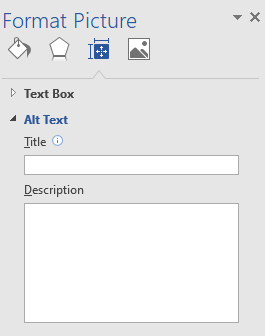
- In the Alt Text pane:
- Enter a concise description.
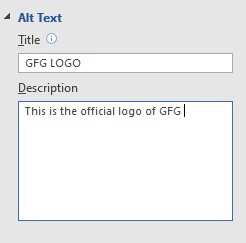
- Avoid phrases like “image of” or overly long descriptions.
- Click OK or close the pane to save.
Step 2: Verify Alt Text with Accessibility Checker
Run Accessibility Checker:
- Go to Review > Check Accessibility (or File > Info > Check for Issues > Check Accessibility).
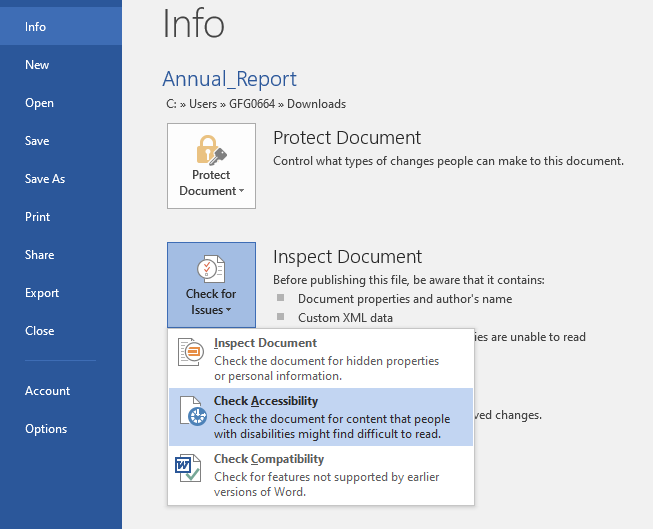
- Review the Inspection Results for missing alt text or other accessibility issues.
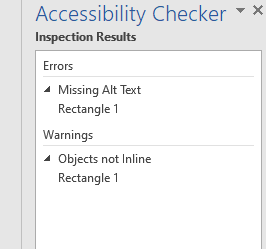
- Click on errors (e.g., “Missing Alt Text”) and follow prompts to add descriptions.
Steps to Translate Text
Step 1: Translate Selected Text
Select Text:
- Highlight the text you want to translate (e.g., a paragraph or sentence).

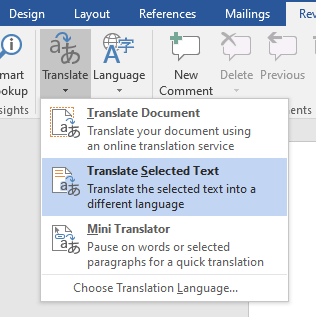
- Go to Review > Language group > Translate > Translate Selection.
Choose Language:
- In the Translator pane, select the target language (e.g., French, German).
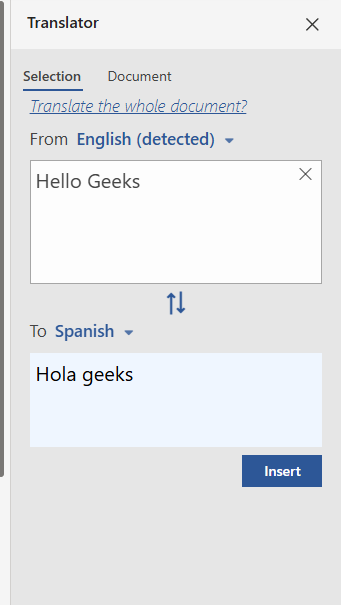
- The translated text appears in the pane.
- Click Insert to replace the selected text with the translation, or copy it manually.

Step 2: Translate the Entire Document
Translate Document:
- Go to Review > Translate > Translate Document.
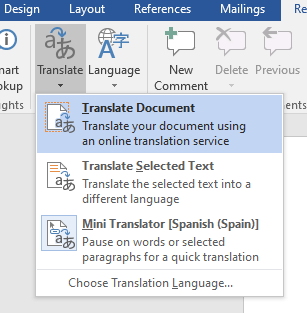
- In the Translator pane, select the target language.
- Choose to create a new document with the translated text or copy the translation.
- Word generates a new document with the entire content translated.
Step 3: Manage Translations
Review Translations:
- Check the translated text for accuracy, as automated translations may need minor edits for context or grammar.
Save Translated Documents:
- Save the translated document (File > Save As) with a clear name (e.g., “Manual_Spanish.docx”).