Redshift

Create a Group and a User

As a super user, execute the following SQL commands to create a group, a user assigned to that group, and permissions to access a system table.

CREATE USER dot_user PASSWORD '<something secret>' SYSLOG ACCESS UNRESTRICTED;
ALTER USER dot_user SYSLOG ACCESS UNRESTRICTED;

CREATE GROUP dot_group;

ALTER GROUP dot_group ADD USER dot_user;

-- Grant select to system table for meta data
GRANT SELECT ON svv_table_info TO GROUP dot_group;

Grants Read Access to Data

Then for each schema schema, execute the following three commands to grant read-only access.

-- Grant usage on schema and select on current and future child tables
GRANT USAGE ON SCHEMA "schema" TO GROUP dot_group;
GRANT SELECT ON ALL TABLES IN SCHEMA "schema" TO GROUP dot_group;
ALTER DEFAULT PRIVILEGES IN SCHEMA "schema" GRANT SELECT ON TABLES TO GROUP dot_group;

Note: to programmatically generate these three queries for all schemas, you can use the following command. These commands still need to be executed.

Allow Dot IPs

If your organization uses a network policy to manage Redshift access, Dot will only access your Redshift through the following IPs:

  • 5.78.211.110

  • 178.105.217.177

If you'd rather not make the cluster publicly accessible, you can skip the steps below and use an SSH tunnel instead.

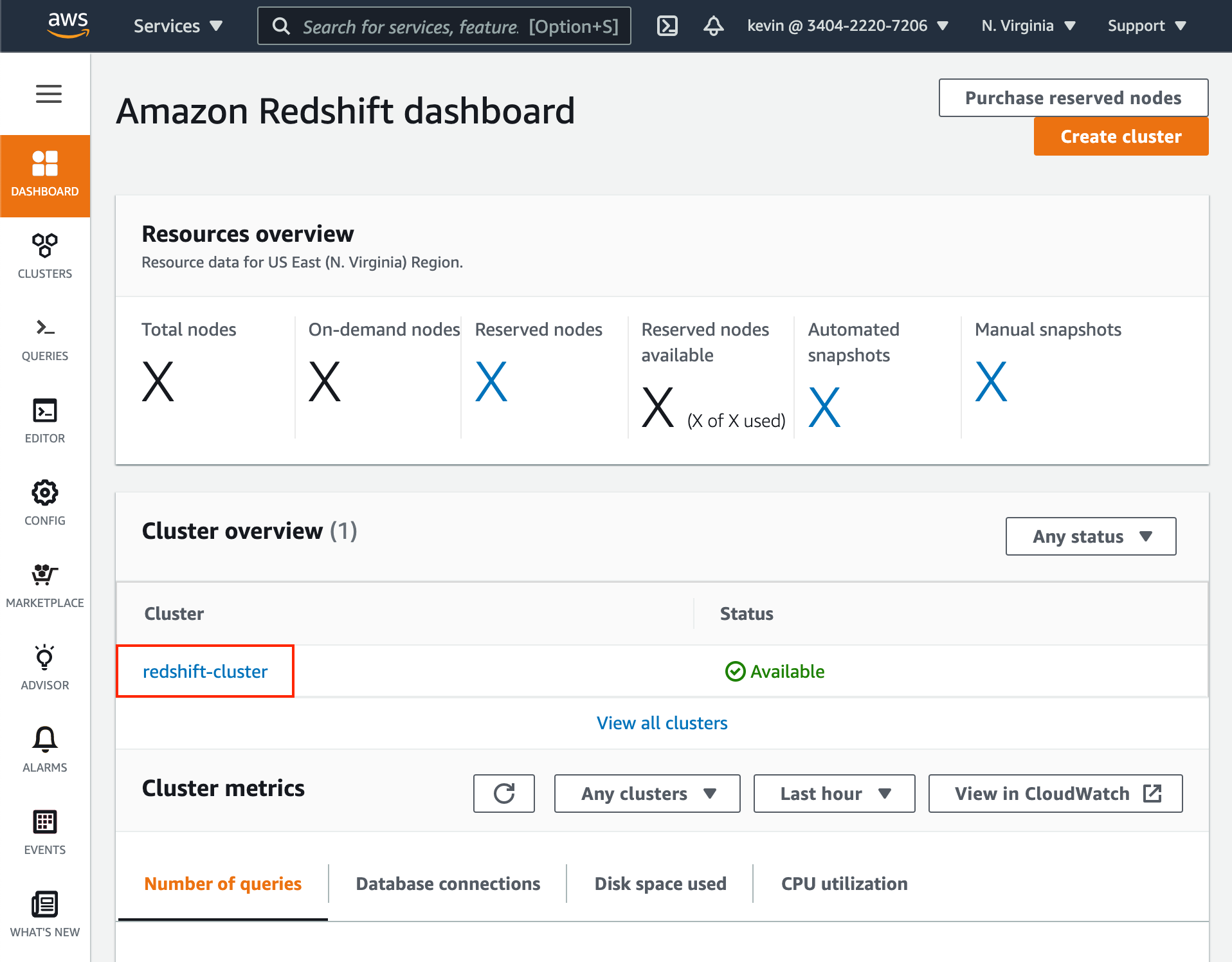
  1. In the Redshift dashboard, click on the desired cluster name.

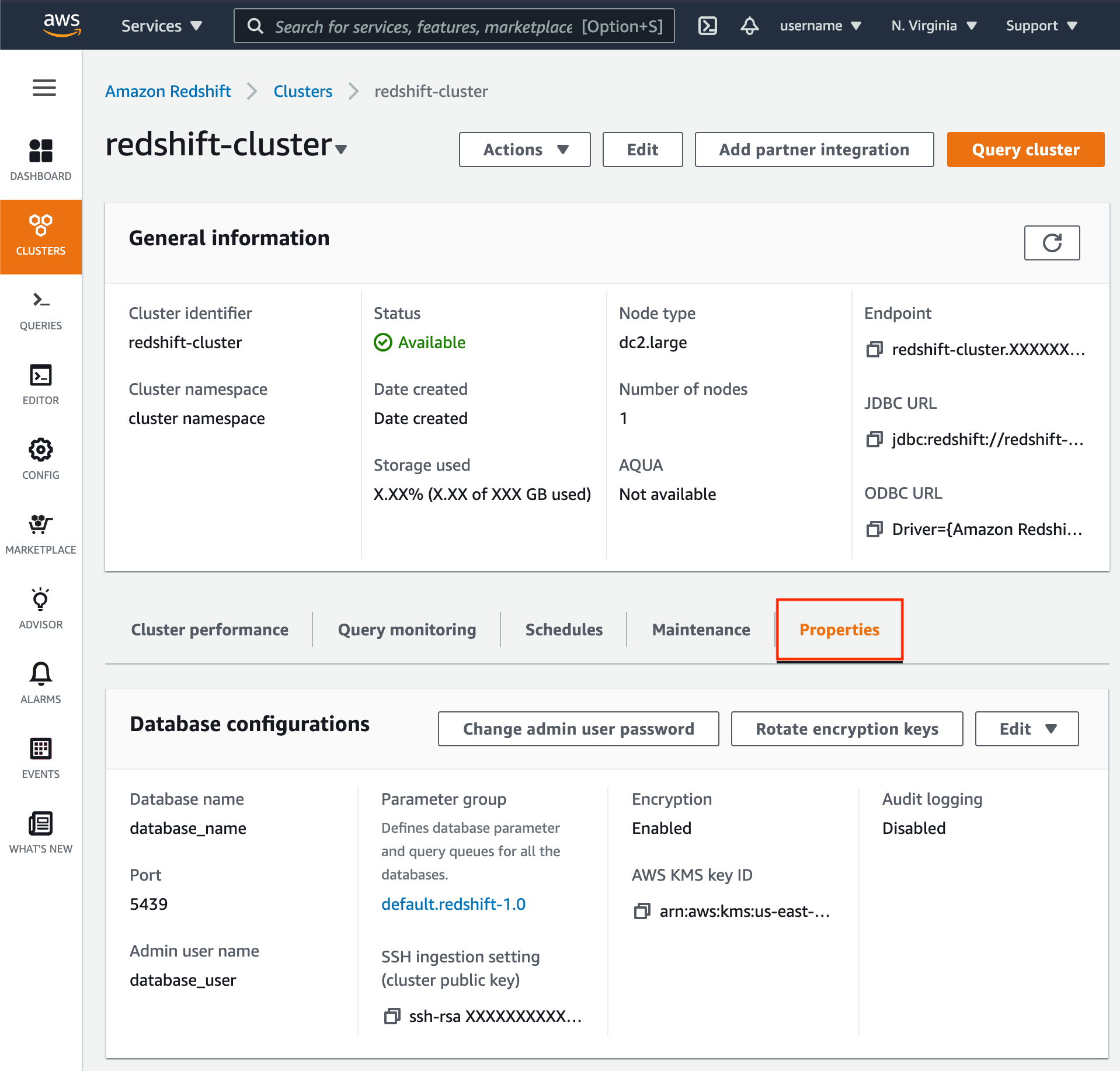
  1. When viewing information for your Redshift cluster, click the Properties tab.

1918
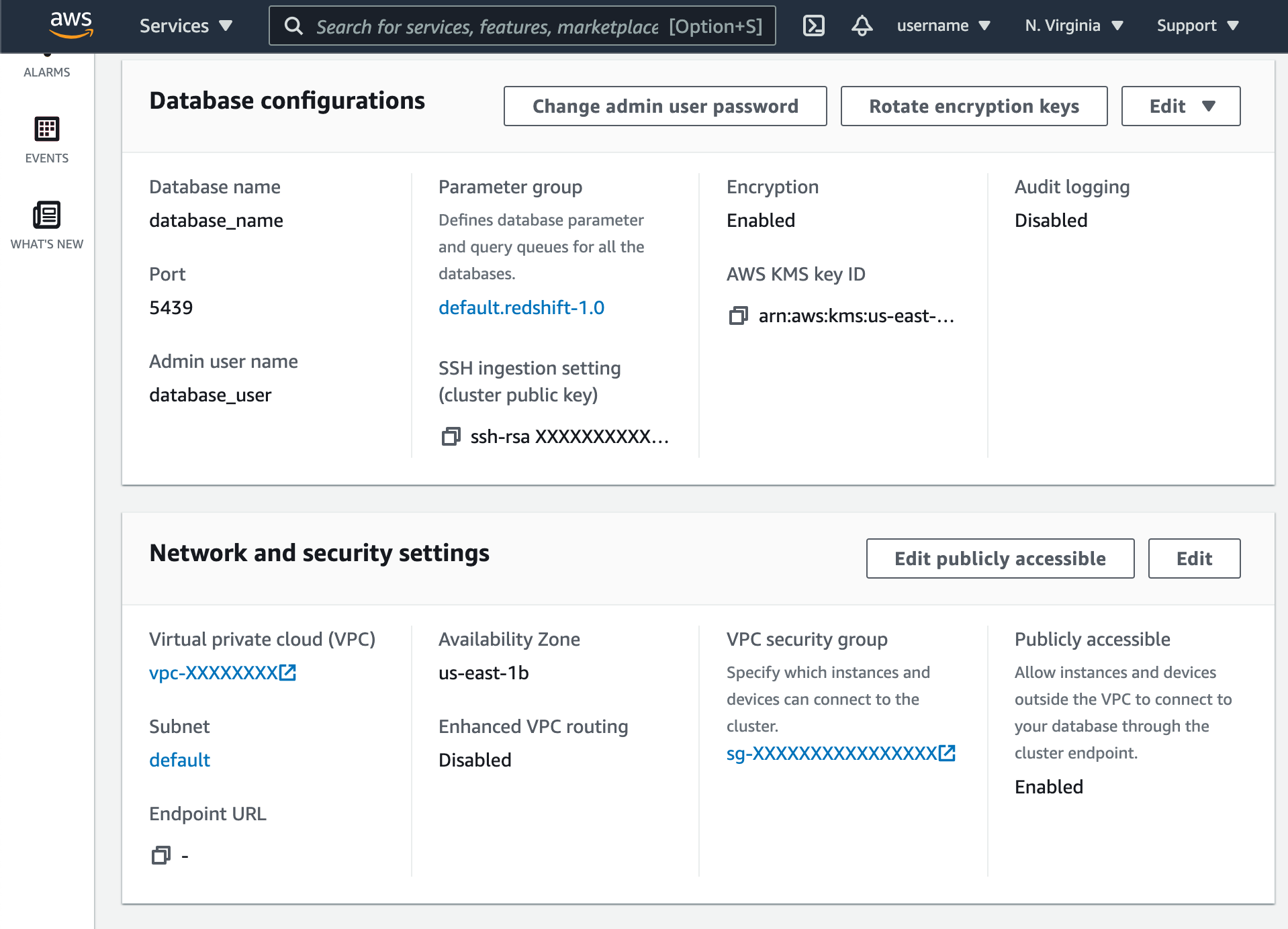
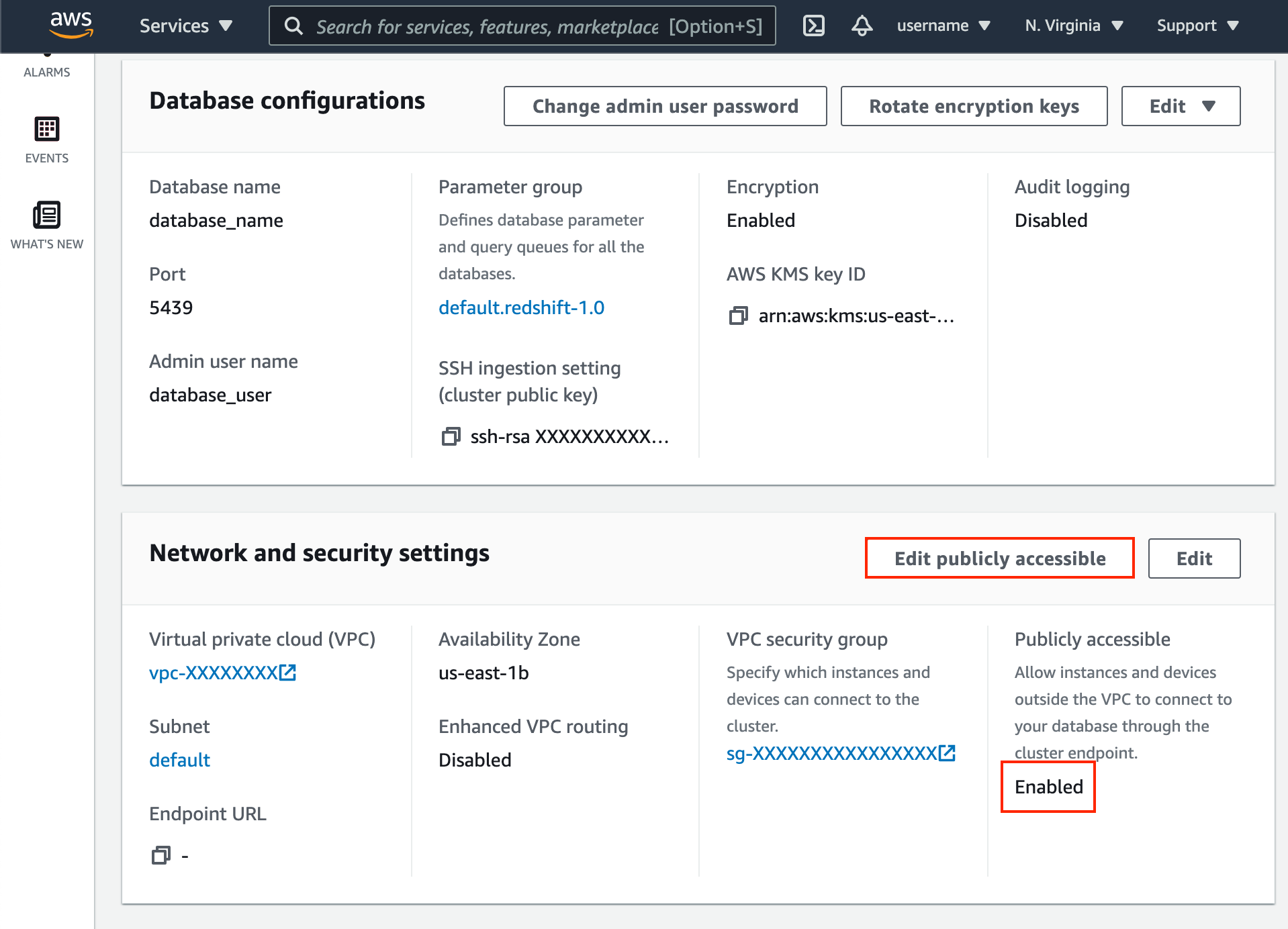
  1. Scroll down to the Network and security settings section.

1918
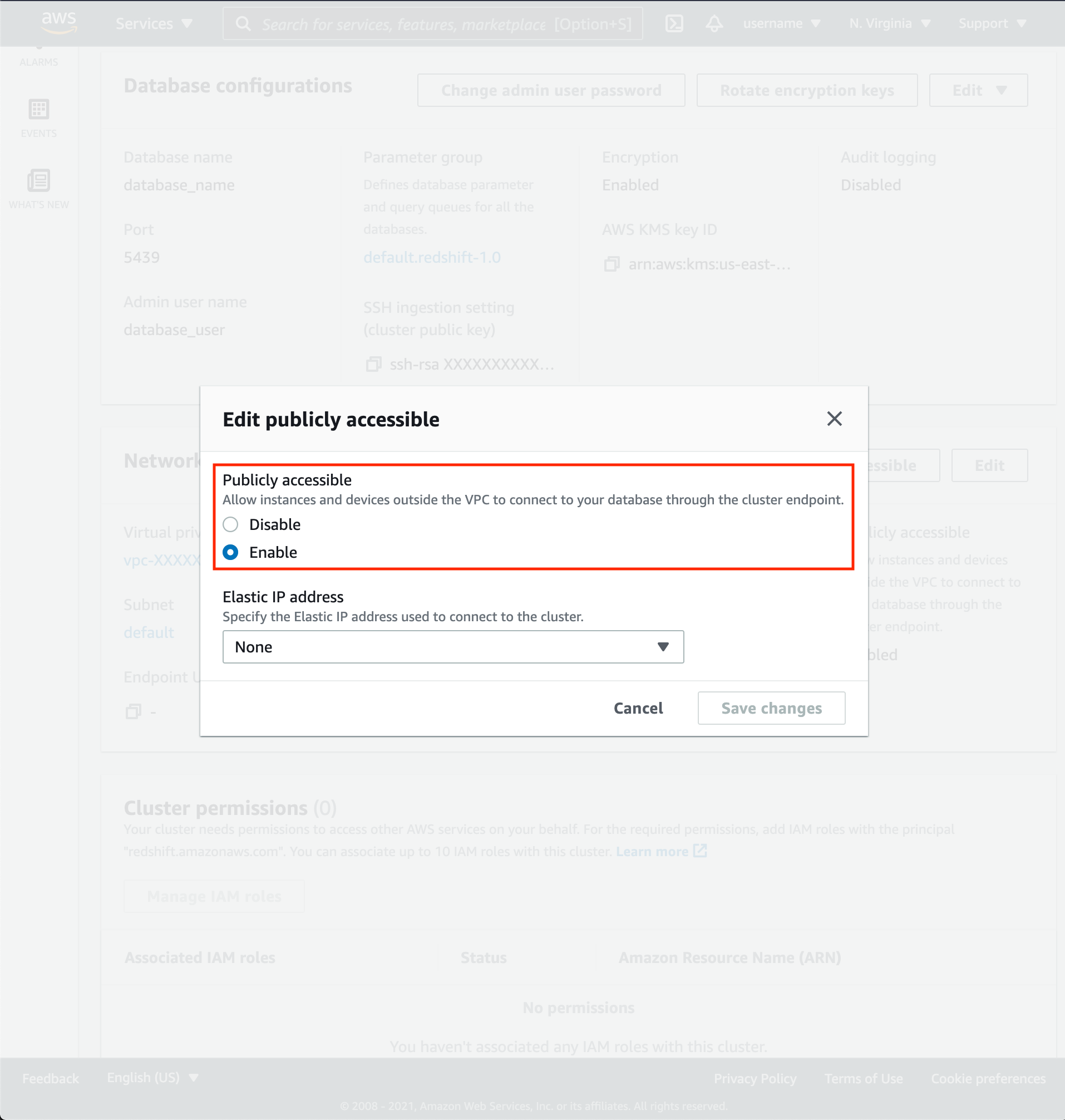
  1. If Public Accessibility is not enabled, click Edit publicly accessible button then enable.

1914
1918
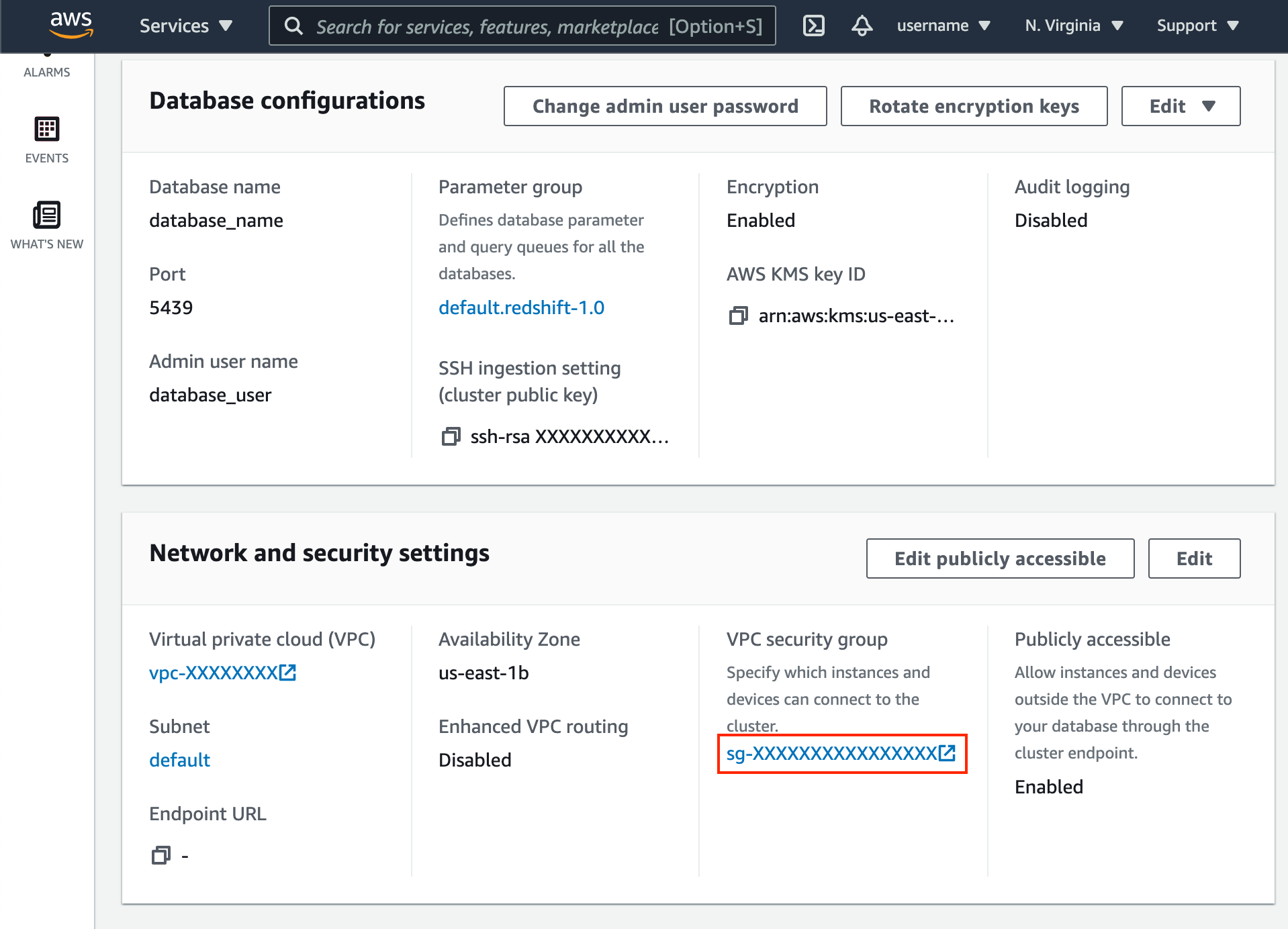
  1. Click VPC security group link.

1918
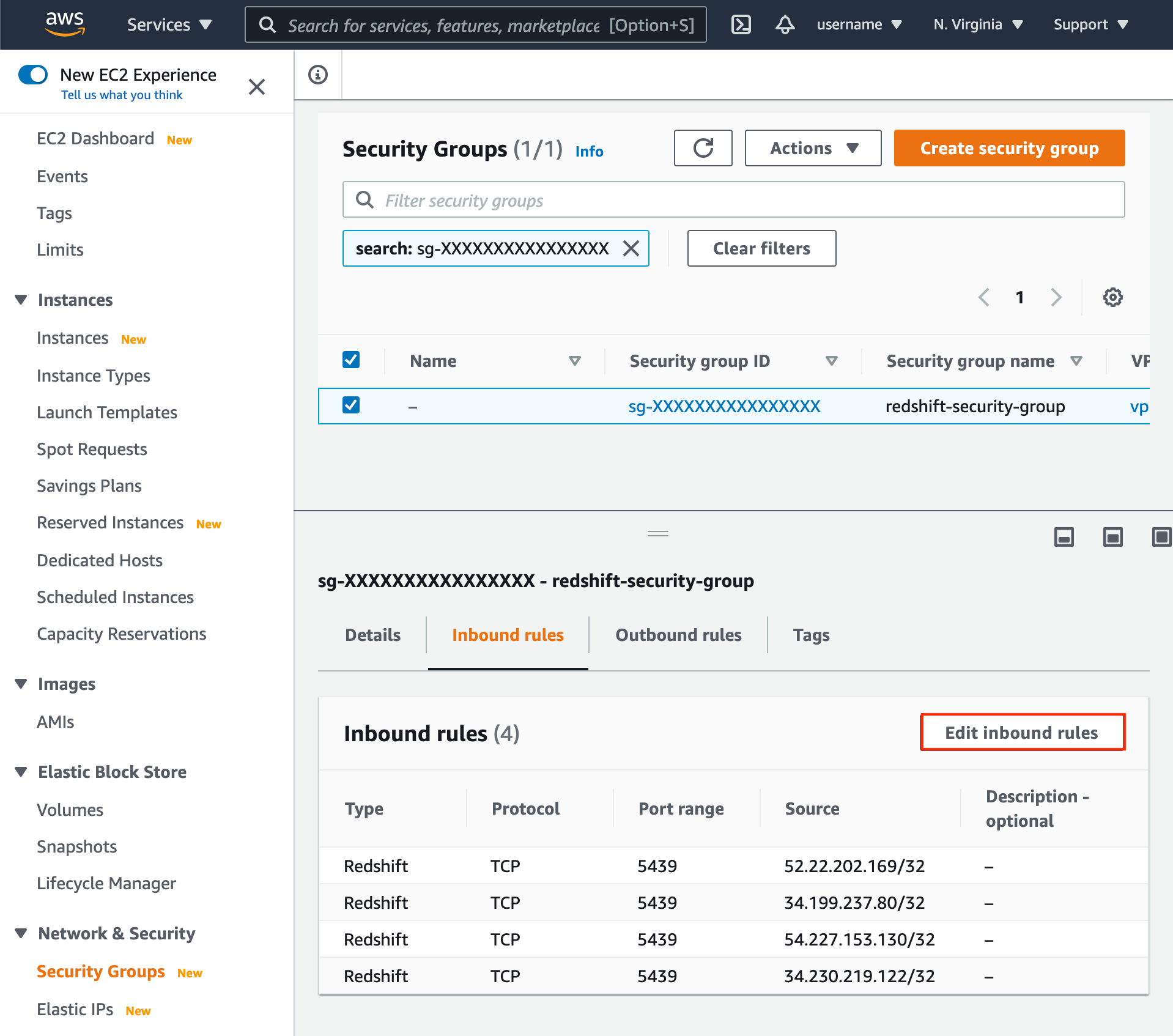
  1. Click Edit inbound rules.

1918
  1. Add the following IPs of Type Redshift:

  • 5.78.211.110

  • 178.105.217.177

Connect via SSH Tunnel

If you'd rather not make the cluster publicly accessible, Dot can reach a private Redshift cluster through an SSH bastion host in your VPC instead. In the Redshift connection dialog, enable Connect via SSH Tunnel and provide:

  • SSH Host: your bastion / jump server

  • SSH Port: 22 (default) or a custom port

  • SSH Username: the SSH user

  • SSH Authentication: SSH password or private key

Dot tunnels the Redshift connection through the bastion, so the cluster keeps its private endpoint and never needs public accessibility.

Last updated