
Canva is a popular designing tool that is available in the form of application on mobile and web browser on desktops. Poster designing and other graphic design-related tasks are done with it. In this article, we will learn how to make pics circular in Canva in order to improve our designing knowledge.
What is Canva?
Canva is a well known online digital tool or platform that is used for multiple purposes in graphic designing or poster designing. It offers us a variety of tools and applications that help us refine our poster designs and graphics. It provides us with different colors, and multiple properties such as Background remover, contraster, saturator and much more. It is an ocean of wonderful fonts, frames, graphics and design components.
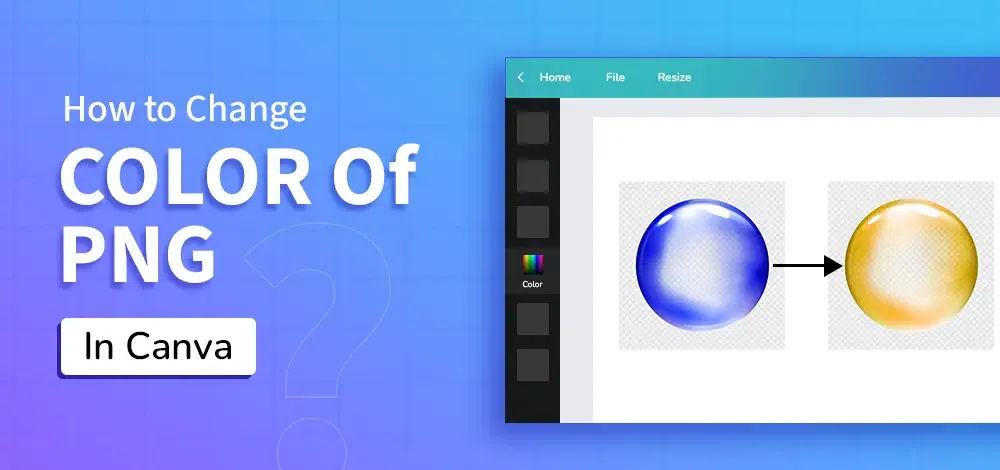
How to Change Color of PNG in Canva?
Open Canva and Create a New Design >> Select the uploads section >> Click on Upload Files >> Select an image from the gallery >> Select a frame >> Add the image to the Frame >> Edit Image >> Change image properties >> Finalize your design
Step 1: Open and create a new design
- Login to Canva using your account. If you don’t have an account, create one using your personal email id or work email id.
- Create a new design by clicking on the Create a Design button in the topmost left side column. A box will appear on the screen. Choose a frame of required dimensions you want, it can be an Instagram post or a landscape.
Step 2: Upload an Image in the Design
- Select an Image from the Uploads section or upload an image from the existing device you are working on.
- Add the image to the frame and ensure good alignment and add margin and padding to the same.
Step 3: Edit Image and it's properties
- Click on the Image and multiple options will be visible that will help you change the color of the image, such as, Adjust, Filters and some particular Apps to perform the same application.
- You can either change a few filters of the image to get a different color or Click on Adjust to change the color of png upto a better resolution.
Step 4: Adjust Image properties
- After clicking on the Adjust button, several options will be available, one of them being Auto-Adjust. This is an AI feature that adjusts your image based on the theme provided in the design.
- Or else, choose options such as Tint, Intensity, Brightness, Temperature, Contrast, Vibrance, Saturation etc.
- You can change the intensity of each of the above properties to your desired limit. Changing the saturation, hue changes the color of the image. This changes the properties of the images, in turn, changing the color of png.
Step 5: Finalize your Design
- For better alignment, place the image at the centre of the design file.
- You can also add multiple other attributes such a drop shadow, or border to the picture for a final touch.
Key points to consider while changing color of png in Canva
- Proper check on levels of Saturation: Keep a mediocre level of saturation as too much of saturation can lead to unwanted black and white images if you don't want one.
- Prefer using Tint/Color Picker: To change the color of the png, use particular color you wish to change the png to. Or else, use tint to increase and decrease the level of colors and their intensity.
- Contrast & Brightness: Although, they do not change the color of the png, but brightness brightens the image and contrasts creates a contrasting factor between the light and dark colors.
Mistakes to avoid while changing color of png in Canva
- Too much of Vibrance: Too extreme level of Vibrance can cause darkness in the image. Hence, use appropriate values of Vibrance too.
- Too Bright Image: Too much of brightness hinders the color changing aspects. It just makes it even more lighter if we try to change the color further.
- Using low Quality Image: Using a low quality image will reduce the possibility of a good resolution color and will lower the quality of image even more than previous one.
Conclusion
Canva is a great online designing tool and beginners can easily learn from it how to design and visualize creations. Knowing how to change color of png in Canva is important as this helps to transform our visualizations into true colors. This helps transform the logo of a website completely and add more effects and features to the existing images.