
Android RatingBar is a user interface widget which is used to get the rating from the customers or users. It is an extension of SeekBar and ProgressBar that shows star ratings and it allow users to give the rating by clicking on the stars.
In RatingBar, we can set the step size using android:stepSize and it will always return a rating value as floating point number such as 1.0, 2.0, 2.5 etc. By using, android:numStars attribute we can specify the number of stars in RatingBar. RatingBar is used to get ratings form users or customers about the product, movie or hotel experience etc.
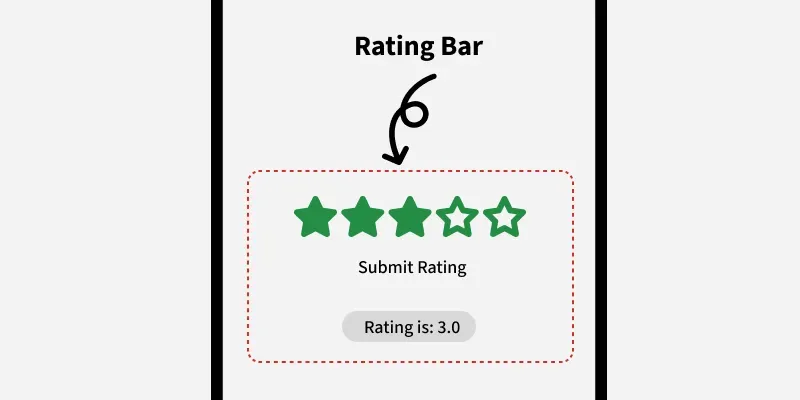
Different Attributes of RatingBar Widget
| XML Attributes | Description |
|---|---|
| android:id | Used to uniquely identify the control. |
| android:rating | Used to set the default rating value for ratingbar. |
| android:numStars | Used to set number of stars to display. |
| android:background | Used to set the background color for Ratingbar. |
| android:padding | Used to set the padding for left, right, top or bottom of Ratingbar. |
| android:stepSize | Used to set the step size on RatingBar like 0.5 or 1. |
Step by Step Implementation
Step 1: Create a new project
To create a new project in Android Studio please refer to How to Create/Start a New Project in Android Studio.
Note: Select Kotlin as the programming language.
Step 2: Modify the activity_main.xml file
In this file, we add Rating Bar and button in the LinearLayout. Also set attributes for both of the widgets like id, stepSize, background etc.
activity_main.xml:
<androidx.constraintlayout.widget.ConstraintLayout
    xmlns:android="http://schemas.android.com/apk/res/android"
    xmlns:app="http://schemas.android.com/apk/res-auto"
    xmlns:tools="http://schemas.android.com/tools"
    android:id="@+id/layout"
    android:layout_width="match_parent"
    android:layout_height="match_parent"
    android:background="@color/white"
    tools:context=".MainActivity">

    <RatingBar
        android:id="@+id/ratingBar"
        android:layout_width="wrap_content"
        android:layout_height="wrap_content"
        android:layout_marginTop="32dp"
        android:layout_marginBottom="32dp"
        app:layout_constraintBottom_toTopOf="@+id/button"
        app:layout_constraintLeft_toLeftOf="parent"
        app:layout_constraintRight_toRightOf="parent"
        app:layout_constraintTop_toBottomOf="@+id/textView2" />

    <TextView
        android:id="@+id/textView2"
        android:layout_width="wrap_content"
        android:layout_height="wrap_content"
        android:text="Rate Me!!!"
        android:textColor="@android:color/background_dark"
        android:textSize="32sp"
        app:layout_constraintBottom_toTopOf="@+id/ratingBar"
        app:layout_constraintEnd_toEndOf="parent"
        app:layout_constraintHorizontal_bias="0.5"
        app:layout_constraintStart_toStartOf="parent"
        app:layout_constraintTop_toTopOf="parent"
        app:layout_constraintVertical_chainStyle="packed" />

    <TextView
        android:id="@+id/textView"
        android:layout_width="wrap_content"
        android:layout_height="wrap_content"
        android:layout_marginTop="32dp"
        android:text="You Rated : _._"
        android:textColorHint="@color/colorAccent"
        android:textSize="24sp"
        app:layout_constraintBottom_toBottomOf="parent"
        app:layout_constraintLeft_toLeftOf="parent"
        app:layout_constraintRight_toRightOf="parent"
        app:layout_constraintTop_toBottomOf="@+id/button" />

    <Button
        android:id="@+id/button"
        android:layout_width="wrap_content"
        android:layout_height="wrap_content"
        android:text="Submit"
        app:layout_constraintBottom_toTopOf="@+id/textView"
        app:layout_constraintLeft_toLeftOf="parent"
        app:layout_constraintRight_toRightOf="parent"
        app:layout_constraintTop_toBottomOf="@+id/ratingBar" />

</androidx.constraintlayout.widget.ConstraintLayout>
Design UI:

Step 3: Access the RatingBar in MainActivity.kt file
First, we will declare the variable rBar to access the Rating using the id like
private lateinit var ratingBar: RatingBar
ratingBar = findViewById(R.id.ratingBar)
then, declare another variable button and access the button using its id.
private lateinit var button: Button
button = findViewById(R.id.button)
In the end, to display toast msg while submitting the ratings we code like this
button.setOnClickListener {
    textView.text = "You Rated : " + ratingBar.rating
}
MainActivity.kt:
package org.geeksforgeeks.demo

import android.os.Bundle
import android.widget.Button
import android.widget.RatingBar
import android.widget.TextView
import androidx.appcompat.app.AppCompatActivity

class MainActivity : AppCompatActivity() {

    // Declare UI elements
    private lateinit var ratingBar: RatingBar
    private lateinit var button: Button
    private lateinit var textView: TextView

    override fun onCreate(savedInstanceState: Bundle?) {
        super.onCreate(savedInstanceState)
        setContentView(R.layout.activity_main)

        // Initialize UI elements by finding their respective IDs
        ratingBar = findViewById(R.id.ratingBar)
        textView = findViewById(R.id.textView)
        button = findViewById(R.id.button)

        // Set click listener for the button
        button.setOnClickListener {
            // Display the rating value inside the TextView when the button is clicked
            textView.text = buildString {
                append("You Rated : ")
                append(ratingBar.rating)
            }
        }
    }
}