
Firebase is a famous backend service provider of Google which is used to create and manage databases that are required while creating an android application. In this article, we will take a look at How to use the Firebase Firestore database for adding our data to it. A sample video is given below to get an idea about what we are going to do in this article.
Step by Step Implementation
Step 1: Create a New Project in Android Studio
To create a new project in the Android Studio, please refer to How to Create a new Project in Android Studio with Jetpack Compose.
Step 2: Connect your app to Firebase
After creating a new project. Navigate to the Tools option on the top bar. Inside that click on Firebase. After clicking on Firebase, you can get to see the right column mentioned below in the screenshot.
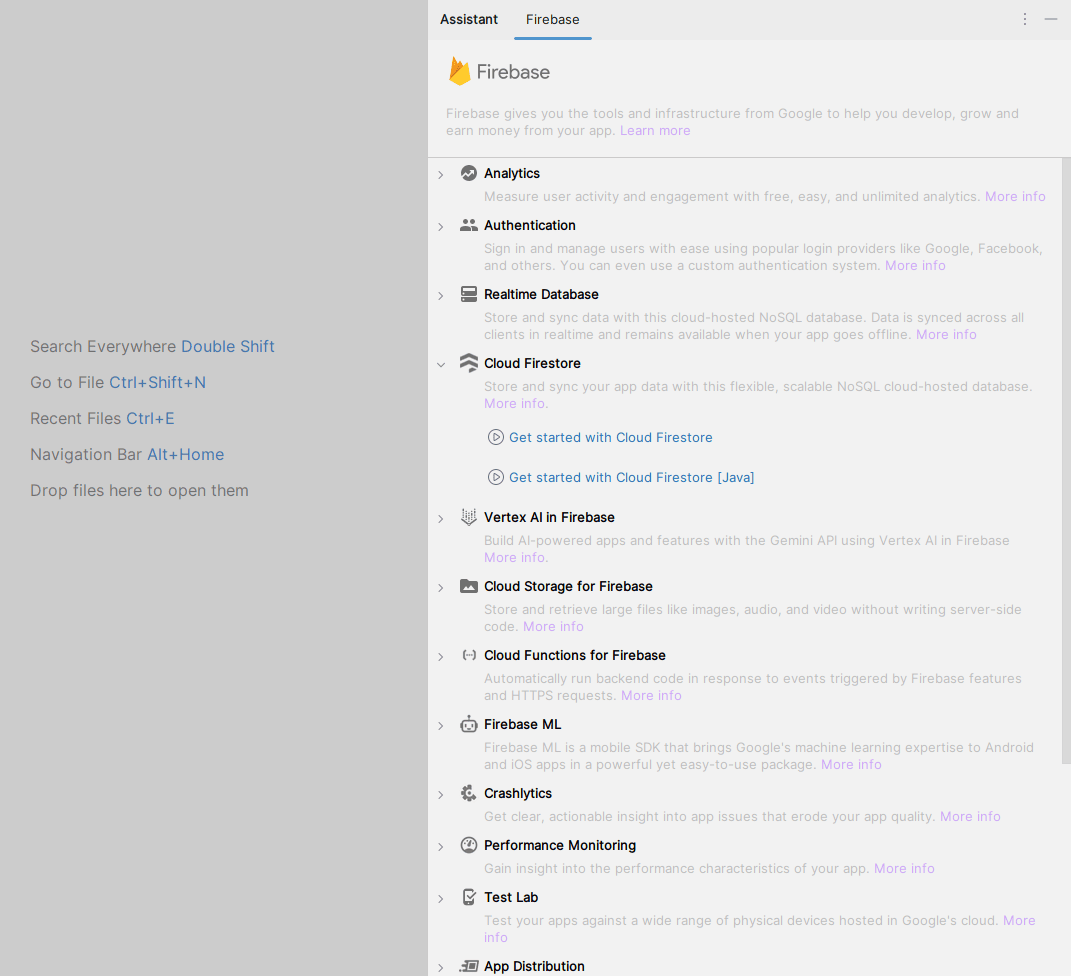
Inside that column Navigate to Cloud Firestore. Click on that option and then select Get Started with Could Firestore. In the next screen, Click on Connect to Firebase option and your app will be connected to Firebase after you setup everything in the website. Then select Add the Cloud Firestore SDK to your app and then in the dialog box select Accept Changes.

Step 3: Working with manifest file
For adding data to Firebase we should have to give permissions for accessing the internet. Navigate to app > manifests > AndroidManifest.xml. Inside that file add the below permissions to it.
<uses-permission android:name="android.permission.INTERNET" />Step 4: Creating a data class for storing data
Navigate to app > java+kotlin > {package-name}, Right click on it, New > Kotlin class/file and name it as Course and add the below code to it. Comments are added to it to get to know it in detail.
Course.kt:
package com.geeksforgeeks.demo

data class Course(
    // on below line creating variables.
    var courseName: String,
    var courseDuration: String,
    var courseDescription: String
)
Step 5: Working with the MainActivity.kt file
Go to the MainActivity.kt file and refer to the following code. Below is the code for the MainActivity.kt file. Comments are added inside the code to understand the code in more detail.
MainActivity.kt:
package com.geeksforgeeks.demo

import android.content.Context
import android.os.Bundle
import android.text.TextUtils
import android.util.Log
import android.widget.Toast
import androidx.activity.ComponentActivity
import androidx.activity.compose.setContent
import androidx.compose.foundation.background
import androidx.compose.foundation.layout.Arrangement
import androidx.compose.foundation.layout.Column
import androidx.compose.foundation.layout.Spacer
import androidx.compose.foundation.layout.fillMaxHeight
import androidx.compose.foundation.layout.fillMaxWidth
import androidx.compose.foundation.layout.height
import androidx.compose.foundation.layout.padding
import androidx.compose.material3.Button
import androidx.compose.material3.MaterialTheme
import androidx.compose.material3.Text
import androidx.compose.material3.TextField
import androidx.compose.runtime.Composable
import androidx.compose.runtime.mutableStateOf
import androidx.compose.runtime.remember
import androidx.compose.ui.Alignment
import androidx.compose.ui.Modifier
import androidx.compose.ui.graphics.Color
import androidx.compose.ui.platform.LocalContext
import androidx.compose.ui.text.TextStyle
import androidx.compose.ui.unit.dp
import androidx.compose.ui.unit.sp
import com.google.firebase.firestore.CollectionReference
import com.google.firebase.firestore.FirebaseFirestore

class MainActivity : ComponentActivity() {
    override fun onCreate(savedInstanceState: Bundle?) {
        super.onCreate(savedInstanceState)
        setContent {
            MaterialTheme {
                FirebaseUI(LocalContext.current)
            }
        }
    }
}

@Composable
fun FirebaseUI(context: Context) {

    // create variable for course name, course duration and course description
    val courseName = remember {
        mutableStateOf("")
    }

    val courseDuration = remember {
        mutableStateOf("")
    }

    val courseDescription = remember {
        mutableStateOf("")
    }

    // column to display text fields
    Column(
        modifier = Modifier
            .fillMaxHeight()
            .fillMaxWidth()
            .background(Color.White),
        verticalArrangement = Arrangement.Center,
        horizontalAlignment = Alignment.CenterHorizontally
    ) {
        // text field for course name
        TextField(
            // specify value for course name text field
            value = courseName.value,
            // value change for text field.
            onValueChange = { courseName.value = it },
            placeholder = { Text(text = "Enter your course name") },
            modifier = Modifier
                .padding(16.dp)
                .fillMaxWidth(),
            textStyle = TextStyle(color = Color.Black, fontSize = 15.sp),
            singleLine = true,
        )

        Spacer(modifier = Modifier.height(10.dp))

        // text field for course duration
        TextField(
            // specify value for course duration text field
            value = courseDuration.value,
            onValueChange = { courseDuration.value = it },
            placeholder = { Text(text = "Enter your course duration") },
            modifier = Modifier
                .padding(16.dp)
                .fillMaxWidth(),
            textStyle = TextStyle(color = Color.Black, fontSize = 15.sp),
            singleLine = true,
        )

        Spacer(modifier = Modifier.height(10.dp))

        // text field for course description
        TextField(
            value = courseDescription.value,
            onValueChange = { courseDescription.value = it },
            placeholder = { Text(text = "Enter your course description") },
            modifier = Modifier
                .padding(16.dp)
                .fillMaxWidth(),
            textStyle = TextStyle(color = Color.Black, fontSize = 15.sp),
            singleLine = true,
        )

        Spacer(modifier = Modifier.height(10.dp))

        // button to add data to firebase
        Button(
            onClick = {
                // validate user input parameters
                if (TextUtils.isEmpty(courseName.value.toString())) {
                    Toast.makeText(context, "Please enter course name", Toast.LENGTH_SHORT).show()
                } else if (TextUtils.isEmpty(courseDuration.value)) {
                    Toast.makeText(context, "Please enter course Duration", Toast.LENGTH_SHORT)
                        .show()
                } else if (TextUtils.isEmpty(courseDescription.value)) {
                    Toast.makeText(context, "Please enter course description", Toast.LENGTH_SHORT)
                        .show()
                } else {
                    // call function to add data to firebase firestore database
                    addDataToFirebase(
                        courseName.value,
                        courseDuration.value,
                        courseDescription.value, context
                    )
                }
            },
            modifier = Modifier
                .fillMaxWidth()
                .padding(16.dp)
        ) {
            // text for button
            Text(text = "Add Data", modifier = Modifier.padding(8.dp))
        }
    }
}

// add data to firebase
fun addDataToFirebase(
    courseName: String,
    courseDuration: String,
    courseDescription: String,
    context: Context
) {
    // create an instance of firebase firestore
    val db: FirebaseFirestore = FirebaseFirestore.getInstance()
    // create a collection reference for Firebase Firestore database
    val dbCourses: CollectionReference = db.collection("Courses")
    // add data to courses object class.
    val courses = Course(courseName, courseDescription, courseDuration)

    //below method is use to add data to Firebase Firestore
    dbCourses.add(courses).addOnSuccessListener {
        // after the data addition is successful
        // we are displaying a success toast message.
        Toast.makeText(
            context,
            "Your Course has been added to Firebase Firestore",
            Toast.LENGTH_SHORT
        ).show()

    }.addOnFailureListener { e ->
        // this method is called when the data addition process is failed.
        // displaying a toast message when data addition is failed.
        Toast.makeText(context, "Fail to add course \n$e", Toast.LENGTH_SHORT).show()
    }

}
Step 6: Setup Firebase console.
Now, navigate to firebase console and open your project. On the left sidebar select Build > Firestore. Now, after the screen loads, click on Create Database. Now, follow the steps in the dialog box and create the database. After the database is create, you will be able see the table as shown in the output below.