
Babel is a JavaScript compiler and toolchain designed to transform modern JavaScript code (ES2015+ and beyond) into a version that can run in older browsers or environments. By converting new syntax into compatible JavaScript, Babel allows developers to use the latest features without waiting for all browsers to catch up.
Here’s a simple breakdown of what Babel does and why it’s important for modern web development.
Key Functions of Babel
- Syntax Transformation: Babel transforms newer JavaScript syntax into a version that older browsers can understand. For instance, it can convert ES2015 arrow functions into traditional functions.
Here's an example:
// Input: ES2015 arrow function
[1, 2, 3].map(n => n + 1);

// Output: ES5 equivalent
[1, 2, 3].map(function(n) {
    return n + 1;
});
- Polyfilling Features: Babel can add missing features to older browsers through polyfills. Polyfills are code snippets that add functionality that browsers don’t natively support. Babel uses third-party polyfills like core-js to provide these capabilities.
- Source Code Transformations: Babel allows developers to perform transformations on their code, often referred to as codemods. These transformations can help in migrating codebases to newer versions of JavaScript or applying best practices.
Working with Modern JavaScript
Babel supports the latest versions of JavaScript by using syntax transformers, which means developers can use new syntax immediately, without worrying about browser support. By integrating Babel into their development process, developers can write cutting-edge JavaScript that still runs seamlessly in older environments.
Babel with JSX and React
One of Babel’s popular use cases is with React, particularly for transforming JSX syntax. JSX is a syntax extension for JavaScript that allows you to write HTML elements within JavaScript. Babel can convert JSX into regular JavaScript that browsers can execute. To use Babel with React, you can install the React preset:
npm install --save-dev @babel/preset-reactAfter installing, you need to add the preset to your Babel configuration. Here’s an example of JSX being transformed:
export default function DiceRoll() {
    const getRandomNumber = () => Math.ceil(Math.random() * 6);
    const [num, setNum] = useState(getRandomNumber());

    const handleClick = () => {
        const newNum = getRandomNumber();
        setNum(newNum);
    };

    return (
        <div>
            Your dice roll: {num}.
            <button onClick={handleClick}>Click to get a new number</button>
        </div>
    );
}
Using Type Annotations
Babel can also handle type annotations from Flow and TypeScript, which are tools that help with type checking in JavaScript. While Babel can strip out these type annotations to make the code runnable in browsers, it does not perform type checking itself—you still need to use Flow or TypeScript for that.
For Flow:
npm install --save-dev @babel/preset-flowAnd for TypeScript:
npm install --save-dev @babel/preset-typescriptPluggable and Configurable
Babel is highly customizable through its plugin system. Plugins allow you to create your own transformations or use existing ones to tailor Babel’s behavior to your needs. For example, if you want to reverse every identifier in your code, you can create a custom plugin:
export default function ({ types: t }) {
    return {
        visitor: {
            Identifier(path) {
                let name = path.node.name;
                path.node.name = [...name].reverse().join("");
            },
        },
    };
}
Babel configurations can be set up in various ways, including JSON files (babel.config.json), JavaScript files (babel.config.js), or even directly within package.json. This flexibility allows Babel to be used in different project setups, whether it's a simple application or a complex monorepo.
Steps to Implement Babel
Step 1: Create Your Project Folder
First, create a new directory for your project and navigate into it:
mkdir my-babel-project
cd my-babel-project
Step 2: Initialize the Project
Initialize a new Node.js project with a package.json file:
npm init -yThis command will generate a package.json file with default settings.
Step 3: Install Babel Core Packages
Next, install Babel core and the command-line interface (CLI) to use Babel in your project:
npm install --save-dev @babel/core @babel/cliStep 4: Install Babel Preset
To transform ES6+ code into ES5, you need to install the Babel preset called @babel/preset-env:
npm install --save-dev @babel/preset-envStep 5: Configure Babel
Create a Babel configuration file, named babel.config.json or .babelrc, in the root of your project:
.babelrc file
{
  "presets": ["@babel/preset-env"]
}
This configuration tells Babel to use the preset-env, which automatically determines the transformations needed based on the target environment.
Folder Structure
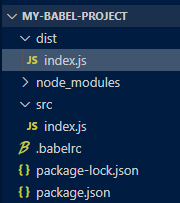
Dependencies
"devDependencies": {
    "@babel/cli": "^7.25.6",
    "@babel/core": "^7.25.2",
    "@babel/preset-env": "^7.25.4"
  }
Example: Create a src folder and add your JavaScript file, for example, index.js:
//src/index.js

// ES6+ code
const greet = (name) => {
  console.log(`Hello, ${name}!`);
};

greet('World');
Step 6: Transpile Your Code with Babel
To compile your JavaScript code using Babel, run the following command:
npx babel src --out-dir distThis command tells Babel to take all files from the src directory and output the compiled files into the dist directory.
Alternatively, you can add a script to your package.json to run Babel easily:
package.json
"scripts": {
  "build": "babel src --out-dir dist"
}
Now, you can compile your code by simply running:
npm run buildOutput
After running the build command, you should see the compiled JavaScript in the dist directory. The output will be in ES5 format, which is compatible with older browsers.

Additional Features
- Debuggable: Babel includes source map support, making it easier to debug compiled code by linking it back to the original source code.
- Spec Compliant: Babel strives to adhere closely to the ECMAScript specification, ensuring that the transformed code remains true to the intended standards.
- Compact and Efficient: Babel aims to generate the least amount of code necessary, avoiding dependency on large runtimes and focusing on efficiency and speed.