
Google Sheets makes it easy to share and collaborate on spreadsheets with others in real-time, whether you're working on a team project, managing budgets, or organizing data. The platform offers several tools to help you control permissions, track changes, and stay in sync with collaborators.
Sharing Google Sheets Publicly on the Web (PC/Mac)
Sharing Google Sheets publicly on the web allows anyone with the link to access the document. This is particularly useful when you want to share data with a large audience, but it requires careful handling to ensure the right level of access. You can decide whether the public should only view the document or have permission to comment or edit.
Step 1: Open the Google Sheet
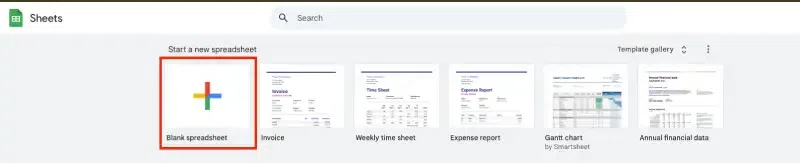
Open the document you want to make public or you can select a blank spreadsheet.
Step 2: Click on the 'Share' Button
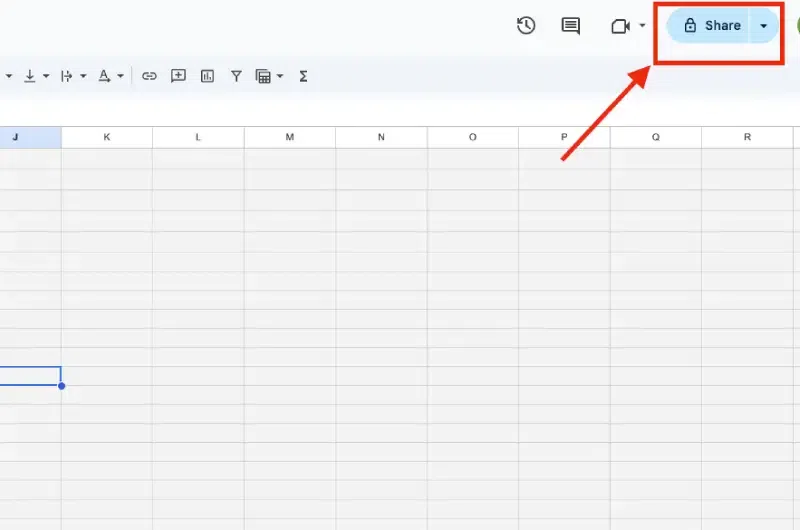
Click the blue Share button in the top-right corner.
Step 3: Adjust General Access Settings
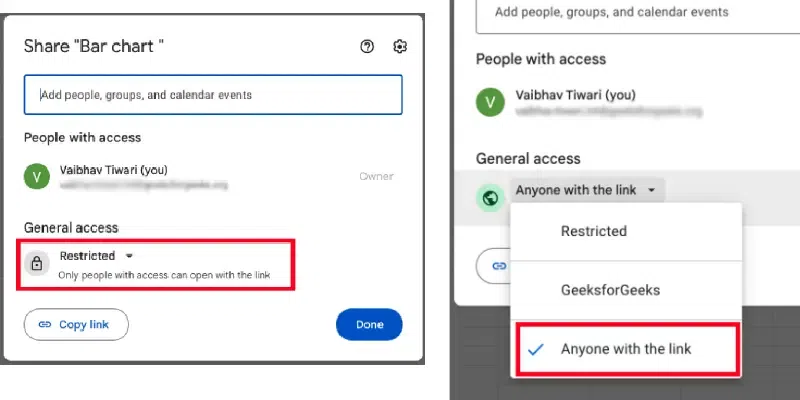
Under the General access section, click the Down Arrow next to Restricted and choose one of the following options:
- Anyone with the link: Anyone who has the link can access the document.
- Public on the web: The document will be searchable and accessible by anyone on the internet.
Step 4: Set Link Permissions
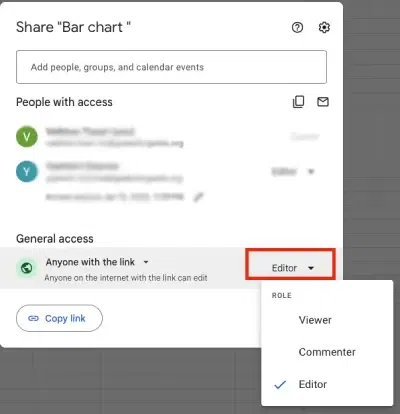
After choosing the sharing option, you can set the permissions for people with the link:
- Viewer: Anyone with the link can only view the document.
- Commenter: Anyone with the link can view and comment on the document.
- Editor: Anyone with the link can edit the document.
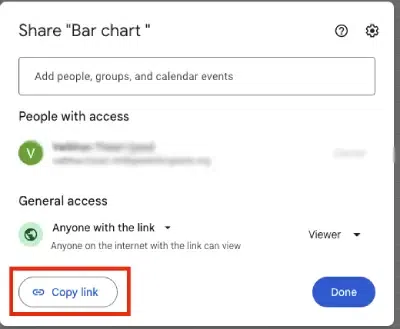
Step 5: Copy and Share the Link
Once the link permissions are set, click Copy link to copy the sharing link. You can now send this link to anyone you want to have access to the document.
Important Considerations for Sharing Publicly
- Be cautious with sensitive information: When you make a Google Sheet public, it can be indexed by search engines, which means it could be found by anyone with an internet connection. Always ensure that no confidential or sensitive information is included.
- Use “Viewer” permissions: If you want to prevent others from editing your document, ensure that the link permission is set to Viewer. This way, users can only read the data without modifying it.
Sharing Google Sheets with Specific People
Sharing Google Sheets with specific people gives you full control over who can view, comment, or edit your document. This is the most secure way to collaborate, as only those invited can access the document. Here’s how you can share your Google Sheet with specific people:
Step 1: Open Your Google Sheet
Navigate to the Google Sheets file you want to share.
Step 2: Click on the 'Share' Button
In the upper-right corner of the document, click the blue Share button. This opens the sharing settings.
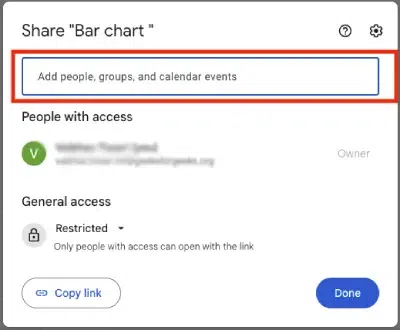
Step 3: Add People or Groups
In the sharing settings, you can add the email addresses of the people or Google Groups you wish to share the document with. You can invite multiple people at once by entering several email addresses, separated by commas.
Step 4: Set Permissions
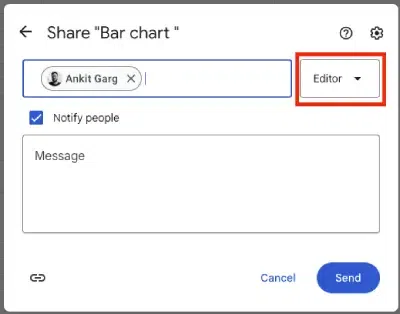
Once you add the email addresses, you’ll be able to set permissions for each person. The available permission levels are:
- Viewer: Can only view the document.
- Commenter: Can view and comment on the document.
- Editor: Can view, comment, and edit the document.
Optional: Notify People
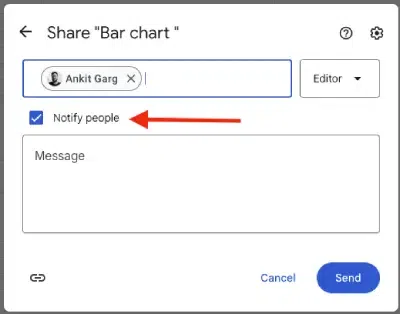
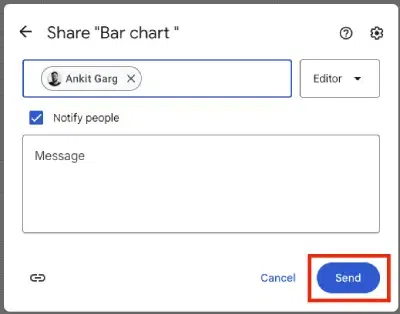
If you want, you can check the box that says Notify people, and Google will send an email to the recipients, informing them that the document has been shared with them.
Step 5: Click 'Send' or 'Share'
Once you’ve set the appropriate permissions and added the email addresses, click Send to share the document, or Share if you don’t want to send a notification.
How to Share Google Sheets on Mobile (Android/iPhone)
Google Sheets makes it easy to share your documents directly from your mobile device, whether you’re using an Android phone or an iPhone. Whether you need to collaborate with teammates or share data with friends, the process is simple and straightforward.
Here’s how you can share a Google Sheet on both Android and iPhone:
Step 1: Open the Google Sheets App
Launch the Google Sheets app on your Android or iPhone device. If you don’t have the app installed, you can download it from the Google Play Store (for Android) or the App Store (for iPhone).
Step 2: Open Your Google Sheet
Navigate to the Google Sheets document you want to share by tapping on it from the home screen or from your Google Drive.

Step 3: Tap the 'Share' Button
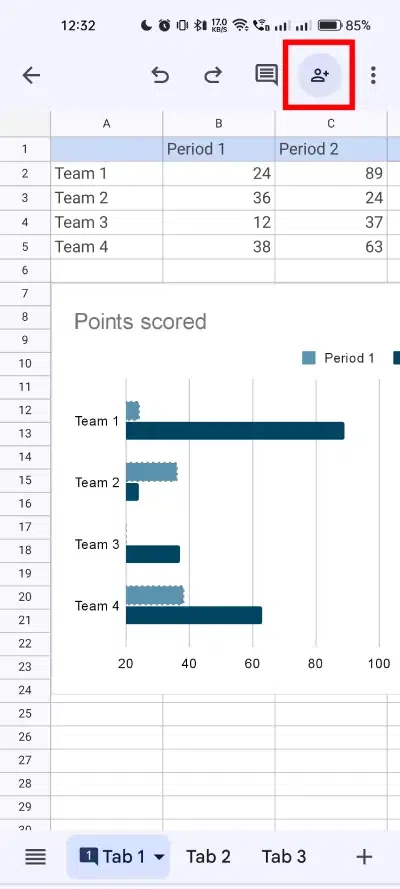
Once the sheet is open, tap the Share icon. On Android, this is typically represented by a person with a "+" sign or the three vertical dots in the top-right corner. On iPhone, tap the three dots in the upper-right corner of the document, then select Share & Export.
Step 4: Add People or Groups
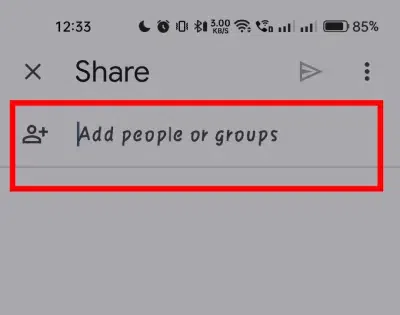
In the sharing settings, you’ll see a list of people already with access (if any). Tap on Add people. Now, enter the email addresses of the people you want to share the document with. You can add multiple people by separating their email addresses with commas.
Step 5: Set Permissions
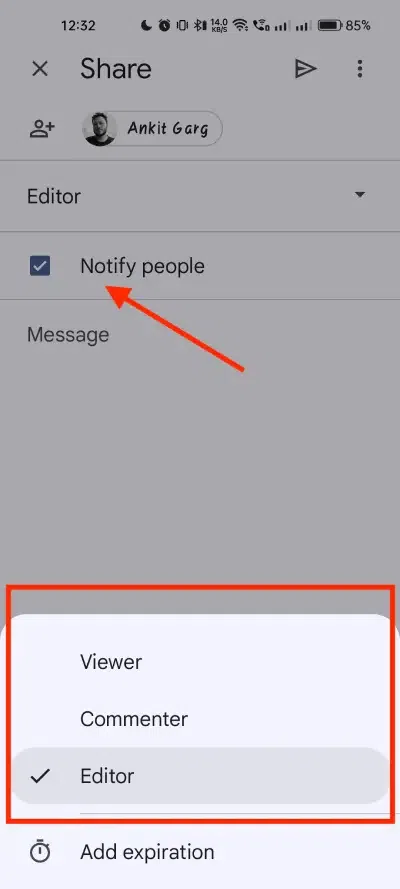
After adding the email addresses, you’ll be able to set permissions for each person. The available permission levels are:
- Viewer: Can only view the document.
- Commenter: Can view and comment on the document.
- Editor: Can view, comment, and edit the document.
Select the appropriate permission for each person.
Note: You can also click on "Notify People" to enable notification
Step 6: Access the Sheet
Now, if you are sharing your sheets with everyone then you can select "Anyone with this link" or you can restrict this sheet to the specific people.
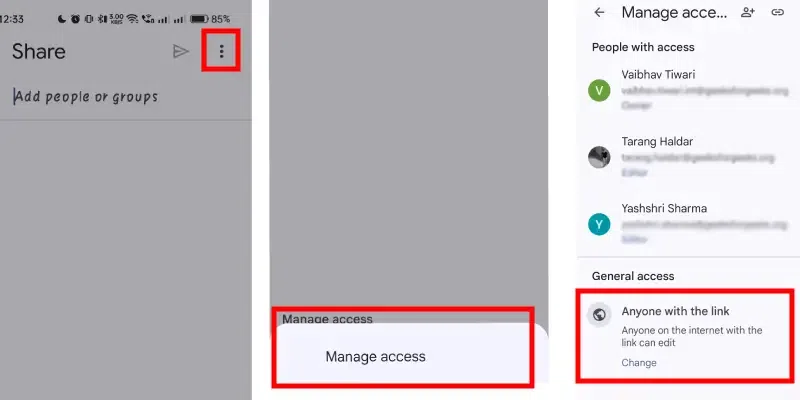
Step 6: Send the Invitation
Once you’ve set the permissions, tap Send (on Android) or Share (on iPhone). If you prefer, you can also choose Copy Link to copy the link and share it through any other method, such as text messages or social media.
Step 7: Close the Sharing Settings
After the document is shared, tap the back button to return to your Google Sheet or simply close the sharing window.
Note:
- Sharing permissions can be modified later by returning to the Share settings and adjusting the access levels.
- You can share a Google Sheet with specific people by entering their email addresses, or you can generate a shareable link to send to anyone.
- Make sure that you have the Google Sheets app installed and connected to your Google account to access the sharing features.
By following these steps, you can easily share your Google Sheets files on mobile, whether you’re using an Android phone or an iPhone. Whether you’re collaborating with colleagues or sharing data with family and friends, Google Sheets ensures that you stay connected and productive from anywhere.
How to Share and Hide Certain Tabs in Google Sheets
Google Sheets does not offer a direct way to share only one tab of a spreadsheet without giving access to the entire document. However, there are workarounds that allow you to control which sheets users can view or edit. If you only want to allow users to view a specific sheet and not the entire document, you can hide the other sheets. This method works for users with view-only or commenter access, as they won’t be able to see the hidden sheets.
Here are the steps you can use:
Step 1: Open Your Google Sheet
Navigate to the Google Sheets document where you want to hide certain tabs.
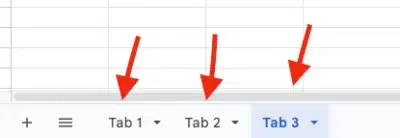
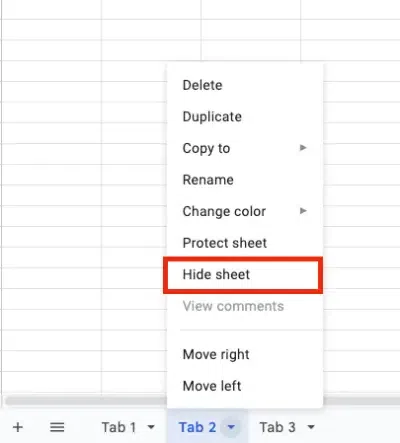
Step 2: Hide the Sheets You Don’t Want to Share
Right-click on the tab you want to hide. In the dropdown menu, select Hide sheet. This action will make the sheet invisible to users who only have view or comment access.
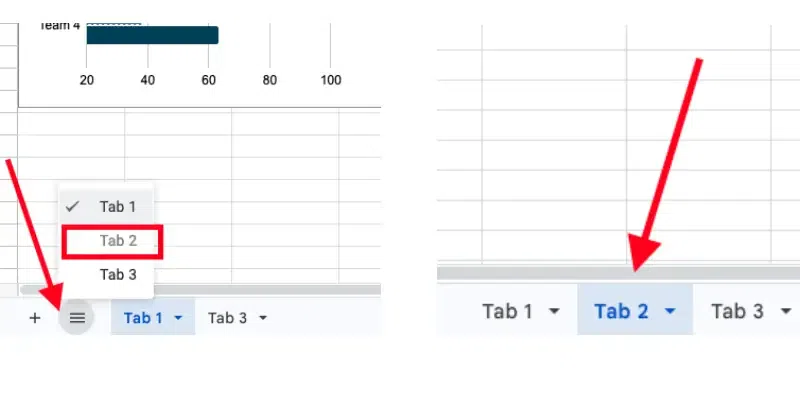
Note: If you want to unhide your sheet for future edit, you can just do this:
Step 3: Share the Document with Users
Share the document with the people who should have access, knowing that they will only see the visible sheets.
Note: This method will not work for users with editor access. They will still be able to unhide the sheets.
Chat with Collaborators in a Spreadsheet
Collaborating in real time is one of the key features of Google Sheets. When working with others, you can chat with your collaborators directly within the spreadsheet. This feature helps streamline communication without leaving the document. Here’s how you can chat with collaborators in a Google Sheets file:
Step 1: Open Your Google Sheet
Navigate to the Google Sheets document where you want to chat with your collaborators.
Step 2: Click on the 'Show Chat' Button
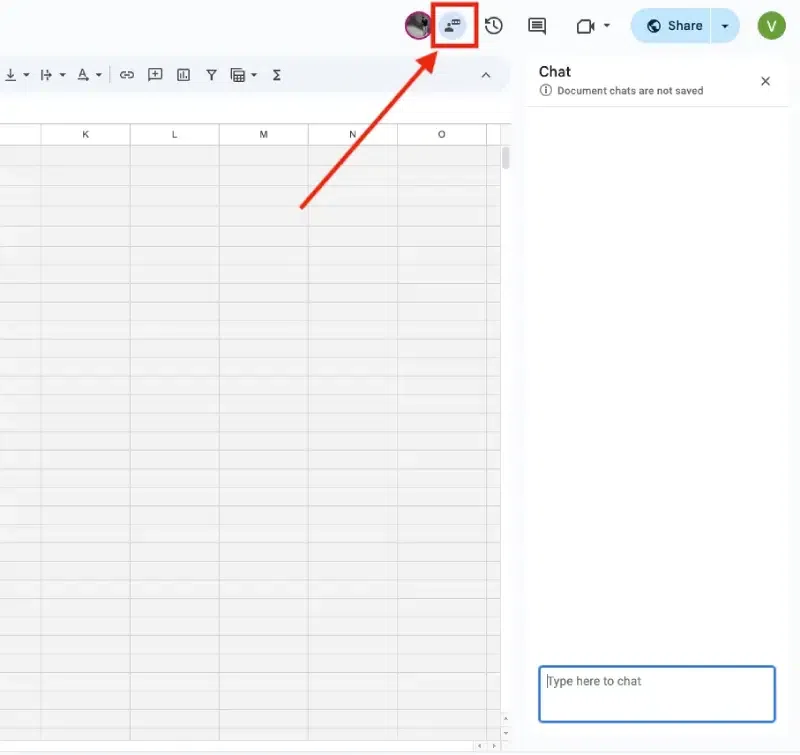
At the top-right of your screen, click on Show chat. This option is only available when there are other collaborators working on the file. If you’re the only person in the file, the chat feature won’t be visible.
Step 3: Join the Chat (if multiple collaborators are in the file)
If there are many collaborators in the file, a blue circle will appear next to the avatars at the top-right. This circle indicates how many additional collaborators are in the file.
Click the blue circle and then select Join chat to open the chat window.
Step 4: Enter Your Message
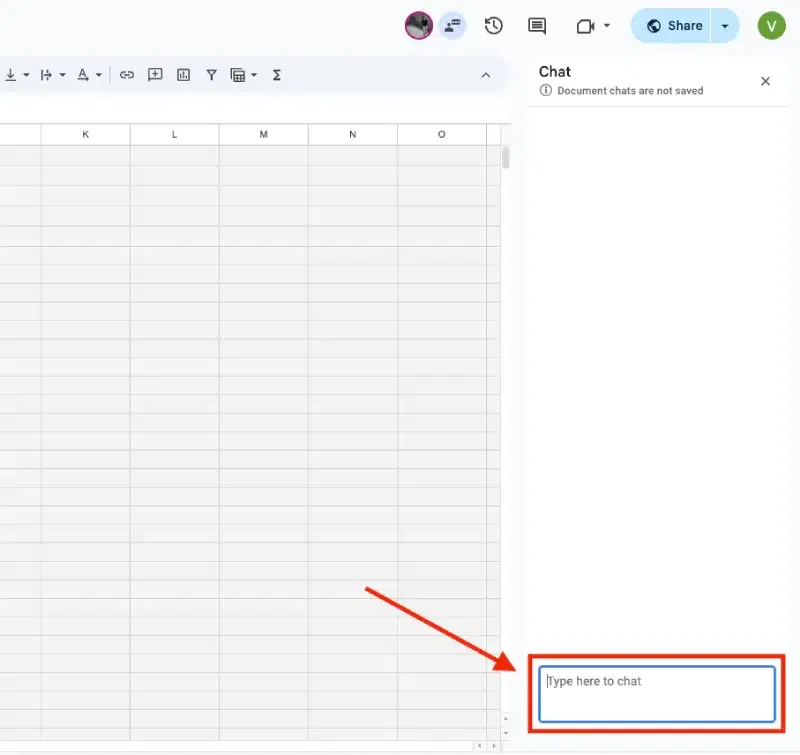
Once the chat window is open, type your message in the chat box and press Enter to send it. You can now communicate directly with your collaborators.
Step 5: Close the Chat
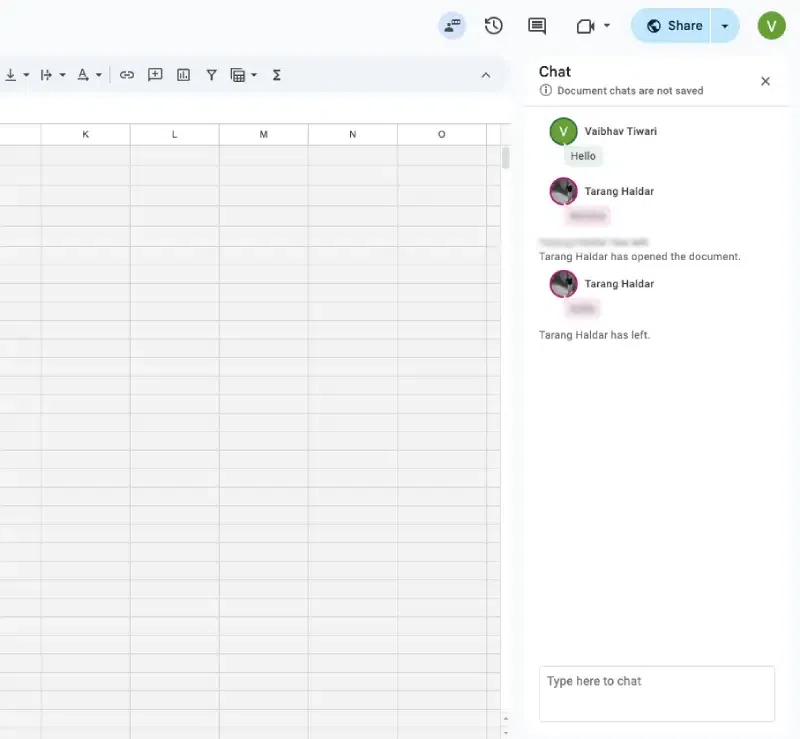
When you’re done chatting, at the top-right of the chat window, click Close to exit the chat.
Best Practices for Sharing Google Sheets
- Review Sharing Settings Regularly: Especially for documents with sensitive information, regularly review the sharing settings to ensure only the intended people have access.
- Limit Editing Privileges: Give editing privileges only to those who absolutely need them. Most users will only need Viewer or Commenter access.
- Use Google Groups for Easier Sharing: If you frequently share documents with the same group of people, create a Google Group. This way, you can share your document with the group rather than entering individual email addresses each time.
- Be Mindful of Permissions for Public Links: If you're sharing publicly, make sure to double-check the permissions before sharing the link. The last thing you want is for your document to be edited by someone other than you or your team.