Text alignment refers to how text is positioned within the document. It controls whether your text is aligned to the left, center, right, or justified (spread evenly across the page).
Types of Text Alignment
- Left Align: This is the default alignment in Google Docs. All text starts from the left edge of the page.
- Center Align: Text is centered between the left and right margins, often used for headings and titles.
- Right Align: Text is aligned to the right margin, useful for things like dates or short statements that need to stand apart from the main body.
- Justify: Text is aligned on both the left and right margins, making the text block look neat and uniform. This is commonly used in formal documents, like newspapers or reports.
Steps to Align Text in Google Docs
Step 1: Open Google Docs
Open Google Docs in your browser and navigate to the document where you want to adjust the text alignment. Make sure you’re working in the Google Docs document you want to format.
Step 2: Select the Text
Highlight the text that you wish to align. If you want to align the entire document, press the shortcut Ctrl + A (Windows) or Cmd + A (Mac) to select all text.
Step 3: Choose the Alignment
In the toolbar at the top of the screen, you'll see the Align button. Here’s how you can use it:
Use Keyboard Shortcut for Alignment in Google Docs
You can also use keyboard shortcuts for faster alignment:
- Left Align:
Ctrl + Shift + L(Windows) orCmd + Shift + L(Mac)- Center Align:
Ctrl + Shift + E(Windows) orCmd + Shift + E(Mac)- Right Align:
Ctrl + Shift + R(Windows) orCmd + Shift + R(Mac)- Justify Text:
Ctrl + Shift + J(Windows) orCmd + Shift + J(Mac)
How to Left Align Text in Google Docs - Example
Go to the toolbar at the top and click the Align button (the icon with horizontal lines). Select Left Align.

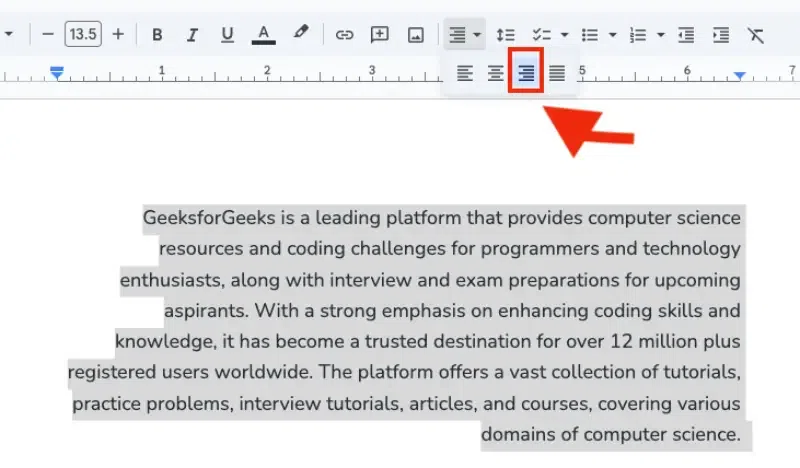
How to Right Align Text in Google Docs- Example
Select the Right Align option for aligning text to the right margin. Use this for specific types of content, such as dates or addresses.
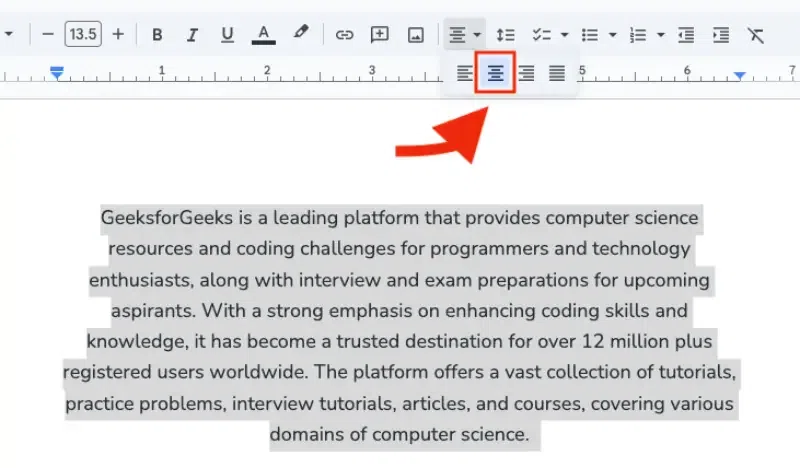
How to Center Text in Google Docs - Example
Center-align your text for titles, headings, or important sections you want to stand out. Click the Align button again and select Center Align.
How to Justify Text in Google Docs - Example
This makes the Text aligned on both the left and right margins, making the text block look neat and uniform. This is commonly used in formal documents, like newspapers or reports.

Google Docs: Paragraph Spacing
Paragraph spacing refers to the amount of space before and after each paragraph. This ensures that paragraphs are clearly separated and that your document isn’t too dense or cluttered.
Steps to Adjust Paragraph Spacing in Google Docs
Step 1: Select the Text or Paragraph
Highlight the paragraph or text you want to adjust. To modify spacing for the entire document, press Ctrl + A (Windows) or Cmd + A (Mac).

Step 2: Open the Line & Paragraph Spacing Menu
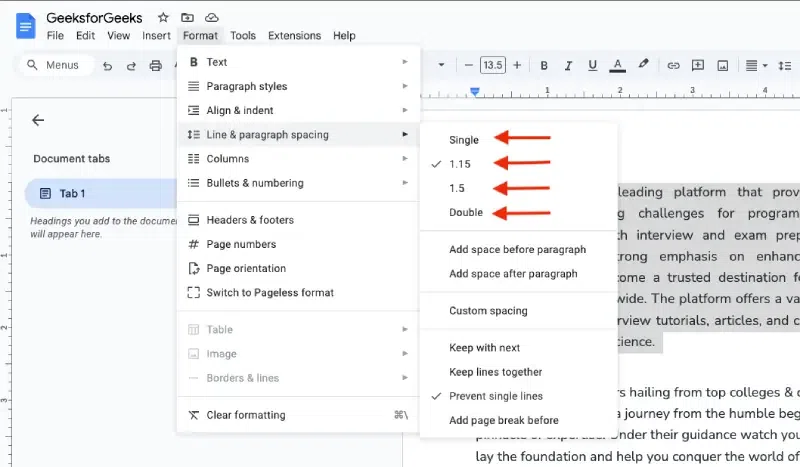
Click on the Line & Paragraph Spacing button from the toolbar (or go to Format > Line Spacing from the top menu).
Shortcut to Open Format Options in Google Docs
- Windows and Chrome OS: Alt + Shift + o
- Mac OS: Control + Option + o

Step 3: Adjust the Paragraph Spacing
From the Line Spacing menu, select Add space before paragraph or Add space after paragraph depending on your needs. If you want to use custom spacing, select Custom spacing and enter the desired below value for "Before" and "After" spacing.
- Single: The default line spacing, suitable for standard text.
- 1.15: The default line spacing that’s slightly more spacious than single spacing.
- 1.5: Ideal for a comfortable reading experience without too much space between lines.
- Double: Commonly used for academic papers and formal documents.
- Custom Spacing: If none of the preset options work, you can select Custom Spacing to input your preferred values for both line spacing and paragraph spacing.
Tip: A good rule of thumb is to add 6pt or 8pt spacing before and after each paragraph for better readability. This gives your document a more organized and professional look without making it feel too sparse.