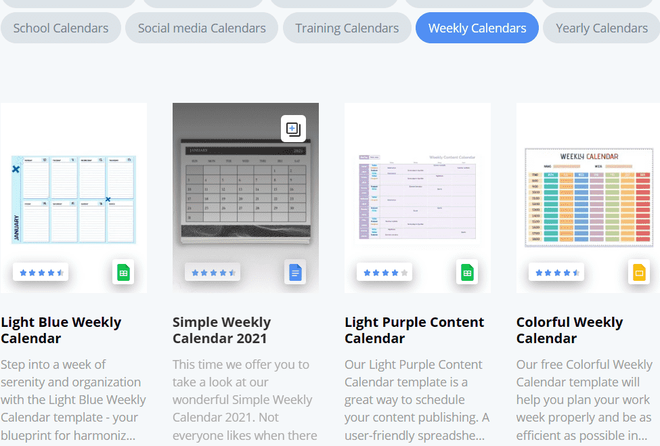
Creating a calendar in Google Docs is a simple way to organize schedules, plan events, and manage tasks. You can build one using tables or customize templates, with options like color coding and easy sharing to stay on track.
Steps to Create a Calendar In Google Docs
Creating blank document>Setting up the layout > Adding dates and month> Personalization
Step 1: Click on the plus (+) Icon
Before starting the project, we have to create a blank document where we will be making the calendar. To create the blank document, first, go to Google Docs template gallery/home screen will open. Select the blank document there. 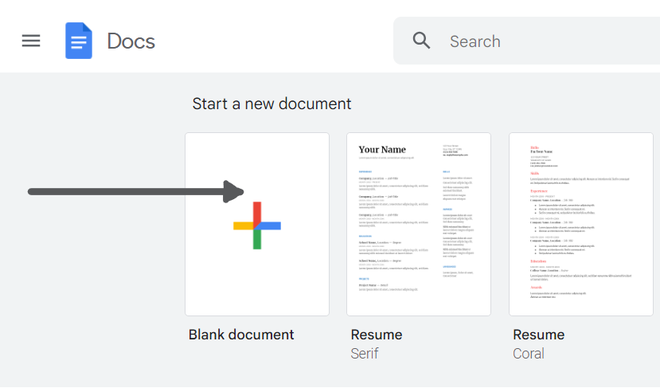
Step 2: Go to the Insert tab and Select the Table
After opening the blank document. Our second step is to create the table for our calendar. To create a table of 7*7 blocks go to Insert then click on the Table and select 7 rows and 7 columns.
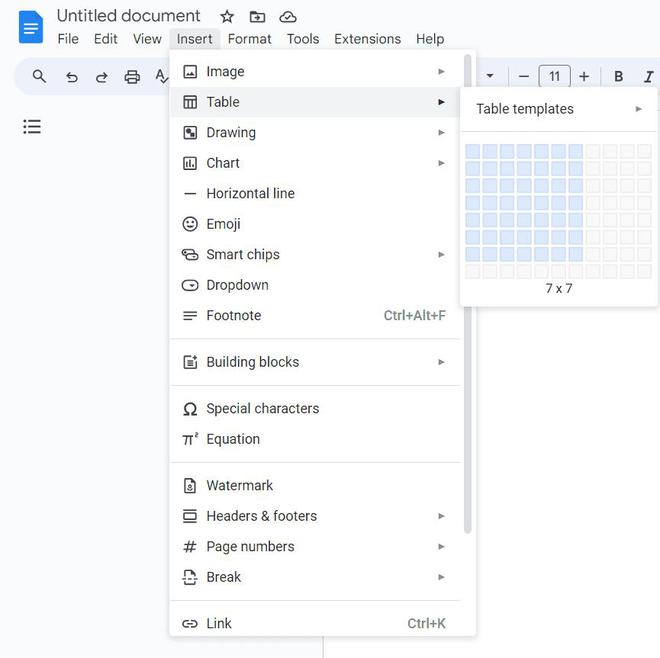
After selecting the number of columns and rows a table will be formed in the blank document. where you can adjust the size of each row and column separately. You can also later add rows and columns by right-clicking on the cell.

Step 3: Choose a row and right-click on it, then opt for the "Merge Cell option.
Inside the table, we will merge the first row to write the name of the month and year. To merge the first row we will select the whole row and right-click on that row. Then we will click on "merge cell" to merge the first row.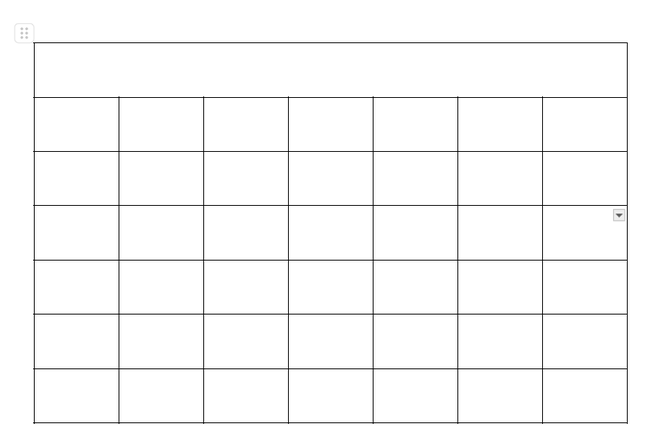
Step 4: Adding dates and months to the calendar
Click on the cell where you want to add the date and simultaneously add all the dates in the calendar. To align the dates in the calendar in the center you can select the table can click on align then to center align.
 Step 5: Adding background color to the cell
First, select the cell where you want to add the color then go to "background-color" and select the color of your background. To add color to holidays, do the same steps.
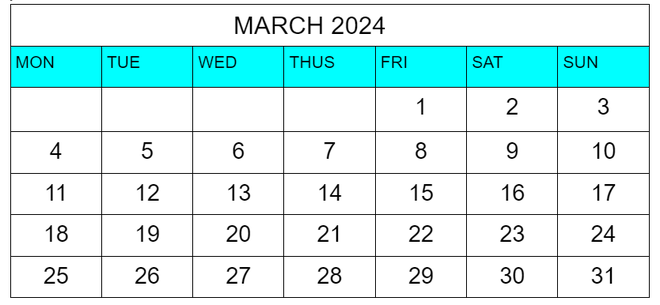
Step 6: Preview the Calendar
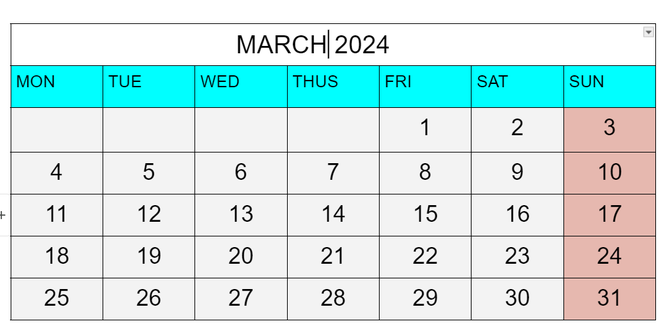
Steps to Change Page Orientation to Landscape
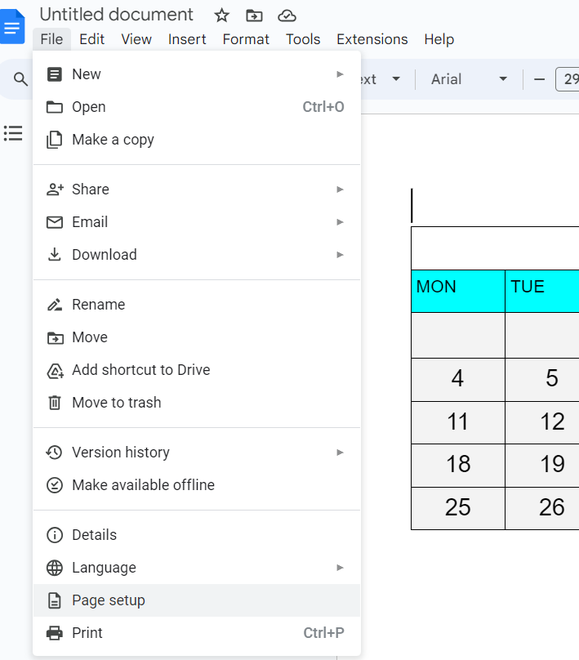
Step 1: Click on the File Menu and Select Page Setup
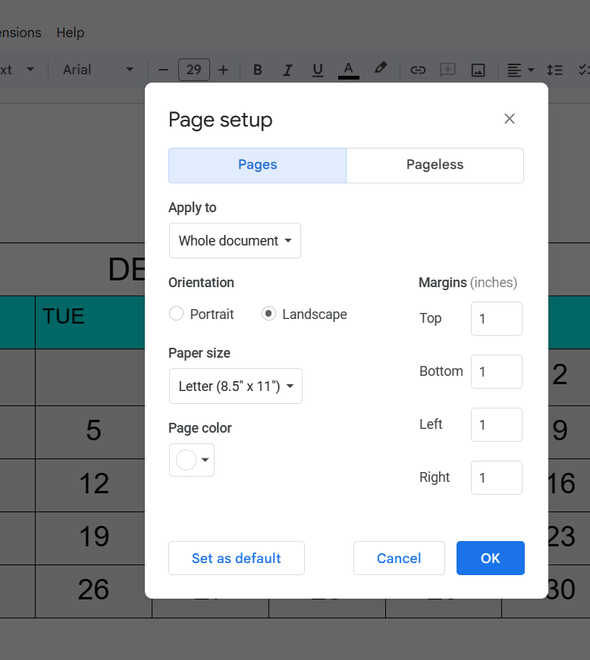
To flip your doc's orientation to landscape, go to "File" in the top-left corner click on page setup, and select Landscape to set your document into landscape mode. You can also change the color of the background from the same menu.
Step 2: Select Landscape in the Orientation
Free Calendar Templates in Google Docs
To get calendar templates you can visit https://thegoodocs.com/freebies/calendar-templates/
1. Weekly Schedule Template
You can download the weekly schedule from
https://thegoodocs.com/freebies/weekly-schedules/-(1)-(1)-660.png)
2. Social Media Calendar Template
https://thegoodocs.com/freebies/social-media-calendars/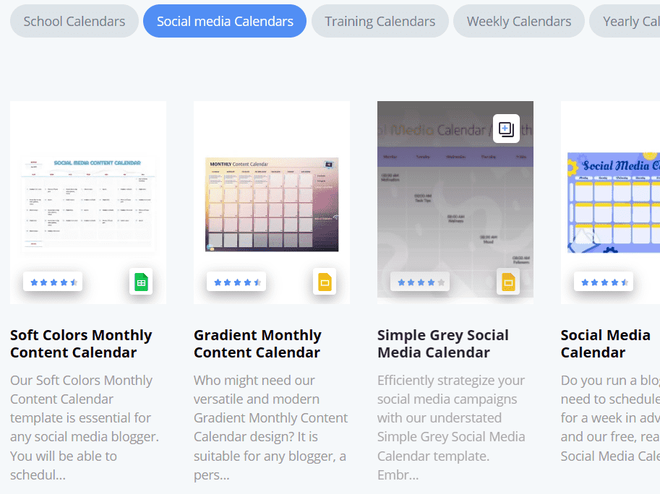
3. Weekly Event Calendar Template
https://thegoodocs.com/freebies/weekly-calendars/