
Google Docs does not have a built-in plagiarism checker. However, you can use indirect methods to check for plagiarism using external tools.
Steps to Check Plagiarism in Google Docs Using an Add-on
Follow the steps below to check plagiarism in Google Docs using an Add-on:
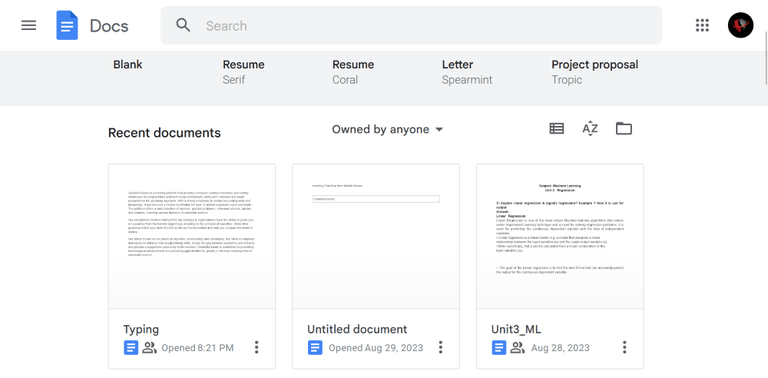
Step 1: Launch Google Docs
To begin with, install the Add-on in Google Docs. Launch Google Docs on your web browser to open a Google Doc.
Step 2: Open the Document
Access the document in which we need to check for the originality of our content. Additionally, there's the option to generate a new document or open an already existing one.

Step 3: Click on Extensions
After opening the document, to install Add-Ons in our document, we need to click on the Extensions Tab which is placed on the top panel of the editing space.

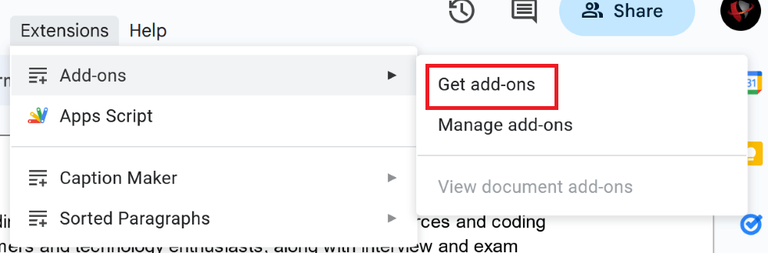
Step 4: Select Get Add-ons Option
A list of sub-options will be displayed, From these sub-options we need to select the option of Get add-ons. In the below image, you can see the navigation for better understanding.
Step 5: Search for Plagiarism Checker Add-on
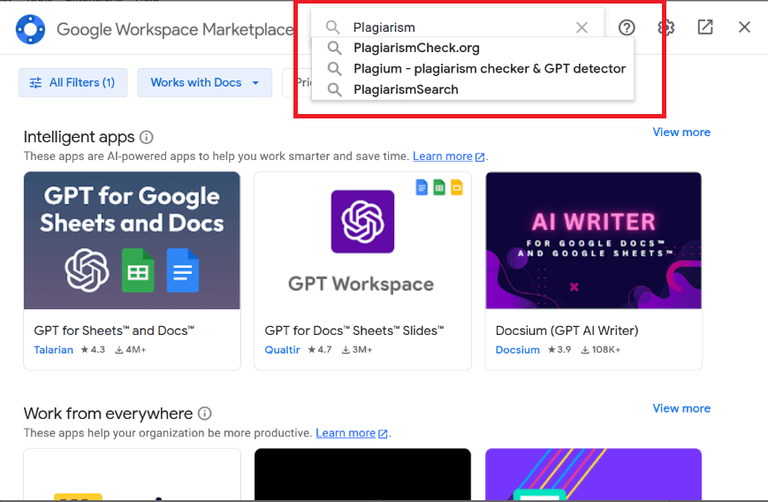
In the search bar, you can enter the name of the Plagiarism Add-on or simply search for "plagiarism" in the search box.
Step 6: Select and Install the Add-on
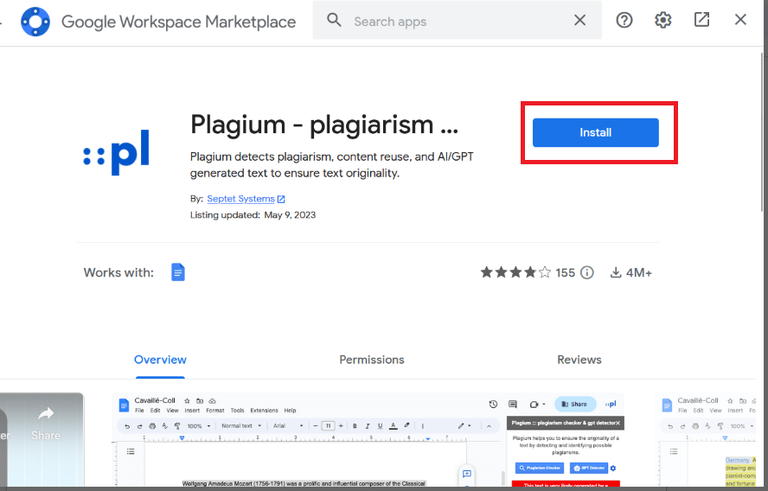
After the results are displayed, it's crucial to select the Add-on that suits your needs for installation and usage. Tailoring your choice to your specific requirements, you can opt for and install the Add-on of your preference. To kickstart the installation process, all you need to do is click the "Install" button for the chosen Add-on to integrate it into your document seamlessly.
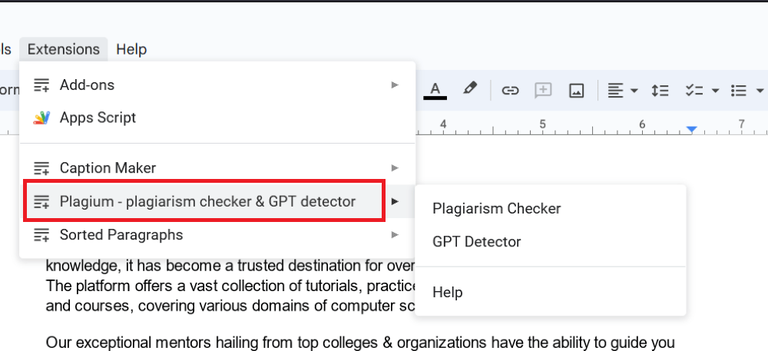
Note: Here we have used Plagium - Plagiarism Add On
Step 7: Click on the Extensions Tab
Once the installation is complete, we can open the Add-on that is installed. We can see the name of the Add-on has appears under Extensions menu.
Step 8: Select the Text for Detection
Now highlight the text that you want to examine for potential plagiarism.

Step 9: Go to Extensions and select the Installed Add-on
Next, navigate to the "Extensions" option in the menu bar and click on the "Plagiarism Add-on."

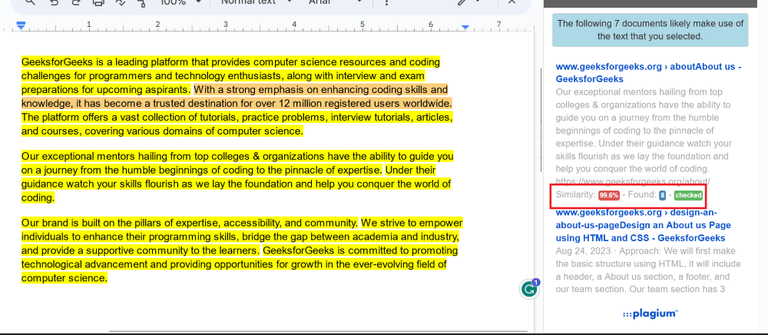
Step 10: Check Results
Now towards the right side of the window, a comprehensive report or results will be presented. This report will provide detailed information about any potential plagiarism. It will include a similarity percentage, where a higher value indicates a greater amount of plagiarized content.
Steps to Check Plagiarism in Google Docs Using Third-Party Services
Numerous Google Docs plagiarism checker add-ons are readily accessible on the Google Marketplace. However, it's worth noting that the accuracy of these add-ons may vary and might not always meet your specific requirements.
In such situations, you have the option to utilize various online plagiarism checkers to thoroughly assess your document for any instances of plagiarism. This ensures that your content remains original and in compliance with your standards of integrity.
Note: Below we are using the Grammarly Third-Party services for plagiarism checking. You’ll need to make sure you have a Grammarly Premium subscription downloaded in your computer.
Step 1: Open the Document
Access the document in which we need to check for the originality of our content. Additionally, there's the option to generate a new document or open an already existing one.
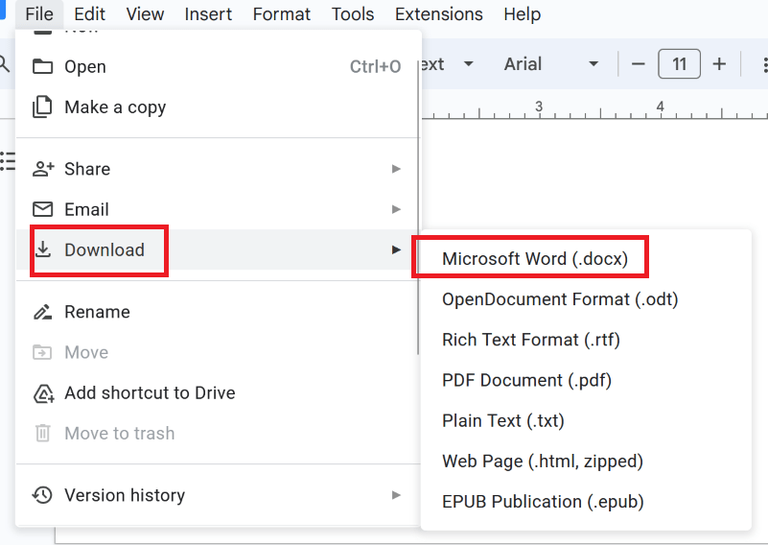
Step 2: Click on the File Tab
After opening the document with the content in it, we need to click on the File Tab which is on the Menu Bar at the top side of the editing space.

Step 3: Click on Download and Select Microsoft Word (.docx)
Download the document version of the content from the Download option.
Step 4: Open Grammarly in your web browser
Visit the official Grammarly website on which we can check for Plagiarism.

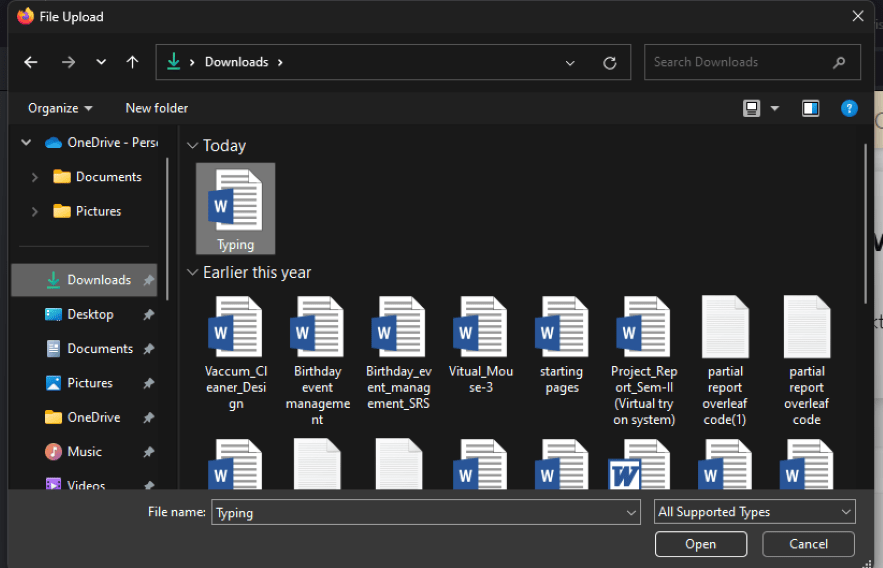
Step 5: Upload the Files to Grammarly
After visiting the website, we need to upload the file that we downloaded from the Google Docs website.
Step 6: Click on the Check Plagiarism Option
Located on the bottom right-hand side, you'll find the "Check Plagiarism" option. To obtain the results, simply click on this option.
Note: It's important to note that the Plagiarism Checking feature is part of Grammarly's premium offerings, so you'll need a premium account to access and utilize this feature.
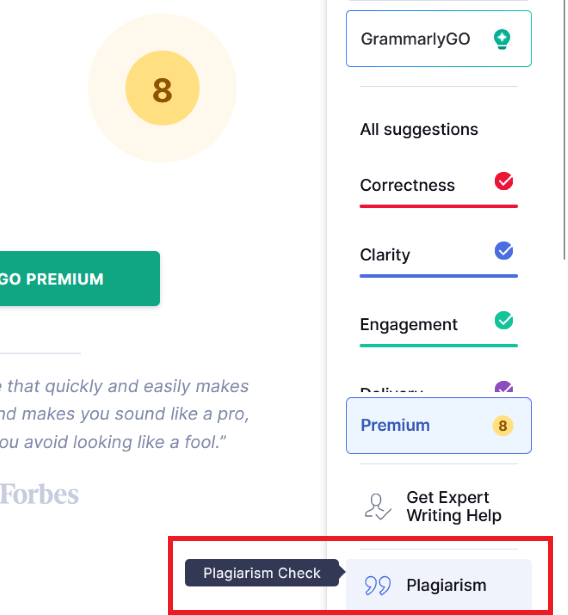
Steps to Check Plagiarism Online in Google Docs
To Check Plagiarism Online in Google Docs, you can use the online tools such as Grammarly, Scribbr, Small Seo Tools
Step 1: Select and Copy the Content
Copy the Content using Shortcut "Ctrl + C"
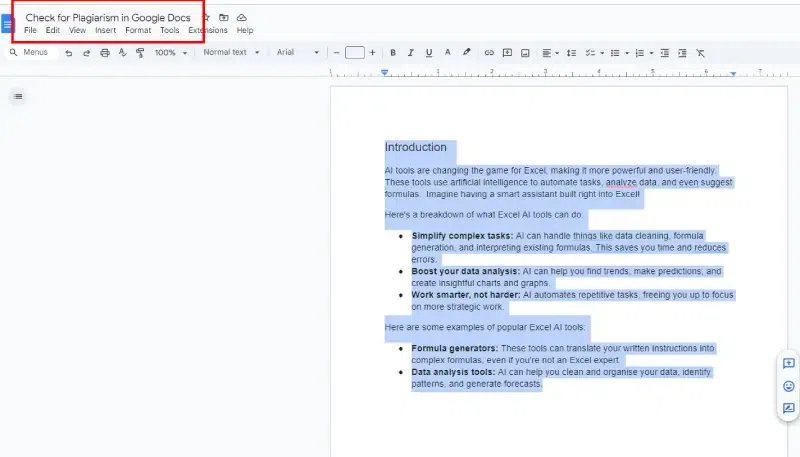
Step 2: Paste the content in any of the below mentioned tool
- Grammarly
- Scribbr
- Small SEO Tools
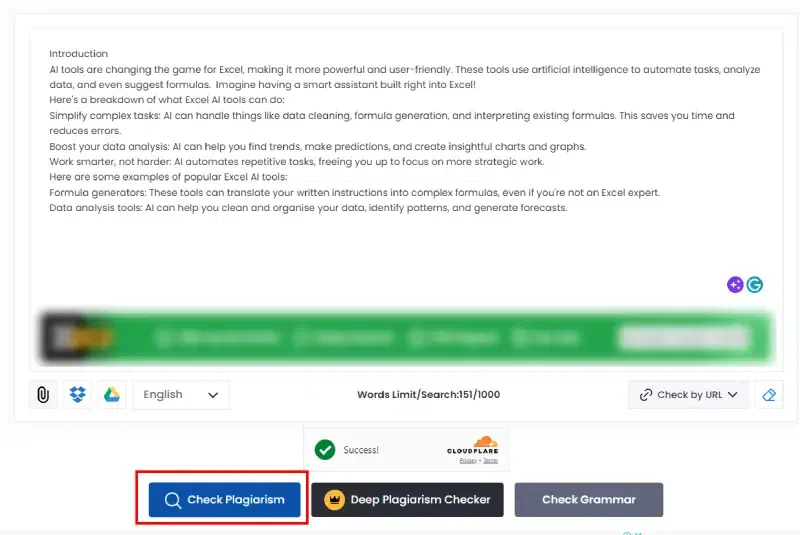
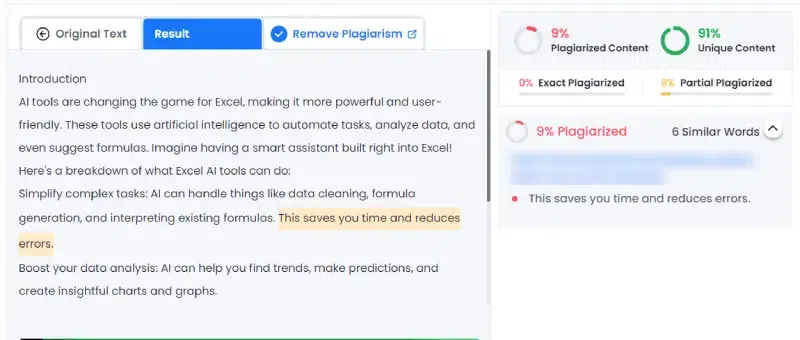
Step 3: These tools will analyze your text and highlight any parts that match existing content on the web.
Best Plagiarism Checkers for Google Docs
Here are the Top Plagiarism Checker Add-on for Google Docs:
| Plagiarism Checker | Overall Score | 100% Free? |
|---|---|---|
| Scribbr | 4.7 | No |
| PlagAware | 3.7 | No |
| Prepostseo | 3.3 | Yes |
| Grammarly | 3.0 | No |
| DupliChecker | 2.7 | Yes |
| Check-Plagiarism | 2.3 | Yes |
| Copyleaks | 2.0 | No |
| Small SEO Tools | 1.8 | Yes |
| Plagiarism Detector | 1.7 | Yes |
| Quetext | 1.7 | No |
| Smodin | 1.3 | Yes |