Changing the background color in Google Docs helps improve the document's visual appeal and functionality. It allows you to customize the design, enhance readability, and create a more engaging experience for readers. Here’s why it’s useful:
- Adds a creative and professional touch.
- Aligns with branding or themes.
- Highlights specific sections for better focus.
- Enhances accessibility for all users
Steps to Change the Background Color on Google Docs
Follow the steps given below to know how to change the background color on Google Docs:
Step 1: Open Google Docs
Visit Google Docs by any of your web browsers.
Step 2: Open the Google document
Open the Google Document in which the background color of the document has to be changed in Google Docs. Else, create a new document in Google Docs, and open it. Here we have opened an already written document.

Step 3: Navigate to the File Menu and Select Page Setup
Select 'File' in the menu bar of Google Docs, and a dropdown opens. Select 'Page Setup' in the dropdown.

Step 4: Select Page Color from the Dialog Box
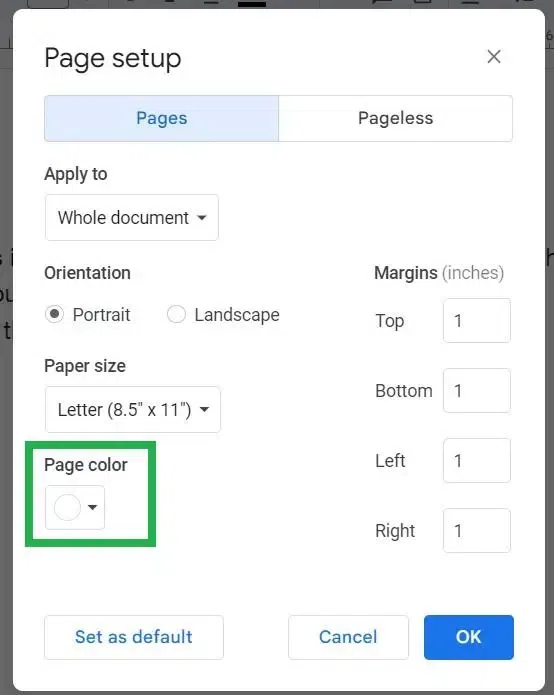
A dialog box named "Page Setup" opens now. Select the page color in it. Since by default, the background color of the document is white, the page color is previewing in white color.
Step 5: Choose Color from the 80 Available Colors
Now a sub dropdown appears from the page color option. It has a total of 80 colors already available in it. Users can choose any color from this quickly.

Step 6: Click OK
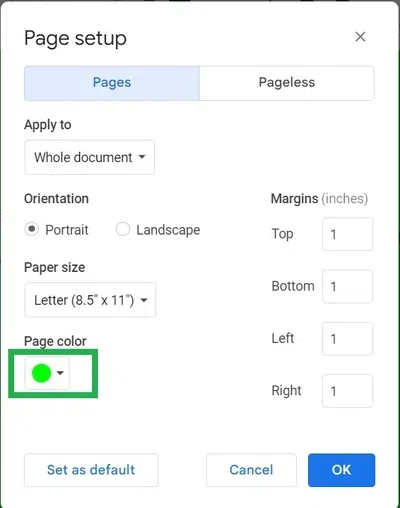
After choosing the page color, the sub dropdown closes automatically and the preview in page color turns to the color you have chosen. Now it is displaying green as we chose the green color. Click the 'OK' button in the bottom right corner of the dialog box.

Step 7: Preview the Page Color
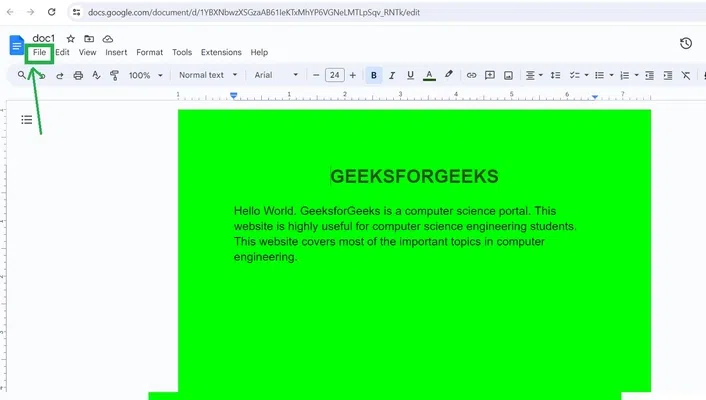
Now the background color of the whole document is changed to green color successfully.

Steps to Remove Background Color in Google Docs
Learn how to revert to the default white background in Google Docs if you’ve previously set a custom color. This process is simple and can be done through the Page Setup menu.
Step 1: Open your Google Doc in a web browser
Open Google Docs and open the document in which the background color has to be removed from your desktop or laptop device in a web browser.

Step 2: Click "File" from the menu bar
In the menu bar of Google docs, click on 'File'. A dropdown opens.
Step 3: Select "Page setup" from the dropdown menu
Click on 'Page setup' in the dropdown opened from the menu bar.

Step 4: Click on "Page color" and choose a color to change
A popup appears. Click on the 'Page color' icon and choose your desired color.
Step 5: Click "OK" button
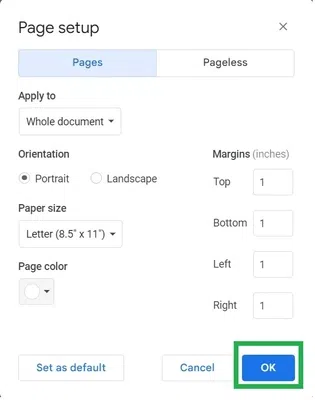
After choosing the color as 'page color', click on the 'OK' button to save the changes
Step 6: Preview Changes
Now you have successfully changed the color of your Google Doc.