
Microsoft Word makes it easy to create professional documents, whether starting from a blank page or using a pre-designed template. With intuitive tools for setting up layouts, fonts, and formatting, you can tailor your document for various purposes, such as reports, letters, or resumes.
Steps to Create a New Document
Step 1: Open Microsoft Word
To begin, launch Microsoft Word on your computer:
- Windows: Click the Start menu, search for "Word," and select the Microsoft Word app.
- Mac: Open Word from the Applications folder or Launchpad.
Step 2: Start a Blank Document
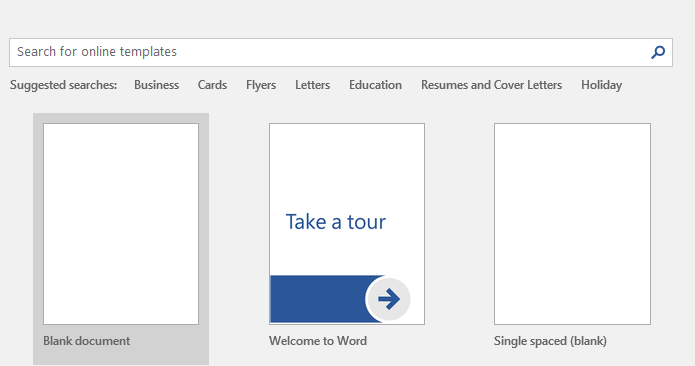
When you open Word, you’re typically greeted with the Start screen, which offers options to create a new document:
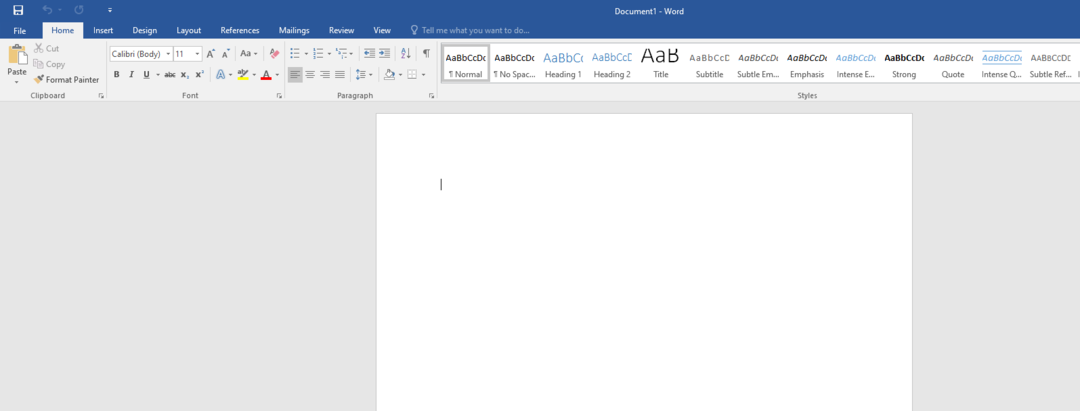
- Select Blank Document: Click the "Blank document" option to open a new, empty document with default settings (e.g., A4 or Letter paper size, Calibri 11pt font).
- Keyboard Shortcut: Press Ctrl+N (Windows) or Command+N (Mac) to create a blank document instantly.
- Result: A new document opens, ready for you to start typing or formatting.
Step 3: Use a Template (Optional)
Instead of a blank document, you can create a document based on a template for a pre-designed layout:
- On the Start screen, browse templates like "Resume," "Letter," "Newsletter," or "Flyer."
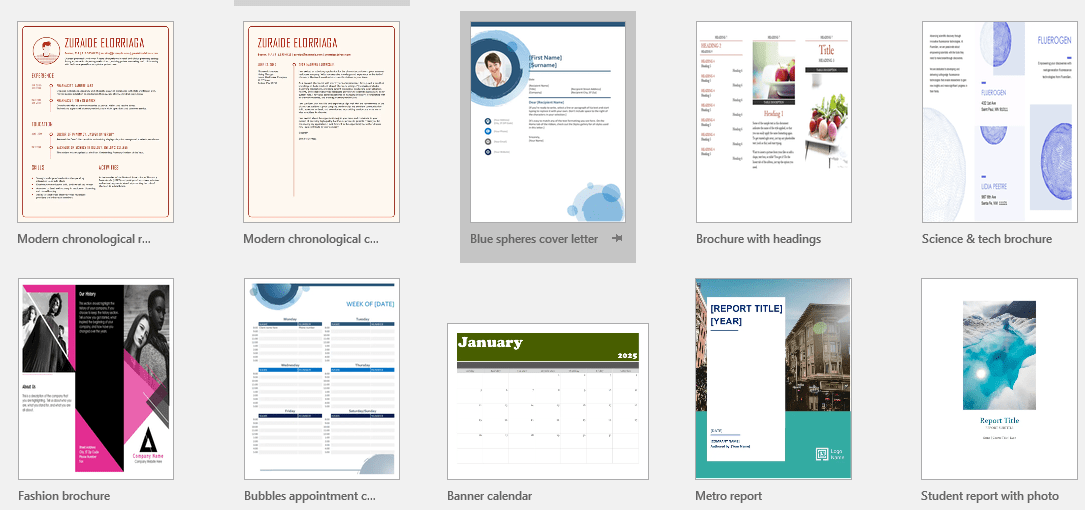
- Click a template to preview it, then select Create to open it.
- Search Templates: Use the search bar (e.g., type "invoice") to find specific templates online.
- Use Case: Templates are ideal for creating professional-looking documents quickly, such as a resume or business letter.
Step 4: Set Up Your Document
After creating a new document, configure basic settings to suit your needs:
- Page Layout: Go to the Layout or Page Layout tab and adjust:
- Margins: Select Margins > Normal (1 inch) or customize as needed.
- Orientation: Choose Portrait or Landscape under Orientation.
- Paper Size: Select Size to choose A4, Letter, or other sizes.

- Font and Paragraph: Go to the Home tab to set the default font (e.g., Calibri, Times New Roman) and paragraph settings (e.g., line spacing).
- Tip: Save these settings as a custom template for future use (File > Save As > Word Template).
Step 5: Begin Working on Your Document
With your document created, you can:
- Start typing text for your content (e.g., a report, essay, or letter).
- Add elements like images, tables, or headers via the Insert tab.