
"How do I apply transitions to slides in PowerPoint?" If you're looking to create a professional, engaging, and visually dynamic presentation, mastering PowerPoint slide transitions is essential. Slide transitions help smoothly shift from one slide to another, making your presentation more interactive and appealing.
Whether you're working on a business presentation, academic project, or marketing pitch, using PowerPoint transitions effectively can enhance audience engagement. However, selecting the right transition effects and customizing their timing is key to avoiding distractions.
In this guide, we’ll walk you through the step-by-step process of adding, customizing, and optimizing transitions in PowerPoint to ensure your slides flow seamlessly.
What Are Transitions in PowerPoint
Transitions are animations that occur between slides. They control how one slide exits and the next slide enters. PowerPoint offers a variety of transition effects, such as fades, wipes, pushes, and more. These effects can be customized to suit the tone and style of your presentation.
How to Apply Transition to Slide in PowerPoint
Transitions between slides cover much more than some movement between one slide and the next. Slide transitions in PowerPoint many options including timings and sounds. In either the Slide Sorter or Normal view, select the slide or slides to which you want to apply the transition to. Follow the below steps to Apply Transitions in PowerPoint:
Step 1: Open Your PowerPoint Presentation
- Launch PowerPoint on your computer.
- Open the presentation to which you want to add transitions.
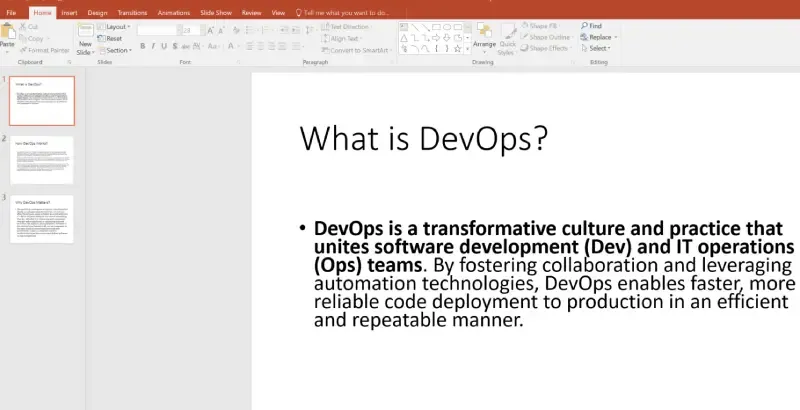
Step 2: Select a Slide
In the left-hand panel, select the slide where you want to apply the transition effect. You can choose any slide in your presentation.
Step 3: Go to the Transitions Tab
Click on the "Transitions" tab in the top menu. This tab contains all the available transition effects and customization options.
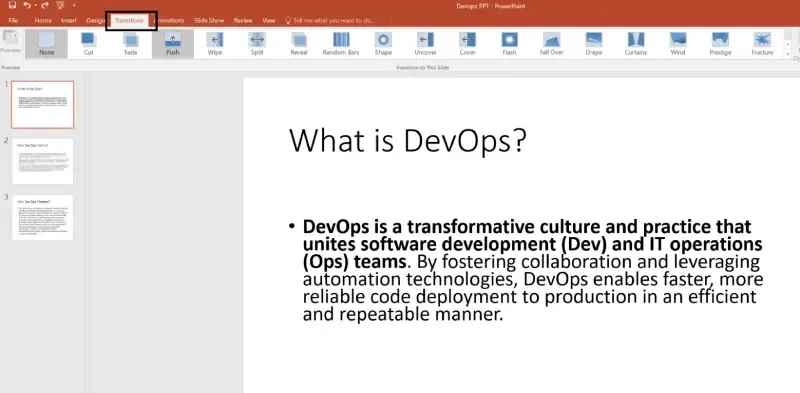
Step 4: Choose a Transition Effect
- In the "Transition to This Slide" group, you'll see a variety of transition effects displayed as thumbnails.
- Click on a transition effect to preview it on the selected slide. You can try multiple effects to see which one fits best with your presentation.

Step 5: Customize the Transition Effect
After selecting a transition, you can customize its duration and effect options.
- Duration: Use the "Duration" box to set the length of time the transition effect will take. Enter the desired duration in seconds.
- Effect Options: Some transitions offer additional customization options. Click on "Effect Options" to explore these settings, such as direction, sound, and more.
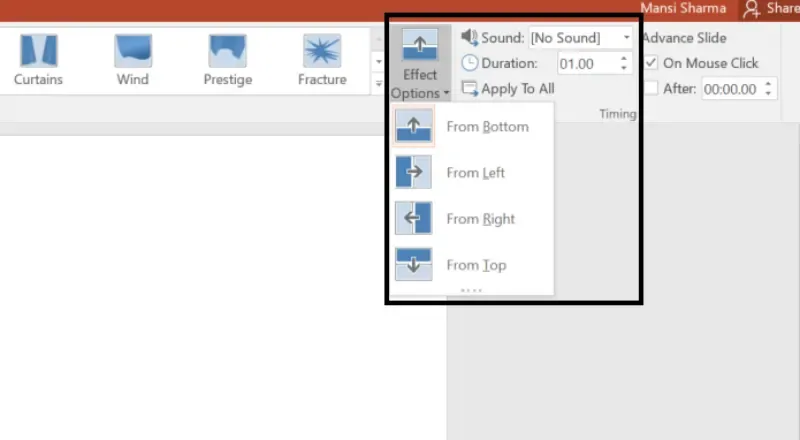
Step 6: Apply Transition to All Slides (Optional)
If you want to apply the same transition effect to all slides in your presentation, click on the "Apply to All" button in the "Timing" group. This ensures a consistent transition throughout your presentation.
Step 7: Set Up Transition Timing and Navigation (Optional)
In the "Timing" group, you can set up additional navigation options:
- On Mouse Click: Select this option if you want the transition to occur when you click the mouse.
- After (Time): Check this box and specify the time duration (in seconds) after which the transition should automatically occur.
Step 8: Preview the Transition
To preview the transition effect, select the slide and click on the "Preview" button in the "Transitions" tab. You can also use the Slide Show mode to see the transitions in action during your presentation.
Conclusion
Applying PowerPoint transitions is a simple yet powerful way to enhance slide movement, create smooth transitions, and improve audience engagement. By following the right techniques—choosing the best transition effects, customizing duration, and setting up navigation timing—you can create a visually polished, professional presentation. However, it's important to use transitions strategically to maintain a balance between creativity and professionalism. Now that you know how to apply and customize slide transitions in PowerPoint, you're ready to deliver impactful presentations that captivate your audience!