
The SearchView widget is used to provide a search interface to the user so that the user can enter his search query and submit a request to the search provider and get a list of query suggestions or results.
Class Syntax:
public class SearchView
           extends LinearLayout
                        implements CollapsibleActionView
Class Hierarchy:
java.lang.Object
  ↳  android.view.View
    ↳  android.view.ViewGroup
      ↳  android.widget.LinearLayout
        ↳  android.widget.SearchView
Example to Demonstrate SearchView:
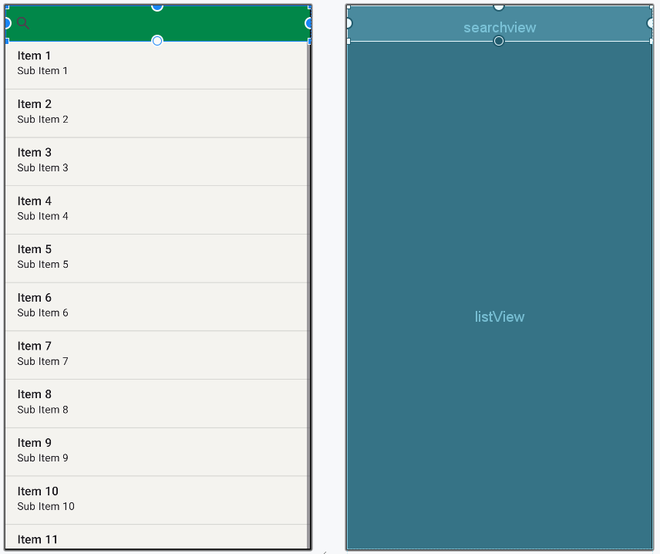
In this article, you will create a basic search application with a search view and a list view. The user will type a search query in the search view which is present in the action bar. Here are explained steps:
Step-by-Step Implementation Android SearchView
Step 1: Create a New Project in Android Studio
To create a new project in Android Studio please refer to How to Create/Start a New Project in Android Studio.
The code for that has been given in both Java and Kotlin Programming Language for Android.
Step 2: Working with the XML Files
Next, go to the activity_main.xml file, which represents the UI of the project. It consists of a Relative Layout with ListView in it from which data is to be searched. Here is the complete code for activity_main.xml:
activity_main.xml:
<?xml version="1.0" encoding="utf-8"?>
<androidx.constraintlayout.widget.ConstraintLayout
    xmlns:android="http://schemas.android.com/apk/res/android"
    xmlns:app="http://schemas.android.com/apk/res-auto"
    xmlns:tools="http://schemas.android.com/tools"
    android:layout_width="match_parent"
    android:layout_height="match_parent"
    android:background="#168BC34A"
    tools:context=".MainActivity">

    <SearchView
        android:id="@+id/searchview"
        android:layout_width="match_parent"
        android:layout_height="wrap_content"
        android:background="@color/green"
        app:layout_constraintEnd_toEndOf="parent"
        app:layout_constraintHorizontal_bias="0.5"
        app:layout_constraintStart_toStartOf="parent"
        app:layout_constraintTop_toTopOf="parent" />

    <!-- List View from which data is to be searched -->
    <ListView
        android:id="@+id/listView"
        android:layout_width="match_parent"
        android:layout_height="0dp"
        android:layout_below="@id/searchview"
        app:layout_constraintEnd_toEndOf="parent"
        app:layout_constraintHorizontal_bias="0.5"
        app:layout_constraintStart_toStartOf="parent"
        app:layout_constraintTop_toBottomOf="@+id/searchview" />

</androidx.constraintlayout.widget.ConstraintLayout>
Design UI:
Step 3: Working with the MainActivity File
Go to the MainActivity File and refer to the following code.
Below is the code for the MainActivity File. Comments are added inside the code to understand the code in more detail. In this file, items are added to List View manually and setOnQueryTextListener is attached to Search View. onQueryTextSubmit() method is overridden in which List View gets filtered according to the search query entered by the user.
MainActivity File:
package org.geeksforgeeks.demo;

import android.os.Bundle;
import android.widget.ArrayAdapter;
import android.widget.ListView;
import android.widget.SearchView;
import android.widget.Toast;
import androidx.appcompat.app.AppCompatActivity;
import java.util.ArrayList;

public class MainActivity extends AppCompatActivity
{
    // ListView and SearchView objects
    private ListView listView;
    private SearchView searchBar;

    // ArrayAdapter for ListView
    private ArrayAdapter<String> adapter;

    // ArrayList for ListView data
    private ArrayList<String> myList;

    @Override
    protected void onCreate(Bundle savedInstanceState) {
        super.onCreate(savedInstanceState);
        setContentView(R.layout.activity_main);

        // Initialize ListView and SearchView
        listView = findViewById(R.id.listView);
        searchBar = findViewById(R.id.searchview);

        // Add items to ArrayList
        myList = new ArrayList<>();
        myList.add("C");
        myList.add("C++");
        myList.add("C#");
        myList.add("Java");
        myList.add("Advanced java");
        myList.add("Interview prep with c++");
        myList.add("Interview prep with java");
        myList.add("data structures with c");
        myList.add("data structures with java");

        // Set adapter to ListView
        adapter = new ArrayAdapter<>(this,
                androidx.appcompat.R.layout.support_simple_spinner_dropdown_item,
                myList);

        listView.setAdapter(adapter);

        // Set SearchView query text listener
        searchBar.setOnQueryTextListener(new SearchView.OnQueryTextListener() {
            @Override
            public boolean onQueryTextSubmit(String query) {
                if (myList.contains(query)) {
                    adapter.getFilter().filter(query);
                }
              	else {
                    Toast.makeText(MainActivity.this, "No Match found", Toast.LENGTH_LONG).show();
                }
                return false;
            }

            @Override
            public boolean onQueryTextChange(String newText) {
                return false;
            }
        });
    }
}
package org.geeksforgeeks.demo

import android.os.Bundle
import android.widget.ArrayAdapter
import android.widget.ListView
import android.widget.SearchView
import android.widget.Toast
import androidx.appcompat.app.AppCompatActivity


class MainActivity :  AppCompatActivity() {
    // List View object
    private lateinit var listView: ListView
    private lateinit var search_bar: SearchView

    // Define array adapter for ListView
    var adapter: ArrayAdapter<String>? = null

    // Define array List for List View data
    var mylist: ArrayList<String>? = null

    override fun onCreate(savedInstanceState: Bundle?) {
        super.onCreate(savedInstanceState)
        setContentView(R.layout.activity_main)

        // initialise ListView with id
        listView = findViewById(R.id.listView)
        search_bar = findViewById(R.id.searchview)

        // Add items to Array List
        mylist = ArrayList()
        mylist!!.add("C")
        mylist!!.add("C++")
        mylist!!.add("C#")
        mylist!!.add("Java")
        mylist!!.add("Advanced java")
        mylist!!.add("Interview prep with c++")
        mylist!!.add("Interview prep with java")
        mylist!!.add("data structures with c")
        mylist!!.add("data structures with java")

        // Set adapter to ListView
        adapter = ArrayAdapter(
            this, androidx.appcompat.R.layout.support_simple_spinner_dropdown_item,
            mylist!!
        )
        listView.adapter = adapter

        search_bar.setOnQueryTextListener(object : SearchView.OnQueryTextListener {
            override fun onQueryTextSubmit(query: String): Boolean {
                if (mylist!!.contains(query)) {
                    adapter!!.filter.filter(query)
                } else {
                    Toast.makeText(this@MainActivity, "No Match found", Toast.LENGTH_LONG).show()
                }
                return false
            }

            override fun onQueryTextChange(newText: String): Boolean {
                return false
            }
        })
    }
}
Output:
For learning more about the topic refer to this topic: SearchView in Android with RecyclerView