
Swipe-to-dismiss functionality is a widely-used interaction pattern that allows users to easily remove items from a list or dismiss cards by swiping them off the screen. In this article, we will explore how to implement swipe-to-dismiss in Jetpack Compose with the new Material 3 components. We will use an email app as an example to demonstrate the usage of swipe-to-dismiss in a real-world scenario.
Overview of Swipe-to-Dismiss
Swipe-to-dismiss is a gesture-based interaction pattern that allows users to remove items from a list or dismiss cards by swiping them horizontally. It provides a convenient way for users to interact with content and manage their data efficiently. Implementing swipe-to-dismiss in Jetpack Compose with Material 3 involves using the SwipeToDismissBox composable along with the new Material 3 components.
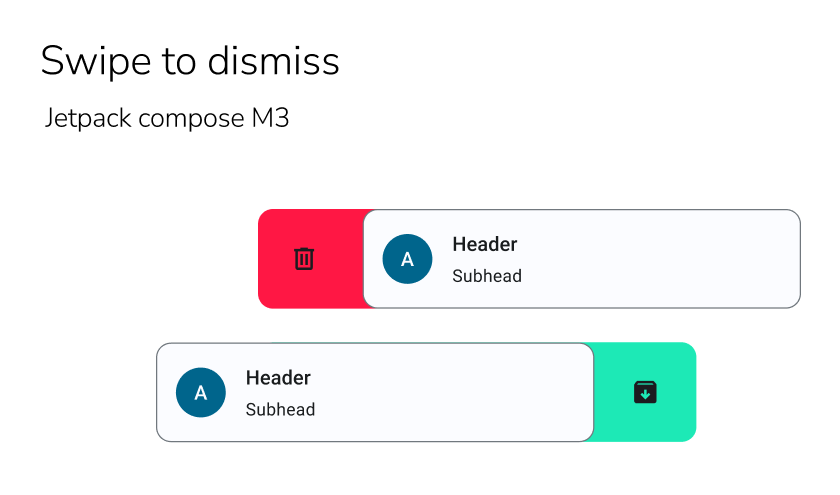
Step by Step Implementation
To demonstrate the swipe-to-dismiss functionality, we will create a simple email app using the new Material 3 components. The app will display a list of email messages, and users will be able to swipe left or right to dismiss individual messages. We will use Jetpack Compose LazyColumn to display the list of email items.
Step 1: Create a New Project in Android Studio
To create a new project in the Android Studio, please refer to How to Create a new Project in Android Studio with Jetpack Compose.
Step 2: Create a data class for Email Message
This data class represents an email message within the email application. It contains two properties the sender and the receiver similar to email. The EmailMessage data class is used to encapsulate the essential information related to an email message, allowing easy access and manipulation of its sender and message content.
EmailMessage.kt:
package com.geeksforgeeks.demo

data class EmailMessage(
    val sender: String,
    val message: String
)
Step 3: Create a viewmodel
Create a new Kotlin class with the name EmailViewModel.kt. This class is responsible for managing email messages in the email application. This class acts as the intermediary between the UI components and the data source, handling the state and operations related to email messages. It provides methods for updating and manipulating the list of messages.
EmailViewModel.kt:
package com.geeksforgeeks.demo

import androidx.lifecycle.ViewModel
import kotlinx.coroutines.flow.MutableStateFlow
import kotlinx.coroutines.flow.StateFlow
import kotlinx.coroutines.flow.asStateFlow
import kotlinx.coroutines.flow.update

class EmailViewModel : ViewModel() {
    // StateFlow to hold the list of email messages
    private val _messagesState = MutableStateFlow(emptyList<EmailMessage>())
    val messagesState: StateFlow<List<EmailMessage>> = _messagesState.asStateFlow()

    init {
        // Initialize the list of email messages when the ViewModel is created
        _messagesState.update { sampleMessages() }
    }

    // Refreshes the list of email messages.
    fun refresh() {
        _messagesState.update {
            sampleMessages()
        }
    }

    // Removes an email message from the list
    fun removeItem(currentItem: EmailMessage) {
        _messagesState.update {
            val mutableList = it.toMutableList()
            mutableList.remove(currentItem)
            mutableList
        }
    }

    // Generates a list of sample email messages.
    private fun sampleMessages() = listOf(
        EmailMessage("John Doe", "Hello"),
        EmailMessage("Alice", "Hey there! How's it going?"),
        EmailMessage("Bob", "I just discovered a cool new programming language!"),
        EmailMessage("Geek", "Have you seen the latest tech news? It's fascinating!"),
        EmailMessage("Mark", "Let's grab a coffee and talk about coding!"),
        EmailMessage("Cyan", "I need help with a coding problem. Can you assist me?"),
    )
}
Step 4: Create a composable for a Email Message Card
Each email item in the list will be represented by the EmailMessageCard composable. This composable will display the sender's name, message content, and a person icon using the Material 3 components. The EmailMessageCard will be responsible for rendering the visual representation of the email message.
EmailMessageCard.kt:
package com.geeksforgeeks.demo

import androidx.compose.foundation.background
import androidx.compose.foundation.layout.padding
import androidx.compose.foundation.shape.CircleShape
import androidx.compose.material.icons.Icons
import androidx.compose.material.icons.filled.Person
import androidx.compose.material3.*
import androidx.compose.runtime.Composable
import androidx.compose.ui.Modifier
import androidx.compose.ui.draw.clip
import androidx.compose.ui.unit.dp

// Composable that represents a single email message card.
@Composable
fun EmailMessageCard(emailMessage: EmailMessage) {
    ListItem(
        modifier = Modifier.clip(MaterialTheme.shapes.small),
        headlineContent = {
            Text(
                emailMessage.sender,
                style = MaterialTheme.typography.titleMedium
            )
        },
        supportingContent = {
            Text(
                emailMessage.message,
                style = MaterialTheme.typography.bodySmall
            )
        },
        leadingContent = {
            Icon(
                Icons.Filled.Person,
                contentDescription = "person icon",
                Modifier
                    .clip(CircleShape)
                    .background(MaterialTheme.colorScheme.primaryContainer)
                    .padding(10.dp)
            )
        }
    )
}
Step 5: Create a composable for Dismiss Background
To provide visual feedback during the swipe-to-dismiss action, we need to create the DismissBackground composable. This composable will use the Row and Icon composables. The DismissBackground composable will be used as the background for each email item.
package com.geeksforgeeks.demo

import androidx.compose.foundation.background
import androidx.compose.foundation.layout.Arrangement
import androidx.compose.foundation.layout.Row
import androidx.compose.foundation.layout.Spacer
import androidx.compose.foundation.layout.fillMaxSize
import androidx.compose.foundation.layout.padding
import androidx.compose.material.icons.Icons
import androidx.compose.material.icons.filled.Delete
import androidx.compose.material3.ExperimentalMaterial3Api
import androidx.compose.material3.Icon
import androidx.compose.material3.SwipeToDismissBoxState
import androidx.compose.material3.SwipeToDismissBoxValue
import androidx.compose.runtime.Composable
import androidx.compose.ui.Alignment
import androidx.compose.ui.Modifier
import androidx.compose.ui.graphics.Color
import androidx.compose.ui.res.painterResource
import androidx.compose.ui.unit.dp

@OptIn(ExperimentalMaterial3Api::class)
@Composable
fun DismissBackground(dismissState: SwipeToDismissBoxState) {
    val color = when (dismissState.dismissDirection) {
        SwipeToDismissBoxValue.StartToEnd -> Color(0xFFFF1744)
        SwipeToDismissBoxValue.EndToStart -> Color(0xFF1DE9B6)
        SwipeToDismissBoxValue.Settled -> Color.Transparent
    }

    Row(
        modifier = Modifier
            .fillMaxSize()
            .background(color)
            .padding(12.dp, 8.dp),
        verticalAlignment = Alignment.CenterVertically,
        horizontalArrangement = Arrangement.SpaceBetween
    ) {
        Icon(
            Icons.Default.Delete,
            contentDescription = "delete"
        )
        Spacer(modifier = Modifier)
        Icon(
            // make sure add archive.xml resource to drawable folder
            painter = painterResource(R.drawable.archive),
            contentDescription = "Archive"
        )
    }
}
<vector xmlns:android="http://schemas.android.com/apk/res/android"
    android:width="24dp"
    android:height="24dp"
    android:viewportWidth="960"
    android:viewportHeight="960">
  <path
      android:pathData="m480,720 l160,-160 -56,-56 -64,64v-168h-80v168l-64,-64 -56,56 160,160ZM200,320v440h560v-440L200,320ZM200,840q-33,0 -56.5,-23.5T120,760v-499q0,-14 4.5,-27t13.5,-24l50,-61q11,-14 27.5,-21.5T250,120h460q18,0 34.5,7.5T772,149l50,61q9,11 13.5,24t4.5,27v499q0,33 -23.5,56.5T760,840L200,840ZM216,240h528l-34,-40L250,200l-34,40ZM480,540Z"
      android:fillColor="#e8eaed"/>
</vector>
Step 6: Create a composable for an Email Item with Swipe-to-Dismiss feature
To enable swipe-to-dismiss functionality, we will use the SwipeToDismissBox composable provided by the Material 3 library. SwipeToDismissBox is a composable that can be dismissed by swiping left or right.
Parameters:
- state - The state of this component.
- backgroundContent - A composable that is stacked behind the content and is exposed when the content is swiped.
- modifier - Optional Modifier for this component.
- enableDismissFromStartToEnd - Whether SwipeToDismissBox can be dismissed from start to end.
- enableDismissFromEndToStart - Whether SwipeToDismissBox can be dismissed from end to start.
- content - The content that can be dismissed
The SwipeToDismissBox composable allows us to wrap the email item and the dismiss actions together.
EmailItem.kt:
package com.geeksforgeeks.demo

import android.widget.Toast
import androidx.compose.material3.*
import androidx.compose.material3.SwipeToDismissBoxValue.EndToStart
import androidx.compose.material3.SwipeToDismissBoxValue.Settled
import androidx.compose.material3.SwipeToDismissBoxValue.StartToEnd
import androidx.compose.runtime.*
import androidx.compose.ui.Modifier
import androidx.compose.ui.platform.LocalContext

// Composable representing an email item with swipe-to-dismiss functionality.
@OptIn(ExperimentalMaterial3Api::class)
@Composable
fun EmailItem(
    emailMessage: EmailMessage,
    modifier: Modifier = Modifier,
    onRemove: (EmailMessage) -> Unit
) {
    val context = LocalContext.current
    val currentItem by rememberUpdatedState(emailMessage)
    val dismissState = rememberSwipeToDismissBoxState(
        confirmValueChange = {
            when(it) {
                StartToEnd -> {
                    onRemove(currentItem)
                    Toast.makeText(context, "Item deleted", Toast.LENGTH_SHORT).show()
                }
                EndToStart -> {
                    onRemove(currentItem)
                    Toast.makeText(context, "Item archived", Toast.LENGTH_SHORT).show()
                }
                Settled -> return@rememberSwipeToDismissBoxState false
            }
            return@rememberSwipeToDismissBoxState true
        },
        // positional threshold of 25%
        positionalThreshold = { it * .25f }
    )
    SwipeToDismissBox(
        state = dismissState,
        modifier = modifier,
        backgroundContent = { DismissBackground(dismissState)},
        content = {
            EmailMessageCard(emailMessage)
        })
}
Step 7: Working with MainActivity
Once we have implemented the swipe-to-dismiss functionality, it's important to thoroughly check it. We should verify that swiping left or right on an email item correctly triggers the dismiss action and removes the item from the list. The MainActivity is an Android Component Activity a subclass that serves as the entry point for the Swipe to Dismiss feature in the email application. In the onCreate() method, the activity sets its content using the setContent function, which inflates the UI layout and displays the Email App composable. Run the application and check the output.
MainActivity.kt:
package com.geeksforgeeks.demo

import android.os.Bundle
import androidx.activity.ComponentActivity
import androidx.activity.compose.setContent
import androidx.compose.foundation.layout.*
import androidx.compose.foundation.lazy.*
import androidx.compose.material.icons.Icons
import androidx.compose.material.icons.filled.Refresh
import androidx.compose.material3.*
import androidx.compose.runtime.*
import androidx.compose.ui.*
import androidx.compose.ui.tooling.preview.*
import androidx.compose.ui.unit.*
import androidx.lifecycle.viewmodel.compose.viewModel

class MainActivity : ComponentActivity() {
    override fun onCreate(savedInstanceState: Bundle?) {
        super.onCreate(savedInstanceState)
        setContent {
            MaterialTheme {
                EmailApp()
            }
        }
    }
}

@OptIn(ExperimentalMaterial3Api::class)
@Preview
@Composable
fun EmailApp(emailViewModel: EmailViewModel = viewModel()) {
    // Collect the state of messages from the view model
    val messages by emailViewModel.messagesState.collectAsState()

    MaterialTheme {
        Scaffold(
            topBar = {
                TopAppBar(
                    title = { Text(text = "Email App") },
                    actions = {
                        // Refresh button
                        IconButton(onClick = emailViewModel::refresh) {
                            Icon(Icons.Filled.Refresh, contentDescription = "Refresh")
                        }
                    }
                )
            }
        ) { paddingValues ->
            LazyColumn(
                modifier = Modifier
                    .padding(paddingValues)
                    .fillMaxSize(),
                contentPadding = PaddingValues(vertical = 12.dp),
            ) {
                itemsIndexed(
                    items = messages,
                    // Provide a unique key based on the email content
                    key = { _, item -> item.hashCode() }
                ) { _, emailContent ->
                    // Display each email item
                    EmailItem(emailContent, onRemove = emailViewModel::removeItem)
                }
            }
        }
    }
}