Place hardware orders
Learn how to place orders for reader hardware and accessories.
Order pre-certified readers compatible with Stripe Terminal from your Dashboard or using the Stripe API. Purchase readers directly from Stripe so they’re loaded with Stripe’s payment applications and secure encryption keys.
To get started, go to the Readers section in your Dashboard. Click Shop to view available products.
What to buy
First, order a reader and a test card to test your full integration with physical hardware. When your integration is ready, order as many readers as you need.
Not sure which reader you need? See Designing an Integration to choose one for your integration.
You can order up to 10000 of each item in a single order. If you’re interested in volume discounts, you can contact us.
Pricing
The price for each reader varies by country. You can view the most updated pricing in the Dashboard or our device pricing page.
Track and cancel orders
After placing an order, check its status in the Dashboard:
| Estatus | Definición |
|---|---|
| Pending | We’ve received your order and will fulfill it soon. If needed, you can cancel this order in the Dashboard. Orders remain pending for at least 30 minutes. |
| Ready to ship | Your order is being prepared to ship and can no longer be canceled. After the order ships, you must initiate a return to cancel the order. The order becomes Shipped after a tracking number is available. |
| Shipped | Order placed with our distributor. Tracking information is available on the Order details page. |
| Delivered | Items have been delivered. |
| Canceled | The order is canceled. |
| Undeliverable | One or more of the order’s items couldn’t be delivered. |
Self service returns
Self service returns are for orders placed and shipped within specific countries (see countries below). See the information about returns outside of supported self service countries for all other orders.
If you’ve placed an order in the Stripe Dashboard within a country supporting self service and need to return some or all of the items in your order, users with sufficient permission can initiate the return within the Stripe Dashboard. We can accept refunds for orders in original packaging (along with all accessories) within 30 days of the date of purchase. For returns past 30 days, contact Stripe Support.
Going through the flow in the Dashboard produces a return shipping label. After you create the return shipping label, you can drop your package off at a local shipping carrier.
Stripe refunds the payment when our distribution facility receives the package. For credit cards, the process can take up to 10 days for the funds to be returned to the bank account.
Countries supporting self service returns
Selecting the Return items Button
To initiate a Dashboard Return, go to your Hardware Orders and select the order you want to return. After you select the order, click Return items to start the process. The Return items button is available on the Terminal order details page if the hardware order has a status of Shipped or Delivered.
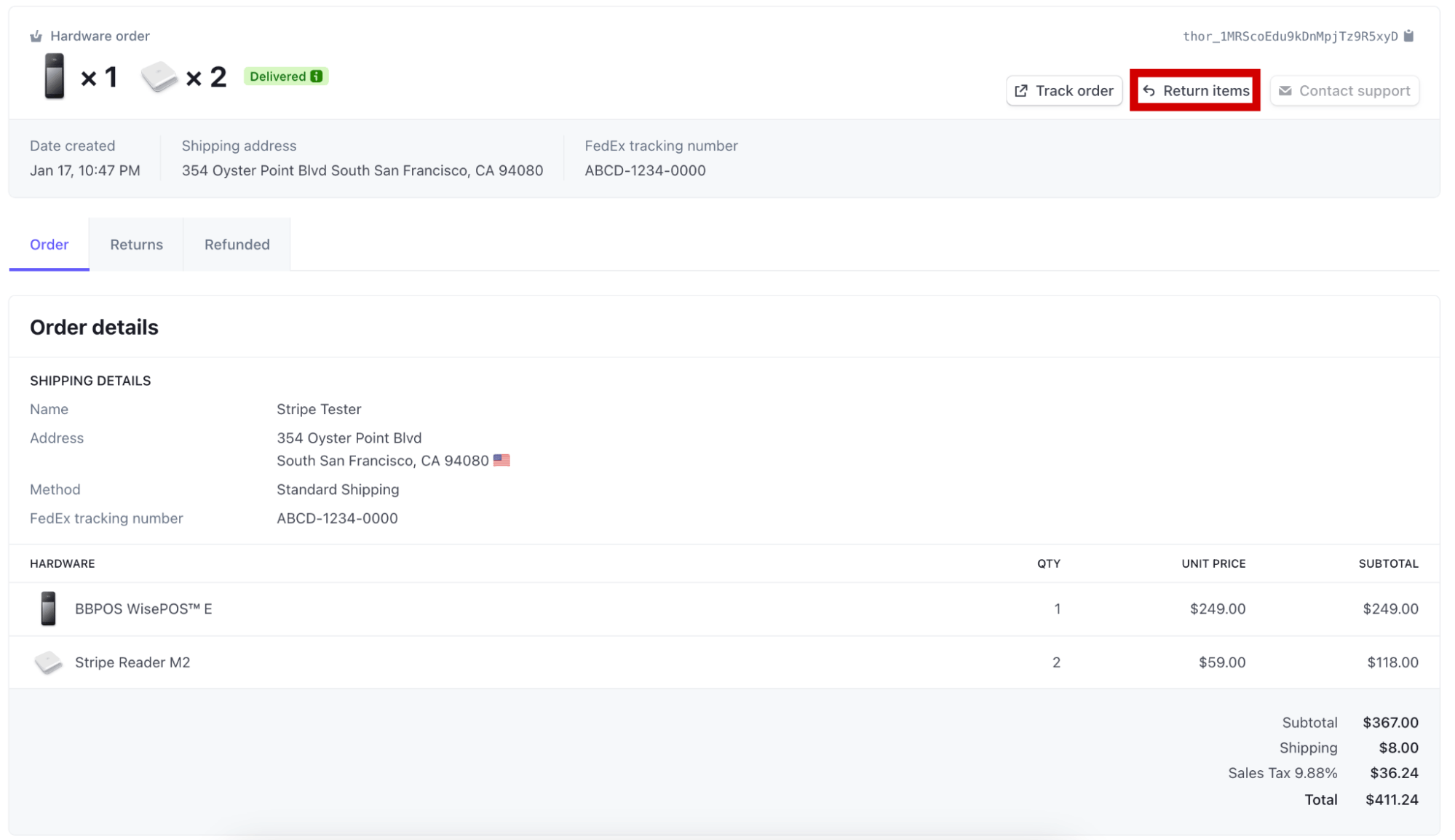
Confirming the number of units to be returned
When the popup opens, select the number of items you’d like to return for each product in the order (if you have more than one item). We’ll only show the number of items eligible for return. So, if you previously purchased three items and returned one, you’ll only be able to select up to two units to return.
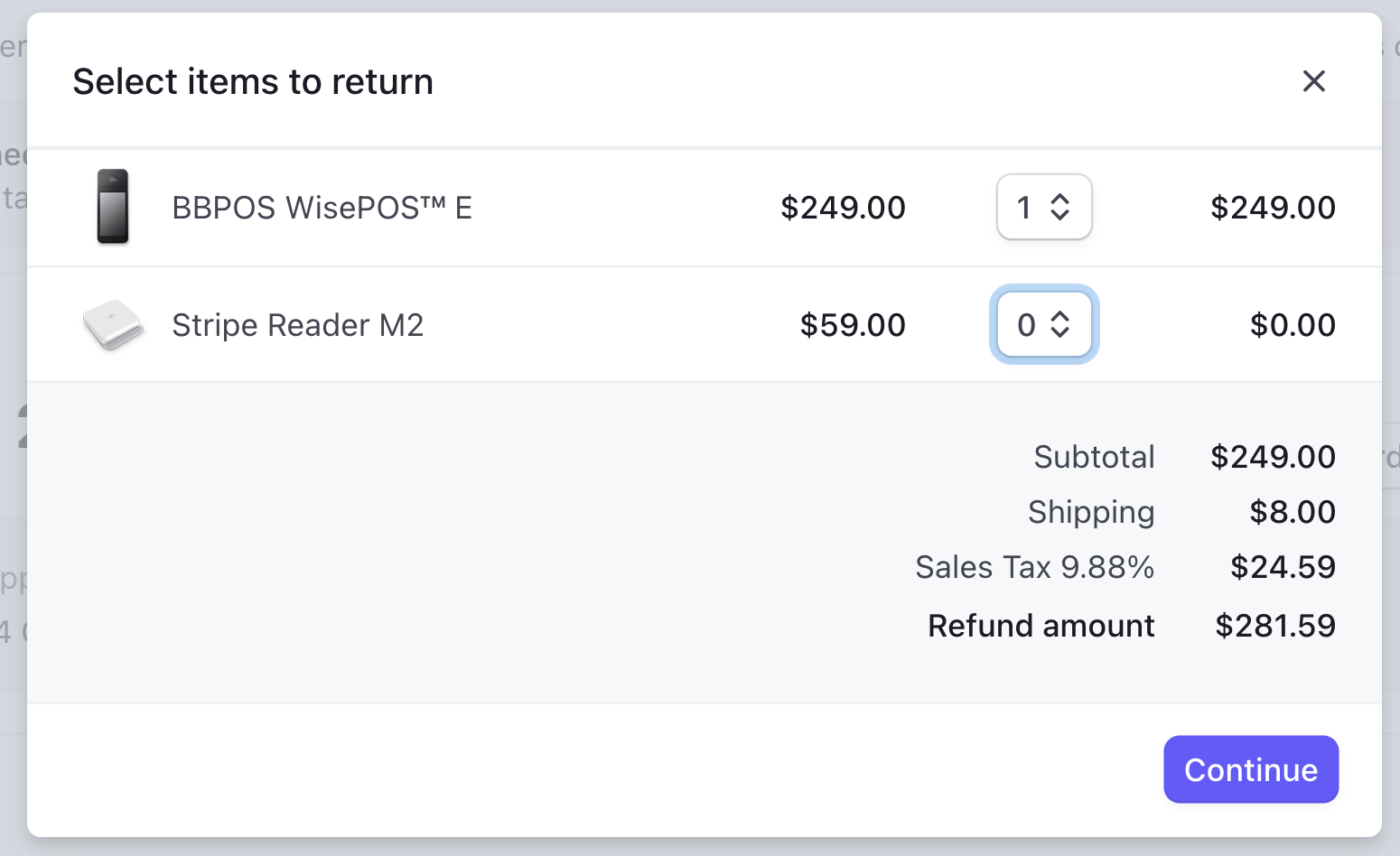
Calculating the refund amount
The popup displays the amount to be refunded after you select the desired number of items.
Shipping fees are refunded on the first initiated return for a Terminal hardware order. For example, if you bought three readers and then returned one unit through a partial refund, then decided to return another unit, the second Dashboard return shows 0 USD for shipping fees to be refunded because these fees were returned in the first attempt.
Selecting a reason for the return
Next, you need to select a reason for the return from the dropdown menu.
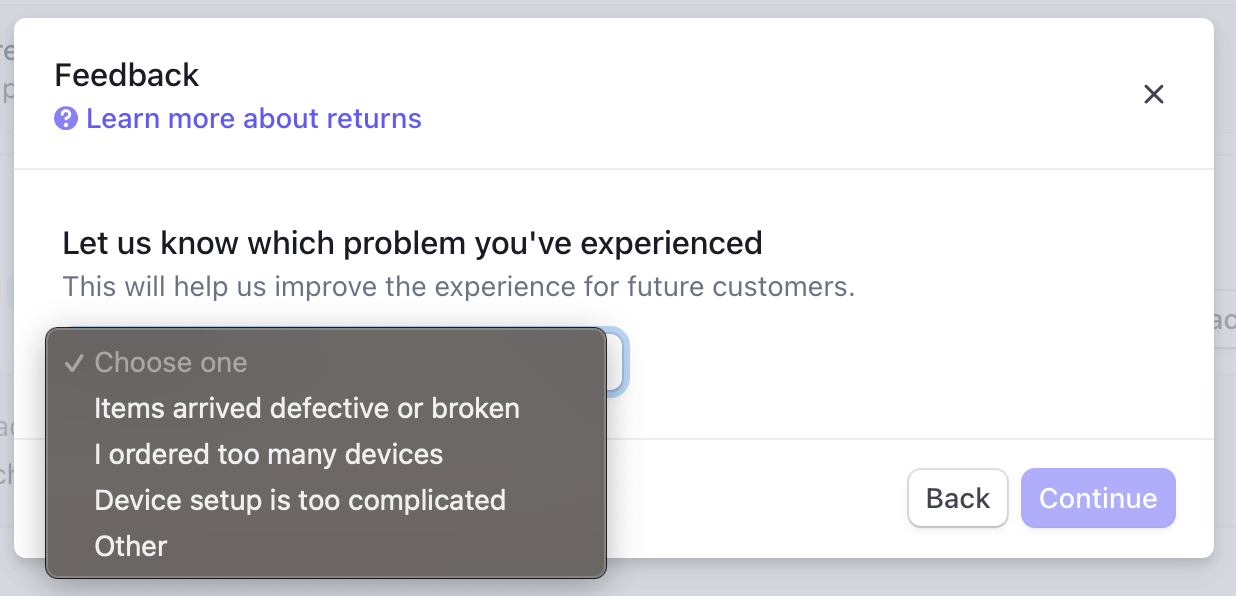
- Items arrived defective or broken—Select this option if any of the items received were damaged or defective.
- I ordered too many devices—Select this option if you ordered too many devices.
- Device setup is too complicated—Select this option if getting started with Stripe Terminal was too complicated or the product didn’t meet your expectations.
- Other - Select this option if none of the above options match your use case. A reason is required.
Confirming and exporting the shipping label
After you’ve confirmed the information is correct, select Submit return’—the option to download the shipping label appears after you select it. You can select View UPS Locations to find the nearest drop off location.
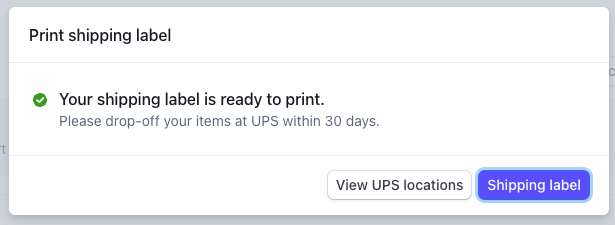
Reembolsos
After the return is processed, you’ll be redirected back to the order details page. You can download the shipping label again from the details page if needed. Stripe issues a refund to the payment method you provided when we receive the return.
Returns outside of supported self service countries
To return a device where self service returns isn’t available, contact support. Go to your order in the Dashboard and click Contact support to automatically send us your order details. We can accept refunds for orders in original packaging (along with all accessories) within 30 days of the date of purchase.
Envío
Stripe works with a distribution partner to fulfill Terminal orders. You can choose standard, express, or priority shipping, depending on the destination country. Hardware must be shipped to physical addresses (not PO boxes).
Large quantity orders
Stripe automatically selects freight shipping for large quantity orders.
If you’re a Connect platform using Terminal, you can ship readers directly to your connected accounts by specifying the destination address during checkout.
| Destination country | Orders cutoff time | Order amount above which signature is required | Excluded regions and territories for shipping (all P.O. boxes are excluded) |
|---|---|---|---|
Estados Unidos | 11:00am Eastern Time | 500 USD | Virgin Islands and military addresses |
Canadá | 1:00pm Pacific Time | 400 CAD | – |
Austria | 11:00am Central European Time | 400 EUR | – |
Bélgica | 11:00am Central European Time | 400 EUR | – |
Bulgaria | 11:00am Central European Time | 400 EUR | – |
Croatia | 11:00am Central European Time | 400 EUR | – |
Cyprus | 11:00am Central European Time | 400 EUR | – |
República Checa | 11:00am Central European Time | 9900 CZK | – |
Dinamarca | 11:00am Central European Time | 2975 DKK | – |
Estonia | 11:00am Central European Time | 400 EUR | – |
Finlandia | 11:00am Central European Time | 400 EUR | – |
Francia | 11:00am Central European Time | 400 EUR | Saint-Pierre and Miquelon, Saint Barthélemy, French Southern Territories, Wallis and Futuna, French Polynesia and New Caledonia |
Alemania | 11:00am Central European Time | 400 EUR | – |
Gibraltar | 11:00am Central European Time | 400 EUR | – |
Greece | 11:00am Central European Time | 400 EUR | – |
Hungary | 11:00am Central European Time | 155908 HUF | – |
Irlanda | 11:00am Central European Time | 400 EUR | – |
Italia | 11:00am Central European Time | 400 EUR | – |
Latvia | 11:00am Central European Time | 400 EUR | – |
Liechtenstein | 11:00am Central European Time | 415 CHF | – |
Lithuania | 11:00am Central European Time | 400 EUR | – |
Luxemburgo | 11:00am Central European Time | 400 EUR | – |
Malta | 11:00am Central European Time | 400 EUR | – |
Países Bajos | 11:00am Central European Time | 400 EUR | Aruba, Curaçao, Sint Maarten, Bonaire, Sint Eustatius, and Saba |
Noruega | 11:00am Central European Time | 400 EUR | Svalbard and Jan Mayen |
Portugal | 11:00am Central European Time | 400 EUR | – |
Romania | 11:00am Central European Time | 1930 RON | – |
Slovakia | 11:00am Central European Time | 400 EUR | – |
Slovenia | 11:00am Central European Time | 400 EUR | – |
España | 11:00am Central European Time | 400 EUR | – |
Suecia | 11:00am Central European Time | 4315 SEK | – |
Suiza | 11:00am Central European Time | 400 EUR | – |
Reino Unido | 11:00am Central European Time | 400 GBP | Jersey, Guernsey, Isle of Man, and the British Virgin Islands |
Australia | 11:00am Australian Eastern Time | 400 AUD | – |
Hong Kong | 11:00am Australian Eastern Time | 2200 HKD | – |
Malasia | 11:00am Australian Eastern Time | 1200 MYR | – |
Nueva Zelanda | 11:00am Australian Eastern Time | 400 NZD | – |
Singapur | 11:00am Australian Eastern Time | 400 SGD | – |
Poland | 11:30am Central European Time | 2100 PLN | – |
Japón | 03:30pm Japan Standard Time | 79000 JPY | – |
Add tax identification numbers
You can add tax identification numbers in your Terminal settings. Stripe uses tax IDs you provide to apply tax on hardware orders, and includes them in tax invoices and credit notes. Each non-US order generates a tax invoice—you can find them by clicking on the orders listed in hardware orders.
roles y permisos del usuario
The following table shows which user roles can place orders on behalf of their account through the dashboard:
| Administrador | Desarrollador | Analista | Especialista en Terminal | Especialista de soporte | Solo visualización | |
|---|---|---|---|---|---|---|
| Place new orders | ||||||
| View list of orders | ||||||
| Cancelar un pedido | ||||||
| Self service return |
Use the Hardware Orders API Vista previa
The Terminal Hardware Orders API enables you to programmatically purchase Terminal readers and accessories that can be sent directly to your users. Orders are fulfilled by Stripe’s distribution partners, so you don’t have to manage complex logistics and can instead focus on building your in-person payments business.
- Build an internal tool for your employees, such as store managers, to place orders for hardware
- Build an e-commerce ordering system for your customers to place orders for Terminal readers and accessories
To create a hardware order using the API, follow these steps:
- Retrieve available SKUs
- Retrieve available Shipping Methods
- (Optional) Preview the order
- Create the order
Versión beta privada
You must include a beta header in your API requests with your API version and the current version of the terminal hardware order preview: Stripe-Version: 2026-05-27.
Retrieve SKUs
To render an appropriate product page for users, your integration must request available items from Stripe. Each item is represented as a SKU and includes details about the product, such as the product token and price.
Each SKU is associated with a country: a reader available in the US has a different SKU from the same reader that’s available in Canada. To retrieve SKUs, you must specify the country parameter when making a request to the Hardware Order SKUs endpoint:
curl https://api.stripe.com/v1/terminal/hardware_skus?country=US \ -u: \ -H "Stripe-Version: 2026-05-27.dahlia;terminal_hardware_orders_beta=v5"sk_test_CGGvfNiIPwLXiDwaOfZ3oX6Y
Each SKU is also associated with a Hardware Product. Products represent different categories of devices. If you’re building an e-commerce ordering system for your customers, make sure you only show the SKUs for the products that apply for your Terminal integration. For example, if your Terminal integration only uses the BBPOS WisePOS E, don’t make the BBPOS Chipper 2X BT reader available for purchase. To retrieve all BBPOS WisePOS E SKUs, you can specify the optional product parameter when making a request to the Hardware Order SKUs endpoint:
curl 'https://api.stripe.com/v1/terminal/hardware_skus?country=US&product=' \ -u{{TERMINAL_HARDWARE_PRODUCT_ID}}: \ -H "Stripe-Version: 2026-05-27.dahlia;terminal_hardware_orders_beta=v5"sk_test_CGGvfNiIPwLXiDwaOfZ3oX6Y
Finally, each SKU is also associated with a Provider. By default this value is set to stripe but you filter for SKUs from a different provider by specifying the optional provider parameter when making a request to the Hardware Order SKUs endpoint. All SKUs and Shipping Methods in an Order must share the same provider.
SKUs availability
SKUs and Products might become obsolete as we replace them with newer hardware. To help you manage planned obsolescence, see the SKU and Product status that indicates which are currently available or unavailable. You can’t create an Order if the SKU status is unavailable.
Additionally, each SKU and Product has an optional unavailable_after field that indicates when it might become unavailable. Because the availabilities of these objects change over time, we recommend using an approach to query them dynamically. You can do this either by making a query before displaying the available objects to your users, or periodically (every day, for example) and caching the results you present to your users.
We don’t recommend hardcoding the tokens for these objects because such an integration requires code changes when a shipping method becomes unavailable. If you don’t perform these changes in time, you might attempt to place orders with unavailable objects, causing errors.
Retrieve shipping methods
Another required object used as an input for creating an order is the Hardware Shipping Method. This object determines the estimated shipping time for your order as well as a portion of the price. You must use a Shipping Method available in country of the shipping address when creating an order.
Like SKUs, each Shipping Method is associated with a country: the shipping methods available in the US might be different from those available in Canada. Each Shipping Method also has a name, which denotes the basic category for this shipping method, as well as a provider. To retrieve Shipping Methods, you must specify the country and can optionally specify the name or provider parameters when making a request to the Hardware Shipping Methods endpoint:
curl https://api.stripe.com/v1/terminal/hardware_shipping_methods?country=US \ -u: \ -H "Stripe-Version: 2026-05-27.dahlia;terminal_hardware_orders_beta=v5"sk_test_CGGvfNiIPwLXiDwaOfZ3oX6Y
Like SKUs and Products, Shipping Methods might change over time. To help you manage these changes, each Shipping Method has a status that indicates whether it’s currently available or unavailable. This mechanism works the same way as it does for SKUs and Products, as described above. As with SKUs and Products, we recommend fetching Shipping Methods periodically so your integration doesn’t become out of date.
Preview a hardware order
To preview a hardware order, make a request to Stripe containing the SKUs, quantities, shipping address, and Shipping Method for the order.
curl https://api.stripe.com/v1/terminal/hardware_orders/preview \ -u: \ -H "Stripe-Version: 2026-05-27.dahlia;terminal_hardware_orders_beta=v5" \ --data-urlencode "shipping[name]"="Jenny Rosen" \ --data-urlencode "shipping[address][line1]"="1234 Main Street" \ --data-urlencode "shipping[address][city]"="San Francisco" \ --data-urlencode "shipping[address][state]"=CA \ --data-urlencode "shipping[address][country]"=US \ --data-urlencode "shipping[address][postal_code]"=94111 \ --data-urlencode "shipping[company]"="Rocket Rides" \ --data-urlencode "shipping[phone]"=15555555555 \ --data-urlencode "shipping[email]"="test@example.com" \ --data-urlencode shipping_method=thsm_MfuTjLaPEgXMa4 \ --data-urlencode payment_type=monthly_invoice \ --data-urlencode "hardware_order_items[][terminal_hardware_sku]"=thsku_JokaJ6KpLMlDID \ --data-urlencode "hardware_order_items[][quantity]"=2 \ -Gsk_test_CGGvfNiIPwLXiDwaOfZ3oX6Y
Previewing an order allows you to perform validation on the order and determine the overall cost of the taxes associated with the order without actually placing it, which you can use for designing an e-commerce checkout page for your customers. Calling the preview endpoint doesn’t actually create an order.
Try to minimize the time between making a request to Preview Hardware Order and Create Hardware Order to reduce the (very unlikely) chance that prices change in the interim. If you’re concerned about this issue you can save the preview and create an order using the same parameters. Then you can compare the saved preview with the order and cancel the order in the event of any changes.
Create a hardware order
To create a Terminal Hardware Order, you can make a Create Hardware Order request to Stripe that looks very similar to the Preview Hardware Order request. Include the SKUs, quantities, shipping address, and Shipping Method for the order in your request.
curl https://api.stripe.com/v1/terminal/hardware_orders \ -u: \ -H "Stripe-Version: 2026-05-27.dahlia;terminal_hardware_orders_beta=v5" \ -d "shipping[name]"="Jenny Rosen" \ -d "shipping[address][line1]"="1234 Main Street" \ -d "shipping[address][city]"="San Francisco" \ -d "shipping[address][state]"="CA" \ -d "shipping[address][country]"="US" \ -d "shipping[address][postal_code]"="94111" \ -d "shipping[company]"="Rocket Rides" \ -d "shipping[phone]"="15555555555" \ -d "shipping[email]"="test@example.com" \ -d "hardware_order_items[][terminal_hardware_sku]"="thsku_JokaJ6KpLMlDID" \ -d "hardware_order_items[][quantity]"="2" \ -d shipping_method="thsm_MfuTjLaPEgXMa4" \ -d payment_type="monthly_invoice"sk_test_CGGvfNiIPwLXiDwaOfZ3oX6Y
The below example shows a US phone number. If the phone number provided by shipping. parameter is an international phone number, prefix it with an escaped version of the + sign (for example: shipping[phone]="%2B358131234567" instead of shipping[phone]="+358131234567").
The email address provided by the shipping. parameter receives Stripe-branded update emails when the status of the order changes. Use an email address that you feel comfortable receiving Stripe-branded emails.
Retrieve and query hardware orders
After creating an order, you can Retrieve a Terminal Hardware Order using the following request.
curl https://api.stripe.com/v1/terminal/hardware_orders/\ -u{{TERMINAL_HARDWARE_ORDER_ID}}: \ -H "Stripe-Version: 2026-05-27.dahlia;terminal_hardware_orders_beta=v5"sk_test_CGGvfNiIPwLXiDwaOfZ3oX6Y
You can also List all Terminal Hardware Orders.
curl https://api.stripe.com/v1/terminal/hardware_orders \ -u: \ -H "Stripe-Version: 2026-05-27.dahlia;terminal_hardware_orders_beta=v5"sk_test_CGGvfNiIPwLXiDwaOfZ3oX6Y
Webhooks
You can set up webhook events to be updated about order state transitions. You must add a header version (for example, Stripe-Version: 2026-05-27.) to your webhook endpoints to receive events properly. We support the following webhook events:
terminal.hardware_ order. created terminal.hardware_ order. canceled terminal.hardware_ order. ready_ to_ ship terminal.hardware_ order. shipped terminal.hardware_ order. delivered terminal.hardware_ order. undeliverable
Update a sandbox order status
You can update the status of a terminal hardware order in a sandbox using the following endpoints in the API:
/v1/test_helpers/terminal/hardware_ orders/:hardware_ order/mark_ ready_ to_ ship /v1/test_helpers/terminal/hardware_ orders/:hardware_ order/ship /v1/test_helpers/terminal/hardware_ orders/:hardware_ order/deliver /v1/test_helpers/terminal/hardware_ orders/:hardware_ order/mark_ undeliverable
You can only update the status for terminal hardware orders in a sandbox.
Impuestos
Upon order creation, Stripe returns the tax amounts associated with the order. We calculate these amounts based on the tax owed to Stripe for the purchase. If you charge tax to your end users for orders placed using the API, you can calculate the amounts owed to you and convey those amounts to your users. The amounts owed to you might differ from those owed to Stripe.
For Italian Tax Invoices, visit the Italian Tax Portal to view invoices.
Facturas
During preview, Stripe sends monthly invoices for any orders created with the API. You can change the email that receives invoices in the Dashboard.
Shipment tracking
As mentioned in the Shipping section, Stripe works with a distribution partner to fulfill Terminal orders. When our distribution partner gets tracking information for the order it transions to the shipped state. You can set up a webhook endpoint for the terminal. notification to be notified when an order has a tracking number.
Registro de cambios
New carriers
- Add new values (
canada_,post dhl,dpd, andusps) to the Carrier enum field.
v5 (2024-11-25)
- Add pagination to the List all Terminal Hardware SKUs, List all Terminal Hardware Products, and List all Terminal Hardware Shipping Methods endpoints.
- Require the
countryfilter for the List all Terminal Hardware SKUs and List all Terminal Hardware Shipping Methods endpoints.
v4 (2023-01-23)
- Add a new Preview Hardware Order endpoint. Remove
draftandexpiredorder statuses. Remove the/v1/terminal/hardware_endpoint and theorders/confirm confirmparameter in the Create Hardware Order endpoint. - Add a new TerminalHardwareOrder status called
ready_, which represents a state in which the order is no longer cancelable, but hasn’t yet shipped.to_ ship - Add new API endpoints to update the status of test terminal hardware orders to ready_to_ship, shipped, delivered, and undeliverable.
- Add a new Hardware Shipping Method object to replace the former object in the
shipping_field, as well as API endpoints for querying and retrieving these new objects.method - Add a new Hardware Product object to replace the former
product_field, as well as API endpoints for querying and retrieving these new objects.type - Add a new, dynamic
orderablefield to the TerminalHardwareSku object, replacing the oldermax_field.per_ order - Add
statusandunavailable_fields to TerminalHardwareSku, which allow you to determine if and when a SKU becomes unavailable to order. These fields also exist on the new Hardware Shipping Method and Hardware Product objects.after - If you have webhooks enabled for v3 and v4 under the same mode (that is, both in a testing environment or both live mode) at the same time, then Stripe sends the
terminal.webhook twice. We send thehardware_ order. shipped terminal.webhook when an order transitions tohardware_ order. shipped ready_andto_ ship shippedas opposed to only sending it when an order transitions toshipped. Having v3 in live mode and v4 in a testing environment doesn’t cause duplicate webhooks. If you need to have both v3 and v4 active under the same mode at the same time, make sure to update your integration to handle duplicateterminal.webhooks first.hardware_ order. shipped - Orders that are
ready_in v4 appear asto_ ship shippedin v3. You might see an order with statusshippedin v3 andready_in v4 as you’re updating your migration. This happens because theto_ ship ready_concept doesn’t exist in v3; the status of these orders doesn’t actually regress.to_ ship
v3 (2019-04-03) Obsoleto
- Update Terminal Hardware SKU and the Terminal Hardware Order line item SKU object by removing text fields such as
name,description,images, andattributes. - Make the
shipping_query parameter in Hardware Order SKUs optional and rename it tocountry country. - Add the ability to query SKUs in the API by
product_andtype country.
v2 (2019-12-20) Obsoleto
- Update Terminal Hardware Order by turning
total_from a structured object into a string.tax_ amounts. rate. jurisdiction
v1 (2019-11-20) Obsoleto
- Initial release