Configure trial offers on subscriptionsVista previa pública
Offer free or paid trials for items in a subscription.
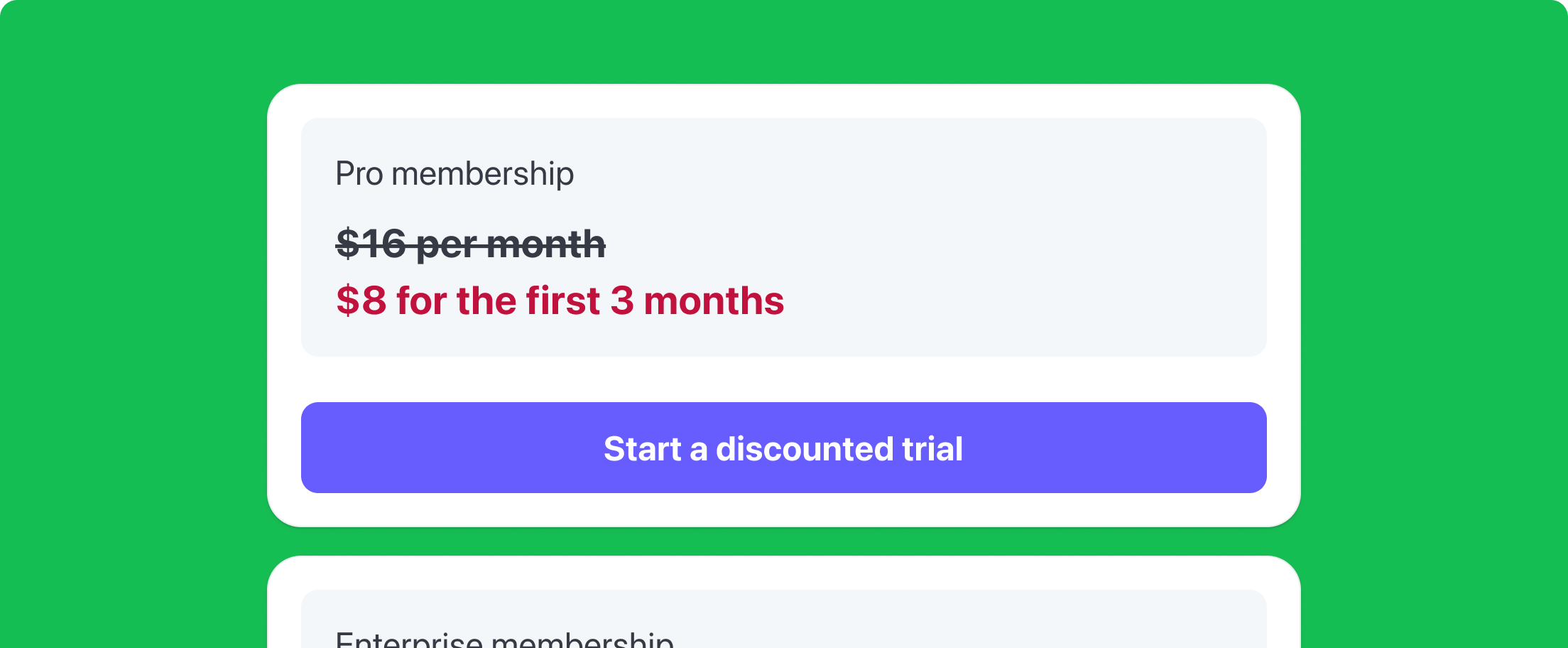
Use the Trial Offer API to manage both free and paid introductory periods for your subscriptions with a single API integration. Trial offers enable you to qualify high-intent leads, reduce trial abuse, and provide discounted rates to your customers for a limited duration (for example, 1 EUR for the first week of an offer).
Use cases
With trial offers, you can run promotional pricing and product offering experiments directly in Stripe. Common use cases for trial offers include:
| Use case | Description |
|---|---|
| Discounted trials | To improve trial-to-paid conversion and generate revenue, you can set up discounted trials. For example, you offer a reduced introductory price of 4 EUR for 4 weeks or a free 7-day trial. |
| Free trials | To offer a free trial subscription, include a 0 EUR item in the subscription. |
| Upgrade trials | To upsell premium features, you can configure upgrade trials. For example, you offer a customer on a basic plan a 7-day trial to access premium features at the basic rate. Then, when the trial ends, you automatically convert them to the premium rate. |
| Item-level trials | To sell add-ons, AI packs, and other feature bundles, you can set up item-level trials. You can offer customers a trial for a single line item in a subscription while billing other items at their regular price. |
Cosas a tener en cuenta
- Your integration must be on 2026-03-25.preview. You must specify that Stripe version in your request header to access preview features.
- You must upgrade your subscription from
classicbilling mode toflexiblebilling mode to use trial offers.
Limitations
- Trial offers apply to recurring subscription items only. Non-recurring items aren’t eligible for paid trials or discounted trial pricing.
- You can use the customer portal to view trial offers, but you can’t use it to create, manage, or modify trial offer items in public preview.
- You can’t modify the trial length after you create the subscription or schedule trial extensions and reductions.
- Trial offers revenue isn’t available in Billing Analytics. Stripe tracks trial revenue using the
trialingstatus, but paid trials useactive, meaning Stripe considers trial revenue as regular subscription revenue.
- Trial offers aren’t supported with subscription schedules in the Dashboard. You can only manage subscription schedules with trial offers using the API.
- Trial Offer API and trial_end limitations:
- You can’t use trial offers and the legacy
trial_parameter together. We recommend using the Trial Offer API to configure discounted trials and free trials.end - If you use Checkout, you can’t use trial offers. To create trialing subscriptions through Checkout, you must use legacy free trials with
trial_. See Configure free trials.end
- You can’t use trial offers and the legacy
How trial offers work
Products describe the specific goods or services you offer to your customers and Prices define the unit cost. A subscription charges a customer for those products, at the specified price, on a recurring basis. When you create a trial offer, you specify a trial price and a duration of the trial for a product. When the trial ends, the subscription automatically transitions to the regular price or another price you configure.
Trial offers don’t replace products or prices. Trial Offer is a separate object that attaches a discounted or free price to a Subscription item for a limited time, without modifying the item’s underlying price.
Create a trial offer
To create a trial offer in the Dashboard:
- Go to the Products page.
- Click a product to open the product details page.
- In the Trials section, click the plus symbol ().
- Fill in the Create trial dialog with the trial price, duration, and end behavior.
- Click Create.
You can also create a trial offer from the subscription editor:
- Go to the Subscriptions page.
- Click + Create subscription, or click an existing subscription and select Actions > Update subscription.
- Click Add trial.
- In the dialog, select + Trial to create a new trial offer.
- Add the trial details, including the trial price, duration, and end behavior.
- Click Create.
Attach a trial offer to a new subscription
To attach a trial offer to a new subscription in the Dashboard:
- Go to the Subscriptions page.
- Click + Create subscription.
- Click Add trial.
- In the dialog, select an existing trial offer, or select + Trial to create a new trial offer to add to the subscription.
Update subscriptions with a trial offer
Add a trial offer to an existing subscription
To add a trial offer to an existing subscription in the Dashboard:
- Go to the Subscriptions page.
- Click the subscription to update, then select Actions > Update subscription.
- Click Add trial.
- In the dialog, select an existing trial offer, or select + Trial to create a new trial offer to add to the subscription.
Add a trial offer to a subscription with existing items
To add a trial offer as another item to a subscription that has existing items in the Dashboard:
- Go to the Subscriptions page.
- Click the subscription to update, then select Actions > Update subscription.
- Click Add trial.
- In the dialog, select an existing trial offer, or select + Trial to create a new trial offer to add to the subscription.
Convert a subscription item to a trial offer
To convert an existing subscription item to a trial offer, include the items.id and specify the trial_offer.id in the items.current_trial.trial_offer parameter:
curl https://api.stripe.com/v1/subscriptions/\ -u "{{SUBSCRIPTION_ID}}:" \ -H "Stripe-Version: 2026-03-25.preview" \ -d "items[0][id]=sk_test_CGGvfNiIPwLXiDwaOfZ3oX6Y" \ -d "items[0][current_trial][trial_offer]=to_123"{{SUBSCRIPTION_ITEM_ID}}
Change the item quantity for a trial offer
To change the item quantity for a trial offer in the Dashboard:
- Go to the Subscriptions page.
- Click the subscription to update, then select Actions > Update subscription.
- Edit the quantity field after adding the trial offer item.
- Click Update subscription.
Add a trial offer to a subscription schedule
You can only use timestamp trial offers with subscription schedules. Unlike relative duration trials, which end after a set number of billing intervals, timestamp trials end on an absolute date. To create one, set the trial offer’s duration.type to timestamp:
curl https://api.stripe.com/v1/product_catalog/trial_offers \ -u ":" \ -H "Stripe-Version: 2026-03-25.preview" \ -d "price=sk_test_CGGvfNiIPwLXiDwaOfZ3oX6Y" \ -d "duration[type]=timestamp" \ -d "end_behavior[transition][price]={{PRICE_ID}}"{{PRICE_ID}}
Next, use phases.items.trial_offer to attach the trial offer to the schedule phase of the subscription schedule:
curl https://api.stripe.com/v1/subscription_schedules \ -u ":" \ -H "Stripe-Version: 2026-03-25.preview" \ -d "customer_account=sk_test_CGGvfNiIPwLXiDwaOfZ3oX6Y" \ -d start_date=1610403705 \ -d "phases[0][items][0][trial_offer]=to_123" \ -d "phases[0][end_date]=1610403706"{{CUSTOMER_ACCOUNT_ID}}
View subscriptions with trial offers
When you retrieve a subscription, the response includes the configuration for each item, including trial offers:
Cancel a subscription at the end of a paid trial
To cancel the subscription when the paid trial ends:
- Create a subscription with a trial offer.
- Set the cancellation date to the end of the trial period.
This flow supports opt-in renewals, so customers aren’t automatically converted to a recurring subscription by default.
To cancel a subscription at the end of a paid trial in the Dashboard:
- On the Subscriptions page, find the applicable subscription, click the overflow menu (), and select Cancel subscription.
- Select On a custom day and set the date to end the trial and the subscription.
- Click Cancel subscription.
For more information, see Cancel subscriptions.
Use trial offers with other features
Trial offers with usage-based billing
When creating a Price object, you can specify a metered price instead of a recurring price and attach it to a trial offer. This lets you offer the same usage-based billing functionality at a discounted price.
To use a metered price, set the usage_type to metered and add an existing meter to track usage.
curl https://api.stripe.com/v1/prices \ -u ":" \ -d currency=usd \ -d billing_scheme=per_unit \ -d unit_amount=1 \ -d "recurring[interval]=week" \ -d "recurring[usage_type]=metered" \ -d "recurring[meter]=mtr_123" \ -d "product_data[name]=Trial Period Price"sk_test_CGGvfNiIPwLXiDwaOfZ3oX6Y
Next, attach the price to a trial offer as you would with any other recurring price:
curl https://api.stripe.com/v1/product_catalog/trial_offers \ -u ":" \ -H "Stripe-Version: 2026-03-25.preview" \ -d "price=sk_test_CGGvfNiIPwLXiDwaOfZ3oX6Y" \ -d "duration[relative][iterations]=1" \ -d "duration[type]=timestamp" \ -d "end_behavior[transition][price]={{PRICE_ID}}"{{PRICE_ID}}
Additional considerations
Subscription trialing status and trial offer
When using trial offers, a subscription’s status is determined by the price of the trial:
- Free Trials (0 EUR): If a subscription only contains trial offers, and all trial offer prices are set to 0 EUR, the subscription status is
trialing. This matches the legacytrial_behavior and is ideal for “no-card-required” or standard free trial flows.end - Paid Trials (>0 EUR): If the subscription has a regular price item, or the trial offers have a non-zero price, the subscription status will be
active,incomplete, orpast_. This behavior mimics other subscriptions without trial offers. Because a paid trial requires an immediate successful payment to begin, the subscription follows the standarddue PaymentIntentlifecycle. This ensures that your existing billing logic—such as webhooks for successful payments—remains consistent, whether the customer is paying a promotional price or the full recurring amount.
Events
Every time a trial changes, it triggers Events. Make sure that your integration handles them. For example, you might want to email a customer before a trial ends. Learn more about handling subscription events.
The following table describes the events that trigger before a free trial ends, when a trial subscription pauses or cancels, and when a subscription resumes and becomes active.
| Event | Description | Use case |
|---|---|---|
customer. | Sent when a subscription ends. | Stop providing access to your product in response to this event. The subscription moves to the canceled status and sends this event after a free trial ends without a payment method, and if the subscription’s missing_ end behavior is set to cancel. |
customer. | Sent when a subscription is no longer paused. When you receive this event, grant the customer access to the product if they lost access while the subscription was paused. | Paused subscriptions are converted into active subscriptions they resume. Resuming a subscription might generate an invoice and corresponding Payment Intent that must be paid before the subscription moves out of the paused status. |
customer. | Sent when a subscription is fully paused. Invoicing won’t occur until the subscription resumes. When you receive this event, you can revoke the customer’s access to the product until they add a payment method and the subscription resumes. | Stop providing access to your product in response to this event. The subscription moves to the paused status and sends this event after a free trial ends without a payment method and if the subscription’s missing_ end behavior is set to pause. The subscription remains paused until explicitly resumed. |
customer. | Sent 3 days before the trial period ends. If the trial is less than 3 days, it triggers this event immediately. | Configure the subscription to automatically send an email to your customer 3 days before the trial period ends. |
Setting a billing anchor when a trial offer ends
When a trial offer ends and transitions to the regular recurring price, customers need to begin a fresh billing cycle immediately. By default, the subscription’s billing_cycle_anchor automatically resets to the time the trial ends (now). This ensures that your customers are charged the full amount for their first regular interval immediately, without generating prorations.
If you don’t want your billing_ to change, you can set it to unchanged.
Configuration options for billing_ include:
now(default): Resets the subscription’sbilling_to the exact time the trial offer completes. This creates a new billing cycle for the regular price and generates a full-amount invoice with no proration.cycle_ anchor unchanged: Maintains the original anchor from when the subscription was first created. The period between the trial end and the next natural anchor date are billed as a prorated amount.
For example, if you offer a 7-day trial for 1 EUR and want the first 20 EUR monthly charge to cover a full month starting on day 8:
- Jan 1: Subscription created with a 7-day trial offer.
- Jan 8: Trial ends. The
billing_automatically resets to Jan 8.cycle_ anchor - Invoice: Stripe generates an invoice for the full 20 EUR recurring price for the period of Jan 8–Feb 8. No proration is applied.
curl https://api.stripe.com/v1/subscriptions \ -u ":" \ -H "Stripe-Version: 2026-03-25.preview" \ -d "customer_account=sk_test_CGGvfNiIPwLXiDwaOfZ3oX6Y" \ -d "items[0][price]={{CUSTOMER_ACCOUNT_ID}}" \ -d "items[0][current_trial][trial_offer]={{TRIAL_OFFER_ID}}" \ -d "trial_settings[end_behavior][billing_cycle_anchor]=unchanged"{{PRICE_ID}}