Web Captioner
-
Connect Web Captioner Webhook in TTS Voice Wizard
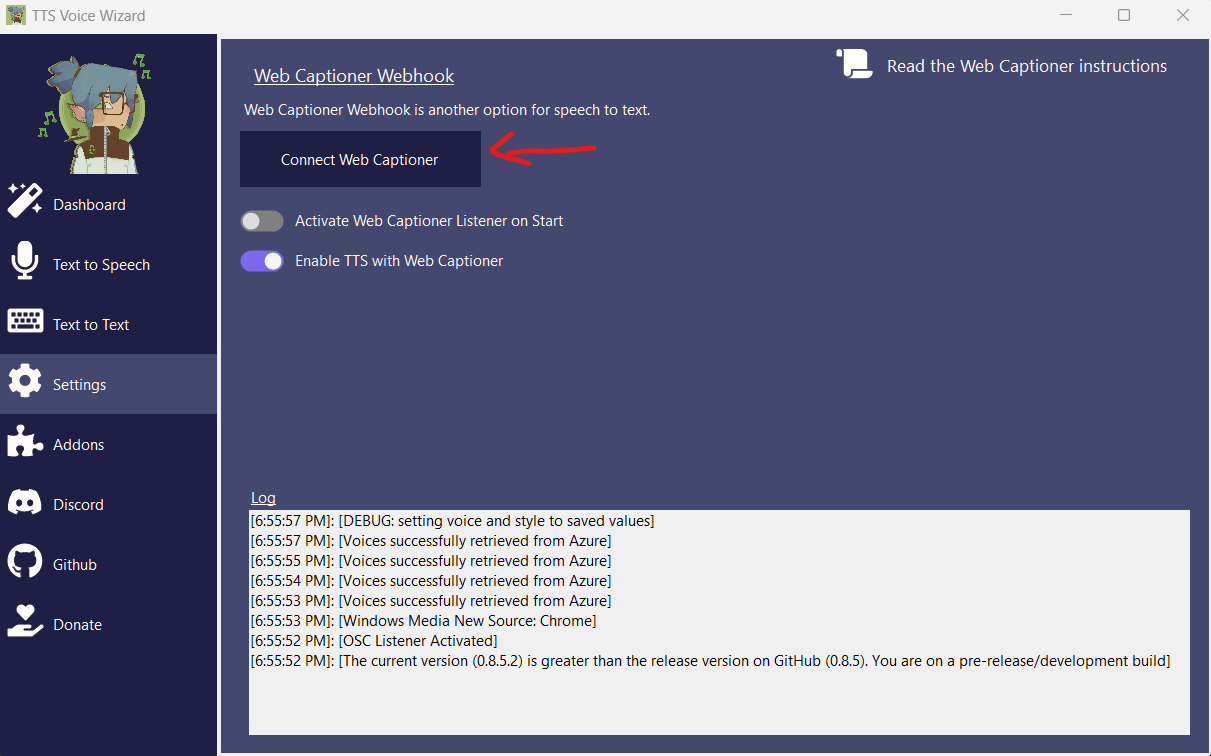
-
Settings (bottom right) > Channels > Webhook
-
Set 'http://localhost:8080/' as the Webhook URL and experiment with different chunking values (I recommend a large value so it only sends when you finish talking).
-
Now you're all set to click 'Start Captioning' in Web Captioner
-
Note that you will have to use a separate option for TTS such as Azure, System Speech or FonixTalk

Leave me a Github Star ⭐ (it's free) or