--- title: Cloudflare Web Analytics description: Privacy-first analytics for your website without changing DNS or using Cloudflare proxy. image: https://developers.cloudflare.com/core-services-preview.png --- > Documentation Index > Fetch the complete documentation index at: https://developers.cloudflare.com/web-analytics/llms.txt > Use this file to discover all available pages before exploring further. [Skip to content](#%5Ftop) # Cloudflare Web Analytics Get vital web analytics for your website without compromising user privacy. Available on all plans Cloudflare Web Analytics helps you understand the performance of your web pages as experienced by your site visitors. --- ## Features ### Filters Use filters to refine the data displayed in Web Analytics. [ Use Filters ](https://developers.cloudflare.com/web-analytics/configuration-options/filters/) ### Rules Use rules to configure tracking of Web Analytics for specific websites or paths. [ Use Rules ](https://developers.cloudflare.com/web-analytics/configuration-options/rules) ### Dimensions Use dimensions to categorize and organize various metrics or data types effectively. [ Use Dimensions ](https://developers.cloudflare.com/web-analytics/data-metrics/dimensions) --- ## Related products **[Analytics](https://developers.cloudflare.com/analytics/)** Cloudflare visualizes the metadata collected by our products in the Cloudflare dashboard. **[Speed](https://developers.cloudflare.com/speed/)** Speed allows you to assess the performance of your website and get recommendations of Cloudflare products to enhance the website performance. --- ## More resources [Resource hub](https://www.cloudflare.com/application-services/products/analytics/) Refer to our latest resources to learn more about security, performance and reliability. [Cloudflare blog](https://blog.cloudflare.com/privacy-first-web-analytics/) Read articles about the latest updates about Web Analytics. ```json {"@context":"https://schema.org","@type":"WebPage","@id":"https://developers.cloudflare.com/web-analytics/#page","headline":"Overview · Cloudflare Web Analytics docs","description":"Privacy-first analytics for your website without changing DNS or using Cloudflare proxy.","url":"https://developers.cloudflare.com/web-analytics/","inLanguage":"en","image":"https://developers.cloudflare.com/core-services-preview.png","dateModified":"2026-04-16","publisher":{"@type":"Organization","name":"Cloudflare","url":"https://www.cloudflare.com/"},"isPartOf":{"@type":"WebSite","@id":"https://developers.cloudflare.com/#website","name":"Cloudflare Docs","url":"https://developers.cloudflare.com/"}} {"@context":"https://schema.org","@type":"BreadcrumbList","itemListElement":[{"@type":"ListItem","position":1,"item":{"@id":"/directory/","name":"Directory"}},{"@type":"ListItem","position":2,"item":{"@id":"/web-analytics/","name":"Cloudflare Web Analytics"}}]} ``` --- --- title: About description: How Cloudflare Web Analytics collects and processes visitor data. image: https://developers.cloudflare.com/core-services-preview.png --- > Documentation Index > Fetch the complete documentation index at: https://developers.cloudflare.com/web-analytics/llms.txt > Use this file to discover all available pages before exploring further. [Skip to content](#%5Ftop) # About Cloudflare Web Analytics provides free, privacy-first analytics for your website without changing your DNS or using Cloudflare’s proxy. Cloudflare Web Analytics helps you understand the performance of your web pages as experienced by your site visitors. All you need to enable Cloudflare Web Analytics is a Cloudflare account and a JavaScript snippet on your page to start getting information on page views and visitors. The JavaScript snippet (also known as a beacon) collects metrics using the Performance API, which is available in all major web browsers. Web Analytics supports Adaptive Bit Rate (ABR). Cloudflare's servers will select the best resolution for each chart or table depending on the size of the data, the date range, your network connection, and other factors. For more information, refer to [Explaining Cloudflare's ABR Analytics ↗](https://blog.cloudflare.com/explaining-cloudflares-abr-analytics/). The data displayed in Web Analytics is real user monitoring (RUM). For more information, refer to [Real User Monitoring ↗](https://en.wikipedia.org/wiki/Real%5Fuser%5Fmonitoring). Cloudflare Web Analytics does not collect or use your visitors’ personal data. [ Get started ](http://dash.cloudflare.com/sign-up/web-analytics) [ Learn more ](https://developers.cloudflare.com/web-analytics/data-metrics/) ```json {"@context":"https://schema.org","@type":"WebPage","@id":"https://developers.cloudflare.com/web-analytics/about/#page","headline":"Cloudflare Web Analytics · Cloudflare Web Analytics docs","description":"How Cloudflare Web Analytics collects and processes visitor data.","url":"https://developers.cloudflare.com/web-analytics/about/","inLanguage":"en","image":"https://developers.cloudflare.com/core-services-preview.png","dateModified":"2026-04-17","publisher":{"@type":"Organization","name":"Cloudflare","url":"https://www.cloudflare.com/"},"isPartOf":{"@type":"WebSite","@id":"https://developers.cloudflare.com/#website","name":"Cloudflare Docs","url":"https://developers.cloudflare.com/"},"keywords":["Analytics","Privacy"]} {"@context":"https://schema.org","@type":"BreadcrumbList","itemListElement":[{"@type":"ListItem","position":1,"item":{"@id":"/directory/","name":"Directory"}},{"@type":"ListItem","position":2,"item":{"@id":"/web-analytics/","name":"Cloudflare Web Analytics"}},{"@type":"ListItem","position":3,"item":{"@id":"/web-analytics/about/","name":"About"}}]} ``` --- --- title: Get started description: Set up Cloudflare Web Analytics for your website. image: https://developers.cloudflare.com/core-services-preview.png --- > Documentation Index > Fetch the complete documentation index at: https://developers.cloudflare.com/web-analytics/llms.txt > Use this file to discover all available pages before exploring further. [Skip to content](#%5Ftop) # Get started ## Sites not proxied through Cloudflare 1. In the Cloudflare dashboard, go to the **Web Analytics** page. [ Go to **Web analytics** ](https://dash.cloudflare.com/?to=/:account/web-analytics) 2. Select **Add a site**. 3. In **Set up hostname**, write your website's hostname. 4. Select the message box that appears to choose the hostname you have input and select **Done**. 5. Copy the JS snippet from **Manage site**. This is also where you can later edit the hostname you have just added. 6. (Optional) Select **View Analytics sites** to go back on the Web Analytics interface. If you prefer to continue setting up Web Analytics website, continue reading. 7. Add the JS snippet to any of your website’s HTML pages before the ending body tag. Web analytics is now set up on your website, but it may take a few minutes for Web Analytics data to appear. Repeat steps 3-7 for all the websites you want to track with Web Analytics by selecting **Add a site** from Web Analytics. In **Web Analytics Sites**, select **Manage site** inside each website's card to adjust Web Analytics for your site at any time. For more information on how many sites you can track, refer to [Limits](https://developers.cloudflare.com/web-analytics/limits/). --- ## Sites proxied through Cloudflare 1. In the Cloudflare dashboard, go to the **Web Analytics** page. [ Go to **Web analytics** ](https://dash.cloudflare.com/?to=/:account/web-analytics) 2. Select **Add a site**. 3. Select a hostname from the drop-down menu > **Done**. Your website is now using Web Analytics through the automatic setup, which is enabled by default. You always have the option to go to **Manage Site** and change the automatic setup to one of the following: * **Enable, excluding visitor data in the EU** \- The JS Snippet will not be injected for visitors from the EU. * **Enable with JS Snippet installation** \- The JS Snippet needs to be installed manually. * **Disable** \- The JS Snippet will not be injected and has been disabled. Repeat these steps for all of the websites you want to track with Web Analytics. Web Analytics is enabled by default for sites proxied through Cloudflare that previously used Browser Insights. Adjust Web Analytics for your site at any time by selecting **Manage site** from Web Analytics. For more information on how many sites you can track, refer to [Limits](https://developers.cloudflare.com/web-analytics/limits/). For more information on how to configure which sites or pages you track with Web Analytics, refer to [Rules](https://developers.cloudflare.com/web-analytics/configuration-options/rules/). Important If you have a `Cache-Control` header set to `public, no-transform`, Cloudflare proxy will not be able to modify the original payload of the website. Therefore, the Beacon script will not be automatically injected to your site, and Web Analytics will not work. Refer to [Origin cache control](https://developers.cloudflare.com/cache/concepts/cache-control/) for more information. --- ## Pages projects Cloudflare Pages offers a one-click setup for Web Analytics: 1. In the Cloudflare dashboard, go to the **Workers & Pages** page. [ Go to **Workers & Pages** ](https://dash.cloudflare.com/?to=/:account/workers-and-pages) 2. Select your Pages project. 3. Go to **Metrics** and select **Enable** under Web Analytics. Cloudflare will automatically add the JavaScript snippet to your Pages site on the next deployment. ```json {"@context":"https://schema.org","@type":"TechArticle","@id":"https://developers.cloudflare.com/web-analytics/get-started/#page","headline":"Enabling Cloudflare Web Analytics · Cloudflare Web Analytics docs","description":"Set up Cloudflare Web Analytics for your website.","url":"https://developers.cloudflare.com/web-analytics/get-started/","inLanguage":"en","image":"https://developers.cloudflare.com/core-services-preview.png","dateModified":"2026-04-17","publisher":{"@type":"Organization","name":"Cloudflare","url":"https://www.cloudflare.com/"},"isPartOf":{"@type":"WebSite","@id":"https://developers.cloudflare.com/#website","name":"Cloudflare Docs","url":"https://developers.cloudflare.com/"},"keywords":["Analytics"]} {"@context":"https://schema.org","@type":"BreadcrumbList","itemListElement":[{"@type":"ListItem","position":1,"item":{"@id":"/directory/","name":"Directory"}},{"@type":"ListItem","position":2,"item":{"@id":"/web-analytics/","name":"Cloudflare Web Analytics"}},{"@type":"ListItem","position":3,"item":{"@id":"/web-analytics/get-started/","name":"Get started"}}]} ``` --- --- title: Notifications description: Configure notifications for Web Analytics traffic changes. image: https://developers.cloudflare.com/core-services-preview.png --- > Documentation Index > Fetch the complete documentation index at: https://developers.cloudflare.com/web-analytics/llms.txt > Use this file to discover all available pages before exploring further. [Skip to content](#%5Ftop) # Notifications Web Analytics uses Cloudflare's Notification service. When enabled, Web Analytics sends you a weekly report with aggregate visits, page views and median page load time for all your sites, so you can monitor their performance. Refer to [Cloudflare Notifications](https://developers.cloudflare.com/notifications/get-started/) for more information on how to set up an alert. Weekly summary **Who is it for?** Customers using [Web Analytics](https://developers.cloudflare.com/web-analytics/) to monitor their website's performance. **Other options / filters** None. **Included with** All Cloudflare plans. **What should you do if you receive one?** No action is needed. This notification is a weekly summary with reports from your Web Analytics account. Refer to [Notifications](https://dash.cloudflare.com/?to=/:account/notifications) in the Cloudflare dashboard to refine your notifications settings. ```json {"@context":"https://schema.org","@type":"TechArticle","@id":"https://developers.cloudflare.com/web-analytics/get-started/notifications/#page","headline":"Notifications for Web Analytics · Cloudflare Web Analytics docs","description":"Configure notifications for Web Analytics traffic changes.","url":"https://developers.cloudflare.com/web-analytics/get-started/notifications/","inLanguage":"en","image":"https://developers.cloudflare.com/core-services-preview.png","dateModified":"2026-04-16","publisher":{"@type":"Organization","name":"Cloudflare","url":"https://www.cloudflare.com/"},"isPartOf":{"@type":"WebSite","@id":"https://developers.cloudflare.com/#website","name":"Cloudflare Docs","url":"https://developers.cloudflare.com/"}} {"@context":"https://schema.org","@type":"BreadcrumbList","itemListElement":[{"@type":"ListItem","position":1,"item":{"@id":"/directory/","name":"Directory"}},{"@type":"ListItem","position":2,"item":{"@id":"/web-analytics/","name":"Cloudflare Web Analytics"}},{"@type":"ListItem","position":3,"item":{"@id":"/web-analytics/get-started/","name":"Get started"}},{"@type":"ListItem","position":4,"item":{"@id":"/web-analytics/get-started/notifications/","name":"Notifications"}}]} ``` --- --- title: RUM beacon for Web Analytics description: Collect real user performance metrics with the RUM beacon. image: https://developers.cloudflare.com/core-services-preview.png --- > Documentation Index > Fetch the complete documentation index at: https://developers.cloudflare.com/speed/llms.txt > Use this file to discover all available pages before exploring further. [Skip to content](#%5Ftop) # RUM beacon for Web Analytics The RUM beacon is a JavaScript snippet that runs when a Cloudflare customer enables RUM through [Web Analytics](https://developers.cloudflare.com/web-analytics/) or [Observatory](https://developers.cloudflare.com/speed/observatory/). This script runs in users' browsers when they visit the customer's site, and its purpose is to collect performance-related data, for example, page load time, and send it to Cloudflare's systems for processing. This [data](https://developers.cloudflare.com/web-analytics/data-metrics/) is then presented to the customer, providing valuable insights into the website's performance and usage. The RUM beacon script can be enabled into a webpage in two ways: * **One-click setup**: For [sites proxied through Cloudflare](https://developers.cloudflare.com/web-analytics/get-started/#sites-proxied-through-cloudflare) that have Web Analytics enabled, the snippet can be _automatically_ injected into pages as the HTML response passes through Cloudflare's edge network to the browser by simply enabling the automatic injection option. * **Manual setup**: Websites can _manually_ add the script by embedding a code snippet into their pages. Refer to the [Sites not proxied through Cloudflare section](https://developers.cloudflare.com/web-analytics/get-started/#sites-not-proxied-through-cloudflare), for more information about how to manually insert the snippet into your HTML. ## Data collection Once downloaded to the browser, the RUM beacon script runs as JavaScript in the browser. It collects performance data from browser [APIs ↗](https://developer.mozilla.org/en-US/docs/Web/API/Performance%5FAPI) and sends this data to Cloudflare for processing. The data collected from the browser is summarized in the table below: | Field | Example | Description | How it is collected | | -------------------- | ---------------------------------------------------------------------------------------------------------------------- | -------------------------------------------- | ----------------------------------------------------------------------------------------------------------------------------------------------------------------------------------------------------------------------------------------------------------------------------------------------------------- | | pageloadId | 0c698922-8d60-40bf-85ac-7982b5f8034d | The unique ID for the page. | Generated in the browser code. | | referrer | [https://cfrumtest.com/ ↗](https://cfrumtest.com/) | The referring page URL. | If it is a multi-page application (MPA), then it is generated from [document.referrer ↗](https://developer.mozilla.org/en-US/docs/Web/API/Document/referrer). If it is a single-page application (SPA), then it is generated from a local in-memory variable in the beacon code which stores previous URLs. | | startTime | 1693488419352 | Baseline for performance-related timestamps. | [performance.timeOrigin ↗](https://developer.mozilla.org/en-US/docs/Web/API/Performance/timeOrigin) | | memory | { totalJSHeapSize: 39973671, usedJSHeapSize: 39127515, jsHeapSizeLimit: 4294705152 } | Measures memory heap size. | [performance.memory ↗](https://developer.mozilla.org/en-US/docs/Web/API/Performance/memory) (deprecated) | | timings | Object of [PerformanceTiming ↗](https://developer.mozilla.org/en-US/docs/Web/API/PerformanceTiming) | Timing data. | [performance.timing ↗](https://developer.mozilla.org/en-US/docs/Web/API/Performance/timing) (deprecated, fallback when timingV2 is unavailable) | | timingV2 | Array of [PerformanceNavigationTiming ↗](https://developer.mozilla.org/en-US/docs/Web/API/PerformanceNavigationTiming) | Navigation timing data. | [performance.getEntriesByType("navigation") ↗](https://developer.mozilla.org/en-US/docs/Web/API/Performance/getEntriesByType) | | resources | Array of [PerformanceResourceTiming ↗](https://developer.mozilla.org/en-US/docs/Web/API/PerformanceResourceTiming) | Resource timing data. | [performance.getEntriesByType("resource") ↗](https://developer.mozilla.org/en-US/docs/Web/API/PerformanceResourceTiming) | | firstPaint | Array of [PerformancePaintTiming ↗](https://developer.mozilla.org/en-US/docs/Web/API/PerformancePaintTiming) | Paint timing data. | [performance.getEntriesByType("paint") ↗](https://developer.mozilla.org/en-US/docs/Web/API/PerformancePaintTiming) | | firstContentfulPaint | 209 | First Contentful Paint metric. | [web-vitals module ↗](https://www.npmjs.com/package/web-vitals) [1](#user-content-fn-1) | | FCP | 209 | First Contentful Paint metric. | [web-vitals module ↗](https://www.npmjs.com/package/web-vitals) [1](#user-content-fn-1) | | LCP | 209 | Largest Contentful Paint metric. | [web-vitals module ↗](https://www.npmjs.com/package/web-vitals) [1](#user-content-fn-1) | | CLS | 0.001 | Cumulative Layout Shift metric. | [web-vitals module ↗](https://www.npmjs.com/package/web-vitals) [1](#user-content-fn-1) | | TTFB | 0.03 | Time to First Byte metric. | [web-vitals module ↗](https://www.npmjs.com/package/web-vitals) [1](#user-content-fn-1) | | INP | 1.23 | Interaction to Next Paint metric. | [web-vitals module ↗](https://www.npmjs.com/package/web-vitals) [1](#user-content-fn-1) | | landingPath | [https://cfrumtest.com/ ↗](https://cfrumtest.com/) | The landing page URL. | [performance.getEntriesByType("navigation") ↗](https://developer.mozilla.org/en-US/docs/Web/API/Performance/getEntriesByType) | ## Data processing RUM data is generally processed at the nearest Cloudflare data center based on how the incoming request is routed. This is determined by a number of factors including [Anycast ↗](https://www.cloudflare.com/en-gb/learning/cdn/glossary/anycast-network/) and [Unimog ↗](https://blog.cloudflare.com/unimog-cloudflares-edge-load-balancer/). Since RUM data does not use location services, it may be processed in a different country or region from where it originated. Although the RUM service receives the client/source IP address from the beacon as part of normal HTTP request handling process, it discards the IP address at the nearest Cloudflare data center and does not store it in core databases or logs. ## Privacy information The RUM beacon script does not store any data in the browser or access any storage data, such as [cookies ↗](https://developer.mozilla.org/en-US/docs/Web/API/Document/cookie), [localStorage ↗](https://developer.mozilla.org/en-US/docs/Web/API/Window/localStorage), [sessionStorage ↗](https://developer.mozilla.org/en-US/docs/Web/API/Window/sessionStorage), IP address, or [IndexedDB ↗](https://developer.mozilla.org/en-US/docs/Web/API/IndexedDB%5FAPI/Using%5FIndexedDB). The data we collect is performance data from the browser performance [APIs ↗](https://developer.mozilla.org/en-US/docs/Web/API/Performance%5FAPI). This performance data is ephemeral and only relates to the current webpage that is being viewed. If the user refreshes their browser, all the previous performance data is gone and new performance data starts being available. This data is not stored or accessed from anywhere on the device, it is only available as in-memory data. ## RUM excluding EEA/EU Customers have the option to enable RUM globally or to limit its application to exclude users connecting to Cloudflare data centers in the EEA/EU. If the latter option is selected, the RUM beacon does not process performance data for users connecting to a Cloudflare data center located in the following countries (ISO codes): AT, BE, BG, HR, CY, CZ, DK, EE, FI, FR, DE, GR, HU, IS, IE, IT, LV, LI, LT, LU, MT, NL, NO, PL, PT, RO, SK, SI, ES, SE, CH, GB. Free customers have RUM enabled automatically, with EU traffic excluded, and can switch it off if they prefer. Customers on other plans may enable RUM as needed. 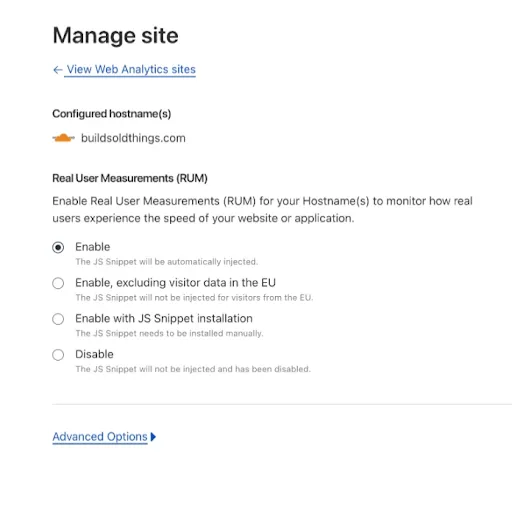 ## Footnotes 1. The web-vitals module is an open-source module written by Google. It does not access any type of storage on the browser. [↩](#user-content-fnref-1) [↩2](#user-content-fnref-1-2) [↩3](#user-content-fnref-1-3) [↩4](#user-content-fnref-1-4) [↩5](#user-content-fnref-1-5) [↩6](#user-content-fnref-1-6) ```json {"@context":"https://schema.org","@type":"TechArticle","@id":"https://developers.cloudflare.com/speed/observatory/rum-beacon/#page","headline":"RUM beacon for Web Analytics · Cloudflare Speed docs","description":"Collect real user performance metrics with the RUM beacon.","url":"https://developers.cloudflare.com/speed/observatory/rum-beacon/","inLanguage":"en","image":"https://developers.cloudflare.com/core-services-preview.png","dateModified":"2026-04-16","publisher":{"@type":"Organization","name":"Cloudflare","url":"https://www.cloudflare.com/"},"isPartOf":{"@type":"WebSite","@id":"https://developers.cloudflare.com/#website","name":"Cloudflare Docs","url":"https://developers.cloudflare.com/"},"keywords":["Privacy"]} {"@context":"https://schema.org","@type":"BreadcrumbList","itemListElement":[{"@type":"ListItem","position":1,"item":{"@id":"/directory/","name":"Directory"}},{"@type":"ListItem","position":2,"item":{"@id":"/speed/","name":"Speed"}},{"@type":"ListItem","position":3,"item":{"@id":"/speed/observatory/","name":"Observatory (beta)"}},{"@type":"ListItem","position":4,"item":{"@id":"/speed/observatory/rum-beacon/","name":"RUM beacon for Web Analytics"}}]} ``` --- --- title: Web Analytics for SPAs description: Configure Web Analytics for single-page applications. image: https://developers.cloudflare.com/core-services-preview.png --- > Documentation Index > Fetch the complete documentation index at: https://developers.cloudflare.com/web-analytics/llms.txt > Use this file to discover all available pages before exploring further. [Skip to content](#%5Ftop) # Web Analytics for SPAs Cloudflare Web Analytics can automatically track user interactions on Single Page Applications (SPAs) by overriding the History API's `pushState` function and listening to the `onpopstate` event. Note that hash-based routers are not supported. ## Disable SPA measurement If you want to disable the automatic tracking for SPAs, you can do so by adding the `spa` option with a value of `false` in the data attribute of the script tag, as shown below: ``` ``` ### Google Tag Manager (GTM) If you are using Google Tag Manager (GTM), you can disable SPA tracking by passing the spa option via the query string in the script URL: ``` ``` ```json {"@context":"https://schema.org","@type":"TechArticle","@id":"https://developers.cloudflare.com/web-analytics/get-started/web-analytics-spa/#page","headline":"Web Analytics for Single Page Applications (SPAs) · Cloudflare Web Analytics docs","description":"Configure Web Analytics for single-page applications.","url":"https://developers.cloudflare.com/web-analytics/get-started/web-analytics-spa/","inLanguage":"en","image":"https://developers.cloudflare.com/core-services-preview.png","dateModified":"2026-04-17","publisher":{"@type":"Organization","name":"Cloudflare","url":"https://www.cloudflare.com/"},"isPartOf":{"@type":"WebSite","@id":"https://developers.cloudflare.com/#website","name":"Cloudflare Docs","url":"https://developers.cloudflare.com/"},"keywords":["SPA"]} {"@context":"https://schema.org","@type":"BreadcrumbList","itemListElement":[{"@type":"ListItem","position":1,"item":{"@id":"/directory/","name":"Directory"}},{"@type":"ListItem","position":2,"item":{"@id":"/web-analytics/","name":"Cloudflare Web Analytics"}},{"@type":"ListItem","position":3,"item":{"@id":"/web-analytics/get-started/","name":"Get started"}},{"@type":"ListItem","position":4,"item":{"@id":"/web-analytics/get-started/web-analytics-spa/","name":"Web Analytics for SPAs"}}]} ``` --- --- title: Limits description: Rate limits and data retention for Web Analytics. image: https://developers.cloudflare.com/core-services-preview.png --- > Documentation Index > Fetch the complete documentation index at: https://developers.cloudflare.com/web-analytics/llms.txt > Use this file to discover all available pages before exploring further. [Skip to content](#%5Ftop) # Limits Cloudflare limits the number of sites for which you can track web analytics, as well as the number of rules allowed for each plan type. Refer to the following tables for more information. ## Site limits Cloudflare limits the number of sites for which you can track web analytics when they are not proxied by Cloudflare. | Site type | Limit | | ------------------------------ | -------- | | Not proxied through Cloudflare | 10 | | Proxied through Cloudflare | No limit | ## Rules limits Cloudflare limits the number of Web Analytics rules you can have by plan type. For plans with a limit of zero, Web Analytics injects the JS snippet on all subdomains. Rules are only available for sites proxied through Cloudflare. | Plan type | Rules limit | | ---------- | ----------- | | Free | 0 | | Pro | 5 | | Business | 20 | | Enterprise | 100 | ```json {"@context":"https://schema.org","@type":"TechArticle","@id":"https://developers.cloudflare.com/web-analytics/limits/#page","headline":"Web Analytics - Limits · Cloudflare Web Analytics docs","description":"Rate limits and data retention for Web Analytics.","url":"https://developers.cloudflare.com/web-analytics/limits/","inLanguage":"en","image":"https://developers.cloudflare.com/core-services-preview.png","dateModified":"2026-04-16","publisher":{"@type":"Organization","name":"Cloudflare","url":"https://www.cloudflare.com/"},"isPartOf":{"@type":"WebSite","@id":"https://developers.cloudflare.com/#website","name":"Cloudflare Docs","url":"https://developers.cloudflare.com/"}} {"@context":"https://schema.org","@type":"BreadcrumbList","itemListElement":[{"@type":"ListItem","position":1,"item":{"@id":"/directory/","name":"Directory"}},{"@type":"ListItem","position":2,"item":{"@id":"/web-analytics/","name":"Cloudflare Web Analytics"}},{"@type":"ListItem","position":3,"item":{"@id":"/web-analytics/limits/","name":"Limits"}}]} ``` --- --- title: FAQs description: Answers to common questions about Cloudflare Web Analytics. image: https://developers.cloudflare.com/core-services-preview.png --- > Documentation Index > Fetch the complete documentation index at: https://developers.cloudflare.com/web-analytics/llms.txt > Use this file to discover all available pages before exploring further. [Skip to content](#%5Ftop) # FAQs Below you will find answers to our most commonly asked questions. If you cannot find the answer you are looking for, refer to the [community page ↗](https://community.cloudflare.com/) to explore more resources. * [Errors](#errors) * [Setup](#setup) * [Functionality](#functionality) ## Errors ### When I add the beacon to my website and load the webpage, I see an error that includes `is not allowed by Access-Control-Allow-Origin` (CORS). What is happening? This error usually occurs when the hostname of the site loading the analytics does not match the name of the analytics site configured in the dashboard. Double-check that they are identical. Cloudflare matches hostnames based on a postfix. For example, if you set up analytics for `example.com`, we will allow analytics from `www.example.com`, `blog.staging.example.com`, and `fooexample.com`. However, we will not allow analytics from `example.com.br`. You may also see this error if the site does not send a `Referer` or `Origin` header. The `Referer` header is required (do not try to use the `Referrer-policy` header instead). We have a change in-flight now that only the `Origin` header will be required – we believe there is no way to disable that in the browser. ### The analytics beacon is blocked by ad-blockers (including adblockplus, Brave, DuckDuckGo extension, etc). Why is that? Cloudflare is aware that the analytics beacon is blocked by these services. While Cloudflare Web Analytics uses a JavaScript beacon, Cloudflare’s edge analytics cannot be blocked because we can measure every request that is received. Edge analytics are available to any customer who proxies traffic through Cloudflare. Currently, users on Pro, Business, and Enterprise plans get advanced web analytics powered by our edge logs. ### Why am I not seeing all the metrics for single-page application (SPA) or multiple-page application (MPA)? Every route change that occurs in the single-page app will send the measurement of the route before the route is changed to the beacon endpoint. The measurement for the last route change will be sent whenever the user leaves the tab or closes the browser window. That will trigger `visibilityState` to a hidden state. Whenever that happens, Beacon JS sends the payload using the [Navigator.sendBeacon method ↗](https://developer.mozilla.org/en-US/docs/Web/API/Navigator/sendBeacon) that should not be cancelled even when the browser window is closed. However, due to compatibility, old browsers would fallback to using AJAX (`XmlHttpRequest`), which can be cancelled when the browser window is closed, so the last payload that gets sent to the beacon endpoint can be lost. Also, due to various network conditions, there can be data loss when the payload is sent to the beacon endpoint. ### For the same site, why would I see more data reported with an automatic setup? Unless you are using Rules to control which pages to be measured, using [automatic setup](https://developers.cloudflare.com/web-analytics/get-started/#sites-proxied-through-cloudflare) will inject the JS snippet on all pages (sub-domains) under the zone. If you used a [manual setup](https://developers.cloudflare.com/web-analytics/get-started/#sites-not-proxied-through-cloudflare) instead, only those pages that render the JS snippet will be reported. Note Since only one JS snippet can be rendered and used per page, you cannot have multiple snippets on the same page. ### My website is proxied through Cloudflare, but Web Analytic's automatic setup is not working. If you have a `Cache-Control` header set to `public, no-transform`, Cloudflare proxy will not be able to modify the original payload of the website. Therefore, the Beacon script will not be automatically injected to your site, and Web Analytics will not work. Refer to [Origin cache control](https://developers.cloudflare.com/cache/concepts/cache-control/) for more information. ### Why am I getting a `405 Method Not Allowed` error from `/cdn-cgi/rum`? The `/cdn-cgi/rum` endpoint only accepts `POST` requests for data ingestion. If you send a request using any other HTTP method (for example, `GET`, `PUT`, or `DELETE`), the endpoint returns a `405 Method Not Allowed` response with an `Allow: POST, OPTIONS` header (`OPTIONS` is allowed for [CORS ↗](https://developer.mozilla.org/en-US/docs/Web/HTTP/Guides/CORS) support). The Web Analytics beacon (`beacon.min.js`) always uses `POST` when reporting metrics. If you see `405` errors in your logs, the requests are not coming from the beacon itself. They are most likely coming from an automated testing tool making erroneous requests, in which case you should correct it to use `POST` or ignore the errors. We do not support custom integrations directly with the endpoint: all requests should originate from our beacon JavaScript. --- ## Setup ### I am proxying my site through Cloudflare. Should I manually add the JS beacon? You can, but you do not have to. Cloudflare Web Analytics is designed primarily for customers who do not use Cloudflare's proxy to measure their web traffic. Existing Cloudflare customers can access analytics collected from our edge on the **Analytics** tab of the dashboard. You can also enable Web Analytics to measure performance using JavaScript. Using a domain proxied through Cloudflare with [automatic setup](https://developers.cloudflare.com/web-analytics/get-started/#sites-proxied-through-cloudflare) will report stats back to your own domain's `/cdn-cgi/rum` endpoint. If you have installed JS snippet yourself (a [manual setup](https://developers.cloudflare.com/web-analytics/get-started/#sites-not-proxied-through-cloudflare)), it will report back to `cloudflareinsights.com/cdn-cgi/rum` endpoint. ### Can I add Web Analytics to my site using a tag manager like Google Tag Manager (GTM)? Yes. Instead of embedding the script using a tag manager as shown here: ``` ``` Add the following script: ``` ``` ### What do I need to add to my Content Security Policy (CSP)? If your site implements a Content Security Policy (CSP), you'll need to add some entries to this HTTP header to allow browsers to download the beacon script and transmit beacons to Cloudflare. **Warning:** be sure to validate any CSP changes on a test environment before releasing an update to your production environment. You may wish to use [Content Security Rules ↗](https://developers.cloudflare.com/client-side-security/rules/) or trial with `Content-Security-Policy-Report-Only` first. You'll first need to permit our script to execute by adding it to your `script-src` directive: ``` script-src [...existing values...] https://static.cloudflareinsights.com/beacon.min.js ``` _Note: if you have a query string in the script as per the example above for Google Tag Manager, then you'll need to include this in the URL too, e.g. `script-src [...existing values...] https://static.cloudflareinsights.com/beacon.min.js?token=$SITETOKEN`_ Secondly, you'll need to permit the endpoint we transmit the beacon data to. For automatic injection, this will be the same domain, so ensure your `connect-src` includes `'self'`: ``` connect-src [...existing values...] 'self' ``` For manual embedding, this script instead connects to `cloudflareinsights.com`, so ensure that's included instead: ``` connect-src [...existing values...] cloudflareinsights.com ``` ### How can I enforce Subresource Integrity (SRI) with the JS beacon? If you're using the automated injection (i.e. not the manually-embedded script approach mentioned above), Cloudflare automatically includes an `integrity` attribute in the `