

Today with .NET 6 Preview 6 we are shipping our latest progress on .NET Multi-platform App UI (MAUI). This release we are all-in on Visual Studio 2022 Preview 2. This also marks the first time we are shipping .NET MAUI as a workload installation. Several new capabilities are now available including gestures, modal pages, view clipping, native alerts, flex layout, and more. Single project also continues to be improved along with adopting the latest release of the Windows App SDK and Visual Studio extensions. Let’s take a deeper look.
Workload Installation
As part of .NET unification, we have introduced the concept of SDK workloads to enable specific developer scenarios on top of the .NET SDK you’ve installed. In preview 4 the underlying SDKs for Android, iOS, macOS, and Mac Catalyst were enabled, and now in preview 6 we are introducing the maui, maui-mobile, and maui-desktop workloads. The first will acquire and install all the required SDKs for building .NET MAUI applications. If you are only wanting to target mobile or desktop, you can choose those individually.
In the near future Visual Studio 2022 will include these with its installer. To use them today, jump into your favorite CLI. First, take a look at what you have installed already:
dotnet sdk check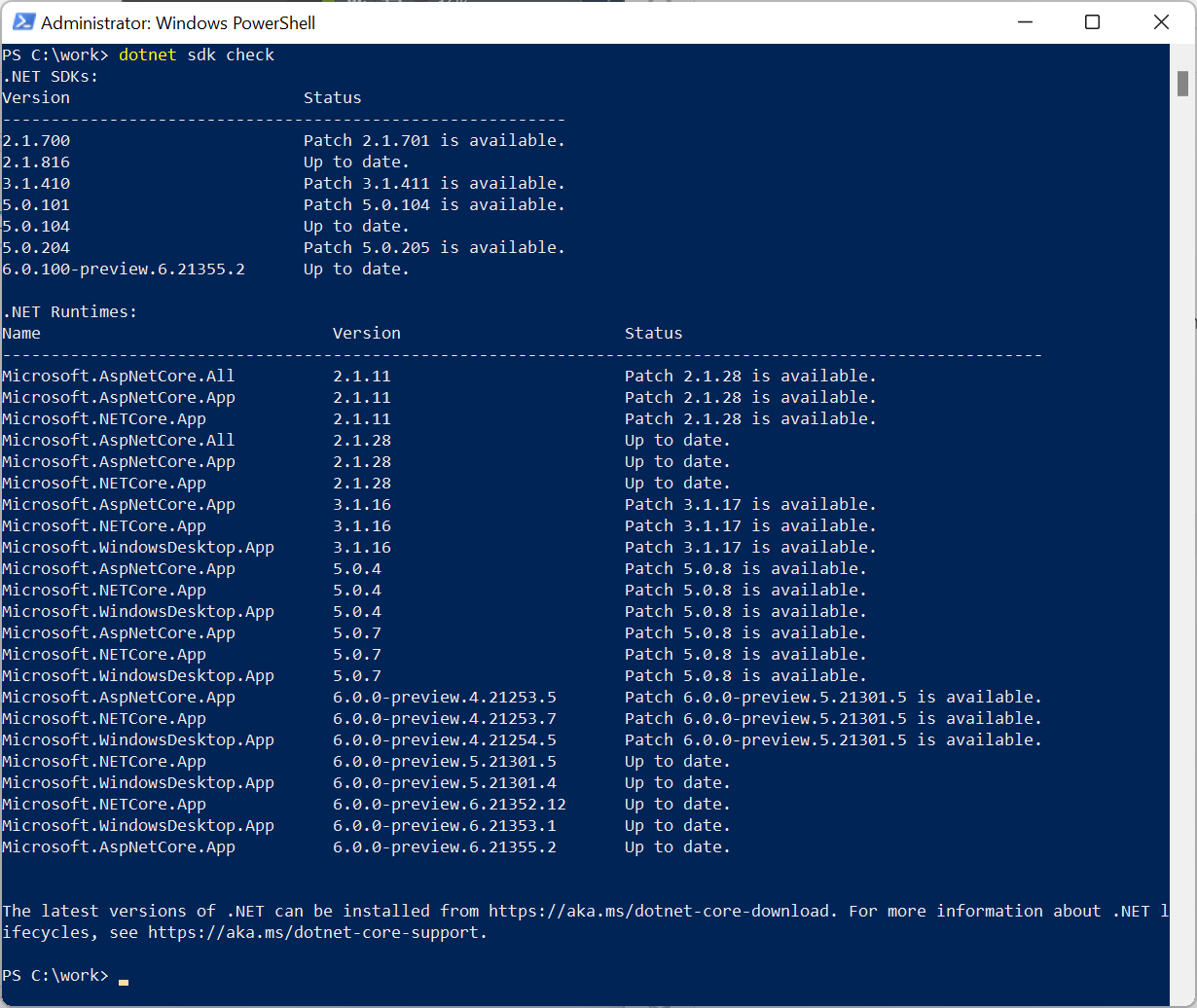
This reports what has been installed via the .NET SDK installer itself. Now to see the additional workloads run:
dotnet workload list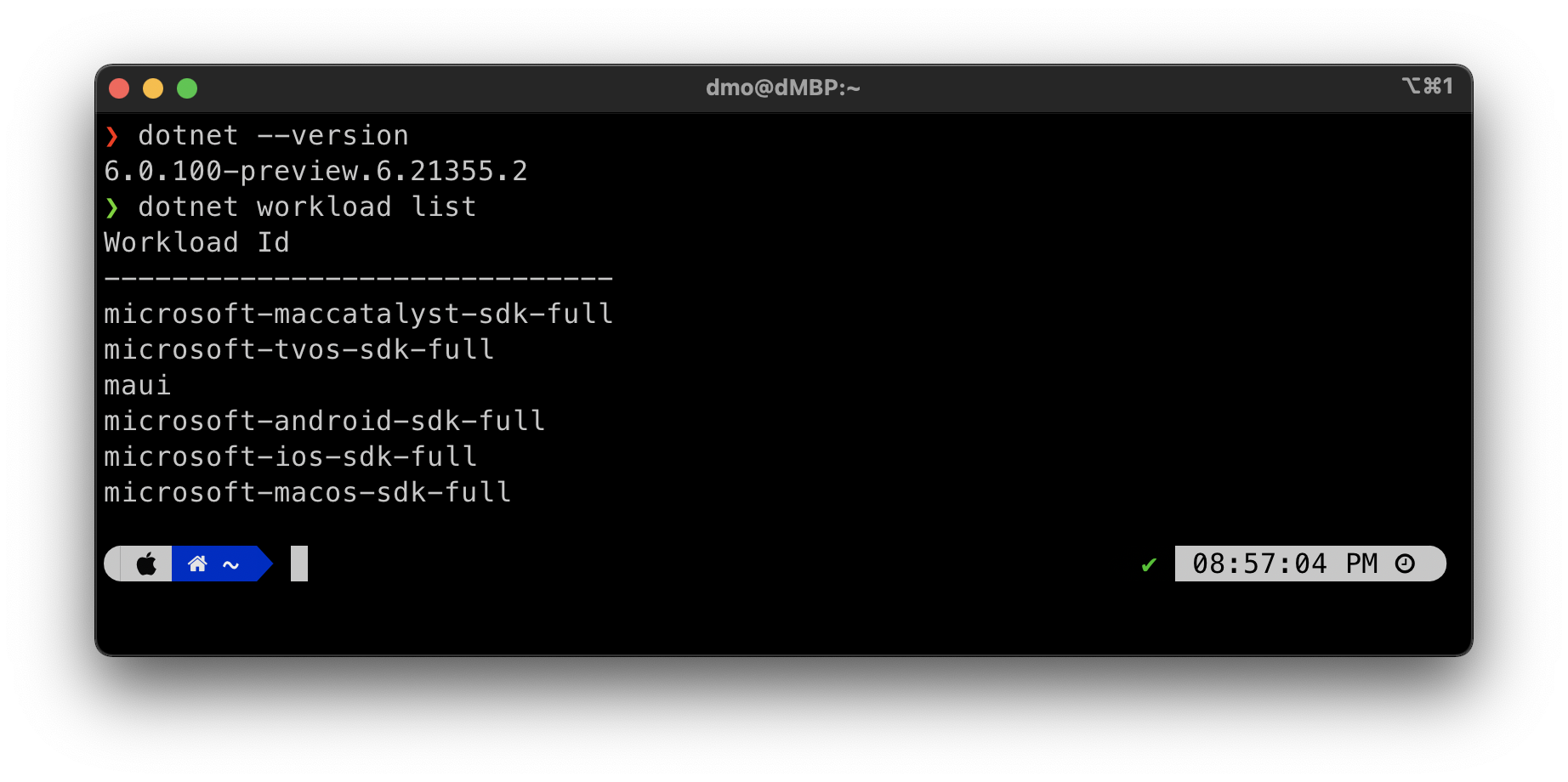
To then install .NET MAUI you can execute:
dotnet workload install mauiWhat about the
maui-checkdotnet tool? We will continue to updatemaui-checkwith each release as it does additional validation of your development environment to help you be successful: checking for OpenJDK, emulators, Xcode, Visual Studio versions, and more.
For more information about mobile and desktop workloads, read details here.
New .NET MAUI Capabilities
As you can see on our status report, we are very close to being completely green for enabling features in .NET MAUI. Let’s highlight a few of the newcomers.
Gestures
Gesture recognizers allow you to apply tap, pinch, pan, swipe, and drag-and-drop to any view instance. You can apply them easily in XAML:
<Grid>
    <Grid.GestureRecognizers>
        <TapGestureRecognizer NumberOfTapsRequired="2" Command="{Binding OnTileTapped}" />
    </Grid.GestureRecognizers>
    <!-- Grid content -->
</Grid>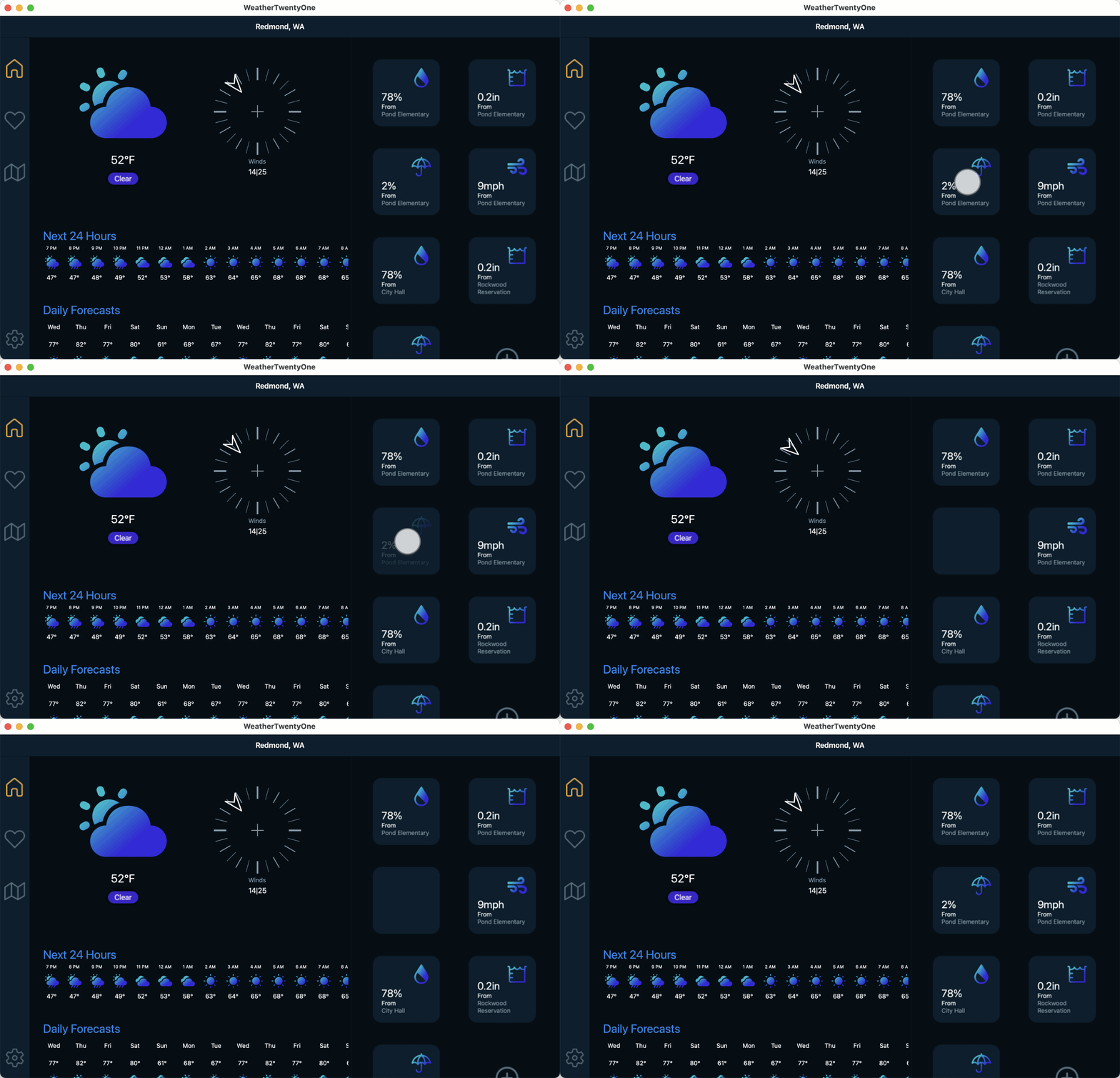
In this example, when the weather widget tile is double-tapped, it simulates a refresh with a fade-out, fade-in animation.
Clipping
When you need to mask content you can now add shapes to the clipping region of a layout or view. The most common use for this is to make a circle image.
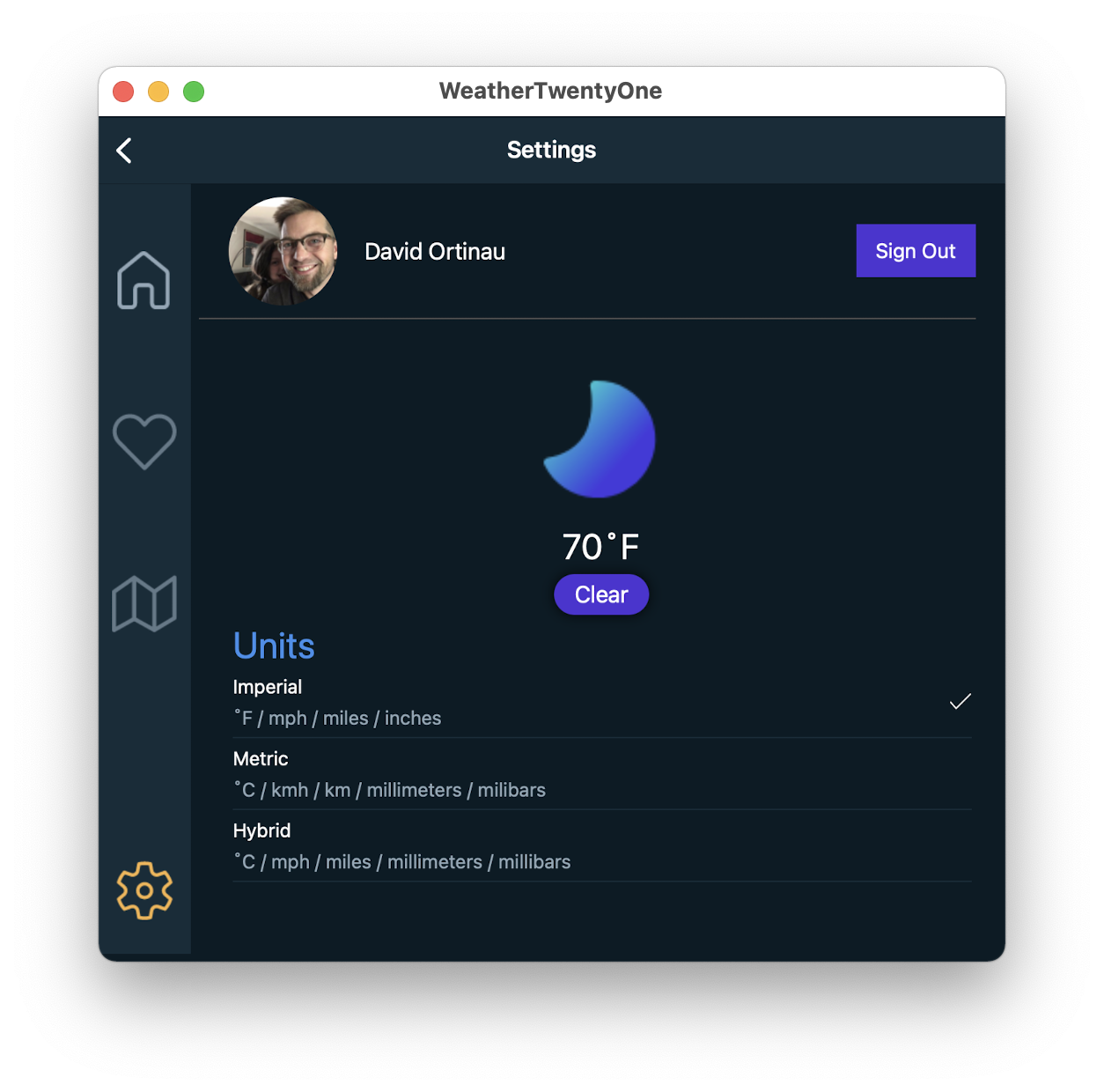
<Image Source="face.png">
    <Image.Clip>
        <EllipseGeometry RadiusX="80"
                         RadiusY="80"
                         Center="80,80" />
    </Image.Clip>
</Image>
Native Alerts
Each platform has a native way of displaying alerts to users. These can be simple informational popups, simple input forms, and even action sheets with multiple options to guide a user. These are available from any Page in a .NET MAUI application.
await DisplayAlert ("Alert", "You have been alerted", "OK");
These are just a few of the controls and layouts updated in preview 6. For a complete list, check out the commit log on GitHub. A few sweeping changes for layout, borders, corners, and shadows will be arriving in preview 7.
Single Project and Windows
We’ve made a few updates to single project based on developer feedback and Windows support to adopt the latest features. Some of you have been following along with each release, and we love that! Thank you for providing your feedback and engaging with us on GitHub and Discord. So, what has changed in preview 6 that you’ll need to update in your existing solutions?
- The NuGet package is replaced with the .NET MAUI workload (
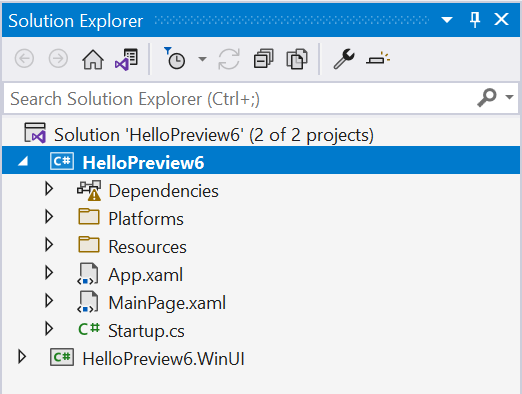
<UseMaui>true</UseMaui>in the .csproj). - Single project solutions now nest individual platforms within a “Platforms” folder for tidy organization.
- Updated to Windows App SDK 0.8.1 RC. Use the latest Visual Studio 2022 compatible extension from the marketplace.
Get Started Today
First thing’s first, install .NET 6 Preview 6. Now add the maui workload using the command above. Also make sure you have updated to the latest preview of Visual Studio 2022, or if you’re on macOS you can continue using CLI and your favorite code editor as we await the debut of Visual Studio for Mac 2022.
Ready? Create new app from the command line and then open the solution in Visual Studio 2022.
dotnet new maui -n HelloPreview6In future versions of Visual Studio 2022 the .NET MAUI templates will appear in the File > New list. Until then, the CLI is your good friend.
Xcode 13 Beta 1 is the new minimum requirement for iOS and macOS. For additional information about getting started with .NET MAUI, refer to our documentation.
Feedback Welcome
Please let us know about your experiences using .NET MAUI Preview 6 to create new applications by engaging with us on GitHub at dotnet/maui.
For a look at what is coming in future releases, visit our product roadmap.



Hi all,
I am trying to run a sample MAUI app on the windows 10 desktop (HelloMaui.WinUI).
I am using VS2022 preview(Community Edition) and my maui-check says "- Congratulations, everything looks great!"
But facing the below exception while trying to run the application. (Any help is greatly appreciated)
Unhandled exception. System.Reflection.TargetInvocationException: Exception has been thrown by the target of an invocation.
---> System.Runtime.InteropServices.COMException (0x80040154): Class not registered (0x80040154 (REGDB_E_CLASSNOTREG))
at WinRT.BaseActivationFactory..ctor(String typeNamespace, String typeFullName) in Microsoft.WinUI.dll:token 0x6000023+0x6e
at Microsoft.UI.Xaml.Application._IApplicationStatics..ctor() in Microsoft.WinUI.dll:token 0x601388f+0x1c
at System.RuntimeType.CreateInstanceOfT() in System.Private.CoreLib.dll:token 0x60006c8+0x3e
...
Why App.Current.MainPage is not working in this release?
I am making a sample app in MAUI. How do you Navigate from one Page to another in MAUI.
Seems App.Current.MainPage = new NavigationPage(new MainPage()); is not working. Please let me know if I am missing anything. Also Coudn’t found some controls like BusyIndicator in MAUI.
Thanks
Hello David, I'd just like to clarify a few things about macOS support.
In response to a comment on the blog announcing Preview 3 you said:
Mac is in there. You can use Mac Catalyst which is what .NET MAUI uses by default, or you can use the Cocoa/AppKit Mac SDK that also ships with .NET 6.
Then in response to a comment on the blog announcing Preview 4 you said:
Hi Michael, it is native with Mac Catalyst. .NET 6 also supports AppKit with the Cocoa SDK.
And in the sample MAUI code there is a MAUI example that has iOS, Android, and Catalyst...