The post WinGet configuration Preview appeared first on Windows Command Line.
]]>If you’ve been following the WinGet blogs, you’re already familiar with package management on Windows. We’ve got some goodies in store for you like package pinning, our new PowerShell module, and running WinGet in the system context. We’ve gotten lots of feedback on how WinGet has been a game changer in terms of time saved, convenience, and simplification when setting up a new Windows PC. WinGet configuration takes things to the next level!
WinGet configuration
Save time and skip the manual effort of setting up a new machine or onboarding a new project by using this unattended, reliable, and repeatable mechanism.
Remove the worry of searching for the right version of software, packages, tools and frameworks to download or settings to apply. WinGet configuration reduces this manual and error-prone process down to a single command with a WinGet configuration file. Just run winget configure <WinGet configuration file> in the command prompt and when it’s done, you are ready to code!
WinGet configuration was built on top of PowerShell DSC. It’s using a declarative YAML file that describes what the environment “looks like” when it’s configured. The file defines the environment in terms of DSC resources that can test the current state of the system and apply the necessary changes.
If you want to try this with WinGet, you will need to install one of our preview releases and enable the experimental feature. Learn more about WinGet configuration at Microsoft Learn. You can also try this functionality out in Dev Home. We’ve provided several sample configurations in the Dev Home project at GitHub.
WinGet PowerShell modules
Many of you have been asking about when a native PowerShell module would be available for WinGet. The text-based output from WinGet isn’t easy to parse, and that makes it much harder to use in scripts. The first “prerelease” module was shipped near the end of April 2023, and we published an update on May 12th.
Note: The module is not listed as “Prelease”, but it should be treated as such. The version published on May 12th is 0.2.0 and the Microsoft.WinGet.DSC module depends on Microsoft.WinGet.Client so it couldn’t be published as “Prerelease”. If you are comfortable with using a preview version:
Open up PowerShell (I like to use Windows Terminal and PowerShell 7) and run Install-Module Microsoft.WinGet.Client.

The magic of WinGet configuration is powered by PowerShell DSC (Desired State Configuration). The Microsoft.WinGet.DSC module allows you to configure your WinGet settings and preferences. It also enables you to install WinGet packages using Invoke-DSCResource.
We’re also working on Microsoft.WinGet.Source to manage WinGet REST sources, and Microsoft.WinGet.Create to generate manifests for packages. Once these have all been published to the PowerShell Gallery, we will wrap them up in the Microsoft.WinGet module so you get all the goodness with a single install.
Some of the cmdlets require PowerShell 7, but we’ve enabled enough functionality to allow you to use Windows PowerShell to install, repair, or upgrade WinGet so you can then Install-WinGetPackage Microsoft.PowerShell and then take full advantage of WinGet configuration.
WinGet pinning
Sometimes you don’t want WinGet to upgrade certain applications. If you’ve ever run winget upgrade --all and it upgraded something you didn’t want, you were forced to manually downgrade it afterwards. From that point on you have to remember this tedious process, or you gave up on the convenience of being able to use a single command. Packages may introduce breaking changes that you may not want to integrate into your workflow quite yet. Packages may update themselves and you prefer that experience. You may want to maintain some of the packages through other channels outside of WinGet, or you prefer one source over others within WinGet. You might also want some of the packages to stay in some major version but allow minor version changes during upgrade.
To achieve goals listed above, WinGet pinning supports three types of Package Pinning:
- Blocking: The package is blocked from
winget upgrade --allorwinget upgrade <WinGet package>, you will have to unblock the package to let WinGet perform an upgrade. - Pinning: The package is excluded from
winget upgrade --allbut allowswinget upgrade <WinGet package>, a new argument “–include-pinned” will be introduced to letwinget upgrade --allinclude pinned packages. - Gating: The package is pinned to specific version(s). For example, if a package is pinned to version 1.2.*, any version between 1.2.0 to 1.2.x is considered valid. To allow user override, “–force” can be used with
winget upgrade <WinGet package>to override some of the pinning created above.
The post WinGet configuration Preview appeared first on Windows Command Line.
]]>The post Windows Package Manager 1.4 appeared first on Windows Command Line.
]]>
WinGet Show Improvements
A few more manifest values like tags and purchase URL were added to the output (if they are present) of winget show <package>. Below I have an example running winget show oh-my-posh -s winget. Since Oh My Posh is available both in the Microsoft Store and the Windows Package Manager community repository, I narrowed the results down to the “winget” source. If you like the colorful display in my prompt, that’s the prompt theme engine I’m using.

Command Aliases
Muscle memory can be hard to overcome. If you’ve ever tried to type “dir” on a Linux system or “ls” on Windows, you know what I mean. Several new command aliases have been added to WinGet that might help a little. When you run winget with no arguments, the default help displays the available commands. If you drill in a bit running winget <command> --help you will see if any aliases are available. Below, you can see “find” is an alias for “search”. Other command aliases include add for install, update for upgrade, remove and rm for uninstall, ls for list, and config for settings.

As you might expect, you can now run winget find vscode and the same output is displayed as if you had run winget search vscode.

Note: The results displayed when searching the Windows Package Manager Community repository are ordered by a “best match” heuristic. WinGet evaluates the name, identifier, moniker, and tags. They are also more inclusive than “show” where WinGet is trying to find a single best match to use for install.
Install / Upgrade Flow Enhancements
Some packages require an explicit argument to be passed in order to perform an upgrade. This was causing winget to fail if a user ran winget install <package> and the package was already installed on the machine. We made some additional enhancements to detect that the package was already installed and switch to the upgrade flow. If you don’t want the upgrade, you can pass --no-upgrade. This is most commonly encountered in scritped scenarios. We’ve also noticed several packages can upgrade themselves, so our default behavior is to allow them to do so. If you run winget upgrade --all and one or more of these packages are encountered, they will be skipped. If you want to include them, just add --include-explicit.
.zip Archive
WinGet now supports installing packages contained within a .zip archive. This feature builds on the existing support for portable packages, and existing installer support for MSIX, MSI, and EXE-based installers. Our initial support includes either a single installer, or (one or more) portable package(s). We’ve kept the Issues and PRs (Pull Requests) open at GitHub and added the “.zip” label to them. Once this release rolls out to the majority of supported Windows systems, we will begin validating the existing PRs and accepting new ones.
Wait
Wait, there’s more. (I couldn’t help myself) Sometimes when you’re scripting things, or debugging, you want a prompt. It can be quite frustrating to see a terminal window display some text and then disappear before you can read everything. Just add --wait.

The post Windows Package Manager 1.4 appeared first on Windows Command Line.
]]>The post Windows Package Manager 1.3 appeared first on Windows Command Line.
]]>winget --info the system architecture is now displayed. The progress bar was improved with more fine-grained blocks. And the Windows Package Manager now supports portable applications.

Manifest Improvements
Display Documentation
Some packages include documentation associated with a package version. You will now be able to see the documentation and an associated URL when you run winget show <package>.

Installation Notes
Most command-line packages require a terminal restart for the environment variables to be loaded. Some other packages have nuances related to what a user should understand before running them the first time. Installation notes will be displayed after the package is installed. We’ve also added arguments and settings to manage these notes. The default behavior is to display these notes. You can add “suppressInstallNotes” as a setting to prevent them from being displayed. You can also pass “–display-notes” or “–suppress-notes” to override settings.

Expected Return Code Response URL
Most .exe-based installers can provide custom responses for various failure scenarios. We’ve added an enhancement to provide not only a standard error message, but now a URL can also be included. We’re hoping this will help with troubleshooting why something didn’t go quite right. Manifest authors can add a “ReturnResponseURL” to the array of “InstallerReturnCode” values.
Note: The following example shows an error that was intentionally forced to occur.

New Settings
The Windows Package Manager settings file is opened with your default JSON editor when you run winget settings. If you happen to have Visual Studio Code installed and configured, you also get the benefit of the JSON schema for tooltips and code completion. If you don’t, you can run winget install vscode.
Installation Notes
The Windows Package Manager was designed to behave in a predictable manner by default and give users the ability to customize those behaviors. The “suppressInstallNotes” setting was added for users who prefer not to see install notes included in manifests.
Verbose Logs
If you add “–verbose-logs” to any command, the Windows Package Manager adds additional information to the logs. This is often helpful for troubleshooting or digging deeper into exactly what the Windows Package Manager is doing. Users can now specify what level of logging they want. The “Logging” levels available are “verbose”, “info”, “warning”, “error”, and “critical”.
New Version Reporting
Some packages like the Microsoft .NET SDK display versions to users that are slightly different from their build numbers. Unfortunately, this caused confusion during the upgrade process, and it caused frustration for manifest authors. The Windows Package Manager will now honor the preferred version publishers would like to display, and the tooling will still be able to make the correct comparisons when determining if a newer version is available.
In the example below from Windows Apps & Features, you can see the Microsoft .NET Runtime packages and the Microsoft .NET SDK package versions displayed start with “6.0”. The but the Microsoft .NET SDK version below the display name starts with “6.3”. Manifests can now use the display version (“packageVersion” in the manifest) to show users what version is installed or which upgrade is available, but it can still use the build version (“displayVersion” manifest key from the registry and “AppsAndFeatures” from the manifest) for comparison.

Display System Architecture
Not all packages run natively on every architecture. Sometimes packages are run under emulation. We’ve updated winget --info so it now displays the system architecture so you can quickly see what architecture your hardware has. This might help with troubleshooting why a particular package doesn’t have a matching installer, or why it might not behave exactly as you expect.

An Even Better Progress Bar
One of our most popular features is the customizable progress bar. Thanks to a community contribution, it just got better. Additional fine-grained blocks make that progress bar buttery smooth. If you didn’t know, you can customize your progress bar in settings. I use:
“visual”: {“progressBar”: “rainbow”}
Don’t worry, all the styles get the improved progress bar.
Support for Portable Packages
Is there a portable package you wish you could manage with the Windows Package Manager? These are essentially just executable programs that don’t have an installer. Maybe you would like to winget install Microsoft.NuGet or winget upgrade Microsoft.NuGet. We wanted to make sure you could manage these portable packages, so we add the appropriate entries in Windows Apps & Features when you install them. That allows you to see them as installed applications. You can even uninstall them from there if you don’t want to type winget uninstall Microsoft.NuGet.

Note: We’ve added Microsoft.NuGet to the repository so you can test this out. It will fail on Windows Package Manager versions lower than 1.3 as shown in the image below.

Submitting Manifests for Portable Packages
The Windows Package Manager Community Repository will begin accepting submissions for other portable packages after the upgrade has rolled out to a majority of the user base. This should take about one week. If you want to submit a pull request, go ahead. We’ll mark it as blocked for now, and as soon as we begin to accept portable packages, we will run them all through validation.
The post Windows Package Manager 1.3 appeared first on Windows Command Line.
]]>The post Windows Package Manager 1.2 appeared first on Windows Command Line.
]]>
ARM64 Support
We’ve been working to improve the experience for users on ARM64 devices like the Surface Pro X, the Lenovo X13s, or the Samsung Galaxy Book Go. The Windows Package Manager chooses the best available package based on your hardware architecture. If a native option is not available, the next best option will automatically be selected. You can see the same familiar experience in a silent video. In the first minute, it shows a couple of basic commands, but the key thing to note is the installer URLs exposing the architecture coming from the winget show command. Most of the video is just scrollbars after that while packages download, install, and upgrade seamlessly. It may not be exciting to you, but I love being able to run winget import packages.json and go grab a cup of coffee.
Error Handling
It’s now possible to map cryptic error messages into something easier to understand. If you are like me, you struggled to understand the 10-digit error code returned by an installer. You probably wouldn’t want to hunt down exactly what that error code was indicating either. Those 10-digit error codes are often specific to just a single package. They may represent common types of errors like not enough storage or memory. The manifests can now create a link between the custom error code from the installer and a set of generic ones the Windows Package Manager understands. If this happens to you, feel free to create an issue at GitHub and one of our amazing community members might be able to help and create the link. If you’ve figured it out, you can even submit a pull request yourself to help anyone else who gets the same error.
New settings for local manifests
We have also added a new setting for the security conscious related to testing or installing from a local manifest file. This is something we ask users to do before submitting a package to the Windows Package Manager Community App Repository. I suggest performing this in a Windows Sandbox rather than taking a potential risk on your primary desktop. To enable testing with local files, run the following command in an elevated (Run as administrator) prompt: winget settings --enable LocalManifestFiles. To disable local manifests run the following command: winget settings --disable LocalManifestFiles.

Learn more about the Windows Package Manager
If you are not familiar with the Windows Package Manager, I would suggest taking a look at the Windows Wednesday episode titled “Let’s talk Windows Package Manager“. For something a bit more interactive, try the “Explore the Windows Package Manager” module on Microsoft Learn. You can also learn more about the basic commands in the blog posts for Windows Package Manager 1.0 and Windows Package Manager 1.1.
Packages
Thousands of packages are available from the Windows Package Manager Community App Repository and the Microsoft Store. You can even host your own private source on Microsoft Azure. If you are interested in submitting a package, the Microsoft Store now supports traditional desktop apps. If something is missing from the Windows Package Manager Community App Repository, you can submit a request to have it added, or you can use the Windows Package Manager Manifest Creator to submit it yourself. We’ve even packaged it to simplify Continuous Integration/Continuous Delivery (CI/CD) scenarios so you can automatically submit new versions with your automated release pipeline.
Behind the Scenes
The Windows Package Manager is much more than just the client. We’ve been busy behind the scenes improving the experience for authors publishing manifests. We share the results from failed validation attempts to help publishers submit their packages at GitHub. There is also a COM API and a sample project demonstrates how you can integrate with it. The Windows Package Manager Manifest Creator also comes in several flavors depending on your needs for CI/CD.
Open Source
We’ve been developing the Windows Package Manager, the Windows Package Manager Community App Repository, the Windows Package Manager Manifest Creator, and the reference implementation for private repositories at GitHub. Feel free to submit feature requests and bugs via GitHub Issues. If you have questions, feel free to start a GitHub Discussion. We look forward to your feedback.
References
- https://github.com/microsoft/winget-cli
- https://github.com/microsoft/winget-pkgs
- https://github.com/microsoft/winget-create
- https://github.com/microsoft/winget-cli-restsource
- https://docs.microsoft.com/windows/package-manager
The post Windows Package Manager 1.2 appeared first on Windows Command Line.
]]>The post Windows Package Manager 1.1 appeared first on Windows Command Line.
]]>Client
The team has been busy over the last few months making improvements and adding new features. The most notable new feature is access to apps in the Microsoft Store. The client now ships with two sources configured. One of them is the Windows Package Manager app repository, and the other is the Microsoft Store.

All Windows Package Manager commands and features have been documented at Microsoft Docs. I also covered most of the basics in the Windows Package Manager 1.0 announcement.
How do I get it?
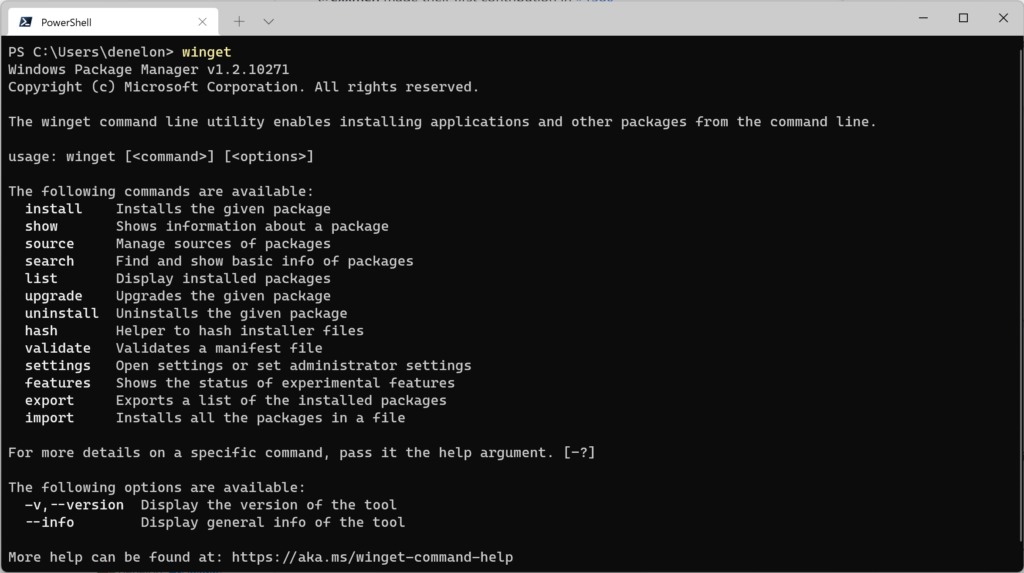
You might already have it from an automatic update via the Microsoft Store. Launch your favorite terminal (I prefer Windows Terminal ) and run winget. If you see the help menu , you’re ready to go (that’s the image above). You can also confirm the version in the first line of output from the help menu (Windows Package Manager v1.1.12653 on Windows 10 or v1.1.12663 on Windows 11). If not, the Windows Package Manager is distributed with the App Installer from the Microsoft Store. You can also download and install the Windows Package Manager from our GitHub release, or just directly install the latest available released version.

If you want to continue receiving development builds, we will continue to publish those to Windows Insiders Dev Channel builds and Windows Package Manager Insiders. Instructions are available at GitHub describing your options for installing the Windows Package Manager and signing up for our insider program.
Windows Package Manager App Repository
More than 2,600 packages are available in the Windows Package Manager app repository. Just run winget search <SomePackage> to see if the package you are looking for has already been submitted. You might see what you’re looking for in the new Microsoft Store source as well (customization tips below). If you don’t see what you’re looking for, feel free to submit it. I suggest using the Windows Package Manager Manifest Creator.
Windows Package Manager Manifest Creator Preview
If you are a software publisher or an ISV, you might want to skip this part and get registered so you will be able to submit your application to the Microsoft Store. If you want to add an application to the Windows Package Manager app repository, you’re going to want to winget install wingetcreate. The tool is currently in preview and details can be found at the Windows Package Manager Manifest Creator GitHub repository.

Private App Repositories
We announced support for private app repositories with the Windows Package Manager 1.0 release. We have continued to extend capabilities like establishing a source agreement users must accept to use your source and supporting an arbitrary value the client can pass to a server so you can build custom behaviors.
Customization Tips
We built the Windows Package Manager with developers in mind. Several customizations are possible from configuring your progress bar to working with multiple sources. Just run winget settings and you will be able to customize the experience to match your preferences or requirements. Everything you need to know for settings is well documented.
Working with multiple sources is another area you may want to customize. If you want to narrow results down to a specific source, just pass the --source or -s parameter and specify what you want. For example, you might want to see if Visual Studio Code is in the store by running winget search “Visual Studio Code” -s msstore. This search is using the name for a package.

Or you might want to get the latest insider build from the Windows Package Manager app repository by running winget install vscode-insiders -s winget. This install command is using the moniker for the Visual Studio Code Insider package. One note to call out here is we don’t have monikers for packages in the Microsoft Store.

In the next example, you will see search results spanning across multiple sources, and using the “Id” from the entry in the Microsoft Store source to install Visual Studio Code. Note the agreement can be accepted via the command line using --accept-package-agreements.

Our default behavior is to search across all configured sources. If you want to remove a source, use an administrative prompt and run winget source remove <source>. If you want the default sources added back, use an administrative prompt and run winget source reset --force. When more than one source has a strong match, you will be asked to disambiguate the results. The image below shows what would happen in this case.

IT Professionals
As an enterprise administrator you may want to manage Windows Package Manager using Group Policy. I’ve written an article to help you. Your users are also able to see any configured policies using winget --info.
Open Source
We’ve been developing the Windows Package Manager, the Windows Package Manager app repository, the Windows Package Manager Manifest Creator, and the reference implementation for private repositories at GitHub. Feel free to submit feature requests and bugs via GitHub Issues. If you have questions, feel free to start a GitHub Discussion. We look forward to your feedback.
References
- https://github.com/microsoft/winget-cli
- https://github.com/microsoft/winget-pkgs
- https://github.com/microsoft/winget-create
- https://github.com/microsoft/winget-cli-restsource
- https://docs.microsoft.com/windows/package-manager
The post Windows Package Manager 1.1 appeared first on Windows Command Line.
]]>The post Windows Package Manager 1.0 appeared first on Windows Command Line.
]]>We are excited to announce the release of Windows Package Manager 1.0!
Windows Package Manager 1.0
Client
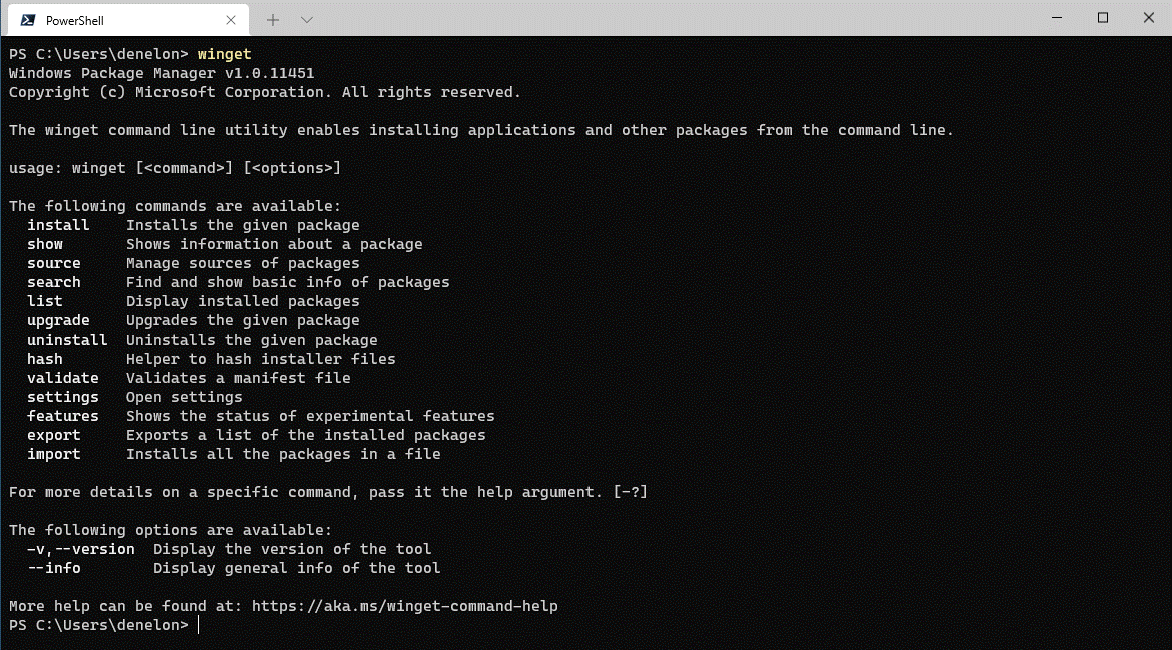
The winget client is the main tool you will use to manage packages on your machine. The image below displays winget executed in Windows Terminal via PowerShell. You can see the list of available commands used to manage packages and work with manifests. You can search for a package (search looks at the name, moniker, and tags) using winget search vscode. Installing something on your machine is as easy as winget install PowerToys. You can check for upgrades to packages with winget upgrade or you can just upgrade everything with winget upgrade --all. Are you setting up a new machine? Be sure to winget export packages.json on your current machine (and copy the file to your new machine) so you can winget import packages.json on the new machine. With winget list you can see everything installed in Add / Remove Programs, and you can winget uninstall <SomePackage> to remove it from your system. You can learn more about the commands and syntax from our documentation.
How do I get it?
If you are running on any current Windows Insider build or you have signed up for the Windows Package Manager Insider group you may already have it. The Windows Package Manager is distributed with the App Installer from the Microsoft Store. You can also download and install the Windows Package Manager from our GitHub releases page or just directly install the latest available version.
Version 1.0 of Windows Package Manager will soon ship as an automatic update via the Microsoft Store for all devices running Windows 10, version 1809 and later. If you are an IT Professional, we have published information regarding Managing the Windows Package Manager with Group Policy. Users will be able to determine which policies are in force by executing winget --info.
Microsoft Community Repository
The community has contributed over 1,400 unique packages to the Microsoft community repository! You can winget search <SomePackage> to see if the package is available. It still amazes us how many great pieces of software there are for Windows 10 in the repository. When the search doesn’t return any results, you can go through the process to launch Edge and search for the software installer download. Once you find it, you can add it to the community repository, so you don’t have to go through that process again. After writing dozens of manifests by hand we realized there should be a tool for that.
Windows Package Manager Manifest Creator Preview
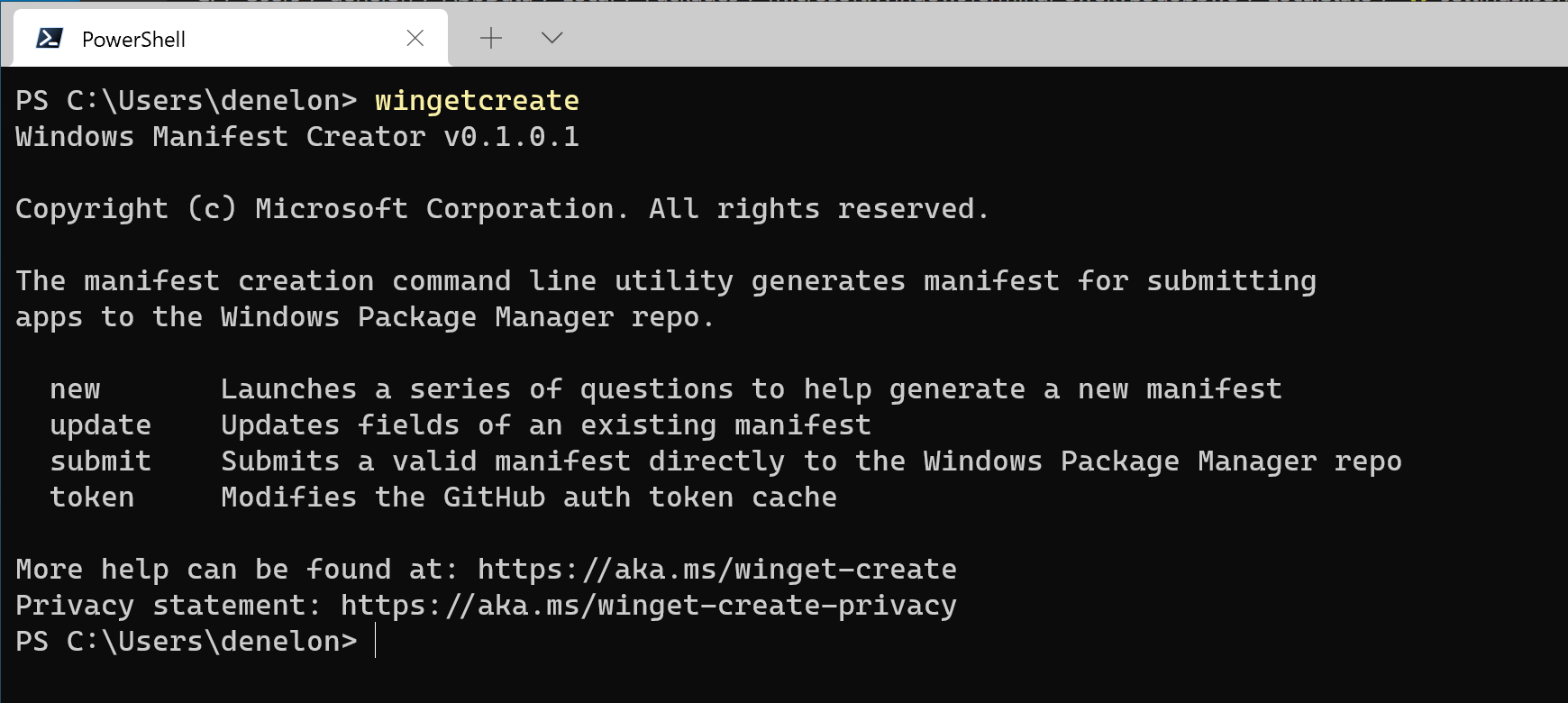
Today we are releasing another open-source tool to help with submitting packages to the Microsoft community repository. Open your favorite command-line interface and execute winget install wingetcreate to install the Windows Package Manager Manifest Creator. Once the tool has been installed, execute wingetcreate new provide the URL to the installer. Then the tool will download the installer, parse it to determine any of the manifest values available in the installer, and guide you through the process to generate a valid manifest. If you provide your GitHub credentials when prompted, it will even fork the repository, create a new branch, submit a pull request, and provide you the URL to track its progress. The image below displays wingetcreate executed in Windows Terminal via PowerShell.
Private Repositories
Last but not least, we’ve released a reference implementation for the REST API source so you can host your own private repository. This is a new type of source for the Windows Package Manager. Our default source is a “PreIndexed” Package delivered via the Microsoft Store, but you may add additional REST based sources if they properly implement the JSON based REST API schema.
The post Windows Package Manager 1.0 appeared first on Windows Command Line.
]]>The post Windows Package Manager v0.3 Preview appeared first on Windows Command Line.
]]>What’s New
Introducing Import
I have been through several Windows 10 environments over the last year. It is hard to describe how much pleasure I felt with the simplicity of winget install as I set a new build up so I can become productive. Things have just gotten better with the Windows Package Manager v0.3 Preview. Now I use winget import, and I can easily help others save time modifying those install scripts.
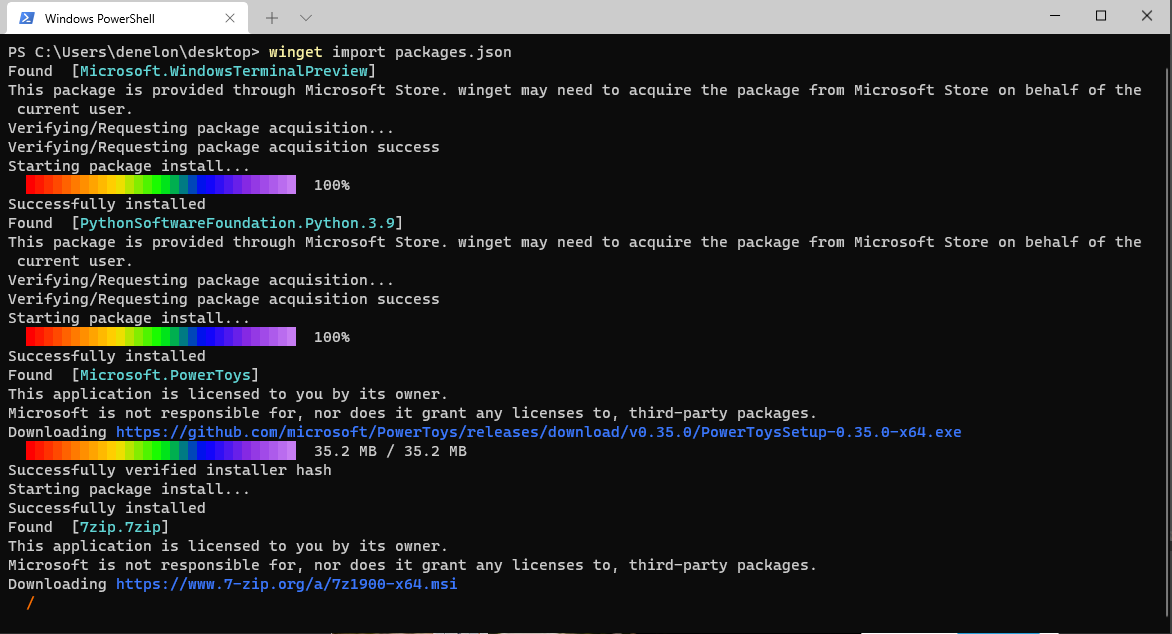
The import file format is JSON. We have provided a schema to make it easier to author and modify these files. They can include packages from multiple sources. You can also specify the exact version of a package to install on your machine.
Announcing Group Policy
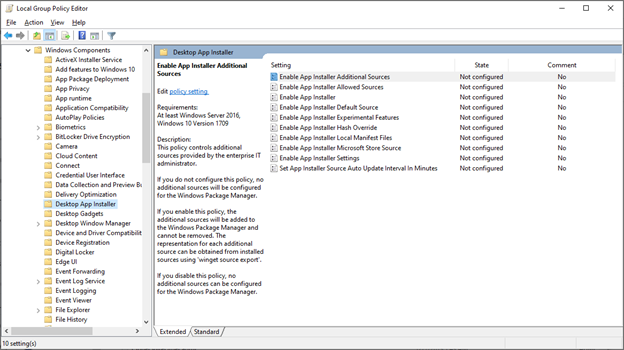
One of the most important concerns facing enterprise customers is the ability to manage all the Windows 10 machines in their organization. With this release, IT professionals can configure Group Policy via ADMX ingestion. The .admx and .adml files are available to download in a .zip file at the GitHub releases page starting with the Windows Package Manager v0.3 Preview.
If you are running Windows 10 build 1809 and later, you should evaluate and configure these policies for your enterprise. The Windows Package Manager is distributed via the App Installer. When we ship 1.0, this will be an automatic update from the Microsoft Store to all 1809 and later devices.
These policies empower an organization to manage the Windows Package Manager, control the availability or behavior of several commands and arguments, as well as what sources the client connects to. I’ve included a screenshot from the Local Group Policy Editor below.
Experimental Features
We’ve implemented a feature toggle so you can try new features out and give us feedback. You can run winget features to see what’s available. If you execute winget settings your JSON editor will launch.
List
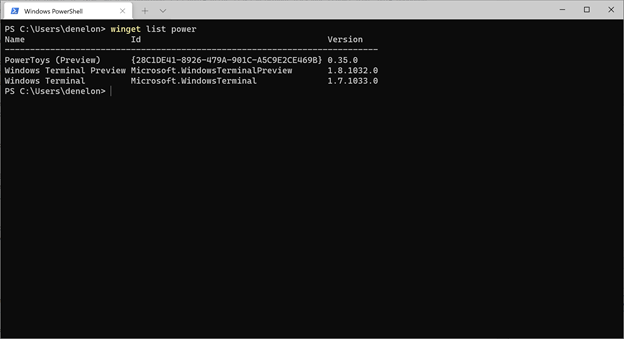
You can use winget list to display the same list of installed apps found in your Add/Remove Programs in Windows 10. This command also takes several arguments including a search string. I’ve provided an example below showing PowerToys, Windows Terminal Preview, and Windows Terminal all installed on my system. This command is pivotal for the next few experimental features. As you can imagine, mapping all of the legacy applications on your machine with a manifest in the community repository is a daunting task to achieve. We expect to continue iterating in this area over time to continue improving the matching logic.
Upgrade
I love PowerShell. Occasionally, when I start up a new Windows Terminal session, I get a notice that a new version of PowerShell is available. What really gets me excited is when I see that notification, I know I can just winget upgrade Microsoft.PowerShell. Of course, right after I hit [Enter] I remember the upgrade is going to abort my session. We have some more work to do here.
Uninstall
I mentioned how I wanted to get the space back on my C: drive by removing things I don’t need from my system. With this feature enabled you too can winget uninstall "some giant app". The truly great thing to point out here is that it doesn’t matter how you installed that giant application either.
Export
Our goal with winget export is to make it easy to get the collection of packages installed on one machine so you can import them on another. This is where we have the most work related to the list command. Only a small subset of the programs installed on my Windows 10 system have good matching entries with the community repository. This is one of the main reasons we have experimental features. After a long scrolling list of “Installed package is not available from any source: “some program name” I have an output file I can work with.
What’s Next
When I look at our backlog (filtered to Features with the most  ) it’s pretty easy to see what we need to tackle next. Right up in the top 10 Issues along with the ones we’re working on, I see .zip & .exe support, native PowerShell support, and dependencies. If you have a feature request, look at our backlog and add your “thumbs up”. If you can’t find the feature you’re looking for, create a new Issue.
How to get the Windows Package Manager
If you are a Windows Insider or part of our Package Manager Insider program, you should already have the latest version. The Windows Package Manager is delivered in the App Installer via the Microsoft Store. If you prefer to just download the client, head on over to the GitHub releases page and take it for a spin. You can also join the Windows Package Manager Insider Program if you’d like automatic updates from the store, and you want to run on a released version of Windows 10.
Be sure to check out the GitHub client issues and add a “+1” to any features you’d really like to see. If you encounter a bug in the Windows Package Manager v0.3 Preview you can use Feedback Hub ([Windows]+[f]) to let us know about the problem. Select “Apps” and “Windows Package Manager” in the “Choose a category” section to report the issue.
The post Windows Package Manager v0.3 Preview appeared first on Windows Command Line.
]]>The post Windows Package Manager Preview (v0.2.2521) appeared first on Windows Command Line.
]]>Our newest feature is support for installing Apps from the Microsoft Store. Yes, you read that correctly. Our goal is to make it easier to install software on Windows. We also recently released tab completion in PowerShell, and a feature toggle. As we work towards building our 1.0 version I wanted to share the next few features along the roadmap. Our immediate focus is on rounding out critical features. These include list, upgrade, uninstall, and import/export.
I also wanted to share some thoughts we had leading up to Ignite in terms of future enterprise features. We will be enabling Group Policy support so IT professionals can ensure they have the ability to successfully manage their environments. Additional features included in the category of enterprise support are delivery optimization, metered networks, proxy support, and parallel downloads.
What’s New
Feature Toggle
If you would like to try out experimental features, use winget settings to open your default JSON editor. If you don’t have one I’d reccomend running winget install vscode. From there you can enable or disable features. I’ve included an example configuration below with our two experimental features for testing purposes (experimantalCMD, and experimentalArg) as well as the “experimentalMSStore” feature. 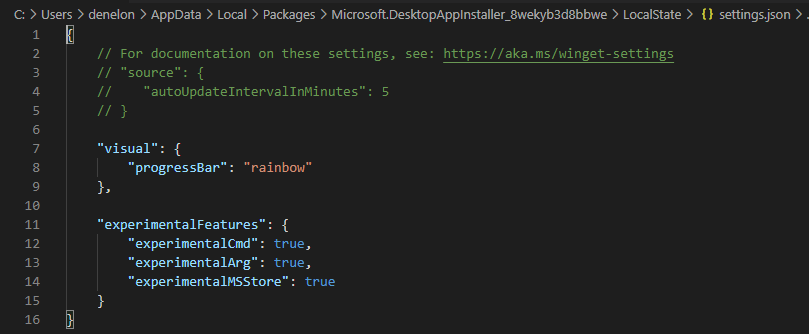
winget experimental --arg to see an example. There is a little “Easter Egg” in the “flag”.
PowerShell autocomplete
You’re going to want to see this next feature in action on your machine. Head on over to the instructions and configure your PowerShell profile, I’ll wait. If the image below doesn’t play, please click on it.
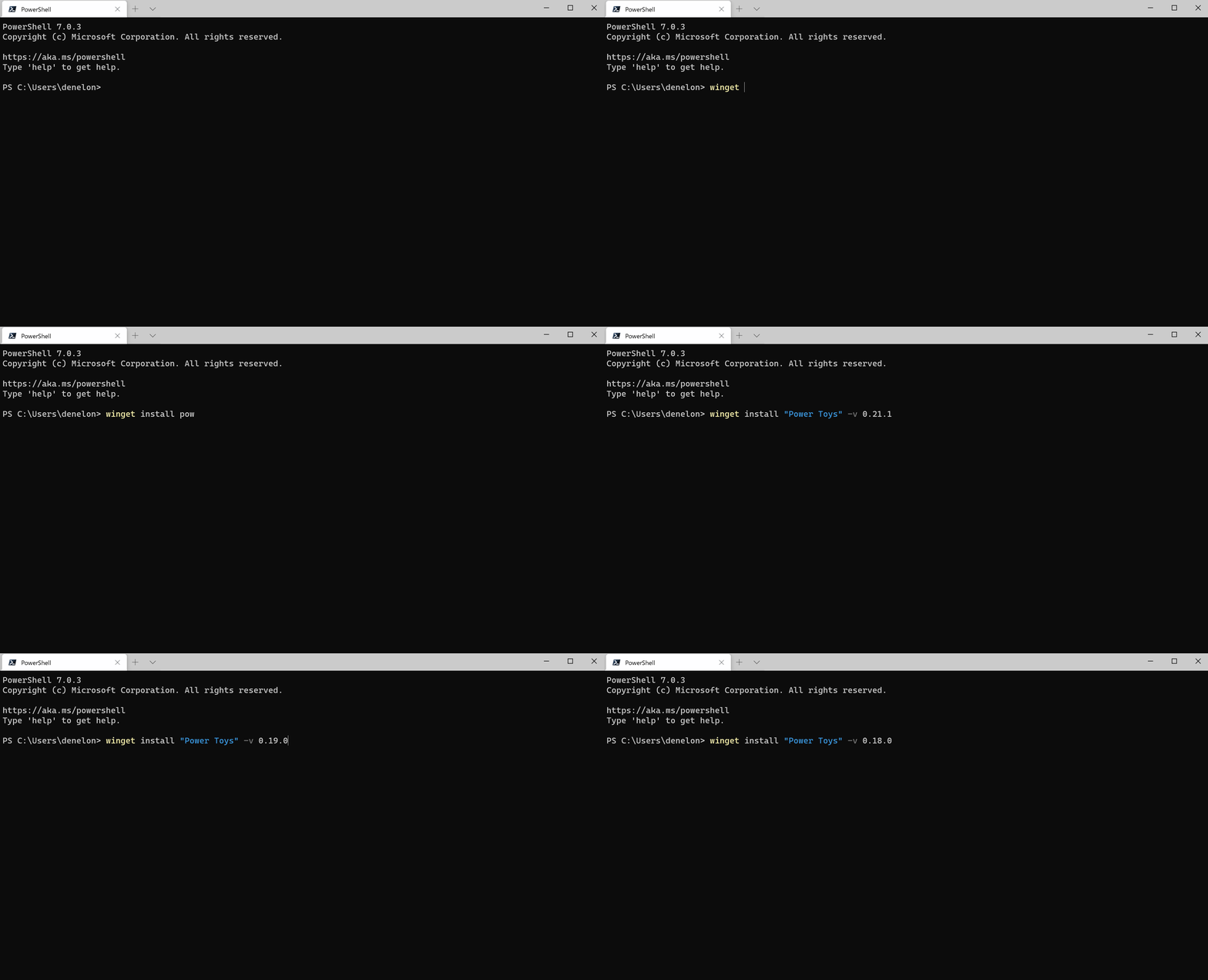
I told you I’d wait. We don’t like unnecessary typing either. This quickly became my favorite way to figure out which versions of a package are available. Type winget[space][tab][space]pow[tab][space]-v[space][tab][tab][tab] and voila.
Microsoft Store
One of our most requested features was the ability to install Apps from the Microsoft Store. We’ve taken the first steps on this journey by adding a curated list of about 300 Apps to a new source. These apps are all free and rated E for everyone. Once you enable the experimental feature, we will automatically add the source for the store manifests. The search will span multiple sources to show results. Below, you will see results for winget search nightingale.  Next you will see the installation from the command
 winget install "Nightingale REST Client". 
What’s Next
List
One of the critical features of a package manager is the ability to see what’s been installed. Our challenge here is to include Apps that may have been installed outside of the package manager and are available in the Control Panel or via Add Remove Software. We didn’t want to just consider what was installed via the Windows Package Manager. We will, however, keep track of what we installed so we can help you keep things upgraded to the current version.
Upgrade
Speaking of upgrade, wouldn’t it be nice if you could just winget upgrade powershell or winget upgrade and have all your apps upgraded. We thought so too. One of our more vocal (and helpful) community members (@megamorf) also pointed out you don’t always want a package upgraded. We’re going to give you the option to pin a package to a specific version, so it doesn’t get changed on you.
Uninstall
Sometimes you don’t need or want an app anymore. Generally, in my case, I want the space back on my C: drive. winget uninstall "some giant app" would come in handy. It would be cool if it could remove things that were installed outside of the package manager, so we’re going to see about getting that to work as well.
Import / Export
We couldn’t pass up the opportunity to perform a little more magic for the sake of convenience. It’s getting close to the time where I’ll be getting a new machine for work. I’m looking forward to be able to winget export packages.json from this computer and winget import packages.json on the new one. I’m looking forward to being able to share the results of that one with you.
How to get the Windows Package Manager
If you are a Windows Insider or part of our Package Manager Insider program, you should already have the latest version. Launch the store and check for updates if you’re an insider and you don’t have it. If you prefer to just download the client, head on over to GitHub releases page and take it for a spin. You can also join the Windows Package Manager Insider Program if you’d like automatic updates from the store, and you want to run on the released version of Windows 10.
Be sure to check out the GitHub client issues and add a “+1” to any features you’d really like to see.
The post Windows Package Manager Preview (v0.2.2521) appeared first on Windows Command Line.
]]>The post Windows Package Manager Preview (v0.1.41821) appeared first on Windows Command Line.
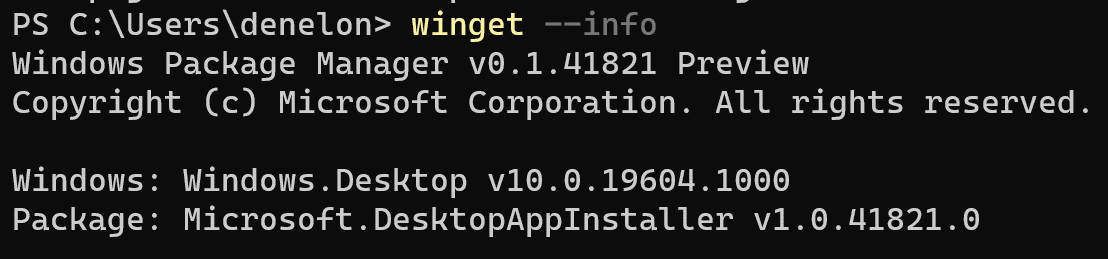
]]>
What’s New
This version of the client will allow you to create and save your favorite settings. There were also a couple of bugs that were fixed. On the package side, we’re just about to hit 850 packages.
Settings
The client now has a settings file. Just execute winget settings to open your default JSON editor. You’ll be able to customize a couple of things to your liking. I’ve got mine defaulted to “rainbow” for the progress bar. Other options include accent (default), and retro.

The other setting you might be interested in is the “autoUpdateIntervalInMinutes”. This will allow you to change how frequently the client checks for the list of available packages. If you’re on a slower Internet connection this can be a great help. Our current default setting is five minutes. That means the client will pay attention to the last time it checked, and if it’s been more than five minutes, it will download the index again.
 Note: This only happens when you are executing commands, it does not run in the background. If you’d like, you can disable this behavior by setting the value to “0”. If you do, you will need to manually check for any updates by executing the source update command.
winget source update
Bug Fixes
We’ve started fixing issues with non us-ASCII characters, and some annoying issues with case sensitivity. There was also a problem where the client refused to support an interactive install. We didn’t think that was very nice, so the client will now respect your request to see an interactive install if one is available.
winget install <foo> -i
Community Heroes
The response to the project was awesome to say the least. So many people contributed to the discussion, and the list of available packages. Over 800 packages have been added to the community repository. A special shout out to @philipcraig, @edjroot, @bnt0, @danielchalmers, @superusercode, @doppelc, @sachinjoseph, @ivan-kulikov-dev, @chausner, @jsoref, @DurableMicron, @Olifant1990, @MarcusP-P, @himejisyana, & @dyl10s (in order of appearance). These users contributed to the client codebase or documentation.
What’s Next
Feature Toggle
We needed a way to release experimental features without breaking you. The settings work was the first step to make sure you can get the expected behavior out of the client, and still have the option to test out new capabilities.
Microsoft Store
We are going to start with the basics and add more over time. Our initial support will likely be restricted to apps that are free, and rated E for everyone. This is going to be the first thing we release with the feature toggle so you can see what it’s like to test experimental features.
Key Functionality
One of the ways we’re looking at what to implement next is by filtering our GitHub Issues by “+1” (the thumbs up icon). Based on that, we’re seeing high demand for “Upgrade, Uninstall, and List Apps”. In addition, support for installing .zip files, store apps, and standalone apps (think a .exe added to your path). Native PowerShell support is also high on the list.
Microsoft Community Package Repository
Our bot has been hard at work trying to help get more packages approved. It’s not quite as smart as we’d like it to be right now, but it’s learning. We’ve just taught it to provide better error messages in several different situations. It will now tell you if there is a hash mismatch or an error related to being able to access the installer file. Those improvements will continue, and we will try to just do the right thing for you if we can. Our goal is to make it easy to add your packages.
Be sure to check out the GitHub client issues and add a “+1” to any features you’d really like to see.
The post Windows Package Manager Preview (v0.1.41821) appeared first on Windows Command Line.
]]>The post Windows Package Manager Preview appeared first on Windows Command Line.
]]>If you’re already familiar with what a package manager is, feel free to skip this paragraph. If you’re still reading, you’re going to love this! A package manager is designed to help you save time and frustration. Essentially, it is a set of software tools that help you automate the process of getting software on your machine. You specify which apps you want installed, and it does the work of finding the latest version (or the exact one you specified) and installing it on your machine.
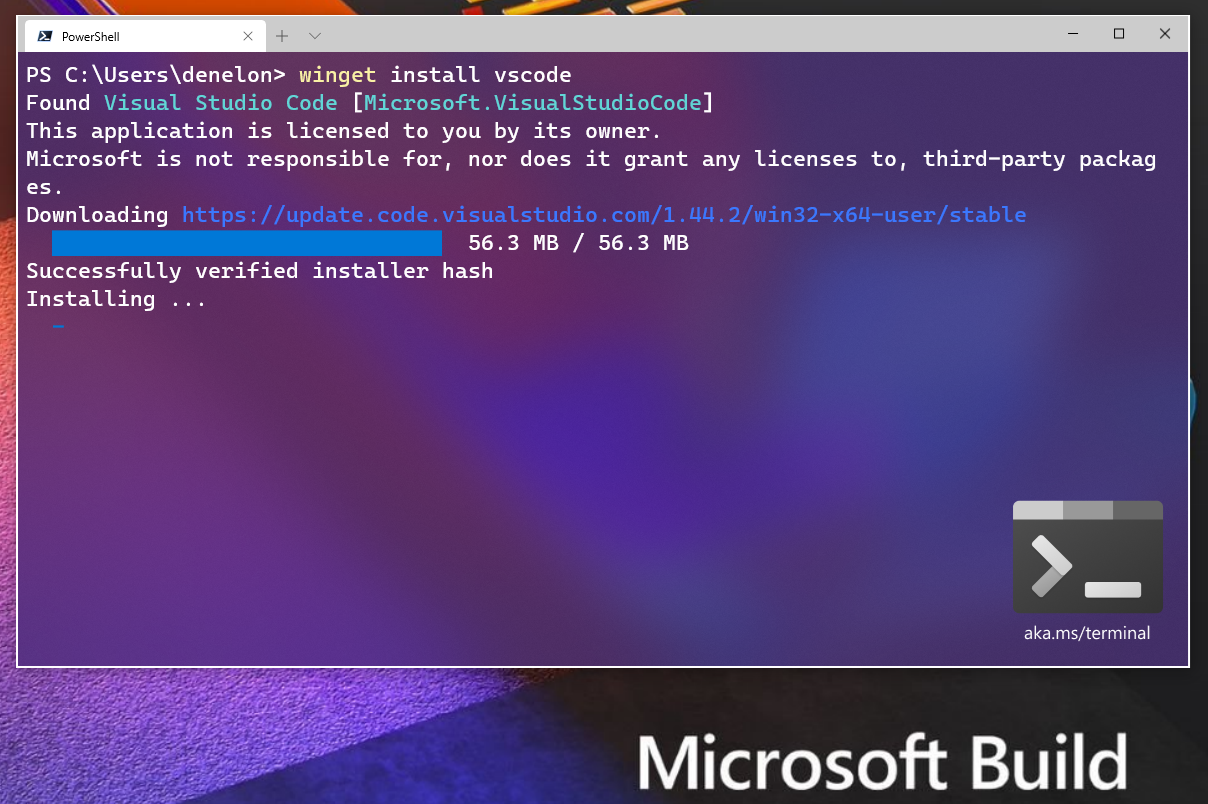
Just about every developer has wanted a native package manager in Windows. That day is finally here. You are going to be able to winget install your way to bliss. One of the best parts is that it is open source. I had to pinch myself when I was able to winget install terminal, and then winget install powershell, and then winget install powertoys. You get the idea, and If you do not see an app you use, just create a new manifest, and submit a pull request.
When can I try it?
As of today, the Windows Package Manager preview has been made open source. You can clone, build, run and test the code from the GitHub repository (https://github.com/microsoft/winget-cli). There are other possibly easier ways to get your hands on it if that doesn’t sound appealing. Please continue reading.
What functionality is included?
You can install any app with a valid manifest (even local ones -- manifest). The command line client “winget.exe” is already pre-configured to point to the Microsoft community repository. That means you can install any package with a manifest that has been published.
Have you ever had to completely re-install all your apps and tools on your PC? How long did it take? How did you remember where to go to find, download, and install all your editors & IDEs, languages & runtimes, source control tools, etc.?
Did you enjoy it? Yeah, neither did we … which is why we created Windows Package Manager.
Now you can install all your favorite apps & tools simply by typing
winget install <foo>into your command-line. Or better still, you can create a script file that installs ALL your tools while you sit back enjoy a well-earned coffee break!”
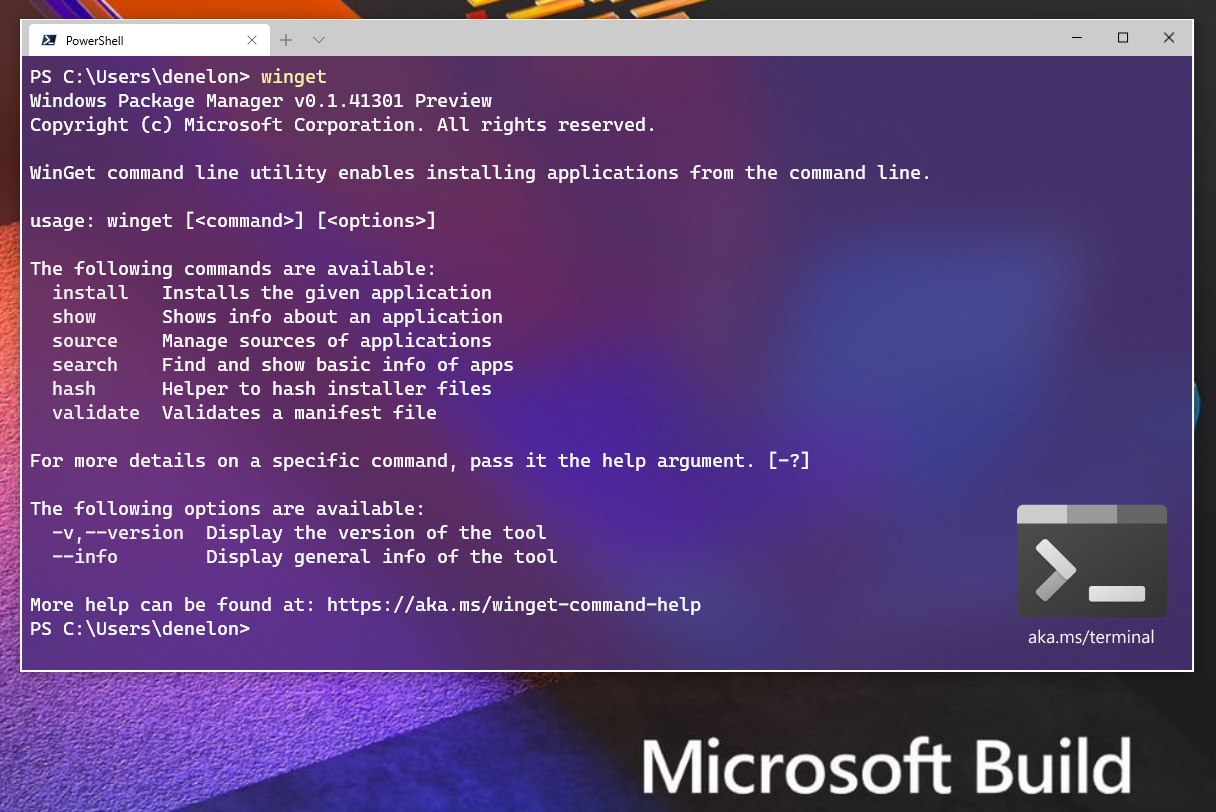
You can search for available packages and display information using the show command. There are also commands to help with manifest creation and validation (hash and validate). Once the first third-party repository is published, you will be able to add that repository as a source as well. We’re providing documentation at https://docs.microsoft.com/windows/package-manager and both of the GitHub repositories.
How do I get it?
We have provided three different ways for you to get your hands on the Windows Package Manager. If you are a Windows Insider, you may already have it. First, you can head over to the open source GitHub repository for the client. Second, you can join any of the Windows Insider rings. Third, you can join the Windows Package Manager Insider program by providing your Microsoft Account (MSA) to Windows Package Manager Insider Program and request to be included in the preview. Either of the Insider programs will ensure you automatically receive updates as we progress from preview to general availability. After you have joined either Insider program, head over to the Microsoft Store and get the App Installer. The Windows Package manager will be available after you get the update.
Why not contribute to another open source package manager?
We looked at several other package managers. There were several reasons leading us to create a new solution. One critical concern we had was how to build a repository of trusted applications. We are automatically checking each manifest. We leverage SmartScreen, static analysis, SHA256 hash validation and a few other processes to reduce the likelihood of malicious software making its way into the repository and onto your machine. Another key challenge was all the changes required to be able to deliver the client program as a native Windows application.
Which versions of Windows will be supported?
Windows Package Manager will support every Windows 10 version since the Fall Creators Update (1709)! The Windows Package Manager will be delivered with the Desktop App Installer when we ship version 1.0. If you are building software to run on Windows 10 you will have a simple way for your customers to install your software on billions of machines.
But what about…
We are expecting you have plenty of questions. What does this mean for the Windows store? It doesn’t mean anything for the Windows store. The Windows Package Manager is a command line interface, no marketing, no images, no commerce. Although we do plan on making those apps installable too.
What about insert any other package manager here? We think they are great. If they want to leverage our repository of validated packages, they can. If they want to see how we are doing it, it is open source. We’re open to feedback and suggestions.
We have already talked with a few of the well-known package manager teams. Chocolatey has a vibrant community with a massive collection of applications, and a rich history supporting both open source and enterprise customers. Scoop provides a convenient way to allow software to be installed without the UAC popups. Ninite keeps an eye on updates for all the apps it installed. There are many others like AppGet, Npackd and the PowerShell based OneGet package manager-manager.
If you are happy with your current package manager, keep using it. Our goal is to make installing software on Windows better for everyone.
What’s next?
We have a long list of features we think you will like. Take a look at the list of issues we have already created on GitHub. Be sure to +1 any issues you feel strongly about. If you do not see something, and you would like us to consider it, just create a new issue.
The post Windows Package Manager Preview appeared first on Windows Command Line.
]]>