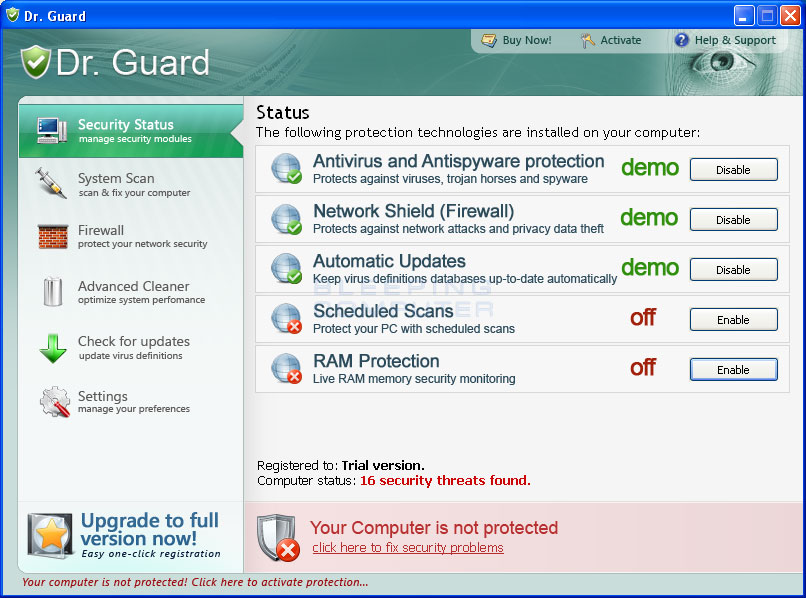
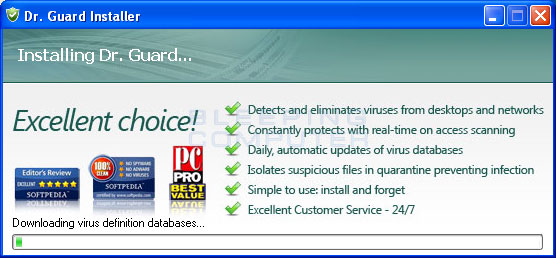
Dr. Guard is a rogue anti-spyware program from the same family as Paladin Antivirus. This rogue is promoted and installed through the use of fake alert Trojans that advertise the program on your desktop. This rogue is also known to be bundled with the TDSS, or TDL3, rootkit. As MBAM is not capable of removing this rootkit, you may need to request further assistance in our Virus, Trojan, Spyware, and Malware Removal Logs forum to remove all of the malware on your computer.
Once downloaded and installed, Dr. Guard will attempt to uninstall various security applications in order to protect itself from being removed. The anti-malware programs that it tries to uninstall include:
- Malwarebytes Anti-Malware
- F-Secure
- NOD32
- Norton Internet Security
- Avira AntiVir
- Agnitum Outpost Security Suite
- AVG8
- avast!
- AntiVir
The program will then load and start to scan your computer for infections. Once the scan is finished it will state that there are numerous infections on your computer, but will not allow you to remove them until you purchase the program. In reality, the infections that it shows are all fake and do not actually exist on your computer. Therefore, please do not purchase this program based upon any of the scan results it shows.
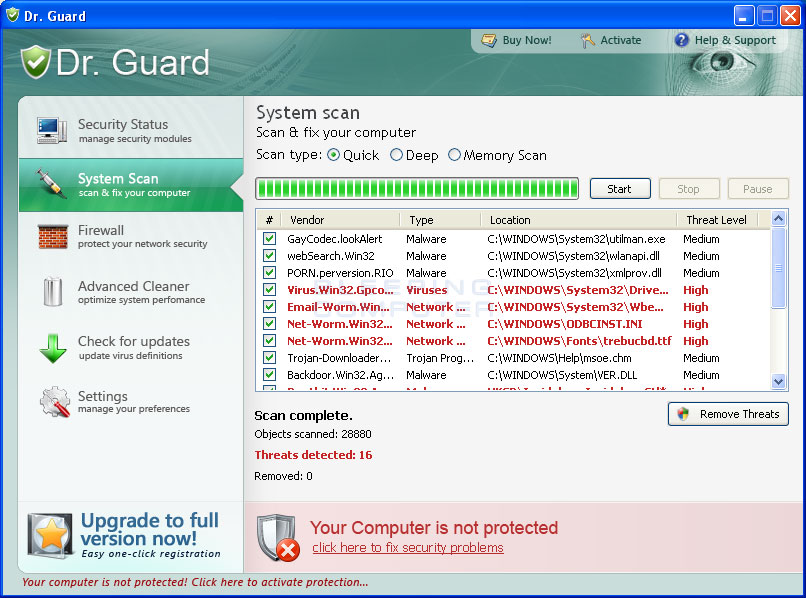
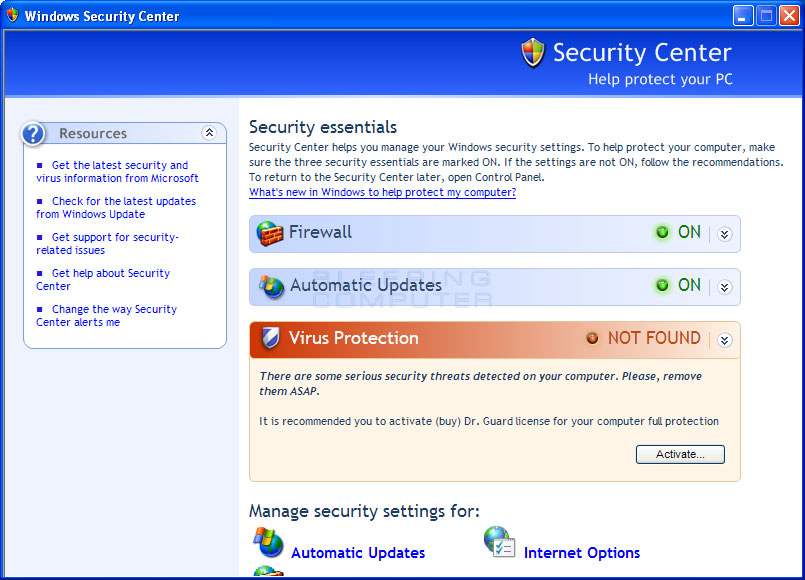
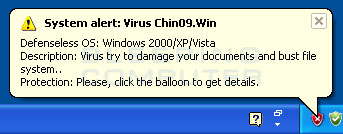
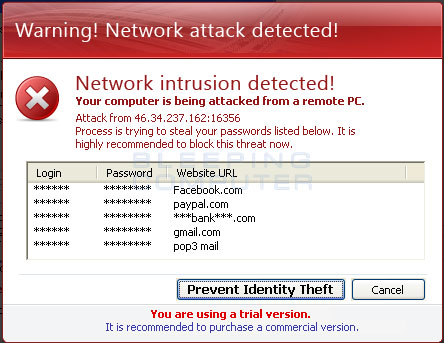
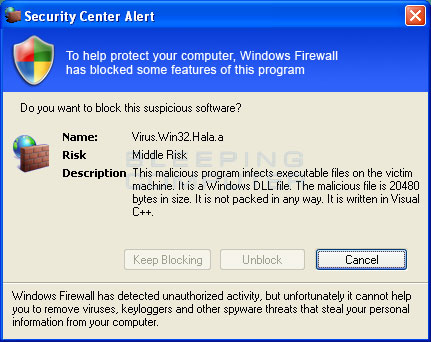
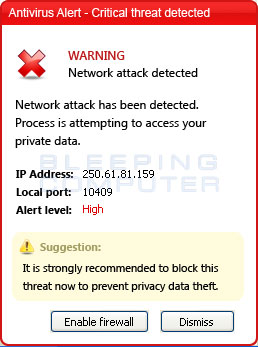
Dr. Guard also employs numerous methods where it tries to trick you into thinking you are infected. The first method is the display of a Window that impersonates the legitimate Windows Security Center. The difference is that this fake version suggests you purchase Dr. Guard to protect yourself. While the program is running you will also see a constant display of fake security alerts and warnings appear on your desktop and Windows taskbar. These alerts contain dire messages stating that your computer is under attack, all of your data is being deleted, or that personal information is being sent to a remote location. Some examples of the alerts you may see include:
ANTIVIRUS IS RUN IN DEMO MODE. ACTIVATE YOUR ANTIVIRUS OTHERWISE ALL THE DATA WILL BE LOST OR DAMAGED!
DANGEROUS! ANTIVIRUS DETECTED SOME HARMFUL PROGRAMS ON YOUR PC! THEY MAY CORRUPT YOUR INFORMATION OR SEND IT TO HACKERS.
PLEASE, OPTIMIZE YOUR PC. IT RUN ONLY 10%.
NEED HELP? PLEASE, CONTACT DR. GUARD CUSTOMER SUPPORT SERVICE.Windows Firewall has detected unauthorized activity, but unfortunately it cannot help
you to remove viruses, keyloggers and other spyware threats that steal your personal
information from your computerSystem files of your computer are damaged. Please, restart your system ASAP.
There are some serious security threats detected on your computer. Please, remove them ASAP.There are some serious security threats detected on your computer: viruses, trojans, keyloggers, exploits etc.
Your computer and all your personal data are in serious danger.
Protection: Click the balloon to install antivirus software.Defenseless OS: Windows 2000/XP/Vista
Description: Spyware. Blocks access to computer. Attacks porn sites visitors.
Protection: Click the balloon to install antivirus software.
Just like the fake scan results, these fake alerts are just another tactic where Dr. Guard is trying to convince you that you have a security problem on your computer.
As you can see, Dr. Guard was created to trick you into thinking you are infected so that you will then purchase the program. It goes without saying that you should definitely not purchase this program, and if you already have, please contact your credit card company to dispute the charges. To remove this infection and any related malware, please use the removal guide below.
Dr. Guard Removal Options
Self Help Guide
If you are uncomfortable making changes to your computer or following these steps, do not worry! Instead you can get free one-on-one help by asking in the forums.
- Print out these instructions as we may need to close every window that is
open later in the fix.
- It is possible that the infection you are trying to remove will not allow
you to download files on the infected computer. If this is the case, then
you will need to download the files requested in this guide on another computer
and then transfer them to the infected computer. You can transfer the files
via a CD/DVD, external drive, or USB flash drive.
- Before we can do anything we must first end the processes that belong to
Dr. Guard
so that it does not interfere with the cleaning procedure. To do this, please
download RKill to your desktop from the following link.
RKill Download Link - (Download page will open in a new tab or browser window.)
When at the download page, click on the Download Now button labeled iExplore.exe download link. When you are prompted where to save it, please save it on your desktop. - Once it is downloaded, double-click on the iExplore.exe
icon in order to automatically attempt to stop any processes associated with
Dr. Guard
and other Rogue programs. Please be patient while the program looks for various
malware programs and ends them. When it has finished, the black window will
automatically close and you can continue with the next step. If you get a
message that RKill is an infection, do not be concerned. This message is just
a fake warning given by
Dr. Guard
when it terminates programs that may potentially remove it. If you run into
these infections warnings that close RKill, a trick is to leave the warning
on the screen and then run RKill again. By not closing the warning, this typically
will allow you to bypass the malware trying to protect itself so that rkill
can terminate
Dr. Guard
. So, please try running RKill until the malware is no longer running. You
will then be able to proceed with the rest of the guide. If you continue
having problems running RKill, you can download the other renamed versions
of RKill from the rkill
download page. All of the files are renamed copies of RKill, which you
can try instead. Please note that the download page will open in a new browser
window or tab.
Do not reboot your computer after running RKill as the malware programs will start again. - At this point you should download Malwarebytes Anti-Malware, or MBAM, to scan your computer for any any infections or adware that may be present. Please download Malwarebytes from the following
location and save it to your desktop:
Malwarebytes Anti-Malware Download Link (Download page will open in a new window) - Once downloaded, close all programs and Windows on your computer, including
this one.
- Double-click on the icon on your desktop named mb3-setup-1878.1878-3.0.6.1469.exe.
This will start the installation of MBAM onto your computer.
- When the installation begins, keep following the prompts in order to continue
with the installation process. Do not make any changes to default settings
and when the program has finished installing, make sure you leave Launch
Malwarebytes Anti-Malware checked. Then click on the Finish button. If MalwareBytes prompts you to reboot, please do not do so.
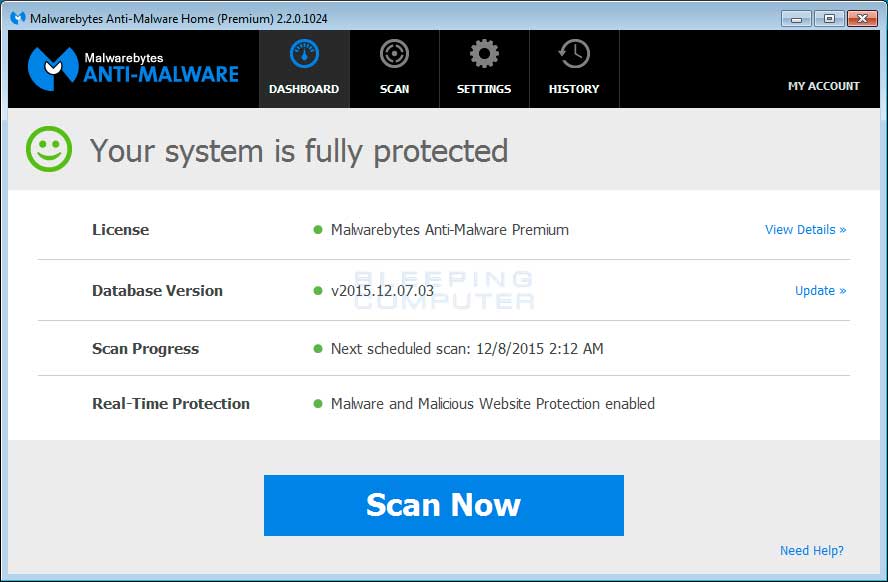
- MBAM will now start and you will be at the main screen as shown below.

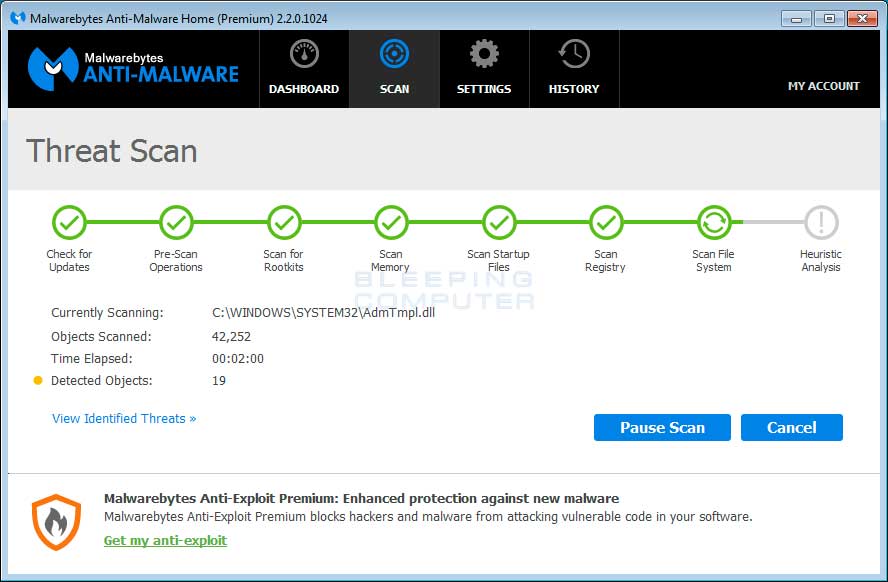
Please click on the Scan Now button to start the scan. If there is an update available for Malwarebytes it will automatically download and install it before performing the scan. - MBAM will now start scanning your computer for malware. This process can
take quite a while, so we suggest you do something else and periodically
check on the status of the scan to see when it is finished.
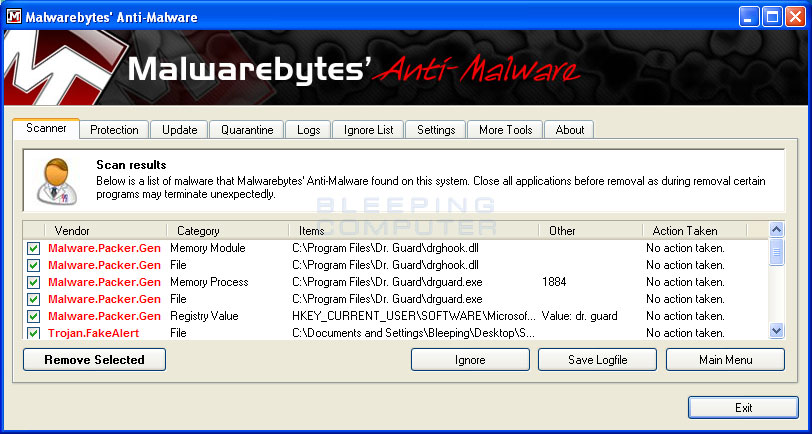
- When MBAM is finished scanning it will display a screen that displays any malware that it has detected. Please note that the infections found may be different
than what is shown in the image below due to the guide being updated for newer versions of MBAM.
You should now click on the Remove Selected button to remove all the seleted malware. MBAM will now delete all of the files and registry keys and add them to the programs quarantine. When removing the files, MBAM may require a reboot in order to remove some of them. If it displays a message stating that it needs to reboot, please allow it to do so. Once your computer has rebooted, and you are logged in, please continue with the rest of the steps. - You can now exit the MBAM program.
- As many rogues and other malware are installed through vulnerabilities found
in out-dated and insecure programs, it is strongly suggested that you use
Secunia PSI to scan for vulnerable programs on your computer. A tutorial on
how to use Secunia PSI to scan for vulnerable programs can be found here:
How to detect vulnerable and out-dated programs using Secunia Personal Software Inspector
Your computer should now be free of the Dr. Guard program. If your current anti-virus solution let this infection through, you may want to consider purchasing the PRO version of Malwarebytes Anti-Malware to protect against these types of threats in the future.