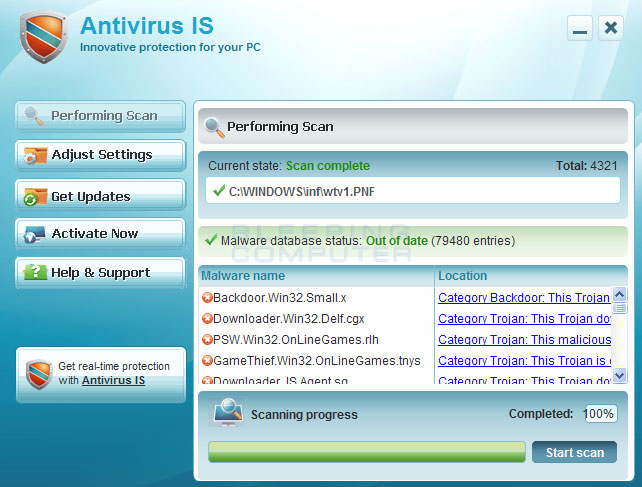
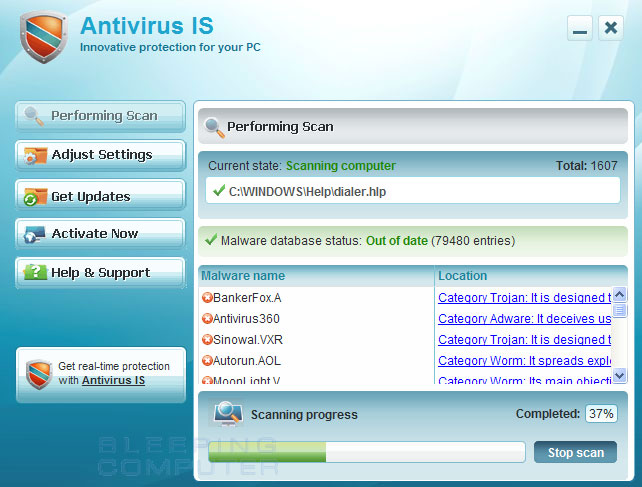
Antivirus IS is a fake security program from the same family as Security Suite. This malware is installed onto your computer through the use of malware and fake online anti-malware scanners. When Antivirus IS is installed it will lay dormant for a period of time and then the program will be displayed and start performing a scan of your computer. Once the scan has finished it will state that your computer is infected with numerous infections, but will not allow you to remove anything until you first purchase the program. This is a scam as the infections it finds are all fake and are only being shown to scare you into purchasing the program.
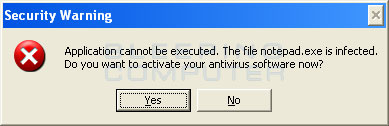
While Antivirus IS is running it will also block you from running numerous programs because it states they are infections. In reality it is blocking the execution of programs so that you are unable to launch a security program that may assist in removing Antivirus IS from your computer. When you attempt to start a program it will terminate it and display the following message:
Security Warning
Application cannot be executed. The file notepad.exe is infected. Do you want to activate your antivirus software now.
When you see these warnings you should not be concerned that your programs are infected. It just Antivirus IS displaying a false message.
While the program is running it will also display fake security warnings that are worded in such a way to make you think that your computer has a severe security problem. Some of the alerts that you may see are:
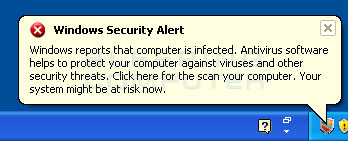
Windows Security Alert
Windows reports that computer is infected. Antivirus software helps to protect your computer against viruses and other security threats. Click here for the scan your computer. Your system might be at risk now.Antivirus software alert
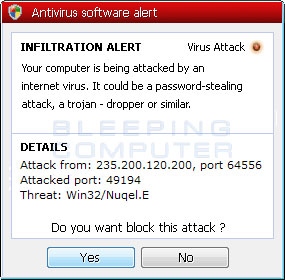
INFILTRATION ALERT
Your computer is being attacked by an internet virus. It could be a password-stealing attack, trojan - dropper or similar.
Threat: Win32/Nuqel.E
Do you want to block this attack? Yes or No
Just like the fake scan results, these security alerts are all false and only being shown to scare you.
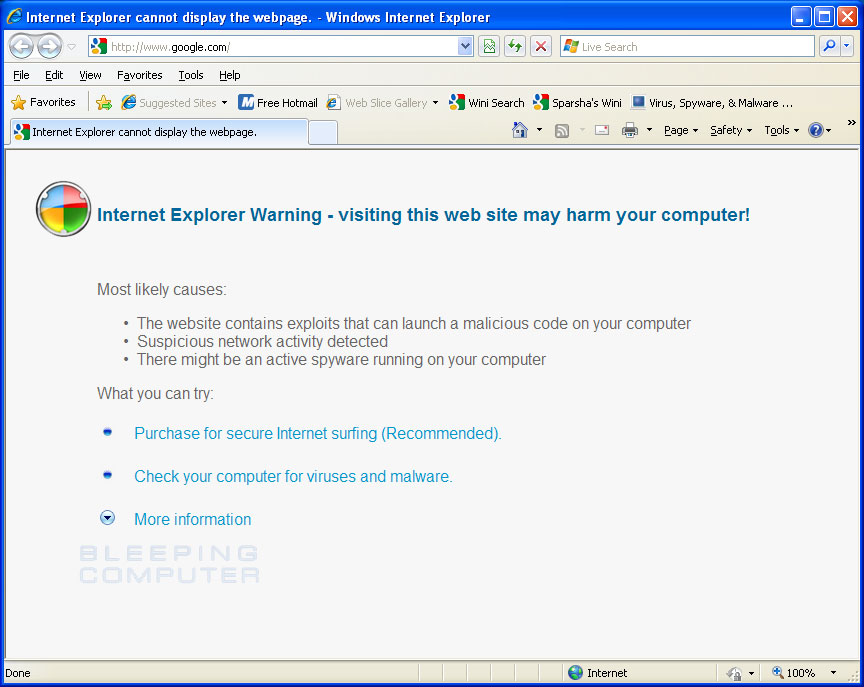
When Antivirus IS is installed it will also configure your computer to use a Proxy Server. The rogue executable listens on TCP port 6522 of your computer and acts as the proxy server. Then when you browse the Internet, the browser will connect to this proxy server, which will randomly display a warning page that says the site you are visiting can harm your computer. The text of this message is:
Internet Explorer warning - visiting this site may harm your computer! Most likely causes:What you can try:
- The website contains exploits that can launch a malicious code on your computer
- Suspicious network activity detected
- There might be an active spyware running on your computer
- Purchase for secure Internet surfing (Recommended)
- Check your computer for viruses and malware
This Internet Explorer hijack is false as well and just another tactic where the developers are trying to convince you that your computer is infected. It is important to note, though, that when you terminate or remove the Antivirus IS process, your browser will no longer work until you disable the configured proxy server. The guide below will walk you through removing the proxy server.
As you can see, Antivirus IS was created for one purposes; to scare you into thinking your computer has a severe virus problem so that you will then purchase the program. You should definitely not purchase Antivirus IS, and if you already have, please contact your credit card company and state that the program is a computer infection and a scam. To remove this infection and any related malware, please follow the steps in the guide below.
Antivirus IS Removal Options
Self Help Guide
If you are uncomfortable making changes to your computer or following these steps, do not worry! Instead you can get free one-on-one help by asking in the forums.
- Print out these instructions as we may need to close every window that is
open later in the fix.
- It is possible that the infection you are trying to remove will not allow
you to download files on the infected computer. If you run into this problem
when following the steps in this guide you will need to download the files
requested in this guide on another computer and then transfer them to the
infected computer. You can transfer the files via a CD/DVD, external drive,
or USB flash drive.
- Reboot your computer into Safe Mode with Networking using
the instructions for your version of Windows found in the following tutorial:
How to start Windows in Safe Mode
When following the steps in the above tutorial, select Safe Mode with Networking rather than just Safe Mode. When the computer reboots into Safe Mode with Networking make sure you login with the username you normally use. When you are at your Windows desktop, please continue with the rest of the steps. - This infection changes your Windows settings to use a proxy server that
will not allow you to browse any pages on the Internet with Internet Explorer
or update security software. Regardless of the web browser you use, for these
instructions we will first need need to fix this problem so that we can download
the utilities we need to remove this infection.
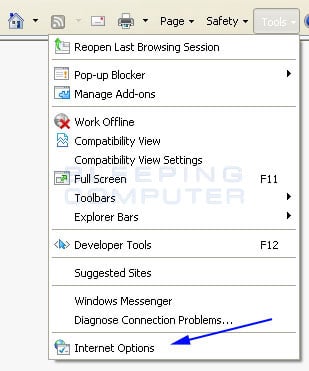
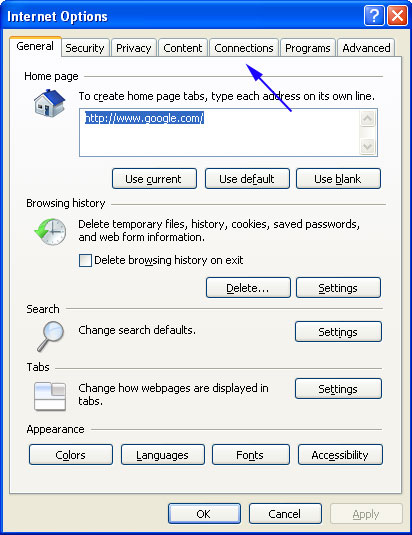
Please start Internet Explorer, and when the program is open, click on the Tools menu and then select Internet Options as shown in the image below.
- You should now be in the Internet Options screen as shown in the image below.
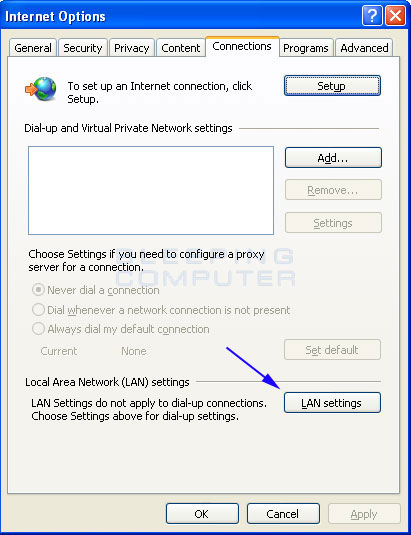
Now click on the Connections tab as designated by the blue arrow above. - You will now be at the Connections tab as shown by the image below.
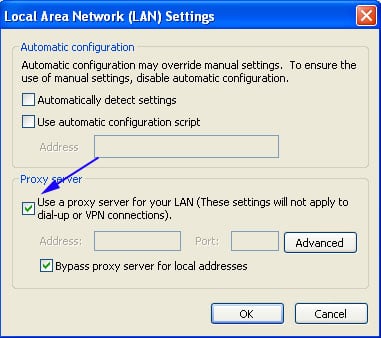
Now click on the Lan Settings button as designated by the blue arrow above. - You will now be at the Local Area Network (LAN) settings screen as shown
by the image below.
Under the Proxy Server section, please uncheck the checkbox labeled Use a proxy server for your LAN. Then press the OK button to close this screen. Then press the OK button to close the Internet Options screen. Now that you have disabled the proxy server you will be able to browse the web again with Internet Explorer. - Now we must end the processes that belong to
Antivirus IS
so that it does not interfere with the cleaning procedure. To do this, please
download RKill to your desktop from the following link.
RKill Download Link - (Download page will open in a new tab or browser window.)
When at the download page, click on the Download Now button labeled iExplore.exe download link. When you are prompted where to save it, please save it on your desktop.
If you are unable to connect to the site to download rkill, please go back and do steps 3-6 again and make sure the infection has not reenabled the proxy settings. You may have to do this quite a few times before you can get the RKill file downloaded. If you still cannot download the RKill program on the infected computer, you should download it to a clean computer and copy it to the infected one via a USB flash drive or CDROM. - Once it is downloaded, double-click on the iExplore.exe icon
in order to automatically attempt to stop any processes associated with
Antivirus IS
and other Rogue programs. Please be patient while the program looks for various
malware programs and ends them. When it has finished, the black window will
automatically close and you can continue with the next step. If you get a
message that RKill is an infection, do not be concerned. This message is just
a fake warning given by
Antivirus IS
when it terminates programs that may potentially remove it. If you run into
these infections warnings that close RKill, a trick is to leave the warning
on the screen and then run RKill again. By not closing the warning, this typically
will allow you to bypass the malware trying to protect itself so that RKill
can terminate
Antivirus IS
. So, please try running RKill until the malware is no longer running. You
will then be able to proceed with the rest of the guide. Do not reboot
your computer after running rkill as the malware programs will start again.
If you continue having problems running RKill, you can download the other renamed versions of RKill from the RKill download page. Both of these files are renamed copies of RKill, which you can try instead. Please note that the download page will open in a new browser window or tab. - At this point you should download Malwarebytes Anti-Malware, or MBAM, to scan your computer for any any infections or adware that may be present. Please download Malwarebytes from the following
location and save it to your desktop:
Malwarebytes Anti-Malware Download Link (Download page will open in a new window) - Once downloaded, close all programs and Windows on your computer, including
this one.
- Double-click on the icon on your desktop named mb3-setup-1878.1878-3.0.6.1469.exe.
This will start the installation of MBAM onto your computer.
- When the installation begins, keep following the prompts in order to continue
with the installation process. Do not make any changes to default settings
and when the program has finished installing, make sure you leave Launch
Malwarebytes Anti-Malware checked. Then click on the Finish button. If MalwareBytes prompts you to reboot, please do not do so.
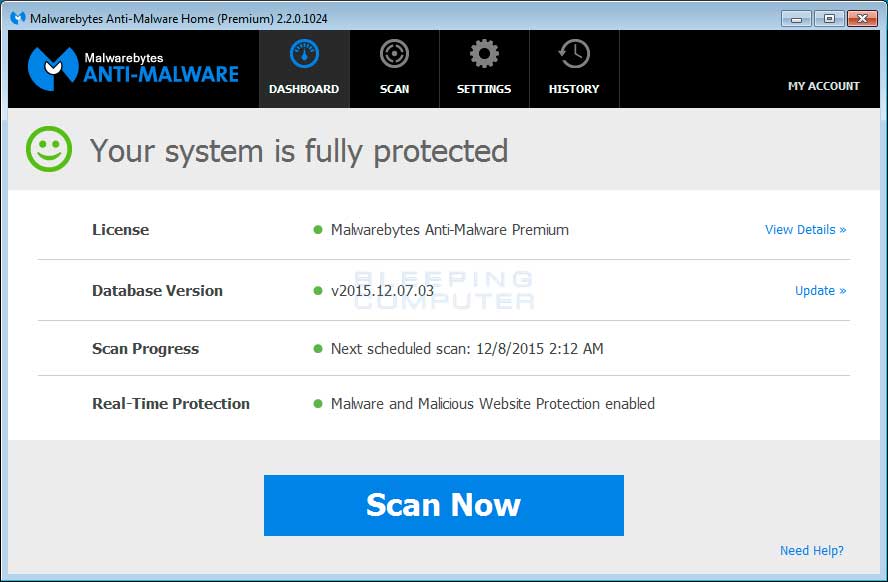
- MBAM will now start and you will be at the main screen as shown below.
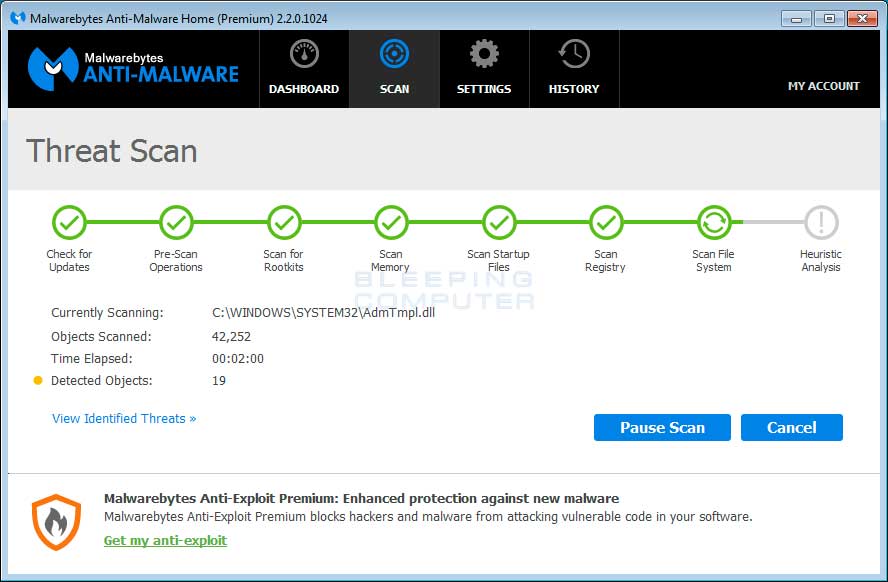
Please click on the Scan Now button to start the scan. If there is an update available for Malwarebytes it will automatically download and install it before performing the scan. - MBAM will now start scanning your computer for malware. This process can
take quite a while, so we suggest you do something else and periodically
check on the status of the scan to see when it is finished.
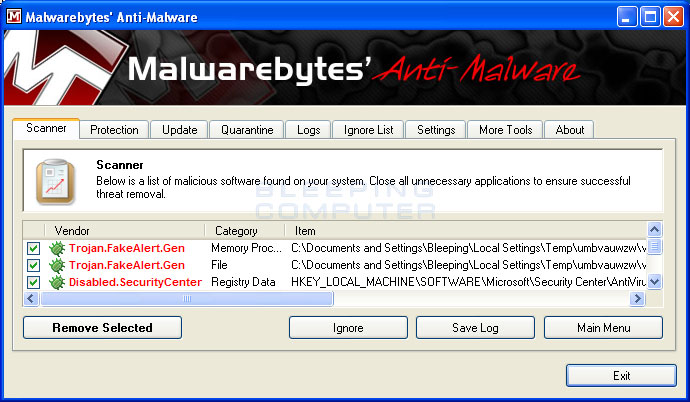
- When MBAM is finished scanning it will display a screen that displays any malware that it has detected. Please note that the infections found may be different
than what is shown in the image below due to the guide being updated for newer versions of MBAM.
You should now click on the Remove Selected button to remove all the seleted malware. MBAM will now delete all of the files and registry keys and add them to the programs quarantine. When removing the files, MBAM may require a reboot in order to remove some of them. If it displays a message stating that it needs to reboot, please allow it to do so. Once your computer has rebooted, and you are logged in, please continue with the rest of the steps. - You can now exit the MBAM program.
- As this infection is commonly bundled with the TDSS infection, you should
also run a program that can be used to scan for this infection. Please follow
the steps in the following guide:
How to remove Google Redirects or the TDSS, TDL3, or Alureon rootkit using TDSSKiller
If after running TDSSKiller, you still feel like there is something not right with the computer, feel free to post a virus removal request using the steps in this topic:Preparation Guide For Use Before Using Malware Removal Tools and Requesting Help
- As many rogues and other malware are installed through vulnerabilities found
in out-dated and insecure programs, it is strongly suggested that you use
Secunia PSI to scan for vulnerable programs on your computer. A tutorial on
how to use Secunia PSI to scan for vulnerable programs can be found here:
How to detect vulnerable and out-dated programs using Secunia Personal Software Inspector
Your computer should now be free of the Antivirus IS program. You may want to consider purchasing the PRO version of Malwarebytes Anti-Malware to protect against these types of threats in the future, as if you had the real-time protection component, that comes with the paid for version, activated it would not have allowed this infection to install.